
The Mac equivalent of Task Manager is Activity Monitor. It allows you to see running apps, background processes, CPU usage, memory usage, disk activity, and network usage.
Task Manager Mac: How to Open It and Manage Apps Easily?
 Reviewed By Brijesh Kumar Singh
  Saipansab Nadaf
Updated on: Apr 29, 2026
How to get Task Manager on a Mac? If you recently switched from Windows to Mac, you may be wondering where the Task manager Mac is. Honestly, macOS does not have a tool with that exact name, but it offers two powerful alternatives: Activity Monitor and Force Quit.
These tools help you see which apps are using too much CPU, memory, energy, or network activity. So, whether you want to monitor performance or fix an unresponsive app, learning how to open Mac task manager tools can make managing your Mac computer much easier.
Quick Answer: How Do You Open Task Manager on a Mac?
- Using Spotlight Search: Press Command + Space > Type Activity Monitor > Press Enter.
- Using Finder: Go to Finder > Applications > Utilities > Activity Monitor.
What is Mac Task Manager?
Mac does not have a tool called Task Manager like Windows. Instead, it uses a built-in app called Activity Monitor.

Activity Monitor allows you to see all the apps and background processes running on your Mac. You can check how much CPU, memory, battery, disk space, and internet bandwidth each app is using in real time.
It is also useful to close an unresponsive app or program, similar to what Task Manager does for Windows. You can quickly fix the app freezes or check for suspicious activity or Malware on Mac.
Why You May Need a Task Manager on Mac?
Most people use Activity Monitor, aka macOS Task Manager, when something feels wrong with their Mac. Maybe your Mac computer is freezing, suddenly becomes slow, the fan starts spinning loudly, or the battery starts draining faster than usual. It can help you:
- Find apps using too much CPU or RAM.
- Check which apps are draining battery.
- See what is using your internet in the background.
- Identify apps marked as “Not Responding”.
- Stop unnecessary startup apps and background processes.
- Detect unusual activity from unknown processes.
This tool is not just useful for everyday users. IT teams and security professionals also use it to monitor performance, troubleshoot system issues, and spot suspicious background activity.
If you notice an unknown process using too much CPU, memory, or network data, it could point to malware, unwanted scripts, or a compromised app.
How to Open Task Manager on Mac?
There are multiple ways to access Activity Monitor. Spotlight Search is the easiest of them.
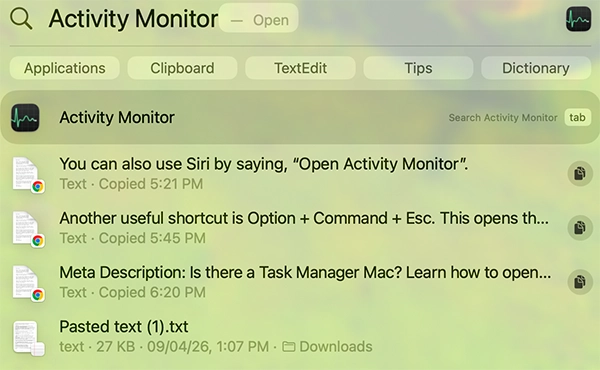
Here’s how to get to Task Manager on MacBooks using Spotlight:
- Press Command + Space.
- Type Activity Monitor and press Enter.
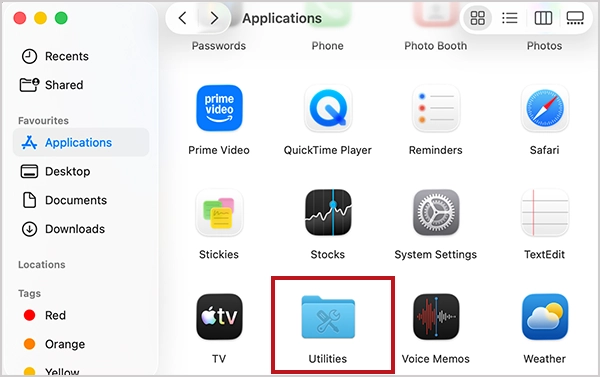
Here’s how to open Task Manager for Mac manually through Finder:
- Open Finder.
- Then, go to Applications.
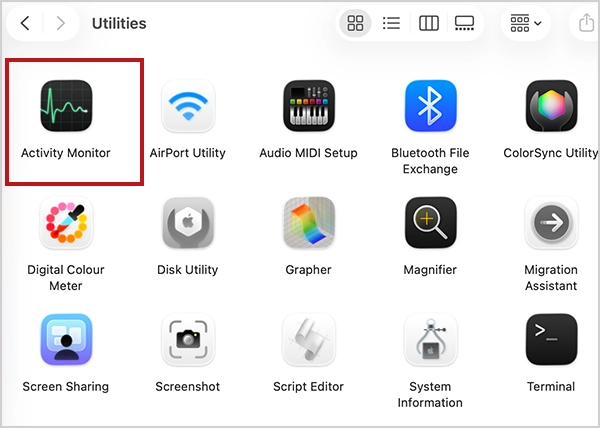
- Open Utilities.
- Now, click on Activity Monitor.
And, if you use Activity Monitor often, it would be better if you add it to your Dock. Just right-click the Activity Monitor icon, select Options, and then click on Keep in Dock. You can also use Siri by saying, “Open Activity Monitor”.
How to Use Activity Monitor on Mac (macOS Task Manager)?
Once you open Activity Monitor, you will see five main tabs: CPU, Memory, Energy, Disk, and Network. Let’s understand what they do:
1. CPU Tab
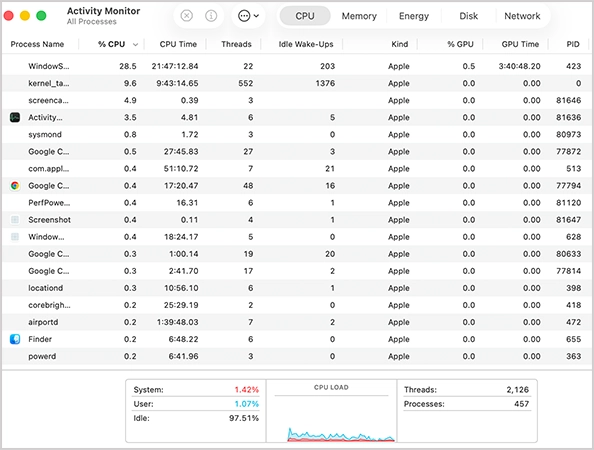
The CPU tab on the Task Manager for Mac shows which apps and processes are using the most processing power. If one app is using a very high percentage of CPU for a long time, it can make your Mac slow, noisy, or hot.
2. Memory Tab
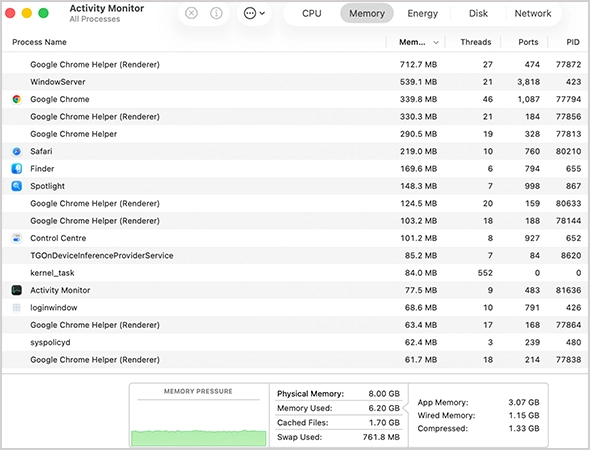
The memory tab shows how your Mac’s RAM is being used. Here, pay attention to the Memory Pressure graph.
- Green means your Mac is running fine.
- Yellow means the system is under pressure.
- Red means your Mac is running low on memory.
If memory pressure stays red often, close or delete unused apps on Mac or consider upgrading your RAM.
3. Energy Tab
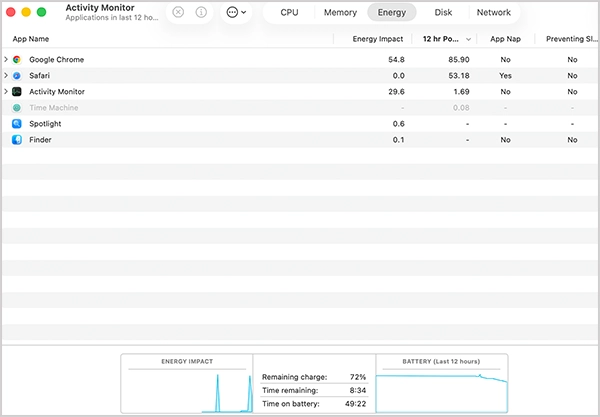
This tab shows which apps are draining your battery. This is especially useful for MacBook users because some apps continue using power even when running in the background.
4. Disk Tab
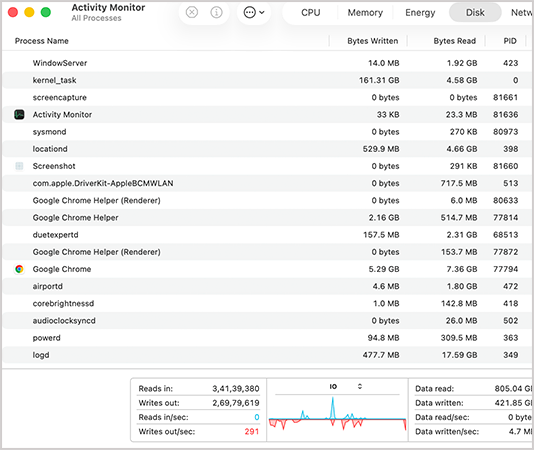
The Disk tab tracks how much data apps are reading from and writing to your storage. If your Mac feels slow while opening files or saving projects, this section can help you find the app causing high disk usage.
5. Network Tab
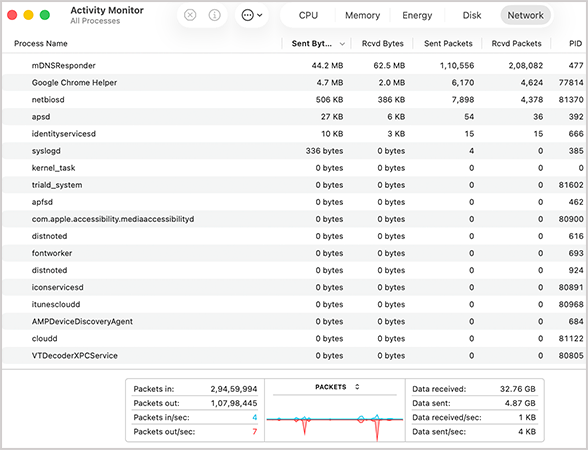
The Network section shows how much Internet data each app is sending and receiving. You should check this if your internet feels slow or if you want to check whether an unknown app is using too much data in the background.
You can also use the search bar inside Activity Monitor to quickly find a specific app or process. Once you find it, click on it to see more details or close it.
How to Force Quit an App on Mac?
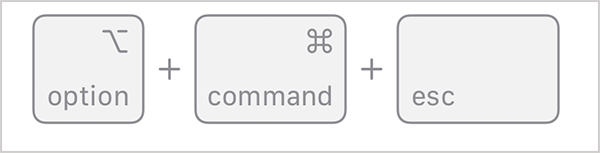
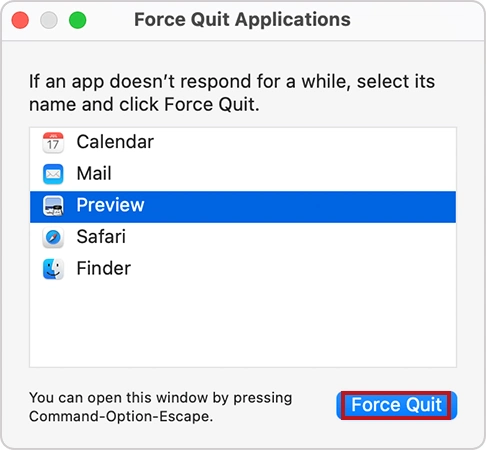
The fastest way to force quit an app is a useful Task Manager Mac shortcut. Just press Option + Command + Esc. This opens the Force Quit Applications Window. Select the frozen app and click on Force Quit.
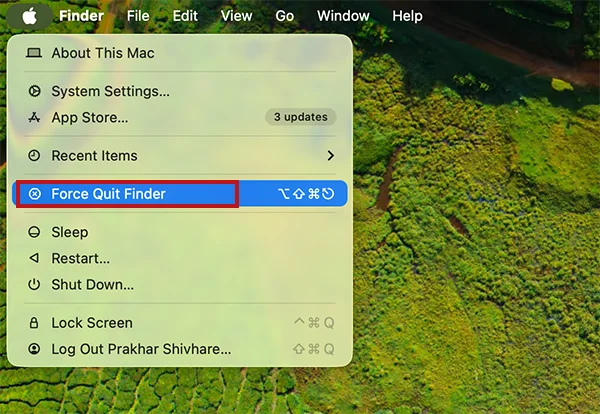
You can also use the Apple Menu:
- Click the Apple logo in the top-left corner.
- Then, select Force Quit Finder.
- Choose the app you want to close and click Force Quit again.
Another option is through the Dock:
- Right-click the app icon.
- Hold the Option key if needed.
- Finally, click Force Quit.
Now, if you want more control, use Activity Monitor as the task killer on Mac:
- Open Activity Monitor.
- Select the frozen app or process.
- Click the small X button at the top.
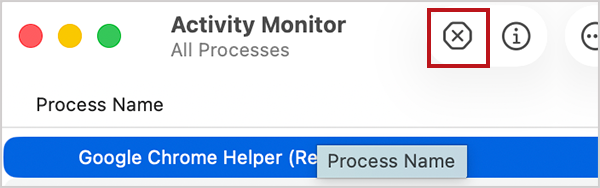
- Choose Quit or Force Quit.
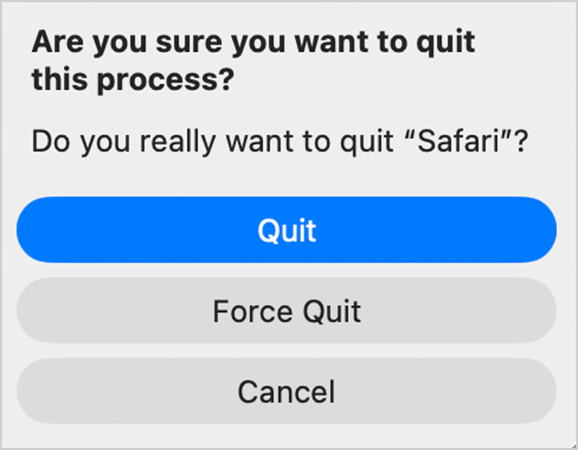
For apps that completely stop responding, you can also use the Command + Option + Shift + Esc shortcut. Hold it for around 3 seconds. This force quits the app currently active on your screen.
Wrapping Up
Even though Task Manager Mac is not an official tool, Activity Monitor gives you everything you need to manage apps, monitor performance, and close frozen processes.
Once you know how to open and use it, you can fix the most common Mac problems in a few clicks instead of restarting your system every time.
Frequently Asked Questions (FAQs)
Frequently Asked Questions
What is the equivalent of Task Manager on Mac?
How do I get to Task Manager on a Mac?
You can open Activity Monitor by going to Finder > Applications > Utilities or by using Spotlight search.
What is Activity Monitor on Mac?
It is Apple’s built-in system utility that helps you monitor app activity, resource usage, and background processes on your Mac.
What is the shortcut for Force Quit on Mac?
The standard Force Quit shortcut on Mac is Option + Command + Esc. It opens the Force Quit window so you can close frozen apps quickly.
What is the Task Manager shortcut in Mac?
Mac does not have a direct Task Manager shortcut like Windows, but you can open the Activity Monitor through Spotlight using the Command + Space shortcut.
Related Posts

8 Best AI Presentation Makers for Business-Ready Slides
Making a presentation doesn’t just mean designing slides. It’s about defining a clear structure, using defined logic, useful visuals, and…

Queue Management Software Troubleshooting Guide: 8 Common Faults and Fixes
The long wait times and ineffective management of customer queues can have a significant impact on customer satisfaction and business…

How to Use Similarweb Website Traffic Data for Competitor Research
Competitor research without traffic data is guesswork. You can guess who your rivals are, guess how big they are, guess…

Choosing the Right Hosting Model for Scalable Digital Platforms
The performance of digital business is directly related to website speed, uptime, and scalability. Slow page performance has a negative…

How Data-Driven Performance Tools Are Transforming Employee Recognition in Tech Companies
“People work for money but go the extra mile for recognition, praise, and rewards.” — Dale Carnegie (Writer & Teacher)…

Why Businesses Struggle to Collect Reliable Data from the Web
Almost every company that depends on data runs into the same problem: although they can find the data they need,…

Why Financial Data Recovery Matters for Businesses
Financial data supports every part of a business, directly affecting cash flow, payroll, tax reports, audits, customer billing, and daily…

CMMC Compliance Is Coming for Manufacturers. Here Is What You Need to Do
“Cybersecurity is much more than a matter of IT.” — Stephane Nappo (Cybersecurity Professional) For manufacturers working within the defense…

How Data-Based Tools Influence Learning Performance
Learning has transformed in the modern age with the integration of new technologies to help students and professionals prosper in…