


Yes, Tahoe offers a redesigned interface, a much smarter Spotlight, expanded Apple Intelligence features, and improved Continuity. However, Sequoia remains a great choice for users who prioritize stability or use older hardware.
Mac Tahoe vs Sequoia: Which macOS Version Should You Choose?
Table of Contents
- Mac Tahoe vs Sequoia: Quick Comparison
- What’s New in macOS Tahoe?
- macOS Tahoe vs Sequoia: Performance and Battery Life
- macOS Tahoe vs Sequoia: Design and User Experience
- macOS Tahoe vs Sequoia: Size and Reliability
- macOS Tahoe vs Sequoia: Compatibility
- Tahoe or Sequoia: Which One Should You Choose?
- Frequently Asked Questions
Choosing between macOS Tahoe and Sequoia comes down to more than just getting the newest version. While Tahoe introduces a redesigned interface, smart Spotlight, and better iPhone continuity, Sequoia remains a stable and reliable choice for many users.
The right option depends on your Mac model, the apps you use, and your preferences. This Mac Tahoe vs Sequoia comparison will help you decide which macOS version is the better fit for you in 2026.
Mac Tahoe vs Sequoia: Quick Comparison
If you are deciding whether to upgrade your macOS, here’s a quick overview of key macOS Sequoia vs Tahoe differences:
| Feature | macOS Tahoe | macOS Sequoia |
| Version | macOS 26 | macOS 15 |
| Best For | Users who want the latest features | Users who prioritize familiarity and stability |
| Design | New Liquid Glass interface | Familiar macOS design |
| Spotlight | Search, actions, shortcuts, and app controls | Standard search experience |
| Apple Intelligence | Expanded AI features | First version to introduce Apple Intelligence |
| Phone App | Available through Continuity | Not available |
| Gaming | New Games app and Game Overlay | Standard Game Center |
| Compatibility | Apple silicon and selected Intel Macs | Support more Intel Macs |
| Long-Term Support | Better future support | Limited future support |
What’s New in macOS Tahoe?
Rather than introducing a handful of isolated features, macOS Tahoe refreshes the overall Mac experience. Here are some of the biggest additions:
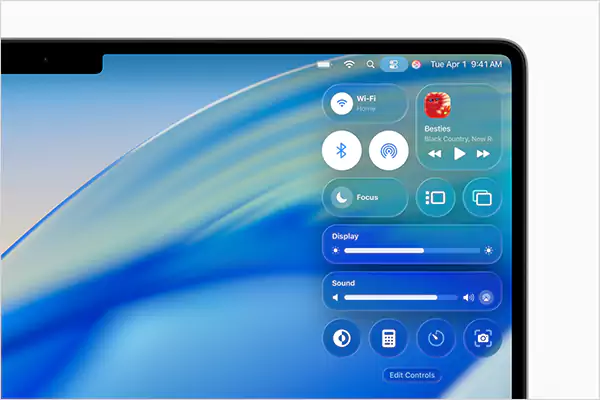
- Liquid Glass Interface: Tahoe introduces Apple’s new Liquid Glass design language. Windows, menus, sidebars, app icons, and Control Center now feature translucent effects and smoother animations. It gives macOS a cleaner, more modern appearance while keeping the familiar workflow intact.
- Phone App on Mac: For the first time, the Phone app comes to macOS through Continuity. You can make and receive calls, check voicemails, use call screening, and take advantage of Hold Assist.

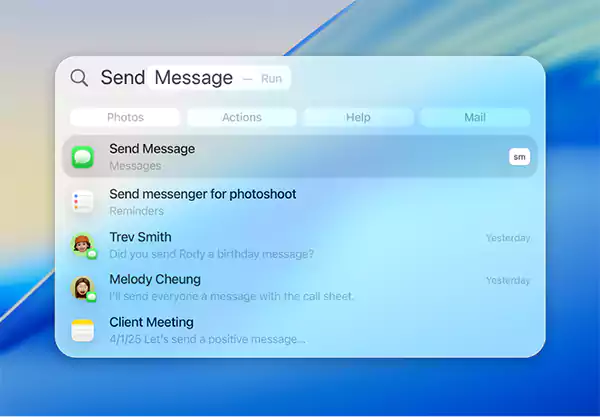
- Smarter Spotlight: Spotlight received one of its biggest updates in years. Instead of simply searching for files, you can now perform quick actions, launch shortcuts, control supported apps, access clipboard history, find files, and access settings faster.
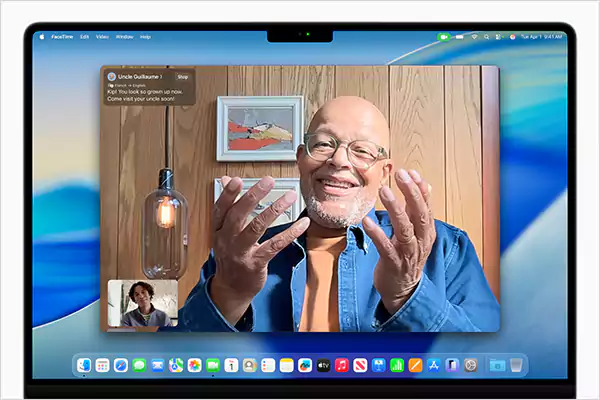
- Better Apple Intelligence: Tahoe builds on the Apple Intelligence features introduced in Sequoia. Writing tools, Live Translation, smarter Shortcuts, and AI-powered workflows are more deeply integrated across the operating system, making everyday tasks quicker on supported Apple Silicon Macs.
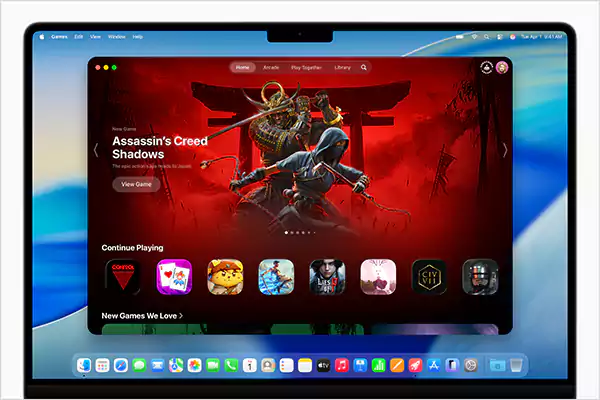
- Improved Gaming: Apple also introduced a dedicated Games app that brings together installed games, Apple Arcade, and Game Center in one place. New features like Game Overlay make it easier to adjust settings, chat with friends, and access gaming controls without leaving your game.
Overall, Tahoe is not about adding dozens of small features. Instead, it improves the parts of macOS you use every day, making the experience feel faster, cleaner, and more connected.
macOS Tahoe vs Sequoia: Performance and Battery Life
Performance depends largely on the Mac you are using. On an Apple Silicon Mac, Tahoe performs just as smoothly as Sequoia for everyday tasks like browsing, multitasking, document editing, and media consumption.
Battery life is also very similar between macOS Tahoe and Sequoia. Most users won’t see a dramatic increase simply by upgrading to Tahoe. Instead, improvements come from better background process management that helps maintain consistent battery performance throughout the day.
On an Intel Mac, Tahoe may feel less responsive, especially with newer visual and AI features.
macOS Tahoe vs Sequoia: Design and User Experience
Design is where the biggest difference becomes obvious. Sequoia continues the familiar macOS look that long-time users already know. It is clean, consistent, and comfortable for everyday use.

Tahoe introduces Apple’s Liquid Glass design, adding depth, transparency, and smoother animations without changing core workflows. It also improves everyday use with customizable folder colors and icons, a transparent menu bar, a new Phone app, and a more powerful Spotlight.
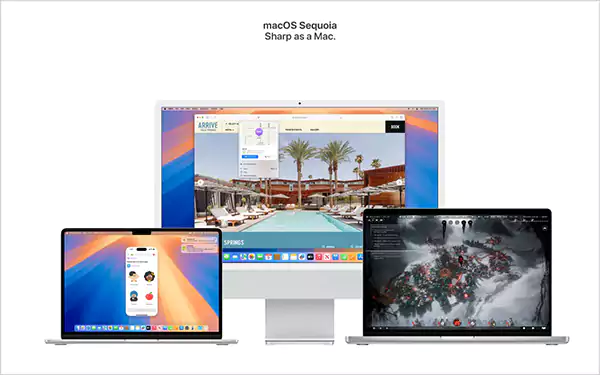
The overall experience remains familiar, just more polished. You can choose Tahoe for a modern look and new features, and Sequoia if you prefer a familiar interface.
macOS Tahoe vs Sequoia: Size and Reliability
Now let’s talk about the Sequoia vs Tahoe size comparison. Apple does not provide a fixed installer size because it varies based on your Mac model, current macOS version, language packs, and whether you are upgrading or performing a clean installation.
In general, you should have around 20 GM to 35 GB of free storage before installing either version. If storage is limited, free up additional space on the Mac before starting the upgrade to reduce the chances of installation errors.
While comparing Sequoia vs Tahoe reliability, Sequoia is a mature system with proven stability after multiple updates. Tahoe has also improved significantly and is now reliable for most users on supported devices.
If you use professional apps or older plug-ins, it is still a good idea to check compatibility before upgrading.
macOS Tahoe vs Sequoia: Compatibility
Before upgrading, make sure your Mac supports the version you plan to install. Compatibility is often the biggest factor when deciding between Tahoe and Sequoia.
Tahoe supports Apple Silicon Macs and a limited number of Intel Models. Apple has confirmed that Tahoe is the final major macOS release for Intel-based Macs, meaning future versions will require Apple Silicon.
Sequoia supports a wide range of older Macs, making it the better option if your device is not compatible with Tahoe.
Choose macOS Tahoe if you have:
- MacBook Air (Apple silicon, 2020 or later)
- MacBook Pro with Apple silicon
- Recent iMac models
- Mac mini (2020 or later)
- Mac Studio
- Mac Pro (2019 or later)
Stay on macOS Sequoia if:
- Your Mac is not supported by Tahoe.
- You rely on an older Intel Mac.
- Your essential apps or plug-ins are not fully compatible with Tahoe yet.
Before upgrading, it is always a good idea to check Apple’s latest compatibility list and confirm that your most important applications support the new macOS version.
Tahoe or Sequoia: Which One Should You Choose?
In conclusion, the right choice between macOS Tahoe and Sequoia ultimately comes down to your device and your priorities.
If you are using a supported Apple Silicon Mac and want access to the latest features, improved productivity tools, and long-term support, macOS Tahoe is the clear upgrade.
On the other hand, if you rely on an older Intel Mac or depend on legacy applications that have not been updated, macOS Sequoia remains a stable and reliable option.
Both versions serve their purpose well, but for most modern Macs, Tahoe represents the future of macOS.
Frequently Asked Questions
Is macOS Tahoe better than Sequoia?
Is Mac Tahoe more secure than Sequoia?
Tahoe includes Apple’s latest security improvements, but Apple also continues to release important security updates for Sequoia.
Should I upgrade to macOS Tahoe?
If your Mac supports Tahoe and your essential apps are compatible, it is recommended to upgrade. If you use an older Intel Mac or business-critical software, check compatibility before upgrading.
Do Intel Macs still support macOS Tahoe?
Yes, but only selected Intel Mac models. Also, Apple has confirmed that Tahoe is the final major macOS release for Intel-based Macs.
Which is better for Apple Intelligence: Tahoe or Sequoia?
Tahoe is clearly a better choice for Apple Intelligence. While Sequoia introduced it, Tahoe expands it with deeper integration across macOS. This makes AI-powered features more useful for everyday tasks.
Related Posts

How to Fix DISM Error 87 in Windows?
DISM Error 87 usually appears when Windows cannot understand a DISM command or one of its parameters. You may see…

How to Restart Explorer.exe in Windows?
A frozen taskbar, missing desktop icons, or an unresponsive File Explorer can make Windows feel stuck even when your computer…
![How to Reopen Closed Tabs on Mac [Easy Ways to Restore Tabs]](https://datarecovee.com/knowledge-base/wp-content/uploads/2026/10/how-to-reopen-closed-tabs-ftd-img.webp)
How to Reopen Closed Tabs on Mac [Easy Ways to Restore Tabs]
Accidentally closing the wrong tab can be super annoying, especially when you were in the middle of something important. You…

What Is a .BAT file and How Do You Create One?
You may have seen a file ending in .bat and wondered why opening it brings up a Command Prompt window…

How to Disable Microsoft Edge in Windows? 4 Quick Methods
Microsoft Edge can feel difficult to “turn off” because several Windows and Edge settings control when it starts and what…

How to Open EXE Files on Mac: 5 Ways to Run Windows Apps
If you have downloaded a Windows .exe file on your Mac, double-clicking it won’t make it run. macOS does not…

How to Sign Out of iMessage on Mac?
Your Mac can quietly become another place where your private conversations appear. That’s convenient until you are using a shared…

What is Windows Fast Startup and How Does It Work?
Fast Startup can make your PC boot noticeably faster after a shutdown. Instead of completely rebuilding the Windows kernel state…

How to Unzip Files on Mac: 3 Easy Ways to Extract ZIP Files
A ZIP file has a funny way of making a simple task feel more complicated than it is. On a…