


Ans. This error occurs when DISM cannot process a command because of incorrect syntax, an invalid parameter, an unsupported option, or an incompatible servicing context.
How to Fix DISM Error 87 in Windows?
DISM Error 87 usually appears when Windows cannot understand a DISM command or one of its parameters. You may see “Error: 87” along with a message such as “The cleanup-image option is unknown”, even though the command looks correct.
In many cases, the problem is a syntax or spacing mistake rather than serious Windows corruption. This guide explains what causes the error in Windows, how to fix it, and how to avoid it in the future.
What Causes Error 87 When Running DISM?
Error 87 DISM means DISM (Deployment Image Servicing and Management) could not process the command it received. The exact message depends on the command, but “DISM cleanup image option is unknown” usually means that it did not recognize the /Cleanup-Image parameter correctly.
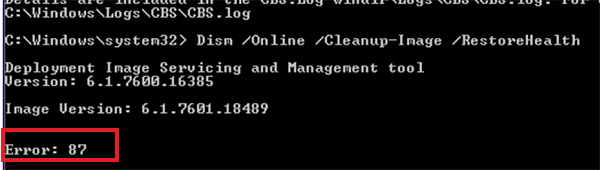
The most common cause is incorrect command syntax. For example, people use the command without spaces:
DISM.exe/online/cleanup-image/restorehealth
The standard command for repairing the currently running Windows installation includes spaces. The spaces between the command and each parameter matter. Other possible causes include
- A typing error in the DISM command.
- An option that is not supported in the current servicing context.
- An incompatible or outdated DISM version being used with a newer Windows image.
- An incorrect /Source path when a repair source is specified.
The commands and options available to DISM can also vary depending on whether you are servicing the running Windows installation or an offline image.
So, if you see DISM /online /cleanup-image /restorehealth Error 87. It does not necessarily mean Windows is corrupted. In many cases, DISM is rejecting the command before it can perform the requested operation.
How to Fix DISM Error 87 in Windows?
Start with the basic syntax and move to image repair only if the command still fails. Let’s see how to tackle the “The cleanup-image option is unknown” error.
1. Open Command Prompt as Administrator
DISM commands that repair Windows while troubleshooting errors like System Service Exception BSOD and others should be run from an elevated Command Prompt.
- Search for Command Prompt in Windows.
- Right-click it and select Run as administrator.
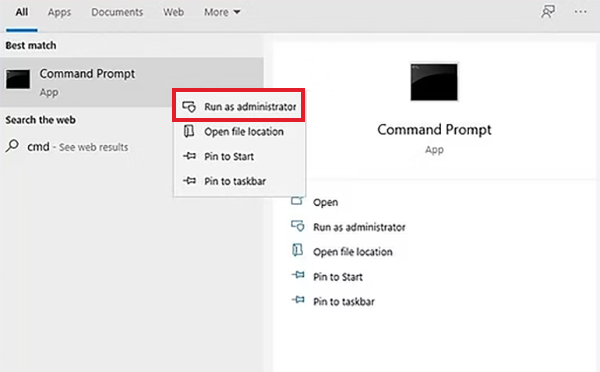
- Select Yes when the User Account Control (UAC) prompt appears.
Microsoft recommends using an elevated Command Prompt for DISM and SFC repairs.
2. Run the Correct DISM RestoreHealth Command
This is one of the most basic mistakes. You just need to enter the following command exactly as shown:
DISM.exe /Online /Cleanup-Image /RestoreHealth
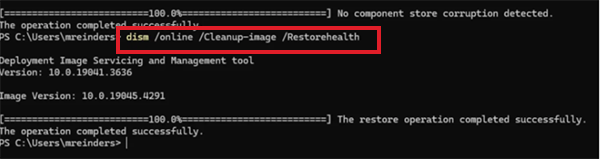
Make sure there is a space between:
- DISM.exe and /Online
- /Online and /Cleanup-Image
- /Cleanup-Image and /RestoreHealth
Here, /Online tells DISM to service the currently running Windows installation, while /Cleanup-Image enables Windows image servicing, and /RestoreHealth checks for component-store corruption and attempts to repair it.
Press Enter and allow the process to finish. Do not close Command Prompt while DISM is running.
3. Check the Windows Image for Corruption
If /RestoreHealth still fails, check the Windows image before trying another repair.
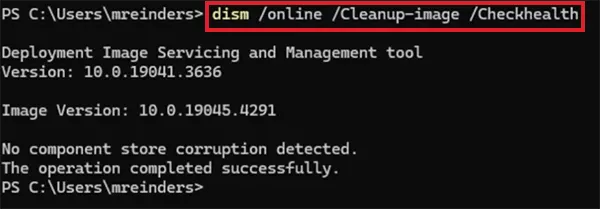
- Start with: DISM.exe /Online /Cleanup-Image /CheckHealth
- If necessary, run the deeper scan: DISM.exe /Online /Cleanup-Image /ScanHealth.
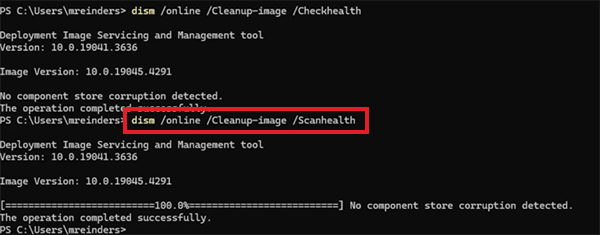
/CheckHealth checks whether the image has already been flagged for corruption, while /ScanHealth performs a more detailed scan of the Windows component store.
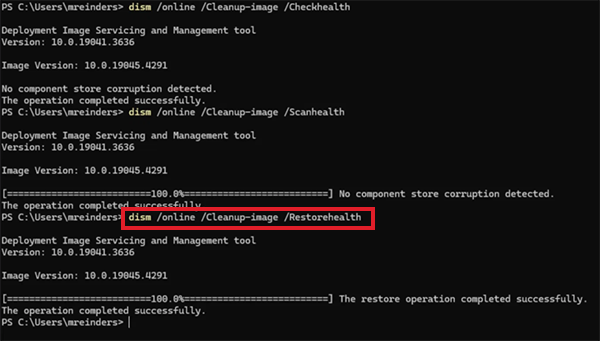
- If the scan finds a problem, run: DISM.exe /Online /Cleanup-Image /RestoreHealth.
4. Run System File Checker
After DISM completes successfully, run System File Checker:
sfc /scannow
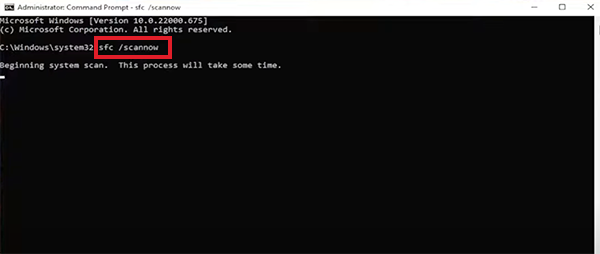
Microsoft recommends running DISM before SFC because DISM can repair the Windows component store that SFC relies on when replacing damaged system files. Wait until the scan reaches 100% before closing Command Prompt.
5. Use a Repair Source If RestoreHealth Cannot Repair Windows
If /RestoreHealth cannot obtain the required files through Windows Update, you can provide a known-good Windows source with /Source.
The general command is:
DISM.exe /Online /Cleanup-Image /RestoreHealth /Source:C:\RepairSource\Windows /LimitAccess
Replace “C:\RepairSource\Windows” with the actual location of the appropriate Windows repair files.
/LimitAccess prevents DISM from contacting Windows Update, while /Source tells it where to find the repair files.
Note that this is an advanced option. Do not use an arbitrary Windows folder as the source. The source must contain suitable files for the Windows installation you are trying to repair.
How to Prevent Error 87 DISM Cleanup-image Option is Unknown?
Most DISM Cleanup Image Option is Unknown Windows 11/10 errors can be avoided by treating commands as exact syntax rather than something you can type randomly.
To avoid such errors, I would advise you to keep these points in mind:
- Use the correct spacing, such as DISM.exe /Online /Cleanup-Image /RestoreHealth.
- Run Command Prompt as administrator when performing system repairs.
- Use documented DISM parameters instead of combining switches from unrelated commands.
- Do not mix online and offline image syntax. /Online targets the currently running Windows installation, while /Image:<path> is used for an offline Windows image.
- Be careful with /Source and make sure the repair files match the Windows installation you are servicing.
- Keep Windows and its servicing tools up to date when possible, especially when working with newer Windows images.
- Save frequently used DISM commands somewhere reliable instead of recreating them from memory. This can significantly reduce the chances of making syntax mistakes.
A missing space, altered parameter, or incorrect servicing option can turn an otherwise valid DISM command into Error 87.
Final Thoughts
DISM Error 87 looks like a serious Windows repair failure, but it often starts with something much simpler. It happens when DISM cannot understand the command it received.
If you see the clean-up image option is unknown, check the command syntax first. If the command still fails, use /CheckHealth or /ScanHealth to investigate the Windows image. If DISM cannot obtain the required repair files, provide an appropriate /Source. Once DISM completes successfully, run sfc /scannow to check and repair protected Windows system files.
Frequently Asked Questions
What is DISM Error 87?
Why does DISM say the cleanup image option is unknown?
Ans. This usually means DISM did not correctly recognize the /Cleanup-Image parameter. Check the command and make sure each parameter is separated by a space. The standard format is DISM.exe /Online /Cleanup-Image /RestoreHealth.
How do I fix DISM Error 87?
Ans. Open Command Prompt as administrator and run the DISM command correctly. If it fails, use /CheckHealth or /ScanHealth to investigate the Windows image before trying a repair source.
Should I run SFC after DISM?
Ans. Yes, Microsoft recommends running DISM before SFC. DISM can repair the Windows component store, while SFC uses protected system files to replace corrupted files.
Where is the DISM log file?
Ans. The main DISM log is located at: C:\Windows\Logs\DISM\dism.log. It can provide additional information when a DISM command fails.
Related Posts
How to Restart Explorer.exe in Windows?
A frozen taskbar, missing desktop icons, or an unresponsive File Explorer can make Windows feel stuck even when your computer…
How to Reopen Closed Tabs on Mac [Easy Ways to Restore Tabs]
Accidentally closing the wrong tab can be super annoying, especially when you were in the middle of something important. You…

What Is a .BAT file and How Do You Create One?
You may have seen a file ending in .bat and wondered why opening it brings up a Command Prompt window…

How to Disable Microsoft Edge in Windows? 4 Quick Methods
Microsoft Edge can feel difficult to “turn off” because several Windows and Edge settings control when it starts and what…

How to Open EXE Files on Mac: 5 Ways to Run Windows Apps
If you have downloaded a Windows .exe file on your Mac, double-clicking it won’t make it run. macOS does not…

How to Sign Out of iMessage on Mac?
Your Mac can quietly become another place where your private conversations appear. That’s convenient until you are using a shared…

What is Windows Fast Startup and How Does It Work?
Fast Startup can make your PC boot noticeably faster after a shutdown. Instead of completely rebuilding the Windows kernel state…

How to Unzip Files on Mac: 3 Easy Ways to Extract ZIP Files
A ZIP file has a funny way of making a simple task feel more complicated than it is. On a…
How to Delete Files Completely in Mac Terminal?
Finder makes deleting files simple, but sometimes you need Terminal to remove a file or folder by its exact path…