


Ans. VCRUNTIME140.dll is a Microsoft Visual C++ runtime library used by applications built with Microsoft’s C++ development tools.
VCRUNTIME140.dll Not Found: How to Fix the Error in Windows
You open an app expecting it to work, only to see a cryptic message saying: VCRUNTIME140.dll not found. In most cases, the problem isn’t the app itself. Windows simply can’t find a Visual C++ runtime component the program needs to start.
The safest fix is usually to install or repair the official Microsoft Visual C++ Redistributable rather than downloading the DLL (Dynamic Link Library) separately. This guide explains why the VCRUNTIME140 missing error appears and how to fix it safely.
Key Takeaways: VCRUNTIME140.dll Not Found Windows 11
- VCRUNTIME140.dll errors usually mean the required Visual C++ runtime is missing, damaged, or incompatible.
- Install or repair the Microsoft Visual C++ Redistributable to fix the error safely.
- Make sure the runtime architecture, such as x86 and x64, matches the affected application.
- If the error affects only one app, reinstalling the application may resolve the issue.
- Run DISM and SFC if multiple apps are failing or Windows has signs of system corruption.
- Avoid downloading individual DLL files from third-party websites.
Why is VCRUNTIME140.dll Missing?
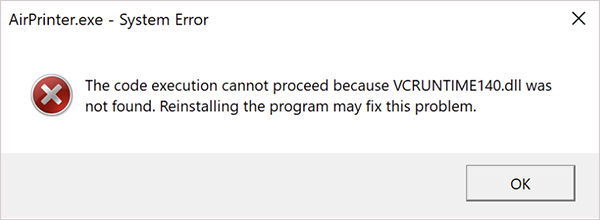
VCRUNTIME140.dll is a runtime library required by applications built by Microsoft’s Visual C++ development tools. When Windows can’t find a compatible copy, the program may fail to start and display a VCRUNTIME140.dll was not found error.
The file is included with the Redistributable. Common causes of the error include:
- Missing Redistributable: The required Visual C++ runtime is not installed.
- Damaged Installation: The runtime files are incomplete or corrupted.
- Architecture mismatch: A 32-bit application may require the x86 package, even on 64-bit Windows.
- Damaged Application: The program’s installation is incomplete or corrupted.
- Outdated Software: The application or runtime may have compatibility issues.
- Windows Corruption: Damaged system files can interfere with application startup.
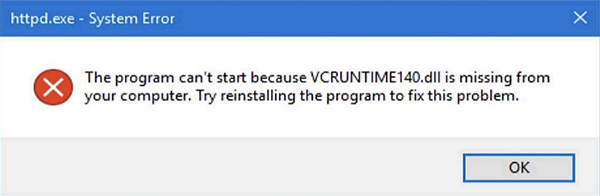
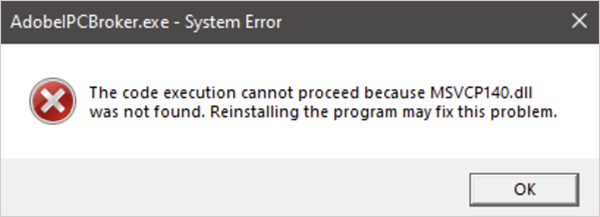
Related errors may mention VCRUNTIME140_1.dll missing or an MSVCP140.dll was not found error message. These are separate Visual C++ runtime components, but the recommended fixes are usually the same.
How to Fix VCRUNTIME140.dll Not Found in Windows?
The safest approach is to fix the Redistributable rather than downloading the missing DLL by itself. Try these fixes in order:
1. Install the Latest Visual C++ Redistributable
Start by installing the latest supported Microsoft Visual C++ v14 Redistributable.
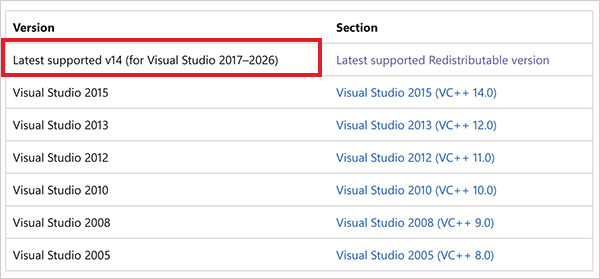
Microsoft provides separate packages for x86, x64, and ARM64. The package should match the application’s architecture. For example, a 32-bit app may require the x86 runtime even when it runs on 64-bit Windows.
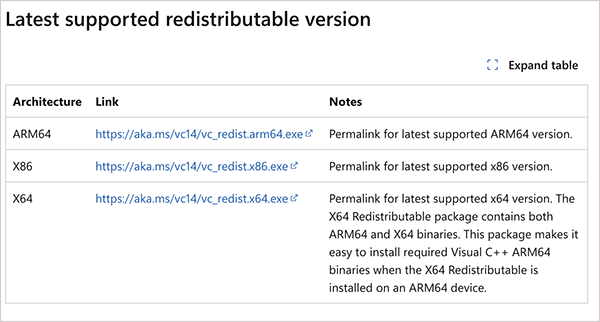
If you are unsure whether the affected app is 32-bit or 64-bit, installing both the x86 and x64 packages on a 64-bit Windows PC can cover applications built for either architecture.
Download the appropriate package from Microsoft’s official website, install it, and reboot your computer. Then try opening the affected application again.
2. Repair the Existing Visual C++ Installation
Already have the Redistributable installed? The installation itself may be damaged and causing the issue. Here’s how to fix this error with VCRUNTIME140.dll in Windows 11:
- Open Settings > Apps > Installed apps.
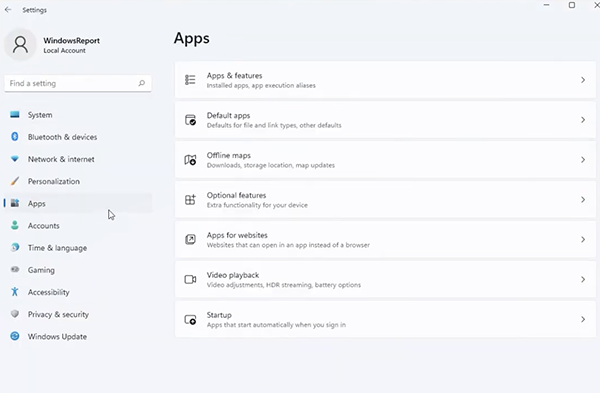
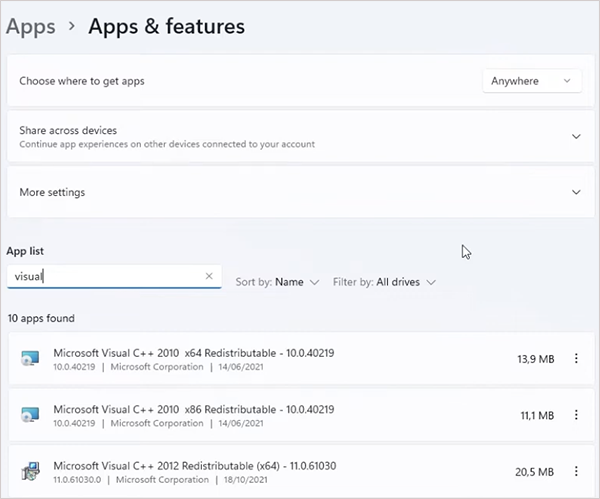
- Search for Microsoft Visual C++ Redistributable.
- Open its available options and select Modify or Repair, if available.
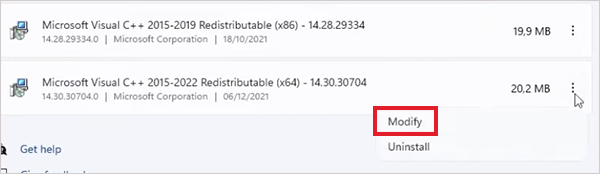
- Complete the repair and restart Windows.
Finally, try launching the affected application again to confirm the issue is resolved.
3. Reinstall the Application
If the error appears only when you open one particular program, its installation may be damaged. Uninstall the affected application, download its latest installer from the developer’s official website, and install it again.
This can help when the program was installed incompletely, or its required runtime components were not set up correctly.
4. Install Windows Updates
An outdated system can sometimes cause compatibility problems that prevent an application from starting correctly.
- Open Settings > Windows Update.
- Check for available updates.
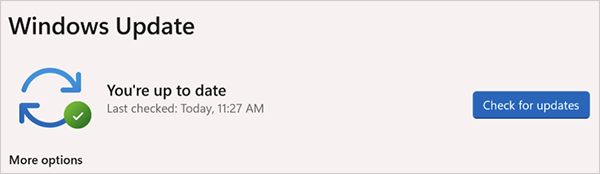
- Install any available updates and restart Windows.
Windows updates are not a replacement for the Visual C++ Redistributable, but keeping Windows updated can resolve system problems that affect application startup.
5. Repair Windows System Files
If several applications are failing or you are seeing Windows errors along with the Missing DLL message, Windows itself may have corrupted files.
- Open Command Prompt as administrator.
- Run: “DISM /Online /Cleanup-Image /RestoreHealth”.
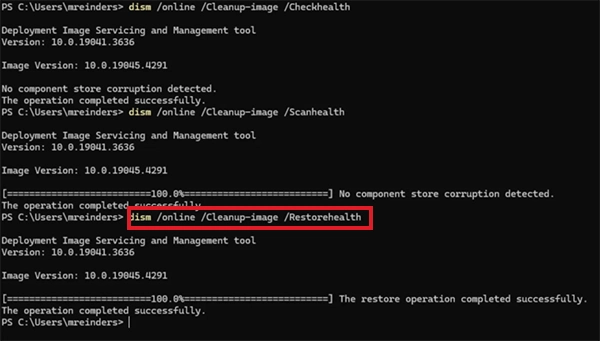
- Let the system complete the process, and then run: “sfc /scannow”.
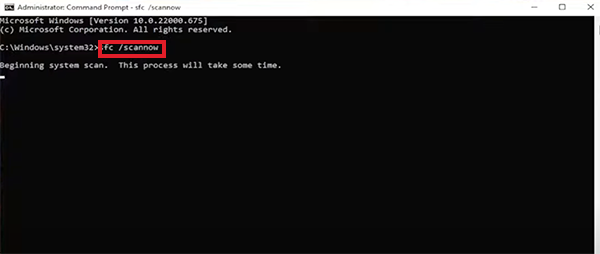
- Restart your PC after both commands complete
DISM command repairs the Windows component store, while SFC checks and repairs protected system files. These tools don’t install the Visual C++ Redistributable, so use them alongside the runtime fixes rather than a replacement.
How to Prevent VCRUNTIME140.dll Errors?
You can’t guarantee that a runtime dependency will never break, but a few habits can lower the chances of seeing this error again.
- Install Software from Official Sources: Legitimate installers are more likely to include or correctly detect the dependencies they need.
- Keep Applications Updated: Newer versions may fix dependency or compatibility problems.
- Don’t Remove Visual C++ Redistributables: Different applications can depend on different runtime components, so multiple entries are not automatically a problem.
- Avoid Individual DLL Downloads: Use Microsoft’s official packages only.
- Back Up Important Application Data: Runtime repairs are usually straightforward, but a backup gives you extra protection when troubleshooting software you rely on.
Also, always match the runtime architecture to the application. A 32-bit app may need the x86 runtime even on 64-bit Windows.
Final Thoughts
The VCRUNTIME140.dll not found error usually happens due to a missing or damaged Redistributable, an architecture mismatch, or a problem with the application itself.
Start with the official C++ Redistributable. If that does not fix the error, repair the existing installation, check the application’s architecture, or reinstall the affected program. Most importantly, do not chase the individual DLL. Fix the runtime dependency that’s causing the problem.
Frequently Asked Questions
What is VCRUNTIME140.dll?
Why is VCRUNTIME140.dll not found on my PC?
Ans. The required Visual C++ Redistributable may be missing, damaged, or the wrong architecture for the application. A damaged app installation can also cause the error on your computer.
How do I fix the VCRUNTIME140 not found error?
Ans. Install or repair the supported Redistributable and make sure the correct architecture, such as x86 for a 32-bit app, is installed. Reinstalling the affected app can also help you in this situation.
Is it possible to fix “The code execution cannot proceed VCRUNTIME140_1.dll” error?
Ans. Yes, try to install or repair the Redistributable that matches the application’s architecture. If the error continues, reinstall the app, install Windows updates, or run DISM followed by SFC.
Is it safe to download VCRUNTIME140.dll from the internet?
Ans. Avoid downloading the individual DLL from third-party websites. Install the official Microsoft Redistributable instead.
Related Posts

How to Fix DISM Error 87 in Windows?
DISM Error 87 usually appears when Windows cannot understand a DISM command or one of its parameters. You may see…

How to Restart Explorer.exe in Windows?
A frozen taskbar, missing desktop icons, or an unresponsive File Explorer can make Windows feel stuck even when your computer…
How to Reopen Closed Tabs on Mac [Easy Ways to Restore Tabs]
Accidentally closing the wrong tab can be super annoying, especially when you were in the middle of something important. You…

What Is a .BAT file and How Do You Create One?
You may have seen a file ending in .bat and wondered why opening it brings up a Command Prompt window…

How to Disable Microsoft Edge in Windows? 4 Quick Methods
Microsoft Edge can feel difficult to “turn off” because several Windows and Edge settings control when it starts and what…

How to Open EXE Files on Mac: 5 Ways to Run Windows Apps
If you have downloaded a Windows .exe file on your Mac, double-clicking it won’t make it run. macOS does not…

How to Sign Out of iMessage on Mac?
Your Mac can quietly become another place where your private conversations appear. That’s convenient until you are using a shared…

What is Windows Fast Startup and How Does It Work?
Fast Startup can make your PC boot noticeably faster after a shutdown. Instead of completely rebuilding the Windows kernel state…

How to Unzip Files on Mac: 3 Easy Ways to Extract ZIP Files
A ZIP file has a funny way of making a simple task feel more complicated than it is. On a…