


It uses RAM for open tabs, extensions, web apps, and separate browser processes. Demanding websites can use significantly more memory than simple pages.
Why Does Chrome Use So Much RAM and How to Fix It?
A few open tabs should not feel like a memory crisis, but Chrome can make RAM usage climb quickly. But why does Google Chrome use so much memory? Modern websites run complex code, extensions add background processes, and Chrome separates tasks to improve security and stability.
The good news is that you don’t have to switch browsers or stop using it. In this guide, I will explain what’s using your RAM, how to find the culprit, and what you can do to reduce Chrome’s memory usage.
Why Does Google Chrome Take So Much RAM?
What makes Google Chrome take up memory space? Well, Chrome uses a lot of RAM mainly because of its multi-process design. Each tab, extension, and browser component runs separately, which improves stability and security but increases memory usage.
Open tabs are only part of the issue. Simple pages use little memory, while modern web apps like video editors, games, and video calls can consume a lot even in a single tab.
Extensions also add to Chrome’s memory hog by running background tasks, and it may preload pages to speed up browsing, which further increases memory use.
In most cases, the Chrome taking up memory issue comes from a mix of:
- Multiple open tabs and web apps
- Memory-heavy websites
- Browser extensions
- Chrome’s multi-process system
- Background activity and page reloading
High usage is not always a problem; Chrome uses available RAM to improve performance. It only becomes an issue when your system slows down, tabs reload, or the browser freezes or crashes.
How to Check Chrome’s Memory Usage?
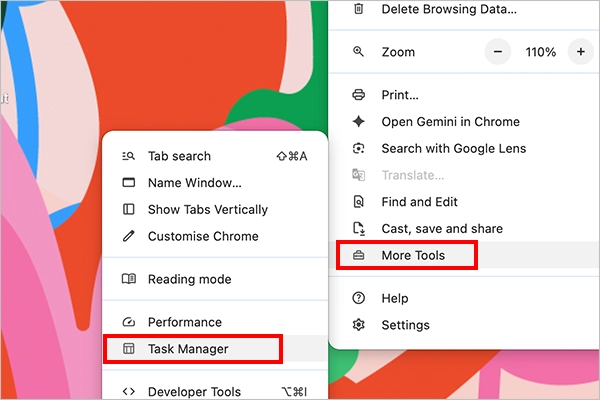
To understand what is actually using memory, the built-in Chrome Task Manager for memory can help you. It breaks usage down by tab, extension, and process. To open it:
- Open Chrome.
- Click on the three dots, and go to More Tools > Task Manager.
- Now, sort by the Memory column.
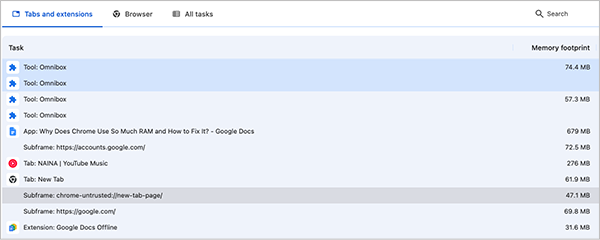
This is more accurate than checking overall browser usage in Windows Task Manager or macOS Activity Monitor because it shows exactly which Chrome process is responsible.
From here, you may notice a single website using most of the memory, an extension consuming excessive resources, or background pages still running tasks. If needed, you can select a process and click End Process. However, be careful, as this may close a tab or stop an extension and could result in lost work.
How to Reduce Chrome RAM Usage?
Once you know what’s consuming the memory, you can start reducing Chrome’s workload. You don’t need a third-party memory cleaner. Chrome already includes several tools that can help. Here’s how you can fix Chrome using too much memory:
1. Turn On Memory Saver
Memory Saver deactivates inactive tabs and reloads them when you return. This frees memory for tabs you are actively using.
Go to Settings > Performance > Memory Saver and choose the level that suits your system. Chrome offers Moderate, Balanced, and Maximum levels for tab deactivation.
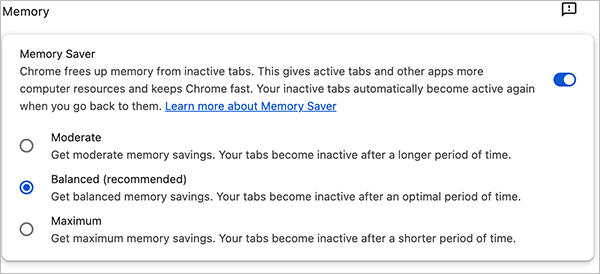
Balanced is a good starting point for most users. If your computer regularly runs short on RAM, Maximum can deactivate inactive tabs more aggressively. The trade-off is that tabs may reload more often when you return to them.
2. Close Tabs You No Longer Need
If you have dozens of tabs open, Chrome has to keep track of more content and activity. Close pages you no longer need, bookmark important ones, or save them for later. This makes an even bigger difference when several open tabs contain demanding web apps rather than simple webpages.
3. Remove Unnecessary Extensions
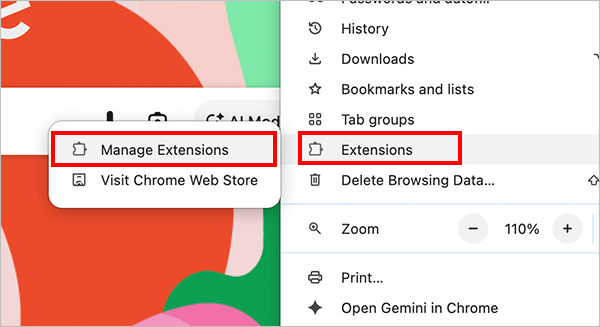
Extensions can run background processes and add to Chrome’s high memory usage. To review them:
- Select More > Extensions > Manage Extensions.
- Review the extensions you have installed.
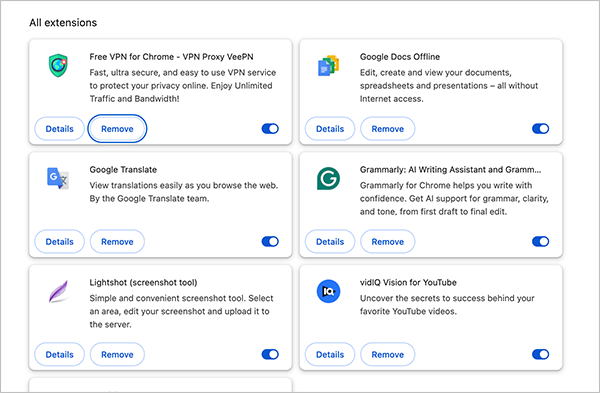
- Now, disable or remove the ones you rarely use.
If Chrome’s memory usage drops after disabling an extension, you have likely found one source of the problem.
4. End Heavy Processes
Chrome Task Manager can help you identify tabs or extensions using an unusually large amount of memory.
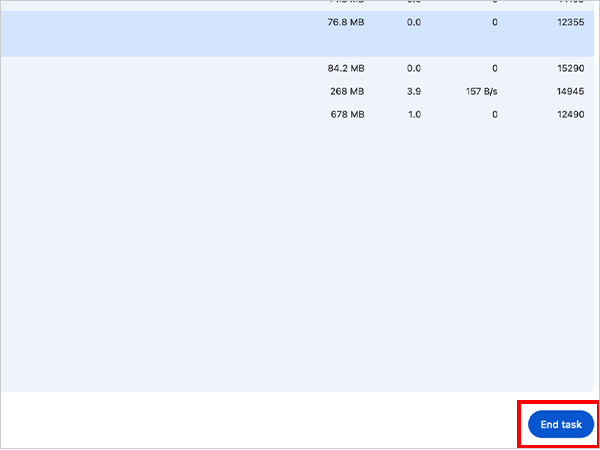
If you do not need the process, select it and click End Process. Save any important work first because ending a process can close its associated tab or interrupt an active task.
5. Clear Cache and Cookies
Chrome stores cached files, cookies, and site data to speed up loading and remember preferences. Clearing them can fix bloated browser data but won’t directly free system RAM. To clear them:
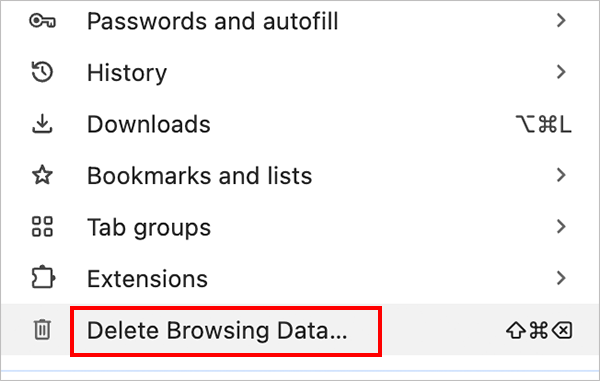
- Go to More > Delete Browsing Data.
- Check Cookies and other site data and Cached images and files.
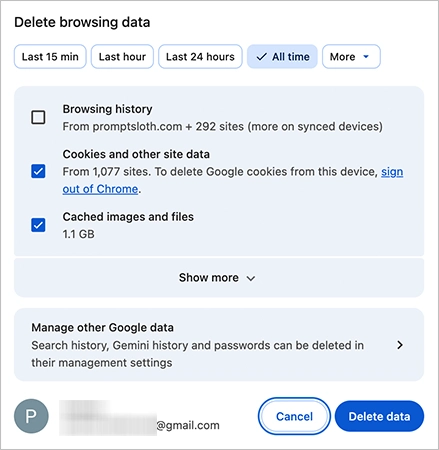
- Set the time range to All time and click on Delete Data.
6. Enable Hardware Acceleration
Hardware acceleration uses your GPU for graphic tasks instead of relying only on the CPU, improving performance on video and heavy web content. To enable it:
- Go to More > Settings > System.
- Turn on Use hardware acceleration when available.
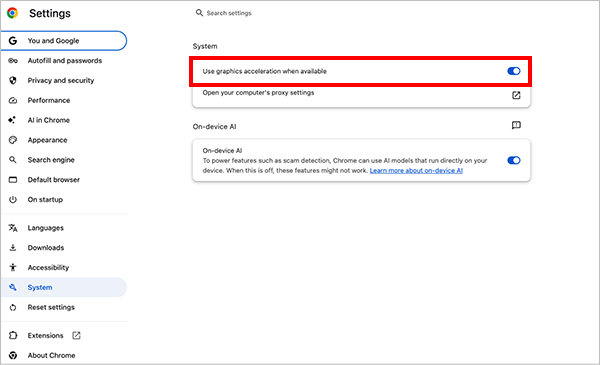
- Restart Chrome if needed.
This does not reduce RAM usage directly but can improve overall responsiveness.
7. Turn Off Page Preloading
Chrome can preload pages that it thinks you may visit next. This can make browsing feel faster, but it also creates additional background activity.
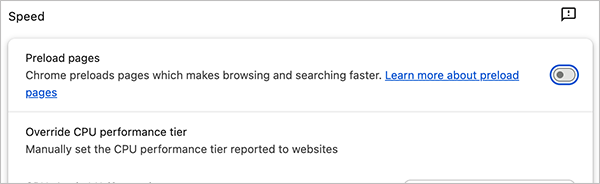
If you are trying to reduce unnecessary resource use, go to Settings > Performance > Preload pages and adjust the setting.
8. Restart Chrome
If the memory usage has gradually increased during a long browsing session, completely closing and reopening the browser can give it a clean start.
This won’t fix a problematic extension or memory-heavy website permanently, but it can help when Chrome has accumulated a large amount of active browser state.
Final Thoughts
So, why is Google Chrome using so much memory? Well, it has a logical explanation. Its multi-process architecture, demanding websites, extensions, and background features all use system resources.
However, a large RAM reading does not automatically mean something is wrong. The better approach is to find out what is actually consuming the memory. The built-in Task Manager can identify heavy tabs and extensions, while Memory Saver, fewer active tabs, and a cleaner extension setup can reduce unnecessary usage.
If Chrome still makes your computer slow after these changes, the problem may be bigger than the browser itself. Check your overall system usage and other running applications to see whether they are contributing to the slowdown.
Frequently Asked Questions
Why is Chrome using so much memory?
How to stop Chrome from using so much memory?
Close unused tabs, disable unnecessary extensions, end heavy processes in Chrome Task Manager, and enable Memory Saver.
Is it normal for Google Chrome to use a lot of memory?
Yes, high RAM usage can be normal with many tabs, extensions, or demanding web apps. It becomes a concern when the browser causes slowdowns, freezing, crashes, or frequent tab reloads.
Does Chrome use more RAM than other browsers?
RAM usage depends on the browser, tabs, extensions, etc. Chrome’s multi-process design can add memory overhead, but it also improves isolation and stability.
How to clear memory usage on Chromebooks?
Close unused tabs and apps, restart the Chromebook, disable unnecessary extensions, and use Chrome Task Manager to end heavy processes.
Related Posts

8 Best Online Tools to Identify Unknown Callers
When a call comes on your screen with no name or context, you just zone out, thinking you should pick…

How to Fix Black Shadow on Laptop Screens?
A black shadow on laptop screens can look like a Windows glitch, but the shape and location of the dark…

Fixing Broken IP Allowlists With a Dedicated Static Address
IP allowlisting is one of the easiest security controls available. Tell a service to accept connections only from addresses you…

What is DumpStack.log and Can You Delete It in Windows?
If you have noticed a file named DumpStack.log in the root of your Windows drive, you may wonder why it…

How eSIM Fits Into Your Global Travel Itineraries
Multi-country trips can be exciting, but sometimes mobile device data makes it concerning. Whenever you cross a border, there will…

How to Pick the Right Data Structure Before You Build Your Database
Every application that stores information depends on a structure chosen long before the first row of data arrives. That structure…

Standardizing React Component Iconography Across Distributed Product Teams
Creating a common React component library is essentially a losing battle. During a cross-team review, I shared my screen. I…

Antimalware Service Executable: What It Is and How to Fix High CPU Usage
You open Task Manager and notice Antimalware Service Executable using a surprising amount of CPU or memory. It may keep…

Keeping Your Website Healthy: A Practical Guide to Long Term Success
Introduction The website may appear to be finished once it is launched; however, making sure that the site remains reliable…