


Open Activity Monitor and click the Memory tab to check RAM usage, Memory Pressure, and app-level memory consumption.
How to Check RAM Usage on Mac? Quick & Easy Methods
A slow or freezing Mac does not always mean the processor is struggling. In many cases, the real issue is high RAM or memory usage running quietly in the background.
Apple has a built-in tool called Activity Monitor that allows you to check memory usage in macOS. It shows exactly which apps are using the most RAM, and whether your system is under pressure.
In this guide, I will explain how to check RAM usage on Macs properly, and everything important to monitor memory usage.
What RAM Usage Means on a Mac?
RAM (Random Access Memory) is the temporary memory your Mac uses to run apps, browser tabs, and background processes smoothly. It is like your Mac’s active workspace. The more apps and tasks running at the same time, the more memory macOS uses.
That is why it is important to learn how to check RAM usage on MacBooks or other Mac computers. Unlike Windows, you do not have a Task Manager on Mac. The Activity Monitor does the job here, showing you how efficiently your Mac is handling memory.

One thing many users misunderstand is that High RAM usage is automatically bad for your system. That’s not the case, though. macOS is designed to use available memory efficiently for better speed and responsiveness.
So, the real metric to focus on is not free RAM, but the Memory Pressure graph, which I will discuss later in the following sections.
How to Check RAM Usage on Mac Using Activity Monitor?
Activity Monitor is Apple’s built-in tool to view RAM usage on Mac. Let’s see how to see RAM usage on Mac computers:
- Press Command + Space to open Spotlight Search.
- Type Activity Monitor and open the app.
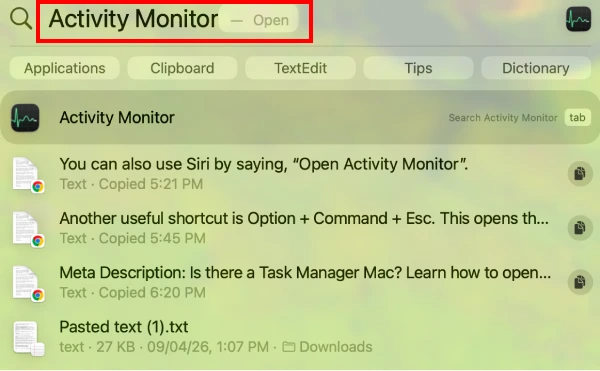
- Now, click on the Memory tab at the top.
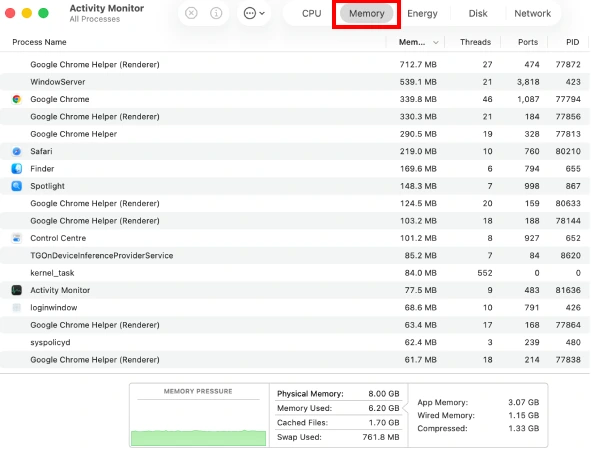
You will now see different apps using memory, total RAM usage, memory pressure, cached files, and other things. To quickly check memory usage on Mac and identify heavy apps, click the Memory column to sort apps from highest to lowest RAM usage.
In most cases, browsers, video editing software, virtual machines, and communication apps consume the most memory.
How to View Memory Usage on Mac?
Learning how to check memory on Macs is one thing. Understanding it properly is another. So, now let’s understand how to monitor RAM usage on a Mac.

At the bottom of Activity Monitor, you will see the Memory Pressure graph. Apple describes this as the best indicator of whether your Mac is handling memory efficiently. Here’s what the colors mean:
- Green: Memory usage is healthy.
- Yellow: Memory pressure is increasing.
- Red: Your Mac is struggling with available RAM.
You will also notice a few important memory terms:
- App Memory: It shows the RAM currently used by apps.
- Wired Memory: Memory required by macOS that cannot be compressed or moved.
- Compressed Memory: Memory that is compressed automatically to free up RAM space on your Mac.
- Cached Files: Previously used files, which are stored temporarily for faster reopening.
- Swap Used: The storage space used as temporary memory when RAM runs low.
This last one matters more than many people realize. Heavy swap usage is often why a Mac suddenly starts feeling slow during multitasking.
How to Know If Your Mac Needs More RAM?
Your Mac usually shows warning signs before memory becomes a serious problem. Common signs include:
- Apps are freezing frequently.
- Browser tabs are constantly reloading.
- Facing lag while multitasking or using split screen on a Mac.
- Loud or frequent fan noise.
- Yellow or red Memory Pressure
Another important thing is to see Swap Used during the Mac memory usage check. High Swap Used is not good for the system. When RAM fills up, macOS starts using storage as temporary memory. While this keeps the system running, it is much slower than actual RAM.
How to Reduce High RAM or Memory Usage on Mac?
Now that you know how to check Mac memory usage, you should also learn to manage it effectively. If your Mac constantly runs under high memory pressure, start with the following quick fixes to resolve the issue:
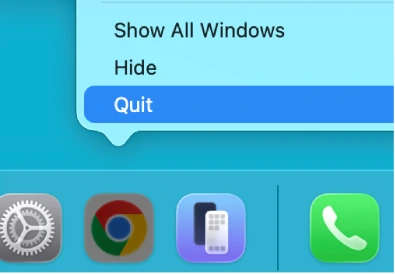
- Close Unused Apps Properly: Many users close only the app window instead of quitting the app completely. Use Command + Q or right-click the app and choose Quit to properly close the app.
- Reduce Browser Tabs: Chrome and other Chromium-based browsers are major RAM consumers. Too many tabs running simultaneously can increase memory usage very quickly.
- Restart Your Mac Occasionally: macOS manages memory efficiently, but very long uptimes can still increase memory pressure over time. Restarting the MacBook clears temporary memory buildup and refreshes system processes.
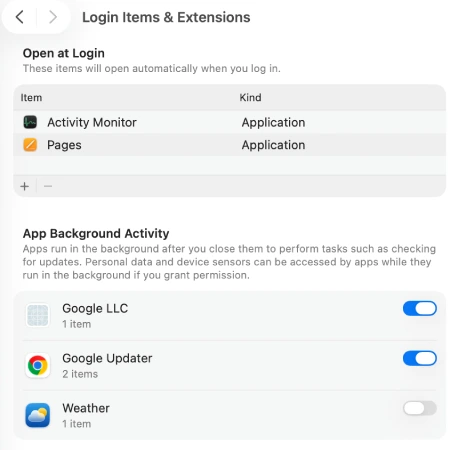
- Disable Unnecessary Startup Apps: Go to System Settings > General > Login Items & Extensions. Here, remove apps that launch automatically but are not essential.
- Update Apps and macOS: Memory leaks and optimization bugs are often fixed through software updates. Keeping macOS and apps updated can improve memory management significantly.
- Keep Enough Storage Free: This is one of the most overlooked performance factors. When storage becomes critically low, swap memory performance also suffers because the OS depends on free disk space on the Mac during heavy memory usage.
Final Thoughts
Most people focus too much on How to check RAM usage on Mac to know how much RAM is being used and ignore whether the system is actually under pressure. That is the wrong way to judge Mac memory performance.
macOS is designed to use memory aggressively for speed and responsiveness. So high RAM usage alone is not necessarily a problem. The better indicators are Memory Pressure, swap usage, and real-world performance.
If your Memory Pressure stays green and your Mac feels smooth during everyday use, your system is probably working exactly as intended.
Frequently Asked Questions
How do I check RAM usage on a Mac?
What does Memory Pressure mean on Mac?
Memory Pressure shows how efficiently your Mac is handling memory. Green is healthy, yellow means increasing pressure, and red indicates insufficient RAM.
How do I know which app is using the most RAM?
In Activity Monitor, click the Memory column to sort apps from highest to lowest RAM usage.
How do I free up RAM on my Mac?
Quit unused apps, reduce browser tabs, disable unnecessary startup apps, restart your Mac occasionally, and keep enough free storage available.
Is high RAM usage on Mac bad?
No, it is not always bad for your Mac. macOS is designed to use available memory efficiently, so high RAM usage alone is not necessarily a problem.
Related Posts
How to Sign Out of iMessage on Mac?
Your Mac can quietly become another place where your private conversations appear. That’s convenient until you are using a shared…
What is Windows Fast Startup and How Does It Work?
Fast Startup can make your PC boot noticeably faster after a shutdown. Instead of completely rebuilding the Windows kernel state…
How to Unzip Files on Mac: 3 Easy Ways to Extract ZIP Files
A ZIP file has a funny way of making a simple task feel more complicated than it is. On a…

How to Delete Files Completely in Mac Terminal?
Finder makes deleting files simple, but sometimes you need Terminal to remove a file or folder by its exact path…
How to Add Widget in Mac: A Step-by-Step Guide
Your Mac desktop can give you useful information without turning into another dashboard to manage. A weather update, calendar reminder,…
The macOS Installation Couldn’t Be Completed? Learn How to Fix It
You are halfway through a macOS update when the progress bar stops, and a message says the macOS installation couldn’t…

How to Restart Bluetooth Service Windows 11? (Fix Bluetooth Issues)
Bluetooth stopped working in Windows 11? It can suddenly stop working even when your headphones, mouse, or keyboard work perfectly…
How to Fix External Hard Drive Not Showing Up in Windows?
You plug in your external hard drive, wait for Windows to recognize it, and then… nothing pops up. The drive…

How to Fix the System Service Exception BSOD Error in Windows
A sudden Windows blue screen can bring everything to a stop, and the System Service Exception error does not tell…