


Press Option + Command + Esc, select the frozen app, and click on Force Quit.
How to Force Quit an App on Mac? 5 Easy Methods
When an app freezes on your Mac, clicking the close button often does not help. Instead of restarting your Mac, you can use several built-in tools to close the unresponsive app in seconds.
Whether you are using a MacBook Air, MacBook Pro, iMac, or Mac mini, this guide explains how to force quit an app on Mac effectively, when to use each method, and what to do if you are not able to force quit on Mac.
How to Force Quit an App on Mac?
macOS offers various ways to force quit apps on a Mac. Start with the quickest option and move to the next method only if the app does not respond. Here’s how to close apps on MacBooks:
Method 1: Use the Force Quit Mac Shortcut
Force Quit shortcut on Mac is the fastest way to close an unresponsive app.
- Press Option + Command + Esc.

- Select the app that is not responding.
- Click Force Quit and confirm if prompted.
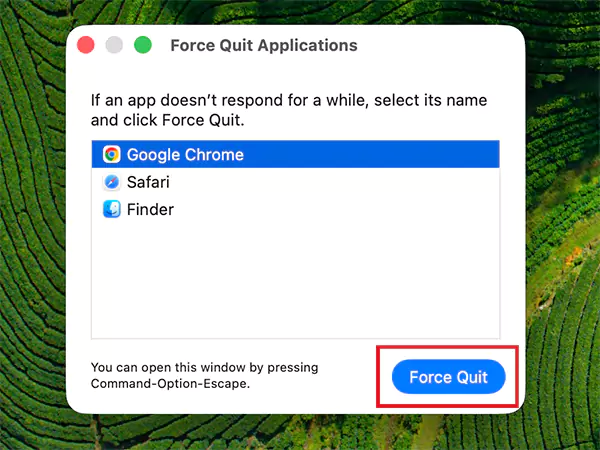
This method works even when your Mac computer is freezing and is usually the quickest way to force quit an application on Mac.
Method 2: Force Quit from the Apple Menu
If you prefer using your mouse, here’s how to force quit apps on Mac:
- Click the Apple Menu.
- Select Force Quit.
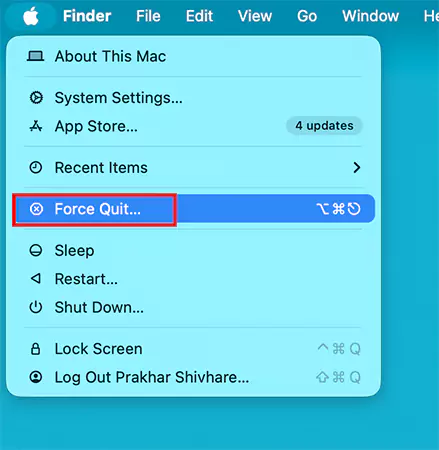
- Next, choose the unresponsive app and click Force Quit.
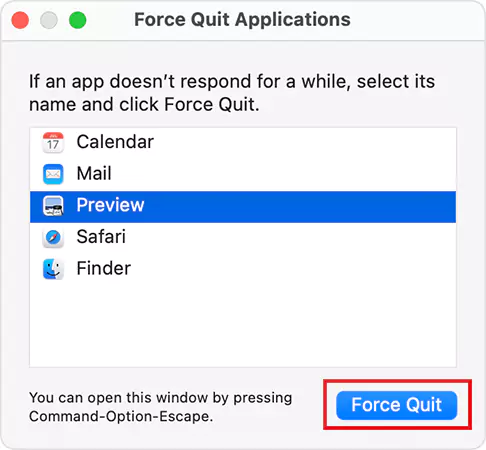
This opens the same Force Quit window as the keyboard shortcut.
Method 3: Force Quit from the Dock
If the app icon is still visible in the Dock, here’s how to force close a program on a Mac:
- Hold the Option key.
- Then, right-click or Control-click the app’s icon.
- And select Force Quit.
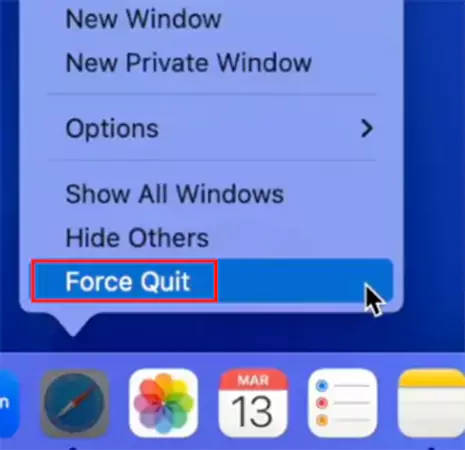
Holding the Option key changes the normal Quit option to Force Quit.
Method 4: Force Close Mac Apps Using Activity Monitor
If the app continues running in the background or does not appear in the Force Quit window, use Activity Monitor, which is like a Task Manager for Mac.
Let’s see how to force close an app on a Mac using Activity Monitor:
- Open Activity Monitor using Spotlight or go to Applications > Utilities.
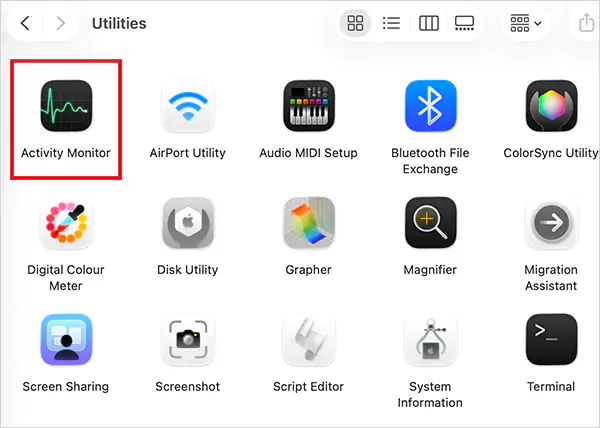
- Find the app or process and select it.
- Click the small X button at the top.

- Finally, choose Force Quit.
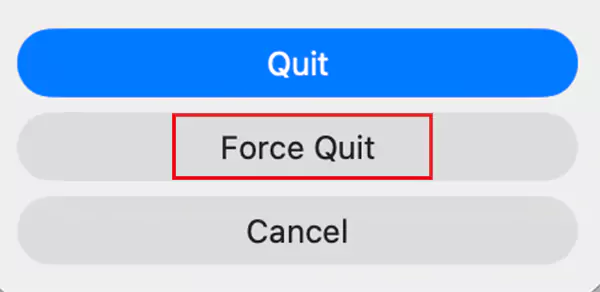
Activity Monitor is also useful for checking malware on Mac and identifying apps that are using excessive CPU or memory.
Method 5: Force Quit Using Terminal
If none of the other methods work, you can force quit the app through Terminal. Here’s how to force close an app on Mac with the command line:
- Open Terminal.
- Run: ps -ax, and note the app’s PID (Process ID).
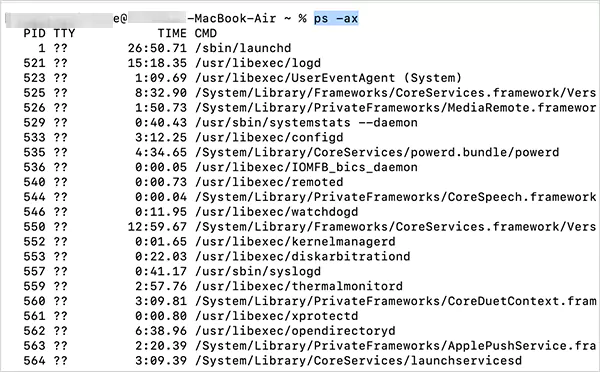
- Now, run: kill -9 PID (replace PID with the process number of the app).
Use this method only as a last resort, as it immediately closes the app and any unsaved work may get lost.
How to Close Apps on Mac Normally?
If an app is working properly, always close it normally instead of force quitting. This allows the app to save your work and shut down safely. Here are three different ways to learn how to quit an app on Macs:
- Press Command + Q while the app is active.
- Click the app’s name in the menu bar and choose Quit.
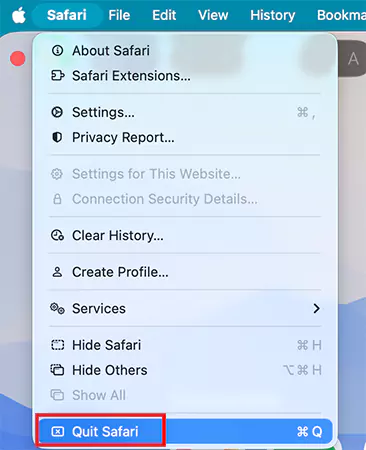
- Right-click the app’s icon in the Dock and select Quit.
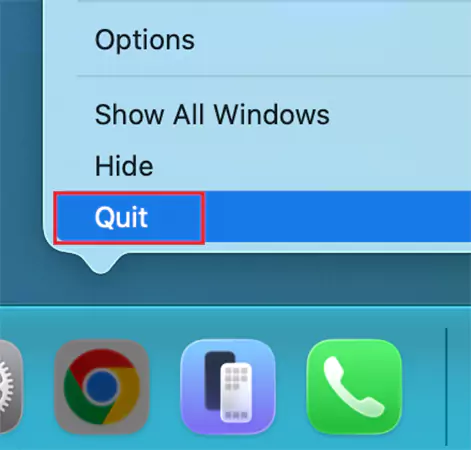
Many Mac users think clicking the red close button quits an app, but that’s not how macOS works. The red button only closes the current window. The app usually continues running in the background until you choose Quit or press Command + Q.
Why Won’t an App Close on Mac?
An app may refuse to close for several reasons. Some of the most common reasons include:
- A temporary software bug has caused the app to freeze.
- High CPU or memory usage is making the app unresponsive.
- A background process has stopped responding.
- Your Mac is running low on available RAM.
- The app is outdated or incompatible with your macOS version.
- The app’s files have become corrupted.
- A temporary macOS issue is affecting system performance.
Sometimes the problem is not the app itself. If Finder or macOS becomes unresponsive, normal quit options may stop working until the system recovers.
What to Do If You Still Can’t Force Quit an App on Mac?
If none of the methods above work, the issue may not be with the app alone. In some cases, macOS or another background process is probably preventing the app from closing. Try these solutions:
- Restart Your Mac: If your Mac is still responding, go to Apple Menu > Restart. Restarting your Mac clears temporary processes that may be causing the problem.
- Update the App: An Outdated app may contain bugs that cause it to freeze. Open the App Store or the app’s built-in updater and install the latest version.
- Update macOS: Apple regularly releases updates that improve stability, compatibility, and performance. Keeping macOS up to date can prevent many app-related issues.
- Start in Safe Mode: If the same app freezes repeatedly, booting your Mac into Safe Mode can help determine whether login items, extensions, or third-party software are causing the issue.
If the app works normally in safe mode, the problem is likely caused by software that loads during startup.
Tips to Prevent Apps from Freezing on Mac
While an occasional freeze is normal, these simple habits can reduce the chances of it happening again.
- Keep macOS and your apps updated.
- Leave at least 15% to 20% of your storage free.
- Quit apps you are no longer using to free up memory.
- Use Activity Monitor to identify apps consuming excessive CPU or RAM.
- Avoid running too many resource-intensive apps at the same time.
- Manage Mac Startup apps and remove unnecessary login items that launch automatically when your Mac starts.
A little regular maintenance can go a long way toward keeping your Mac fast and responsive.
Wrapping Up
Most frozen apps can be closed in seconds without restarting your Mac. In most cases, the Option + Command + Esc shortcut is the quickest solution. If that does not work, you can use the Apple Menu, Activity Monitor, Dock, or Terminal to force quit the app.
If the same app is creating problems repeatedly, updating the app or macOS, freeing up storage, and checking for software conflicts can help prevent the problems from coming back.
Frequently Asked Questions
What is the shortcut to force quit on Mac?
How do I force quit an app from Activity Monitor?
Open Activity Monitor, select the app or process, click the cross button, and choose Force Quit.
How to close all apps on MacBook?
macOS does not have a built-in option to close all apps at once. You will need to quit each app individually using Command + Q.
Why is force quit not working on my Mac?
The issue may be with Finder or macOS rather than the app itself. Try restarting your Mac or performing a forced shutdown if your Mac is completely frozen.
Will I lose unsaved work if I force quit an app?
Yes, force quitting closes the app immediately, so any unsaved changes may get lost. Whenever possible, try quitting the app normally first.
Related Posts

How to Run Windows on Mac: 4 Methods That Actually Work
Buying a Mac does not mean you have to give up Windows. You might need a Windows-only work application, open…

How to Fix DISM Error 87 in Windows?
DISM Error 87 usually appears when Windows cannot understand a DISM command or one of its parameters. You may see…

How to Restart Explorer.exe in Windows?
A frozen taskbar, missing desktop icons, or an unresponsive File Explorer can make Windows feel stuck even when your computer…
![How to Reopen Closed Tabs on Mac [Easy Ways to Restore Tabs]](https://datarecovee.com/knowledge-base/wp-content/uploads/2026/10/how-to-reopen-closed-tabs-ftd-img.webp)
How to Reopen Closed Tabs on Mac [Easy Ways to Restore Tabs]
Accidentally closing the wrong tab can be super annoying, especially when you were in the middle of something important. You…

What Is a .BAT file and How Do You Create One?
You may have seen a file ending in .bat and wondered why opening it brings up a Command Prompt window…

How to Disable Microsoft Edge in Windows? 4 Quick Methods
Microsoft Edge can feel difficult to “turn off” because several Windows and Edge settings control when it starts and what…

How to Open EXE Files on Mac: 5 Ways to Run Windows Apps
If you have downloaded a Windows .exe file on your Mac, double-clicking it won’t make it run. macOS does not…

How to Sign Out of iMessage on Mac?
Your Mac can quietly become another place where your private conversations appear. That’s convenient until you are using a shared…

What is Windows Fast Startup and How Does It Work?
Fast Startup can make your PC boot noticeably faster after a shutdown. Instead of completely rebuilding the Windows kernel state…