


To upgrade Safari on a MacBook, update macOS through System Settings > General > Software Update.
How to Update Safari on Mac? A Quick Guide
How can I upgrade Safari? Safari updates on Mac work differently from browsers like Chrome or Firefox because Apple includes Safari updates through macOS system updates.
This means updating the Safari browser usually requires updating your Mac itself. Keeping the browser updated is essential not just for new features, but also for stronger security, bug fixes, better performance, and protecting your privacy online.
In this guide, I will explain how to update Safari on Mac properly, check your Safari version, solve common issues, and keep your browser secure, even on older Macs.
Quick Answer: How to Update Safari Browser on Mac?
To update Safari on Mac, go to Apple Menu > System Settings > General > Software Update and install any available macOS updates.
Since Safari updates are built into macOS, updating your system is the only way to upgrade Safari.
How to Check Your Current Safari Version on Mac?
Before you start with the macOS update for Safari, first check which version is currently installed on your Mac. This helps you know whether your browser is outdated or already running the latest version.
- Open Safari on your Mac.
- Then, click Safari in the top menu bar.
- Select About Safari.
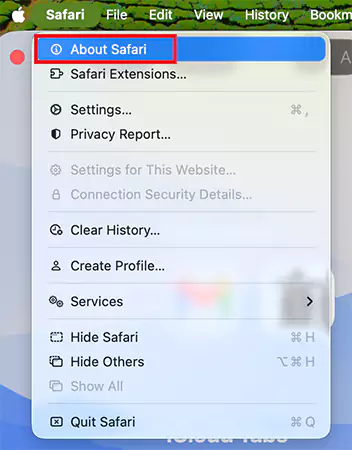
- Here, a small pop-up window will show you the current Safari version number.
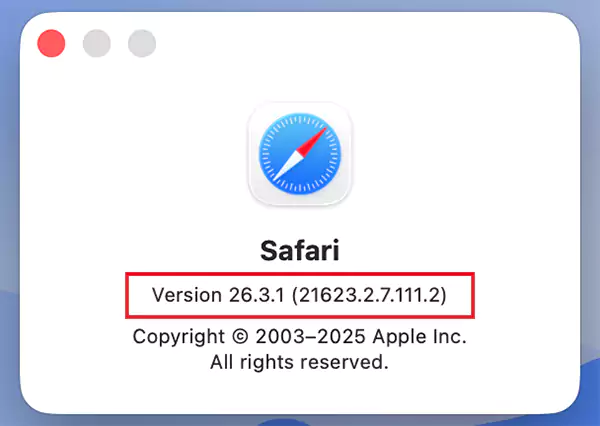
If your Safari version is outdated, you will likely need to update macOS, since Apple delivers them through system software rather than separate browser downloads.
How to Update Safari on Mac?
You know that upgrading Safari means updating your Mac’s software. Let’s see how to update Safari on Mac computers.
- Click the Apple Menu and open System Settings.
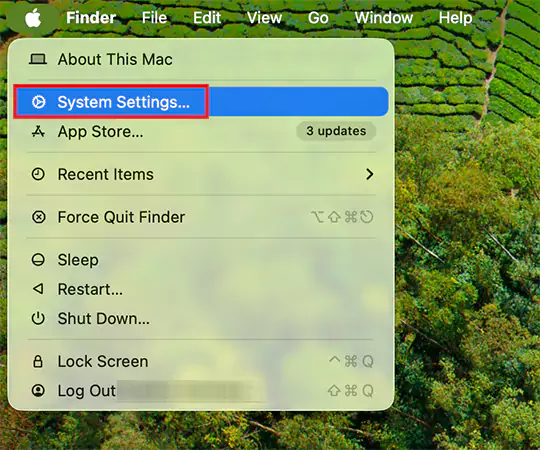
- Now, go to General > Software Update.
- Click on Update Now to install any available updates.
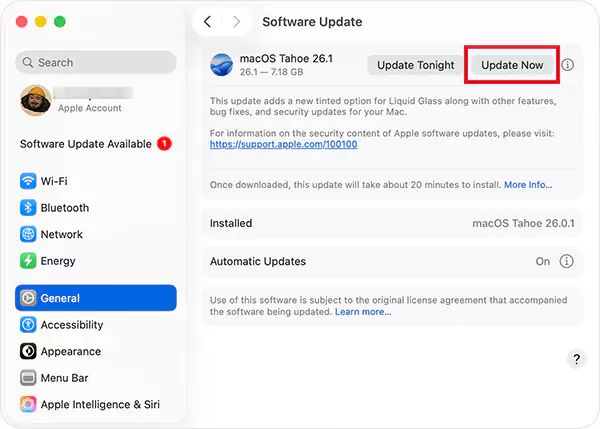
Now, just allow your Mac to install the update without interruption, and your system will update to the latest Safari release on its own.
Why Should You Regularly Upgrade Safari on Mac?

Keeping Safari updated is essential for security, speed, and overall browsing performance. Here are the key benefits:
- Better Security: Apple regularly fixes security vulnerabilities to help you stay away from malware on Mac and protect your personal data and online activity.
- Improved Performance: Updates often improve speed, reduce bugs, and enhance battery efficiency.
- Website Compatibility: Modern websites work best with updated browser technology. Older Safari versions may cause broken pages or unsupported features.
- Enhanced Privacy: Newer versions include stronger privacy protections, such as tracking prevention and safer browsing tools.
Regular updates help your Mac stay safer, faster, and more reliable while ensuring access to Apple’s latest features.
What to Do If Safari is Not Updating?
If Safari is not updating, the issue is often related to macOS compatibility or system settings. Try these fixes:
- Check whether your Mac supports the latest macOS version.
- Restart your Mac.
- Make sure you have enough free storage space on your Mac.
- Ensure the internet connection is stable.
- Review automatic update settings and install available security patches for older macOS versions.
- Try updating in Safe Mode if needed.
If your Mac no longer supports newer macOS versions, Safari may remain on an older release.
How to Turn on Automatic Safari Updates?
Automatic updates are the easiest way to keep Safari secure and up-to-date without manual checks. Here are the steps to enable automatic updates:
- Click the Apple Menu and open System Settings.
- Go to General > Software Update.
- Click on the “i” button next to Automatic Updates.
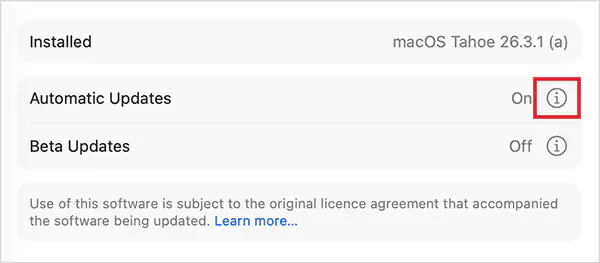
- Here, turn on:
- Download new updates when available.
- Install macOS updates.
- Install system data files and security updates.
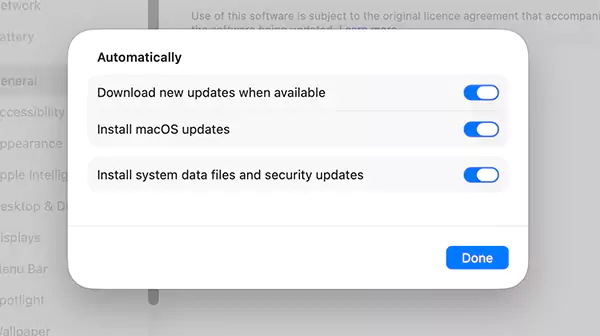
Since Safari updates are included with macOS, enabling automatic system updates ensures Safari stays updated too.
Conclusion
Updating Safari on Mac is simple once you understand that upgrades come via macOS updates, not standalone browser downloads. To keep Safari secure, fast, and fully compatible, regularly check for macOS updates and enable automatic updates.
Frequently Asked Questions
How do I upgrade Safari on my MacBook?
What is the latest version of Mac Safari?
Safari 26.4 release on 24th March, 2026, is the latest stable version of Safari. Apple also released Safari 26.5 Beta on 30 March.
Why can’t I update Safari separately on Mac?
Apple bundles Safari with macOS, so browser updates are delivered through operating system updates.
Is it safe to use an outdated Safari version?
Using outdated Safari versions can increase security risks, website compatibility issues, and performance problems. Apple recommends keeping Safari and macOS updated for better security.
How do you update your browser on Macs?
For Safari, update macOS through Software Update. For third-party browsers like Chrome or Firefox, updates are usually managed within their own applications.
Related Posts

8 Best Online Tools to Identify Unknown Callers
When a call comes on your screen with no name or context, you just zone out, thinking you should pick…

How to Fix Black Shadow on Laptop Screens?
A black shadow on laptop screens can look like a Windows glitch, but the shape and location of the dark…

Fixing Broken IP Allowlists With a Dedicated Static Address
IP allowlisting is one of the easiest security controls available. Tell a service to accept connections only from addresses you…

What is DumpStack.log and Can You Delete It in Windows?
If you have noticed a file named DumpStack.log in the root of your Windows drive, you may wonder why it…

How eSIM Fits Into Your Global Travel Itineraries
Multi-country trips can be exciting, but sometimes mobile device data makes it concerning. Whenever you cross a border, there will…

How to Pick the Right Data Structure Before You Build Your Database
Every application that stores information depends on a structure chosen long before the first row of data arrives. That structure…

Standardizing React Component Iconography Across Distributed Product Teams
Creating a common React component library is essentially a losing battle. During a cross-team review, I shared my screen. I…
Antimalware Service Executable: What It Is and How to Fix High CPU Usage
You open Task Manager and notice Antimalware Service Executable using a surprising amount of CPU or memory. It may keep…

Keeping Your Website Healthy: A Practical Guide to Long Term Success
Introduction The website may appear to be finished once it is launched; however, making sure that the site remains reliable…