


Open Activity Monitor on your Mac, go to the CPU tab, and check the % CPU column along with User, System, and Idle usage.
How to Check CPU Usage on Mac? (Tried and Tested Primary Method)
New Mac devices usually run smoothly, but over time, you may notice apps taking longer to open, the system heating up, or the battery draining faster than usual. In many cases, these are signs of high CPU activity on Macs.
Many users don’t realize this, but macOS already gives you a built-in way to monitor it. Here, I will show you how to check CPU usage on Mac properly, understand what the numbers actually mean, and identify apps or processes affecting performance.
Quick Glance: How to Check Mac CPU Usage?
- Activity Monitor is the easiest way to check CPU usage on a Mac.
- High CPU usage does not always mean something is wrong. Understanding the context of the usage matters before jumping to a conclusion.
- Browser tabs, background syncing, and heavy apps are the biggest CPU consumers on most Mac devices.
- Watch for apps or processes that stay at high CPU usage continuously, not temporary spikes.
- Kernel_task may increase CPU usage to protect your Mac from overheating.
- A quick Activity Monitor check can often explain why your Mac feels slow, hot, or noisy.
What is CPU Usage on Mac?
CPU usage shows how much of your Mac’s processor is currently being used. Every app, browser tab, video export, background sync, or system process consumes CPU resources to perform tasks.
Activity Monitor is like the Task Manager on Mac computers, showing stats on Mac processor usage. It constantly changes depending on what your Mac is doing in the background. Even if you are not actively using heavy apps, macOS may still use CPU resources for tasks like syncing iCloud files, indexing Spotlight search results, checking updates, or processing photos.

That is why occasional CPU spikes are completely normal. The real concern is when the usage stays high for long periods and starts affecting performance, battery life, or system temperature. Mac checking CPU usage helps you stop guessing and actually understand what your system is doing behind the scenes.
How to Check CPU Usage on Mac Using Activity Monitor?
So, how do you check CPU usage on a Mac? The easiest way to monitor CPU activity is through Activity Monitor. Here’s how to view CPU usage on Mac:
- Press Command + Space, type Activity Monitor, and press Enter.
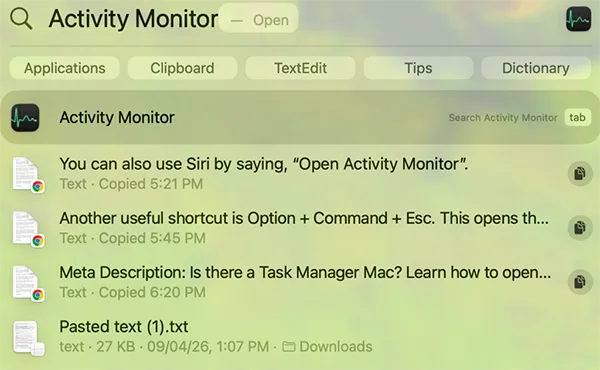
- Now, select the CPU tab from the top.
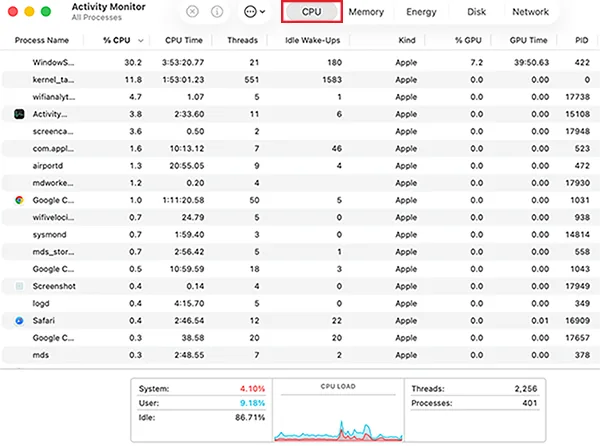
Once you are inside the CPU section, focus on the % CPU column. This shows how much processor power each app or process is currently using. You can also click the column to sort processes from highest to lowest.
Check which apps consistently stay near the top, watch whether CPU usage drops after closing apps or tabs, and review the CPU breakdown shown at the bottom of the window.
Apple also provides two useful views that most users completely overlook. Here’s how to check CPU usage on Mac:
- First, make sure you are on the CPU tab inside the Activity Monitor.
- Now, from the top menu bar on your Mac screen, click on the Window option. Here, you will see the CPU Usage and CPU History options.
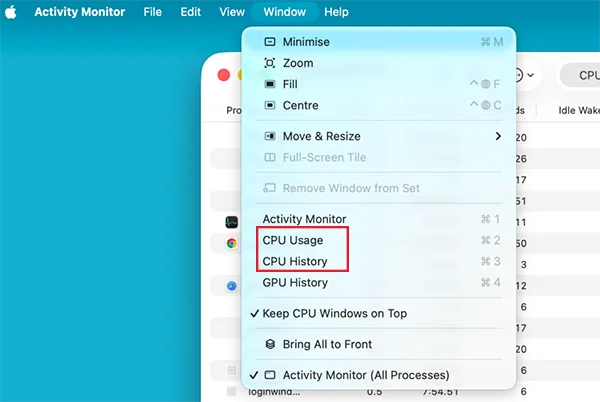
- Click on CPU Usage to see a live visual graph of current processor activity.

- Then, click on CPU History to see CPU activity over time across cores.
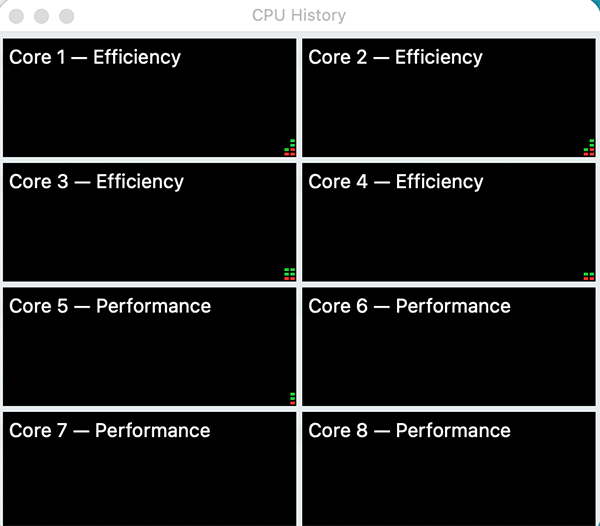
You can use these options when you want a quick visual view instead of only reading percentages.
Important Note: Do not judge CPU usage within a few seconds. Leave Activity Monitor open for a minute and observe the patterns properly. Short spikes are usually normal.
How to Read CPU Usage Numbers Correctly?
Learning how to check the CPU usage in Mac does not stop here. Seeing an app using 80% CPU does not automatically mean something is wrong. CPU usage always depends on what your Mac is doing. Heavy tasks naturally increase the usage.
The better question to ask is: Which process is using the CPU, and for how long? A short spike is harmless. But if the same process stays at the top continuously for several minutes, it may need attention.
You should also monitor the bottom section of Activity Monitor:
- User: CPU power currently being used by apps you opened.
- System: Processing power used by macOS and background system tasks.
- Idle: CPU resources that are currently free and available.

If idle remains high, your Mac still has processing headroom available. Another thing many people overlook is that CPU percentages can exceed 100% on Mac.
This happens because modern Macs use multiple CPU cores, and Activity Monitor measures usage across them. So, values like 120% and 150% are not automatically alarming.
What Causes High CPU Usage on Mac?
High CPU usage is usually a symptom rather than the actual problem. Here are the most common reasons behind it:
- Too Many Browser Tabs: Modern websites consume far more resources than you realize. Videos, ads, animations, and browser extensions can increase CPU load significantly.
- Background Processes: macOS regularly runs maintenance tasks in the background, including Spotlight indexing, iCloud syncing, photo processing, and software updates. These processes may temporarily increase usage without any action from you.
- Resource-Heavy Applications: Some apps naturally use more CPU power, such as video editing software, design tools, coding applications, virtual machines, and video games. Higher CPU usage during these tasks is expected.
- Misbehaving Apps: Sometimes, an app gets stuck, enters a loop, or develops a bug that causes continuous CPU usage. This is one of the most common reasons people open Activity Monitor in the first place.
- Heat Management and kernel_task: One process that confuses most users is kernel_task. Apple says that kernel_task helps manage system temperature. If your Mac gets too hot, macOS may intentionally limit CPU availability to protect internal hardware.
So, high kernel_task usage is often a response to overheating rather than the root cause itself.
The real concern is when a process keeps consuming excessive CPU for long periods without a clear reason.
What to Do If CPU Usage is High?
When you learn how to check CPU utilization in Mac, the most important thing to understand is that the goal is not to keep CPU usage low all the time. The goal is to identify whether something unusual is happening.
Start by sorting processes by % CPU inside Activity Monitor and watch them for a minute. If the same app constantly stays at the top, here’s what you should do:
- Close unused browser tabs, especially Chrome tabs playing videos or running heavy websites.
- Quit apps you are not actively using to free up CPU resources.
- Restart the app if it appears stuck or keeps consuming unusually high CPU.
- Update the application, as outdated versions and bugs often cause spikes.
- Restart your Mac if the issue affects overall system performance.
If an app becomes unresponsive, you can quit or force-quit it directly from Activity Monitor. However, avoid force-quitting random system processes unless you know exactly what they do.
Also, don’t forget that high CPU usage during gaming, video editing, software installation, exports, or multitasking is usually normal.
Final Thoughts
People only check CPU utilization after their Mac starts freezing or slowing down. But now that you have read this blog, you should know that the smarter approach is to treat Activity Monitor as a diagnostic tool instead of an emergency tool.
It gives you a clear picture of what is happening inside your system. Instead of restarting your Mac repeatedly or blaming the hardware, you can identify which process is creating the load and make better decisions.
Once you understand how CPU activity works, troubleshooting becomes far less confusing. I hope the guide would have helped you to learn how to check CPU usage on Mac.
Frequently Asked Questions
How do I check my CPU usage on a Mac?
What is a normal CPU usage percentage on a Mac?
There is no fixed normal percentage. CPU usage depends on the task your Mac is performing at the moment.
Why is my Mac using so much CPU?
Common causes include too many browser tabs, background processes, software updates, demanding apps, and overheating.
Can CPU usage exceed 100% on Mac?
Yes, Activity Monitor measures across multiple CPU cores. That is why some processes may exceed 100%.
Is high CPU usage always bad for Mac?
No, sometimes high usage is normal during tasks like video editing, gaming, software installation, or exporting files.
Related Posts
How to Disable Microsoft Edge in Windows? 4 Quick Methods
Microsoft Edge can feel difficult to “turn off” because several Windows and Edge settings control when it starts and what…

How to Open EXE Files on Mac: 5 Ways to Run Windows Apps
If you have downloaded a Windows .exe file on your Mac, double-clicking it won’t make it run. macOS does not…

How to Sign Out of iMessage on Mac?
Your Mac can quietly become another place where your private conversations appear. That’s convenient until you are using a shared…

What is Windows Fast Startup and How Does It Work?
Fast Startup can make your PC boot noticeably faster after a shutdown. Instead of completely rebuilding the Windows kernel state…

How to Unzip Files on Mac: 3 Easy Ways to Extract ZIP Files
A ZIP file has a funny way of making a simple task feel more complicated than it is. On a…

How to Delete Files Completely in Mac Terminal?
Finder makes deleting files simple, but sometimes you need Terminal to remove a file or folder by its exact path…
How to Add Widget in Mac: A Step-by-Step Guide
Your Mac desktop can give you useful information without turning into another dashboard to manage. A weather update, calendar reminder,…

The macOS Installation Couldn’t Be Completed? Learn How to Fix It
You are halfway through a macOS update when the progress bar stops, and a message says the macOS installation couldn’t…

How to Restart Bluetooth Service Windows 11? (Fix Bluetooth Issues)
Bluetooth stopped working in Windows 11? It can suddenly stop working even when your headphones, mouse, or keyboard work perfectly…