


Ans. It is commonly caused by corrupted user profiles, registry issues, damaged system files, disk errors, or software conflicts that prevent Windows from loading your account.
How to Fix the User Profile Service Failed the Sign-In on Windows?
The “User Profile Service Failed the Sign-In on Windows 10 or 11” error can prevent you from accessing your Windows account, but it does not usually mean your files are lost.
It typically occurs when the system can’t load your user profiles because of corrupted files, registry issues, or an interrupted update. In most cases, you can fix the problem without reinstalling Windows.
This guide explains what user profile service failed sign in means, why it happens, and the safest ways to restore access to your account.
What Does “User Profile Service Failed the Sign-In” Mean?
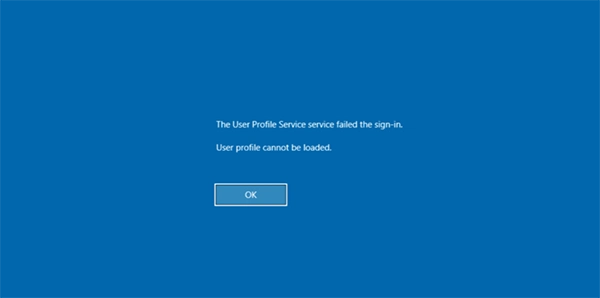
The “User Profile Service service failed the sign-in Windows 10/11” error appears when Windows can’t load your user profile during login. Since your profile stores your desktop, personal settings, documents, and app preferences, Windows blocks the sign-in process if it can’t access or verify this data.
You may see messages such as:
- The User Profile Service service failed the sign-in.
- User profile cannot be loaded.
- The User Profile Service service failed the sign-in.
This error does not always mean your profile is permanently corrupted. It can also occur after a Windows update error, an unexpected shutdown, or a temporary system issue. The error affects both Windows 10 and Windows 11, and the troubleshooting steps are largely the same.
Why Does the User Profile Service Fail to Sign In?
The Windows user profile service failed to sign in error usually appears when the OS cannot properly load your user profile after startup. Several issues can trigger this, but the most common ones include:
- Corrupted User Profile: A damaged or incomplete user profile is the most common reason. If important profile files become corrupted or are accidentally deleted, Windows may fail to load your account.
- Interrupted Windows Update: If your PC shuts down or loses power while installing Windows updates, profile-related files may become inconsistent, causing sign-in problems after the next restart.
- Corrupted System Files: Damaged Windows system files can prevent essential services, including the User Profile Service (ProfSvc), from working correctly. That is why it is also known as the profsvc service failed the sign-in error.
- Registry Errors: Windows stores profile information in the Registry. If the profile entries become corrupted or point to the wrong location, the user profile service cannot be loaded.
- Disk Errors: Bad sectors or file system corruption on the system drive can damage profile data, making it inaccessible during sign-in.
- Third-Party Software Conflicts: Some antivirus programs, system optimization tools, or disk utilities can interfere with the sign-in process by locking or modifying profile files.
- Improper Shutdowns: Repeated force shutdowns or unexpected power outages increase the risk of file corruption, which can eventually affect your user profile.
Knowing the possible cause makes troubleshooting much easier. Instead of trying random fixes, you can work through the solutions in the next section.
How to Fix the User Profile Service Failed the Sign-In Error?
Start with the simple solutions before moving on to advanced troubleshooting. In many cases, you can restore access to your account without resetting or reinstalling Windows.
Method 1: Restart Your Computer
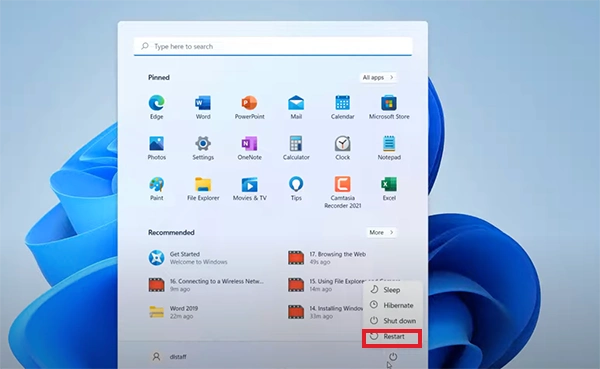
It may seem obvious, but a simple restart can fix temporary Windows profile not loading issues. If the error appeared after a Windows update or an unexpected shutdown, reboot your computer once or twice. Windows may be able to load your original profile after completing pending processes.
Method 2: Boot into Safe Mode
If restarting does not work, try signing in through Safe Mode. Since it loads Windows with only essential drivers and services, it can help you determine whether a startup program or third-party software is causing the issue.
To enter Safe Mode:
- On the sign-in screen, hold Shift and select Restart.
- Then, go to Troubleshoot > Advanced options > Startup Settings.
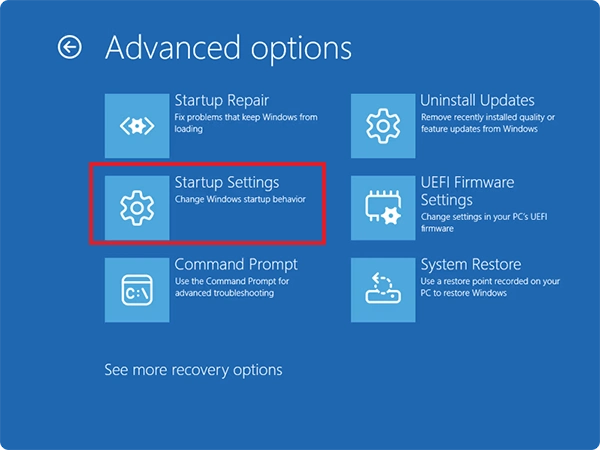
- Click Restart.
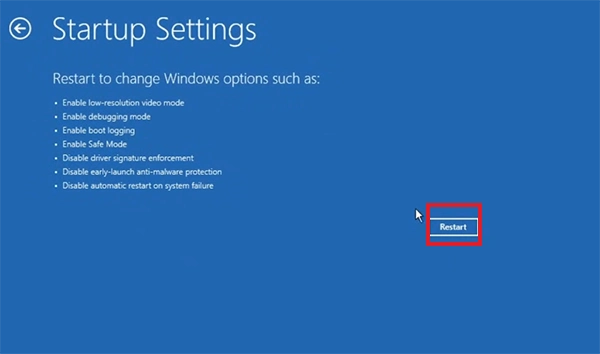
- Press F4 (Safe Mode) or F5 (Safe Mode with Networking).
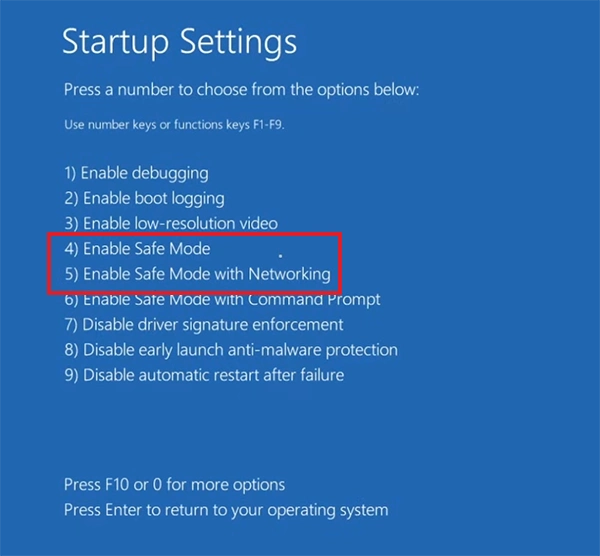
If you can sign in successfully, restart your PC normally and check whether the problem is resolved.
Method 3: Run DISM and SFC Scans
Corrupted system files can prevent the User Profile Service from working correctly. Running SFC and DISM commands repairs Windows image files and replaces damaged system files.
- Open Command Prompt as Administrator.
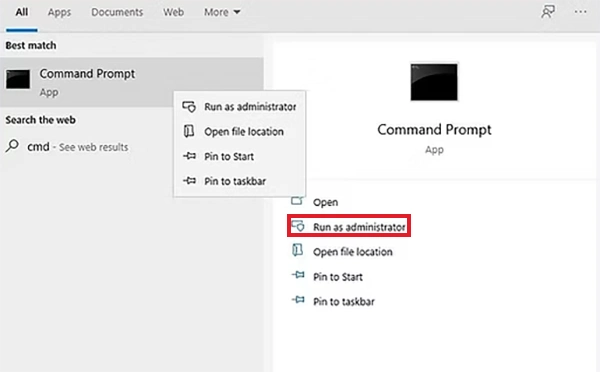
- Run: DISM/ Online/ Cleanup-Image/ RestoreHealth
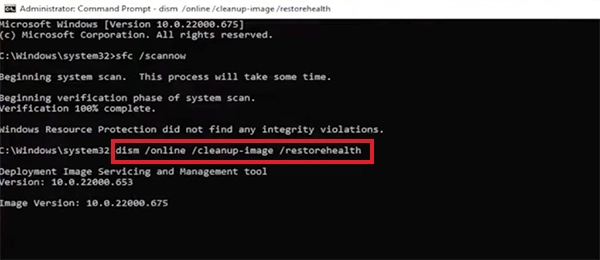
- After the scan finishes, run: sfc /scannow
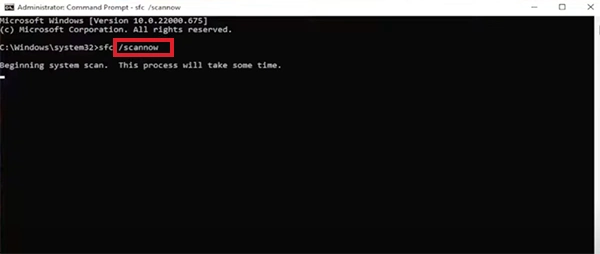
Restart your computer once both scans are complete and try signing in again.
Method 4: Repair the User Profile Registry Entry
If the user profile service failed the sign-in after reset, profile corruption, or a failed Windows update, Windows may be pointing to the wrong user profile in the registry.
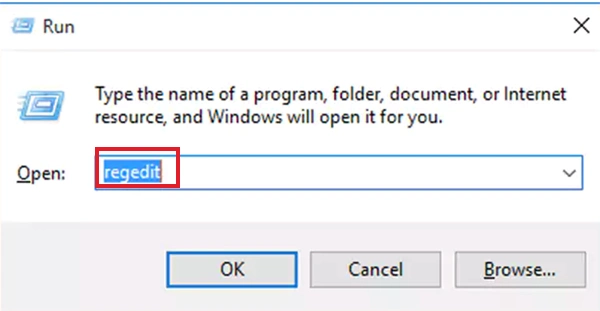
- Press Windows + R and run “regedit”.
- Then, navigate to: HKEY_LOCAL_MACHINE\SOFTWARE\Microsoft\Windows NT\CurrentVersion\ProfileList
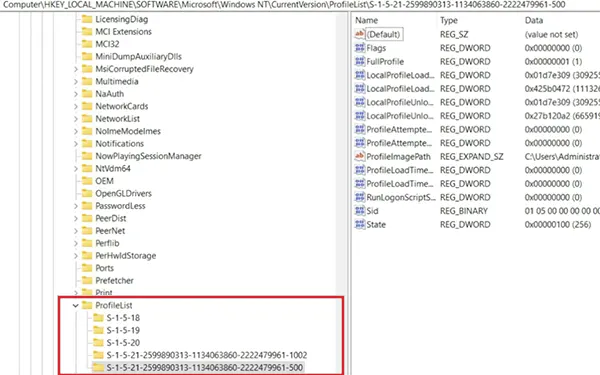
- Look for profile entries ending with “.bak”,
If you find one, Windows may have created a backup of your original profile. Correcting the profile entry can restore access. Just rename the incorrect profile and remove the “.bak” extension from the backup profile.
Method 5: Create a New User Profile
If your existing profile can’t be repaired, creating a new user account and recovering data is usually the fastest and safest solution.
- Create a new administrator account, and sign in with that account.
- Open File Explorer and go to C:\Users.
- Open your old user folder, copy your personal files, and paste them into the matching folders in your new profile.
This allows you to continue using your PC while keeping your documents and other personal data. Avoid copying hidden profile files like Ntuser.dat, Ntuser.ini, or other configuration files, as they may carry corruption to the new account.
Method 6: Use Startup Repair or System Restore
If the error appears after installing Windows updates, drivers, or new software, Windows recovery tools may help.
- Just boot into the Windows Recovery Environment (WinRE).
- Go to Troubleshoot > Advanced options.
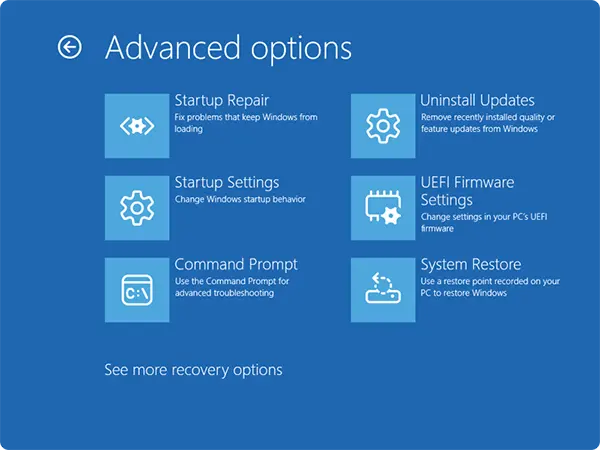
- From here, you can run Startup Repair to fix startup-related issues.
- And use System Restore to return Windows to an earlier state without affecting your personal files.
These options are especially useful if the “failed to load user profile” problem began immediately after a major system change.
How to Prevent the User Profile Failed to Sign In Errors in the Future?
While profile corruption can’t always be avoided, a few good habits can reduce the chances of encountering this error again.
- Install Windows updates regularly, but don’t interrupt the update process by shutting down or restarting your PC.
- Avoid forcing your computer to power off unless it is completely unresponsive. Unexpected shutdowns can corrupt profile and system files.
- Keep at least 15-20 GB of free space on your Windows drive so updates and system processes can run without any issues.
- If you notice crashes, file errors, or unusual slowdowns, run CHKDSK or your SSD manufacturer’s diagnostic tool to detect storage problems early.
- Back up important files regularly so your data remains safe even if your profile becomes corrupted.
Also, before installing major Windows updates, drivers, or system utilities, create a restore point. It provides an easy way to undo system changes if something goes wrong.
Wrapping Up
The User Profile Service failed the sign-in error can lock you out of your Windows account. However, restarting your PC, booting into Safe Mode, or repairing damaged system files is mostly enough to fix the problem. If the profile is beyond repair, I would suggest you create a new administrator account and move all your important files.
Frequently Asked Questions
What causes the User Profile Service failed the sign-in error?
How do I fix the User Profile Service failed the sign-in error?
Ans. Most users can resolve it by restarting the PC, using Safe Mode, repairing system files, fixing the profile configuration, or creating a new user account.
Will I lose my files if my user profile is corrupted?
Ans. No, your personal files are typically stored in the C:\Users folder and can be copied to a new user profile.
How do I know if Windows signed me into a temporary profile?
Ans. You will notice default settings, missing desktop files, or empty personal folders. Avoid saving new files in the temporary profile because Windows may delete it after you sign out.
Is it safe to delete a corrupted user profile?
Ans. Yes, but only after you have successfully signed in to a new account and confirmed that all your important files have been copied and are accessible.
Related Posts

How to Fix DISM Error 87 in Windows?
DISM Error 87 usually appears when Windows cannot understand a DISM command or one of its parameters. You may see…

How to Restart Explorer.exe in Windows?
A frozen taskbar, missing desktop icons, or an unresponsive File Explorer can make Windows feel stuck even when your computer…
![How to Reopen Closed Tabs on Mac [Easy Ways to Restore Tabs]](https://datarecovee.com/knowledge-base/wp-content/uploads/2026/10/how-to-reopen-closed-tabs-ftd-img.webp)
How to Reopen Closed Tabs on Mac [Easy Ways to Restore Tabs]
Accidentally closing the wrong tab can be super annoying, especially when you were in the middle of something important. You…

What Is a .BAT file and How Do You Create One?
You may have seen a file ending in .bat and wondered why opening it brings up a Command Prompt window…

How to Disable Microsoft Edge in Windows? 4 Quick Methods
Microsoft Edge can feel difficult to “turn off” because several Windows and Edge settings control when it starts and what…

How to Open EXE Files on Mac: 5 Ways to Run Windows Apps
If you have downloaded a Windows .exe file on your Mac, double-clicking it won’t make it run. macOS does not…

How to Sign Out of iMessage on Mac?
Your Mac can quietly become another place where your private conversations appear. That’s convenient until you are using a shared…

What is Windows Fast Startup and How Does It Work?
Fast Startup can make your PC boot noticeably faster after a shutdown. Instead of completely rebuilding the Windows kernel state…

How to Unzip Files on Mac: 3 Easy Ways to Extract ZIP Files
A ZIP file has a funny way of making a simple task feel more complicated than it is. On a…