


It is a Windows system component associated with displaying the lock screen. It is separate from the component that verifies your password or PIN.
What is LockApp.exe in Windows and How to Fix or Disable It?
LockApp.exe may look suspicious when you spot it in Task Manager, especially if you haven’t opened it yourself. This Windows process supports the lock screen, so its presence is usually normal. However, persistent high CPU or memory usage, crashes, or an unexpected file location may warrant investigation.
Before trying to disable it, learn what LockApp.exe does, how to verify that it is legitimate, and which troubleshooting steps can resolve common problems without modifying essential Windows files.
LockApp.exe: What Is It?
LockApp.exe is a Windows system component associated with the lock screen in Windows 10 and Windows 11. It helps display the screen you see before reaching the sign-in prompt, including its background and related visual content.
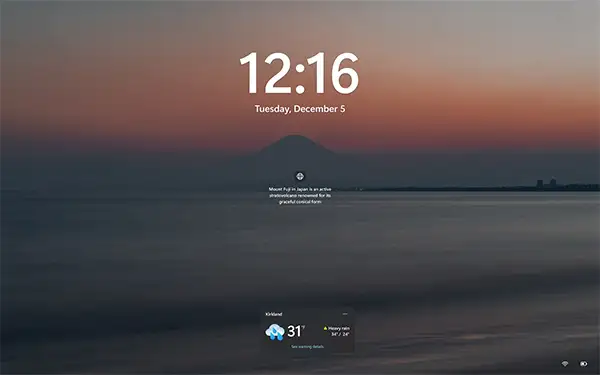
Windows may launch this when you start your PC, wake it from sleep, or lock the screen. Its activity can vary depending on the Windows version and what the system is doing.
The LockApp file is commonly located at:
C:\Windows\SystemApps\Microsoft.LockApp_cw5n1h2txyewy\LockApp.exe
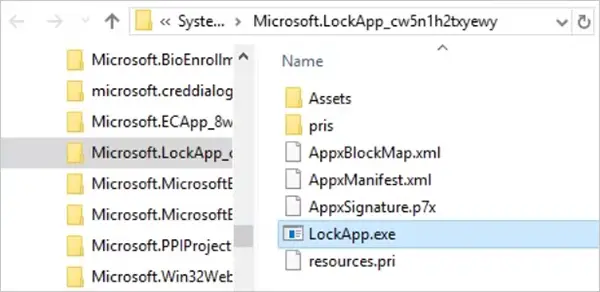
It does not verify your password or PIN. Its role is to support the lock screen interface, while Windows handles account authentication separately. You can customize the lock screen through Settings, including changing its background and available content.
Is LockApp.exe Safe or a Virus?
The genuine Microsoft LockApp.exe is a legitimate Windows component. However, malware can imitate its filename, so check the actual file rather than relying on its name alone. Follow these steps to verify it:
- Press Ctrl + Shift + Esc to open Task Manager.
- Find LockApp.exe in the process list, right-click it, and select Open file location.
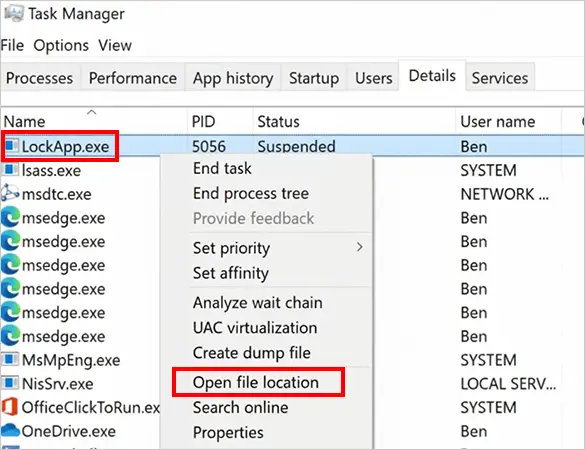
- Check whether it is in the expected “C:\Windows\SystemApps\Microsoft.LockApp_cw5n1h2txyewy” folder.
- If anything looks suspicious, check the file’s digital signature and scan it using Microsoft Defender.
To scan the file and check for malware, open Windows Security > Virus & threat protection and run a quick scan.
An unexpected location does not automatically prove that a file is malicious, but it deserves investigation. Likewise, a familiar filename alone does not establish a file is safe.
Why is LockApp.exe Using High CPU or Memory?
LockApp.exe may briefly use system resources while Windows displays the lock screen. Persistent or unusually high CPU or memory usage deserves further investigation. Here are some common causes:
- Temporary Glitches: The process may behave abnormally after waking from sleep or locking and unlocking the PC.
- Windows Spotlight Issues: Dynamic lock screen content may contribute to problems when Spotlight is enabled.
- Windows System Problems: Outdated components or corrupted system files can cause unexpected behavior.
- Suspicious Files: Malware using the LockApp.exe name may be responsible for unusual activity.
Check Task Manager to see whether resource usage remains high after signing in. If it settles down quickly, the activity may have been temporary. If it repeatedly spikes, freezes, or crashes, try the fixes below.
How to Fix LockApp.exe Issues in Windows?
Try these fixes in order, starting with the least disruptive. Avoid deleting or modifying the executable to resolve a performance problem.
1. Restart Your PC
A restart can resolve a temporary process hang. Save your work, select Start > Power > Restart, and wait for Windows to load.
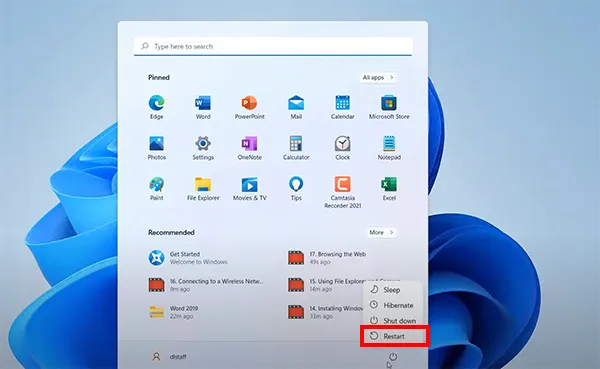
After that, press Win + L to lock the computer and check whether the issue returns.
2. Switch Off Windows Spotlight Temporarily
If the problem occurs around lock screen activity, test whether Windows Spotlight is involved.
- Open Settings > Personalization > Lock screen.
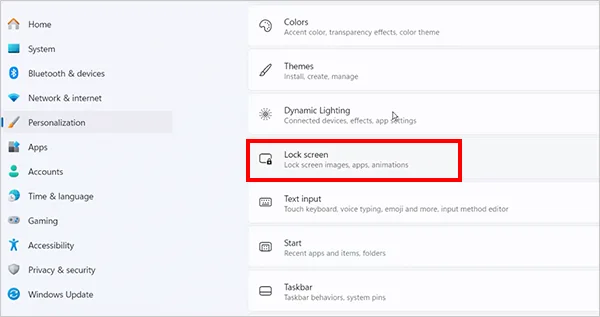
- Change the background from Windows Spotlight to Picture.
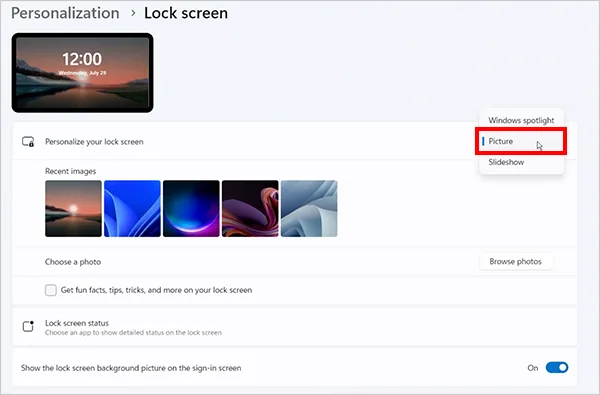
- Select a static image.
- Restart your PC and check whether the problem persists.
This is a diagnostic step, not a guaranteed fix. If Spotlight was not contributing to the issue, changing the background may make no difference.
3. Install Windows Updates
Outdated Windows components may contribute to recurring crashes or unusual behavior. Just go to Settings > Windows Update, select Check for updates, install applicable updates, and restart if prompted.
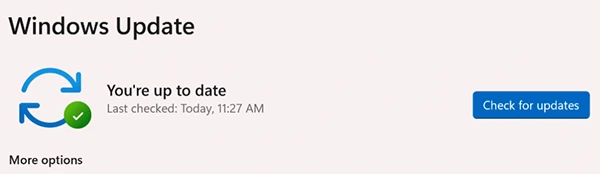
Updates can fix known bugs and improve system stability. After updating, check Task Manager to see whether LockApp’s CPU or memory usage has returned to normal.
4. Repair Windows System Files
If the problem continues and you suspect system file corruption, run the Deployment Image Servicing and Management (DISM) tool followed by System File Checker (SFC).
- Launch Command Prompt as an administrator.
- Run: “DISM /Online /Cleanup-Image /RestoreHealth”.
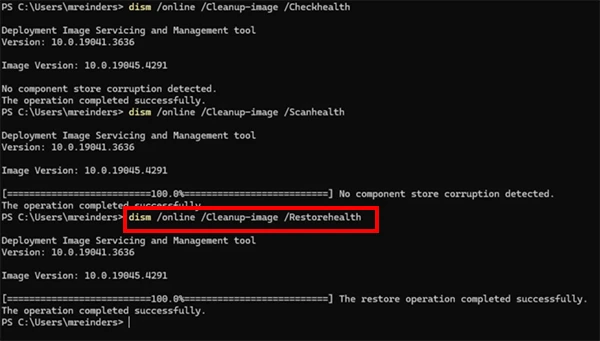
- Wait for the command to finish, then run: “sfc /scannow”.
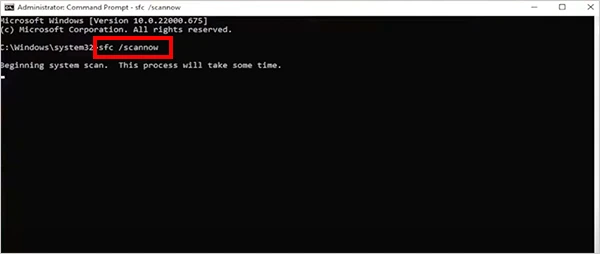
DISM repairs the Windows component store when possible, while SFC checks protected system files and repairs them if needed. Restart your PC after both commands complete.
These tools can address Windows corruption, but they will not necessarily resolve every lock screen issue.
5. Scan for Malware
If the file is in an unexpected location, has a suspicious digital signature, or triggers a security warning, investigate it for malware.
- Open Windows Security > Virus & threat protection.
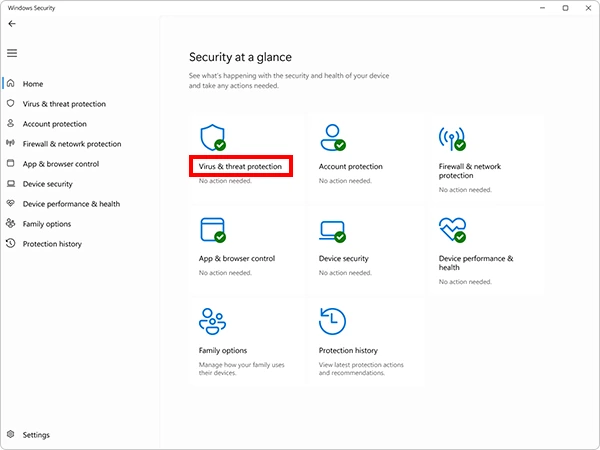
- Run a Quick scan.
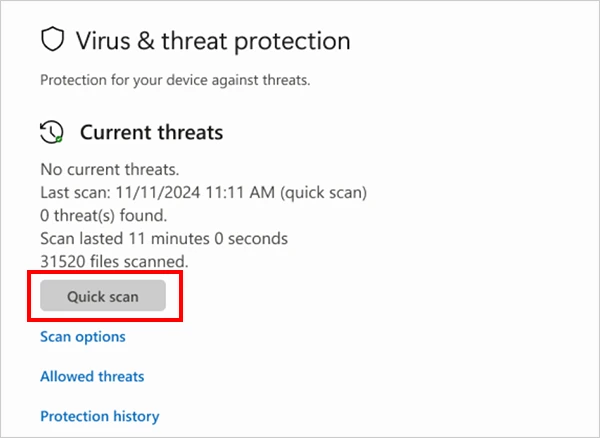
- If you still suspect an infection, consider a Full scan or Microsoft Defender Offline scan.
Also, do not download a replacement LockApp.exe from a third-party website.
How to Disable LockApp.exe in Windows?
Windows does not provide a general-purpose Settings switch specifically for disabling the LockApp.exe Windows 11/10 process. The appropriate option depends on whether you want to remove dynamic lock screen content or change whether the lock screen appears.
Option 1: Turn Off Lock Screen Spotlight Content
If you want to stop dynamic images and tips, change the lock screen settings instead of disabling the executable.
- Open Settings > Personalization > Lock screen.
- Change Windows Spotlight to Picture.
- Turn off additional lock screen tips or content if the relevant option is available.
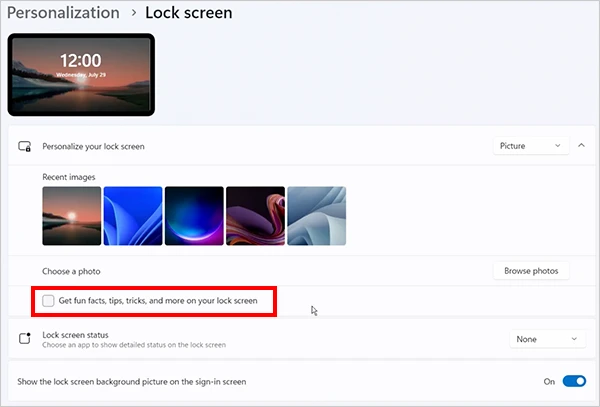
This changes the lock screen experience without modifying Windows system files.
Option 2: Disable the Lock Screen Through Group Policy
Some Windows Pro, Enterprise, and Education editions provide Group Policy settings that control whether the lock screen appears. This changes lock screen behavior; it does not directly disable or remove LockApp.exe.
On supported editions:
- Press Windows + R, type gpedit.msc, and press Enter.
- Navigate to Computer Configuration > Administrative Templates > Control Panel > Personalization.
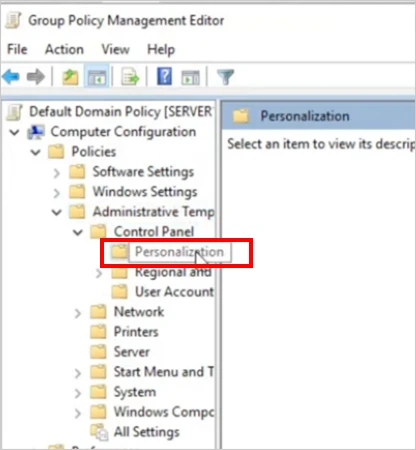
- Open Do not display the lock screen.
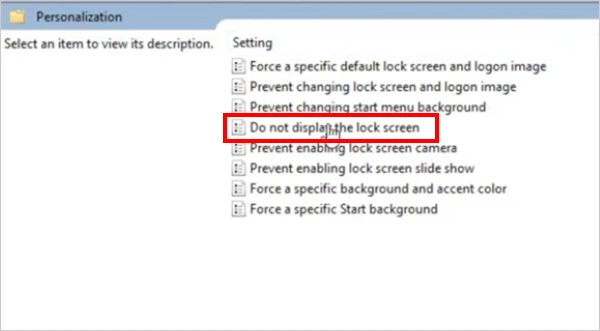
- Set the policy to Enabled and apply the change.
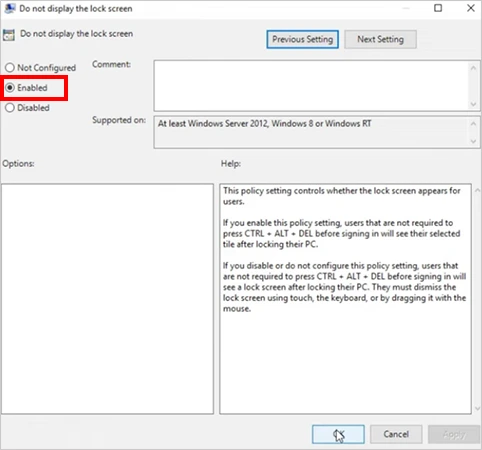
- Restart Windows or refresh the policy.
Availability and behavior depend on the Windows edition and version. This setting may not be available on Windows Home.
Important: Avoid renaming or deleting LockApp.exe, or changing permissions on its system folder. These are not recommended fixes and may cause unexpected behavior or fail after Windows updates.
Conclusion
LockApp.exe is a normal Windows component that supports the lock screen. Seeing it in Task Manager is not, by itself, a security concern. What matters is whether the file is genuine and whether it causes persistent problems.
If it uses excessive resources, start with a restart, test a static lock screen background, and install available Windows updates. Use DISM and SFC if you suspect system file corruption. If you simply want to remove Spotlight content, change the lock screen settings instead of modifying the executable.
Frequently Asked Questions
What is LockApp.exe?
Is LockApp.exe a virus?
No, the genuine LockApp executable file is safe. However, malware can use the same name, so check its file location and scan it with Windows Security if you suspect a threat.
Can I safely disable LockApp.exe?
It is best to leave the EXE file alone. To remove Spotlight content, change the lock screen background in Windows Settings. Some Windows editions also support a Group Policy setting that controls whether the lock screen appears.
Is it safe to delete LockApp.exe in Windows?
No, it is a Windows component, and deleting it may cause system issues. Troubleshoot the process or change lock screen settings instead.
Where is LockApp.exe located?
The genuine file is usually located at “C:\Windows\SystemApps\Microsoft.LockApp_cw5n1h2txyewy\LockApp.exe”. A different location may be suspicious, but it does not automatically confirm malware.
Related Posts

How to Run Windows on Mac: 4 Methods That Actually Work
Buying a Mac does not mean you have to give up Windows. You might need a Windows-only work application, open…

How to Fix DISM Error 87 in Windows?
DISM Error 87 usually appears when Windows cannot understand a DISM command or one of its parameters. You may see…
How to Restart Explorer.exe in Windows?
A frozen taskbar, missing desktop icons, or an unresponsive File Explorer can make Windows feel stuck even when your computer…
How to Reopen Closed Tabs on Mac [Easy Ways to Restore Tabs]
Accidentally closing the wrong tab can be super annoying, especially when you were in the middle of something important. You…
What Is a .BAT file and How Do You Create One?
You may have seen a file ending in .bat and wondered why opening it brings up a Command Prompt window…
How to Disable Microsoft Edge in Windows? 4 Quick Methods
Microsoft Edge can feel difficult to “turn off” because several Windows and Edge settings control when it starts and what…

How to Open EXE Files on Mac: 5 Ways to Run Windows Apps
If you have downloaded a Windows .exe file on your Mac, double-clicking it won’t make it run. macOS does not…
How to Sign Out of iMessage on Mac?
Your Mac can quietly become another place where your private conversations appear. That’s convenient until you are using a shared…
What is Windows Fast Startup and How Does It Work?
Fast Startup can make your PC boot noticeably faster after a shutdown. Instead of completely rebuilding the Windows kernel state…