


Ans. It is the Task Manager name for the Microsoft Defender Antivirus process, MsMpEng.exe. It runs in the background to provide real-time protection and malware scanning.
Antimalware Service Executable: What It Is and How to Fix High CPU Usage
You open Task Manager and notice Antimalware Service Executable using a surprising amount of CPU or memory. It may keep running even when you are not actively scanning your PC, making it easy to assume something is wrong. But usually, it isn’t.
Antimalware Service Executable is the process behind Microsoft Defender Antivirus, and it normally runs in the background. The problem is persistent resource usage that slows your computer down. In this guide, I will explain why it happens and how to fix it.
What is Antimalware Service Executable?
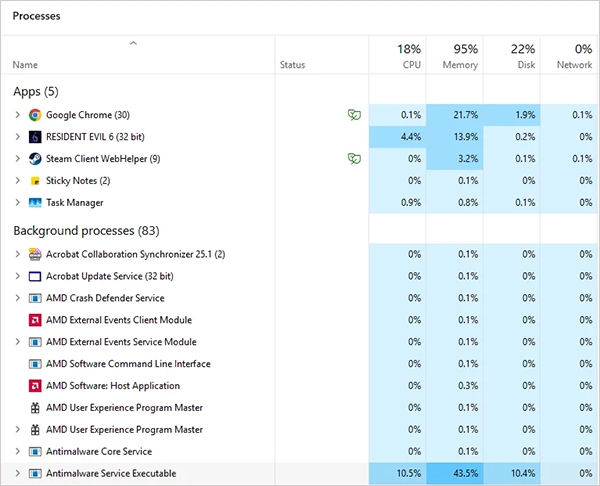
Antimalware Service Executable is the name Windows shows in Task Manager for the Microsoft Defender Antivirus process. Its executable file is MsMpEng.exe, and it is associated with the Windows Defender Antivirus service.
MsMpEng.exe handles Defender functions, including real-time protection and malware scanning. Real-time protection checks files and programs as they are accessed or executed, while scheduled and on-demand scans inspect the system for threats.
That’s why you will normally see Task Manager Antimalware Service Executable running in the background when Defender Antivirus is active. However, that does not mean your PC is infected or that something is wrong.
Why is Antimalware Service Executable Using So Much CPU or Memory?
Why is the Antimalware Service Executable always running on my computer? Well, it uses system resources because Microsoft Defender continuously monitors files, programs, and other activity on your PC.
A temporary increase in CPU, memory, or disk usage is normal, especially during a scan. The issue is when resource usage remains high after the scan finishes or repeatedly slows down your computer. Common causes include:
- A Scheduled or Manual Scan is Running: Scans can temporarily increase CPU and disk usage.
- Many or Large Files are Being Inspected: Large folders and extensive file collections require more processing.
- An Application is Frequently Changing Files: Real-time protection may scan files whenever a program creates or modifies them.
- A Specific Workload is Triggering Repeated Scans: Certain file types, folders, or applications may cause Defender to perform more checks.
- Another Antivirus is Installed: Additional security software can affect how Defender operates and may create compatibility or performance issues.
Windows 11 Antimalware Service Executable high CPU usage during an active scan does not necessarily indicate a memory problem. If the usage remains unusually high after scans finish, identify what Defender is scanning before changing its security settings.
How to Reduce Antimalware Service Executable High CPU Usage?
There can be different kinds of high MsMpEng.exe usage. Start with the least disruptive steps, then investigate what Defender is scanning if the problem keeps returning.
1. Allow an Active Scan to Finish
If Defender is currently scanning your computer, let the scan complete before changing its configurations. You can check its status under Windows Security > Virus & threat protection.
A full scan can take some time, and temporary increases in CPU or disk usage are expected while it runs. If resource usage drops after the scan finishes, there may be no underlying problem to fix.
2. Update Microsoft Defender and Windows
Outdated security intelligence or Windows components can contribute to compatibility and performance issues. To check for Microsoft Defender updates:
- Open Windows Security.
- Select Virus & threat protection.
- Under Virus & threat protection updates, select Protection updates.
- Check for available security intelligence updates.
Also open Settings > Windows Update and install any available Windows updates.
Keeping both Windows and Defender up to date ensures that you are troubleshooting with the current security components.
3. Run a Full Scan If You Suspect Malware
A full scan is not a direct fix for Antimalware Service Executable high CPU in Windows 11. However, it is worth running if the unusual resource usage comes with signs that something may be wrong with your PC. To run the scan:
- Open Windows Security.
- Go to Virus & threat protection and select Scan options.
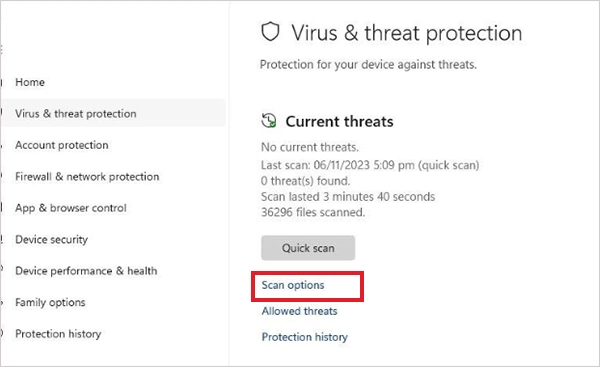
- Then, choose Full scan.
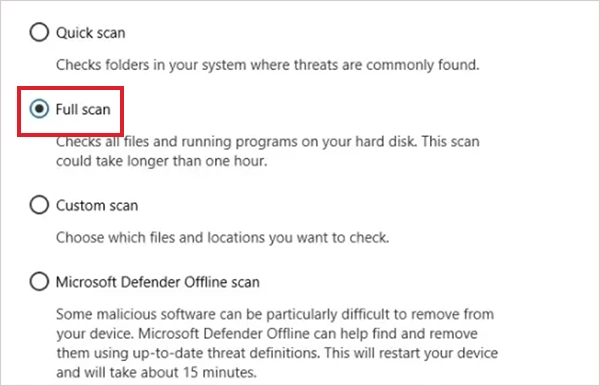
- Now just click Scan now.
Expect CPU and disk usage to increase while the scan is running. A full scan takes a significant amount of time depending on the amount of data on your PC.
4. Use Microsoft Defender Antivirus Performance Analyzer
If MsMpEng.exe repeatedly consumes a large amount of CPU, don’t immediately create exclusions or disable Microsoft Defender. First, find out what is generating the workload.
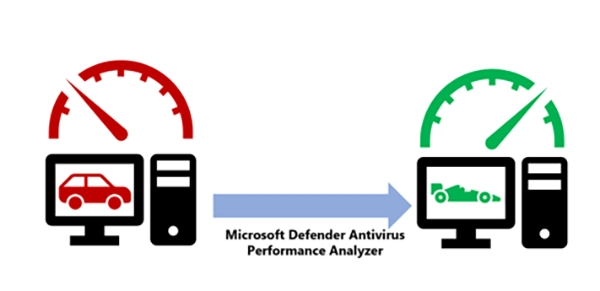
Microsoft Defender Antivirus Performance Analyzer can help identify the files, folders, extensions, and processes that contribute most to Defender’s scanning workload.
You can start a performance recording from PowerShell with administrator privileges. Just run:
New-MpPerformanceRecording -RecordTo <recording.etl>
While recording is running, reproduce the high CPU usage. Then stop the recording and generate a report:
Get-MpPerformanceReport -Path <recording.etl> -TopFiles 3 -TopScansPerFile 10
The results can help show whether a particular application, file type, or directory is responsible for the repeated scanning activity.
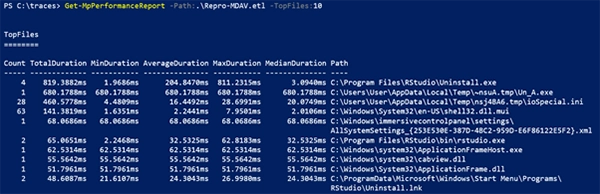
This approach is more useful than adding random exclusions because it gives you a specific workload to investigate.
5. Check for Conflicting Antivirus Software
If you recently installed another antivirus or security product, check whether the problem started around the same time.
Microsoft Defender can change its behavior when another antivirus product is installed. Depending on the configuration, Defender may operate differently rather than simply disappearing from the system.
If you don’t need the additional antivirus software, removing it can simplify your security setup and eliminate potential compatibility issues.
Don’t install another antivirus simply to test whether it fixes high usage. First, determine whether an existing security product is contributing to the problem.
6. Schedule Scans for Less Disruptive Times
If scheduled scans slow down your PC, configure them to run when you are not working. On managed PCs, you can use Group Policy:
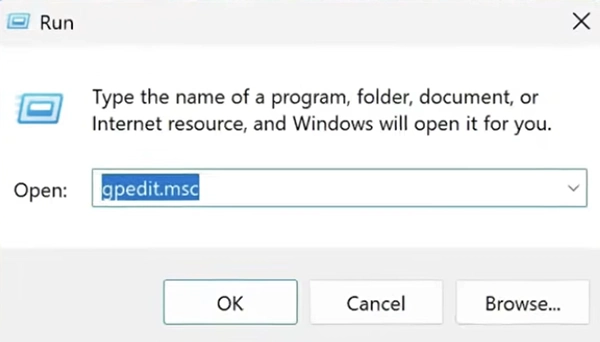
- Press Windows + R, type gpedit.msc, and press Enter.
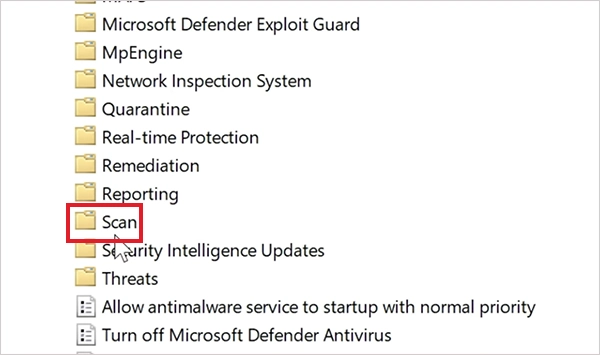
- Go to Computer Configuration > Administrative Templates > Windows Components > Microsoft Defender Antivirus > Scan.
- Set the scheduled scan day, time, and scan type.
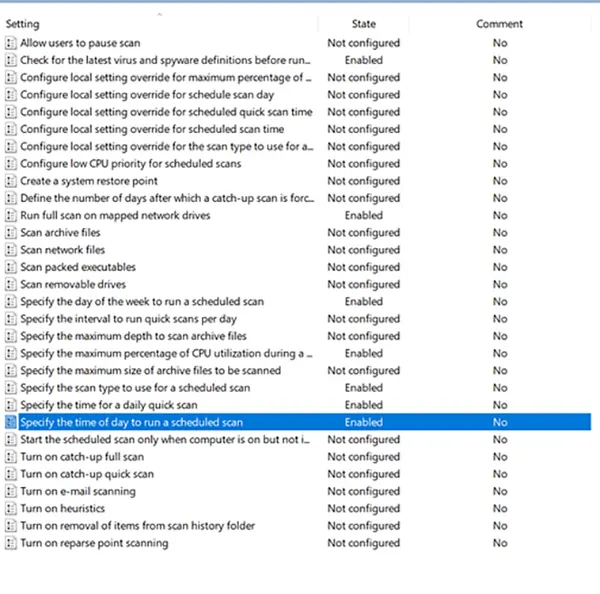
- Apply the changes.
You can also limit Defender’s CPU usage during scans, but this may make them take longer.
7. Add a Targeted Exclusion Only When Necessary
If Defender’s Performance Analyzer identifies a specific and trusted workload causing repeated scans, add a narrow exclusion.
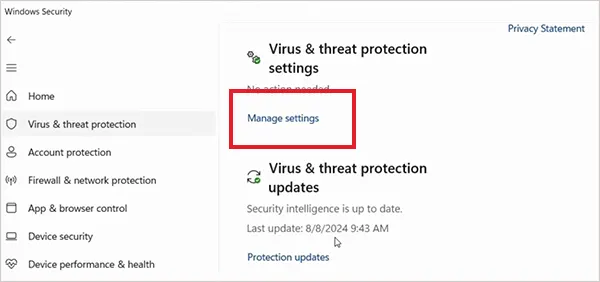
- Open Windows Security > Virus & threat protection.
- Next, select Manage Settings.
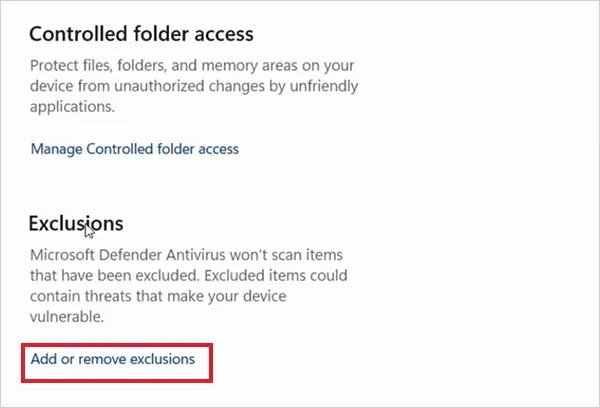
- Go to Add or remove exclusions under Exclusions.
- Select Add an exclusion, then choose the exclusion type.
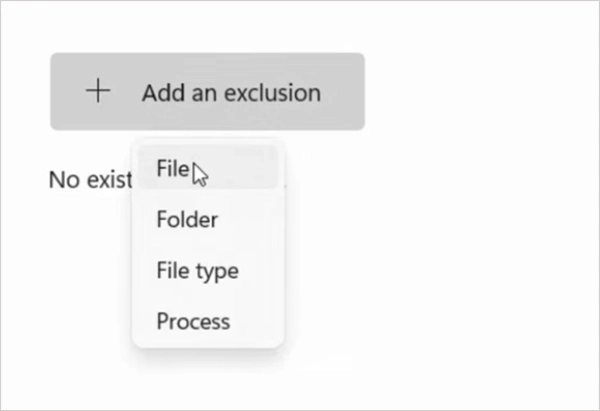
Finally, select the specific item.
Avoid excluding entire drives or large folders. Exclusions reduce protection, so use them only when necessary. Also, do not exclude MsMpEng.exe itself. Identify the workload causing the scans first.
8. Repair Windows System Files
If high Defender resource usage occurs alongside other Windows problems, a damaged system component may also need attention.
- Open Command Prompt as administrator and run: “DISM /Online /Cleanup-Image /RestoreHealth”.
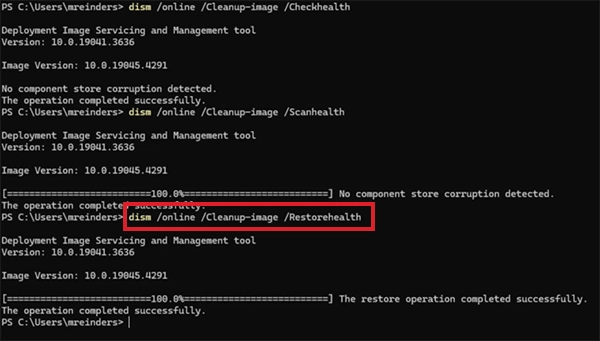
- After the DISM command finishes, run: “sfc /scannow”.
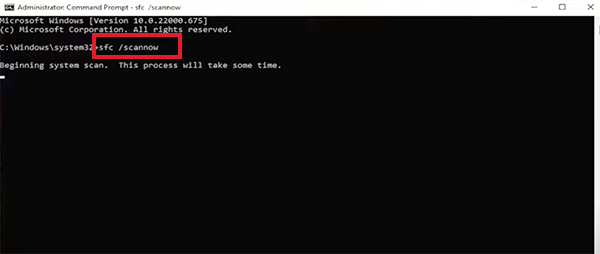
- Restart your computer and check whether the high CPU usage returns.
These commands can repair damaged Windows components, but they won’t resolve a performance problem caused by a particular application repeatedly triggering Defender scans.
Final Thoughts
Antimalware Service Executable is a normal Microsoft Defender Antivirus component. Seeing it in Task Manager does not mean your computer has a virus, and the process should not be deleted or disabled simply because it uses system resources. The safest approach is to identify the cause rather than disabling Defender or excluding its executable.
Frequently Asked Questions
What is Antimalware Service Executable in Windows 11?
Is it okay to delete Antimalware Service Executable?
Ans. No, do not delete the executable. It is a core Defender process, and removing or tampering with it can interfere with Windows security.
Can I stop Antimalware Service Executable?
Ans. You can temporarily change or disable some Microsoft Defender settings, but permanently disabling protection is not recommended.
Is Antimalware Service Executable a virus?
Ans. No, it is the legitimate Microsoft Defender Antivirus process. If you find a file with the same name in an unexpected location or suspect that it has been replaced, check its location and scan the system with Windows Security.
How do I fix Antimalware Service Executable high memory usage?
Ans. Start by letting any active scan finish. Then update Windows and Microsoft Defender, and restart the PC. If memory remains unusually high, use the Performance Analyzer to identify the files, extensions, paths, or processes contributing to Defender’s workload instead of immediately disabling it.
Related Posts

8 Best Online Tools to Identify Unknown Callers
When a call comes on your screen with no name or context, you just zone out, thinking you should pick…

How to Fix Black Shadow on Laptop Screens?
A black shadow on laptop screens can look like a Windows glitch, but the shape and location of the dark…

Fixing Broken IP Allowlists With a Dedicated Static Address
IP allowlisting is one of the easiest security controls available. Tell a service to accept connections only from addresses you…

What is DumpStack.log and Can You Delete It in Windows?
If you have noticed a file named DumpStack.log in the root of your Windows drive, you may wonder why it…

How eSIM Fits Into Your Global Travel Itineraries
Multi-country trips can be exciting, but sometimes mobile device data makes it concerning. Whenever you cross a border, there will…

How to Pick the Right Data Structure Before You Build Your Database
Every application that stores information depends on a structure chosen long before the first row of data arrives. That structure…

Standardizing React Component Iconography Across Distributed Product Teams
Creating a common React component library is essentially a losing battle. During a cross-team review, I shared my screen. I…

Keeping Your Website Healthy: A Practical Guide to Long Term Success
Introduction The website may appear to be finished once it is launched; however, making sure that the site remains reliable…
How to Fix the ene.sys Driver Cannot Load Error?
A Windows update can suddenly turn a harmless RGB utility into a startup warning: “A driver cannot load on this…