


Ans. Windows may block an app because it is untrusted, has a problem with its digital signature, or is restricted by SmartScreen, Smart App Control, AppLocker, or another security policy.
How to Fix “This App Has Been Blocked for Your Protection” in Windows?
You open an app, and Windows stops you with a red warning: This app has been blocked for your protection. It can be especially confusing when you are already the PC’s administrator.
This message can appear when Windows does not trust an app or when a security policy prevents it from running. The right fix depends on what’s causing the block. In this guide, I will show you how to identify the cause and safely get a trusted app running again.
Why Does Windows Say “This App Has Been Blocked for Your Protection”?
The wording of this message can vary depending on which Windows security or application-control feature is involved. You may see something like “An administrator has blocked you from running this app” or “This app has been blocked by your administrator”.
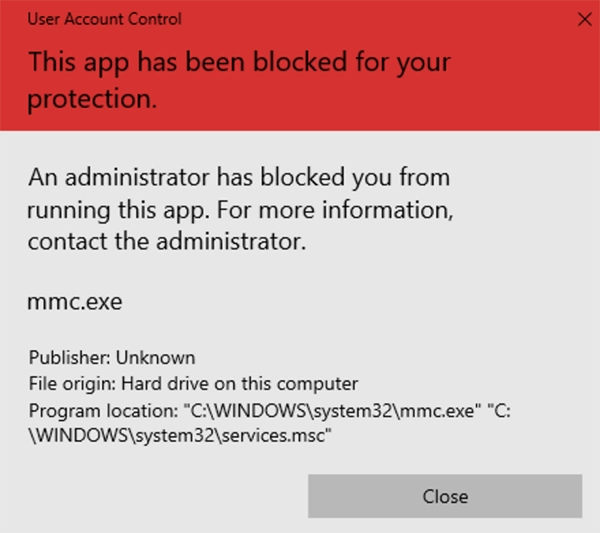
Common reasons why the administrator has blocked you from running this app include:
- Microsoft Defender SmartScreen does not trust the downloaded app or file.
- Smart App Control considers the app untrusted on supported Windows 11 installations.
- AppLocker or another application-control policy prevents the program from running.
- The app has an invalid, missing, or untrusted digital signature.
- A work or school administrator has restricted the application.
- Windows has flagged the file because of its source.
SmartScreen checks the reputation of apps and downloaded files. So, don’t assume Windows is wrong just because you recognize the app. First, verify the source, publisher, and digital signature. If the file is from an unknown source, bypassing the warning may put your PC at risk.
How to Bypass “This App Has Been Blocked for Your Protection” in Windows?
There is no universal way to bypass the “This app has been blocked by your system administrator” warning. Different Windows security features can block an application.
Start with the safest checks first. Only change a security setting when you have identified why the app is being blocked, and you are confident the file is safe.
1. Verify and Scan the App
Before trying to bypass the administrator blocked you from running this app warning, make sure the application is legitimate.
Download it from the developer’s official website or the Microsoft Store, if available. Check the publisher, file name, and source. You can also scan the file with Windows Security before opening it.
This step matters because SmartScreen and Smart App Control are designed to stop untrusted or potentially harmful applications. If you do not recognize where the file came from, don’t bypass the warning just to get it running.
2. Unblock the File from Properties
If the app is legitimate and Windows has marked the downloaded file because it came from another computer or the internet, you may see an Unblock option in its Properties.
- Open File Explorer and find the application.
- Right-click the file and select Properties.
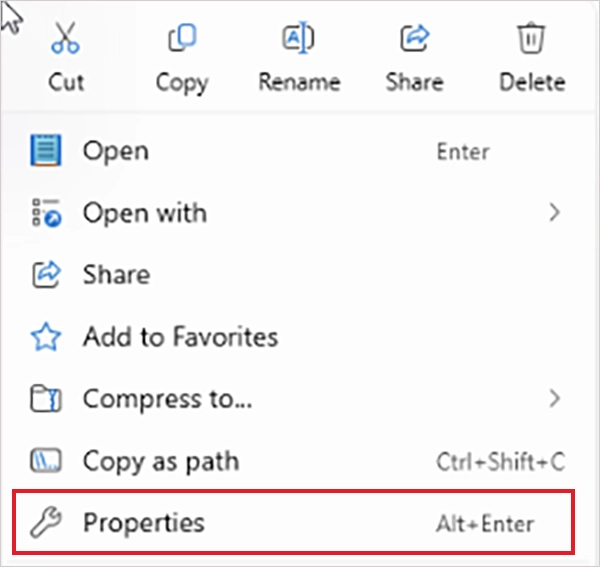
- Stay on the General tab and look for an Unblock checkbox or option in the Security section.
- If you have verified that the file is safe, select Unblock.
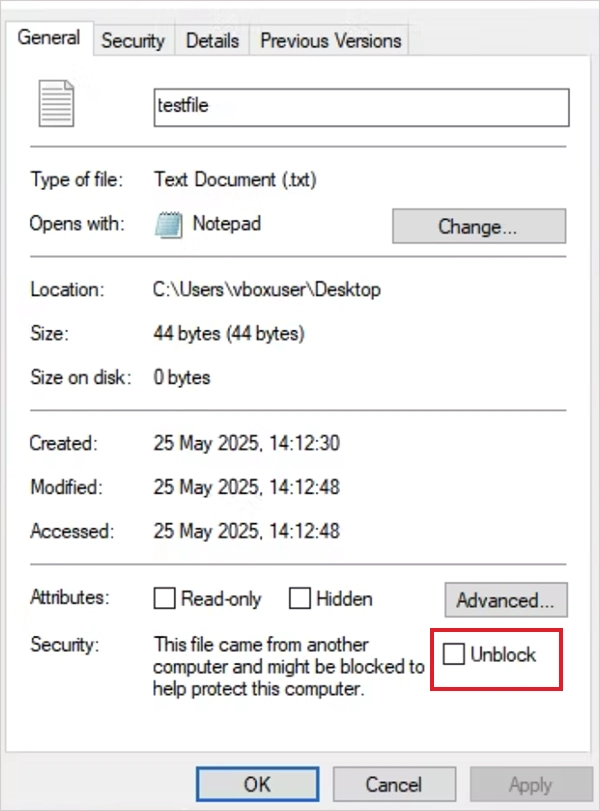
- Click Apply > OK, then try opening the app again.
This can help with a trusted file that Windows has flagged because of its origin. It is not a general solution for an app you haven’t verified.
3. Try Run as Administrator
Some applications need elevated permissions to make system-level changes. Just right-click the app and select Run as administrator.
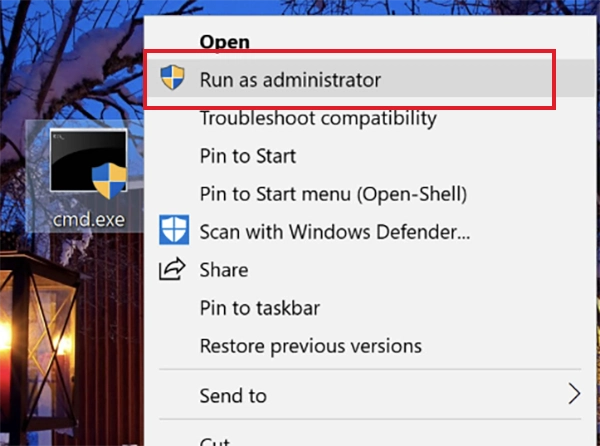
If Windows displays a User Account Control blocking app prompt, check the application’s publisher before approving it. Keep in mind that this won’t bypass every type of application block.
UAC controls elevated permissions, while technologies such as AppLocker can independently prevent an application from running. If the same “This app is blocked for your protection” warning appears, move on to identifying which security feature is blocking the app.
4. Check Windows Security
Windows Security contains settings for several features that can prevent applications from running and show that your administrator has blocked this action.
- Go to Settings > Privacy & Security > Windows Security > App & Browser Control.
- Check Reputation-based protection and, on supported Windows 11 systems, Smart App Control.
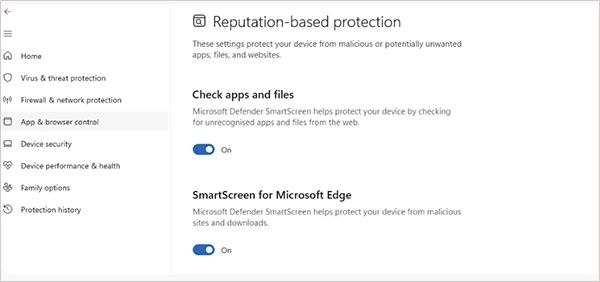
Microsoft Defender SmartScreen can check the reputation of apps and files downloaded from the web. If Windows identifies the applications as potentially unwanted or untrusted, review the warning before changing any protection settings.
5. Check Whether AppLocker is Blocking the App
If the computer is managed by a company, school, or another organization, an AppLocker policy may be responsible.
AppLocker lets administrators control which applications users can run. Rules can be based on the publisher, product, file name, version, path, or file hash.
If you have permission to manage the PC, here’s how you can check:
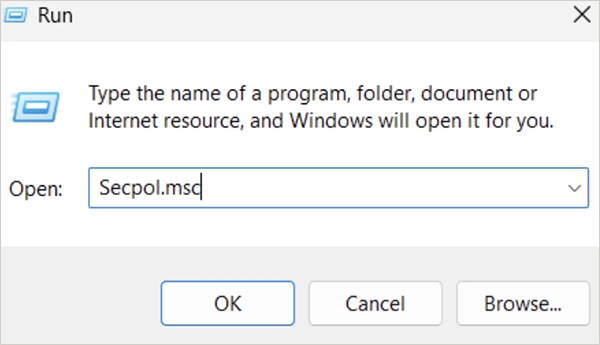
- Press Win + R, type secpol.msc, and press Enter.
- In Local Security Policy, expand Security Settings.
- Then, go to Application Control Policies > AppLocker.
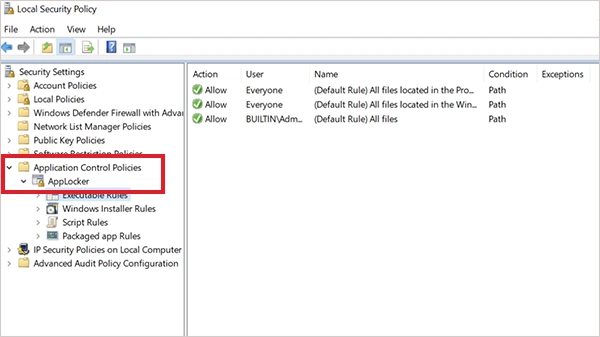
On a work or school computer, don’t change these rules yourself. AppLocker policies can be deployed centrally through Group Policy, and organization-level policies can take precedence over local settings.
If a legitimate work application is blocked, ask your administrator to approve it instead.
How to Prevent Apps from Being Blocked in Windows?
You can’t prevent every Windows security warning, and you should not try to. These protections are there to stop applications that Windows can’t establish as trustworthy.
A few habits can reduce unnecessary “This app has been blocked by administrator” blocks:
- Download Apps from Official Sources: Always use the developer’s website or Microsoft Store instead of unknown download sites.
- Keep Applications Updated: Newer versions may include updated digital signatures, certificates, or compatibility fixes.
- Check Digital Signatures: A Valid signature can help confirm the publisher’s identity and whether the file has been modified.
- Keep Windows Security Features Enabled: Disabling SmartScreen, Smart App Controls, or other protections just to run one program can leave your PC exposed to other threats.
Also, if your work or school computer blocks an app, ask the administrator to approve it rather than trying to work around the policy.
Conclusion
The “This app has been blocked for your protection Windows 11/10” window tells you that Windows has stopped the app, but not always which security feature made that decision.
Start by verifying the application and checking its Properties. If that does not help, review Windows Security, Smart App Control, or AppLocker depending on your setup. On a work or school computer, let the administrator handle application-control policies.
Frequently Asked Questions
What does “This app has been blocked for your protection” mean?
Can I permanently stop Windows from blocking apps?
Ans. No, SmartScreen and Smart App Control continue running in the background. Also, disabling these protections is not recommended because it weakens system security.
How do I bypass “This app has been blocked for your protection” in Windows 10?
Ans. Verify the application, check its Properties for an Unblock option, and review App & browser control settings inside Windows Security.
Does Run as administrator bypass the app-blocked error?
Ans. Not necessarily; the Run as administrator option provides elevated permissions, but it does not automatically override application-control policies such as AppLocker.
How do I unblock an app blocked by administrators?
Ans. On a work or school PC, ask the administrator to approve the app or change the relevant policy. On a personal PC, check all the security policies to identify the restriction before changing any security settings.
Related Posts
How to Run Windows on Mac: 4 Methods That Actually Work
Buying a Mac does not mean you have to give up Windows. You might need a Windows-only work application, open…

How to Fix DISM Error 87 in Windows?
DISM Error 87 usually appears when Windows cannot understand a DISM command or one of its parameters. You may see…

How to Restart Explorer.exe in Windows?
A frozen taskbar, missing desktop icons, or an unresponsive File Explorer can make Windows feel stuck even when your computer…
![How to Reopen Closed Tabs on Mac [Easy Ways to Restore Tabs]](https://datarecovee.com/knowledge-base/wp-content/uploads/2026/10/how-to-reopen-closed-tabs-ftd-img.webp)
How to Reopen Closed Tabs on Mac [Easy Ways to Restore Tabs]
Accidentally closing the wrong tab can be super annoying, especially when you were in the middle of something important. You…

What Is a .BAT file and How Do You Create One?
You may have seen a file ending in .bat and wondered why opening it brings up a Command Prompt window…

How to Disable Microsoft Edge in Windows? 4 Quick Methods
Microsoft Edge can feel difficult to “turn off” because several Windows and Edge settings control when it starts and what…

How to Open EXE Files on Mac: 5 Ways to Run Windows Apps
If you have downloaded a Windows .exe file on your Mac, double-clicking it won’t make it run. macOS does not…

How to Sign Out of iMessage on Mac?
Your Mac can quietly become another place where your private conversations appear. That’s convenient until you are using a shared…

What is Windows Fast Startup and How Does It Work?
Fast Startup can make your PC boot noticeably faster after a shutdown. Instead of completely rebuilding the Windows kernel state…