
Ans. Open Settings > Accessibility > Mouse pointer and touch. Then, under Mouse pointer style, select Custom and choose your preferred color.
How to Change Cursor Color in Windows 11?
 Written by Mahima Dave
The default white mouse pointer can be difficult to spot against bright windows, documents, and light-colored backgrounds. That’s when people wonder how to change the color of the cursor.
Windows 11 allows you to change its appearance without installing custom cursor software or editing system files. You can switch to a black or inverted pointer, choose a recommended color, or pick a shade of your own. This guide explains how to change cursor color in Windows, restore the default appearance, and adjust the pointer size.
Quick Answer: How to Change Mouse Pointer Color in Windows 11?
- Go to Settings > Accessibility > Mouse pointer and touch.
- Under Mouse pointer style, select a color you want.
- If you want a custom color, choose one of the recommended colors or click Choose another color to pick your preferred shade.
How to Change Cursor Color in Windows 11?
Windows 11 has built-in options for changing the mouse pointer’s appearance. You can choose between white, black, inverted, and custom styles. Here’s how to change cursor color of your mouse pointer:
- Press Windows + I to open Settings.
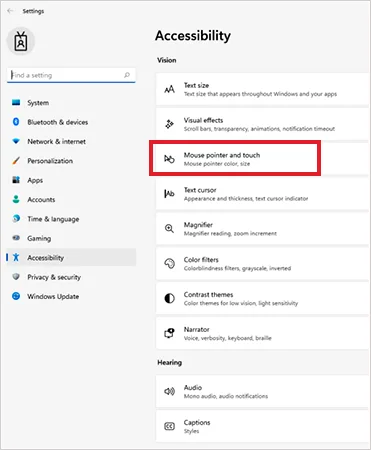
- Select Accessibility from the left sidebar.
- Under the Vision section, click Mouse pointer and touch.
- Find the Mouse pointer style options.
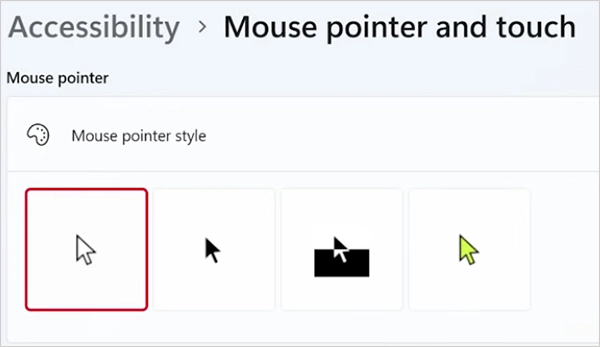
- Choose your preferred style:
- White: The default pointer with a dark outline.
- Black: A black pointer that stands out against light backgrounds.
- Inverted: Automatically adjusts the pointer’s appearance based on the background.
- Custom: This allows you to choose a color of your own.
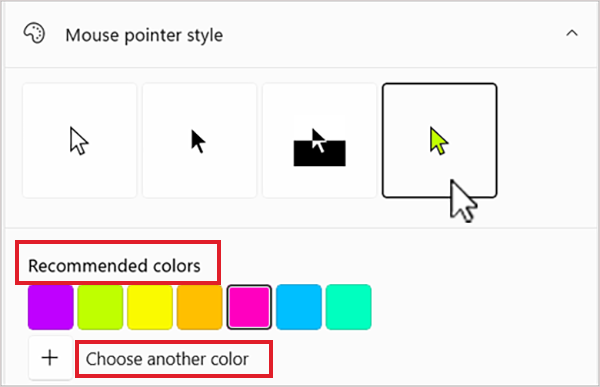
- If you select Custom, choose one of the recommended colors or click Choose another color to open the color picker.
- Select your preferred shade and click Done.
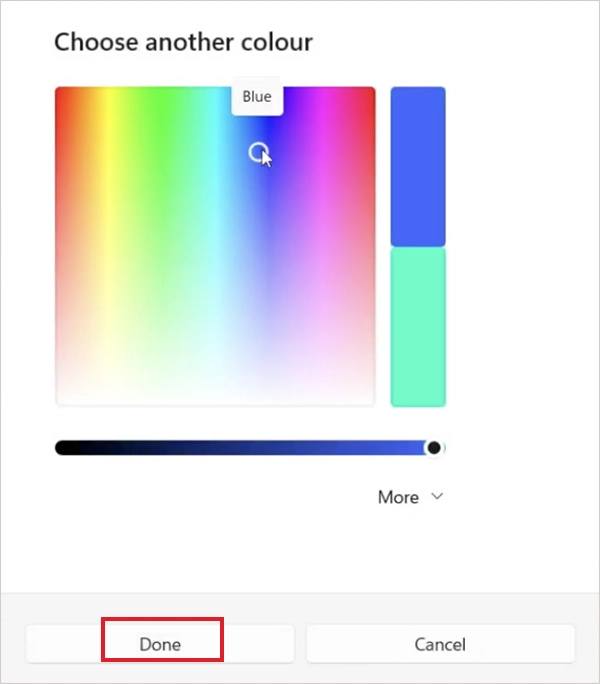
And that is everything you need to learn how to change the mouse pointer color. Windows applies the change immediately, so you can preview the new pointer without restarting your computer.
How to Restore the Default Cursor Color?
If you don’t like your custom cursor color, you can switch back to the original white pointer without resetting your other mouse settings. Here’s how to change the color of the mouse pointer to white:
- Press Windows + I to open Settings.
- Select Accessibility from the left sidebar and click Mouse pointer and touch.
- Under Mouse pointer style, select White.
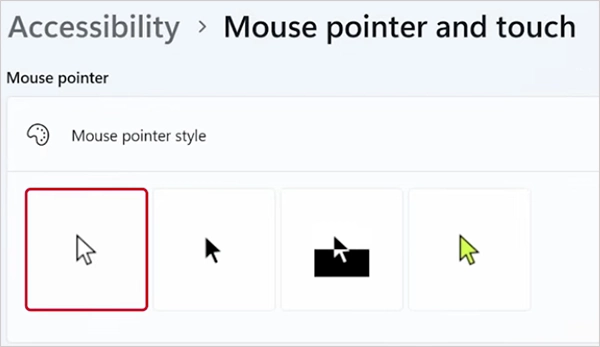
Windows will restore the default pointer with immediate effect. Your other settings, including pointer size, remain unchanged.
Why Change the Color of Mouse Pointers?
Changing the mouse pointer is not just about appearance. A more visible pointer can make everyday computer use easier, particularly if you frequently lose track of it on the screen.
Here are a few reasons to change the color of cursors:
- Better Visibility: A contrasting color makes the pointer easier to locate against light or dark backgrounds.
- Reduced Eye Strain: A clearly visible pointer can make long periods of computer use more comfortable.
- Accessibility: Users with low vision may find a larger and high-contrast pointer easier to track.
- Personalization: A custom color allows you to match the pointer to your desktop theme or personal preference.
If you frequently lose sight of the pointer while working or if the mouse cursor disappears in the background, try a contrasting color first.
Bonus: How to Change a Mouse Pointer Size
Now you know how to change the color of your cursor, but it may not be enough if you still struggle to locate the pointer. Increasing its size can make it easier to see, especially on larger or high-resolution displays.
Windows 11 includes a built-in size control. Follow these steps to customize the pointer:
- Press Windows + I to open Settings.
- Select Accessibility > Mouse pointer and touch.
- Find the Size slider under the mouse pointer settings.
- Move the slider to the right to enlarge the pointer or to the left to make it smaller.
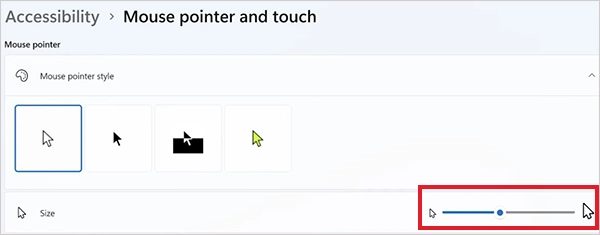
- Check the preview and adjust the size until you are comfortable with it.
You can combine a larger pointer with a custom color to make it easier to spot without changing how your mouse works.
Conclusion
Windows 11 makes it easy to customize your mouse pointer through Accessibility settings. You can choose a different color, return to the default white pointer, or increase its size without installing any third-party tools. These small adjustments can make the pointer easier to locate and more convenient to use.
Frequently Asked Questions
How to change the cursor color in Windows 11?
Can I choose any color for my mouse pointer?
Ans. Yes, just select Custom, click Choose another color, and use the color picker to select a shade of your choice.
How do I make my mouse pointer easier to use?
Ans. Choose a contrasting pointer color and try increasing its size under Settings > Accessibility > Mouse pointer and touch.
How to change the color of my mouse pointer back to white?
Ans. You can change the mouse pointer to any color using the accessibility settings in Windows. Navigate to Mouse pointer and touch settings and select the White pointer style.
Does changing the mouse pointer color also change the text cursor?
Ans. No, Windows has separate settings for the mouse pointer and text cursor. To customize the text cursor, go to Settings > Accessibility > Text cursor.
Related Posts

What is LockApp.exe in Windows and How to Fix or Disable It?
LockApp.exe may look suspicious when you spot it in Task Manager, especially if you haven’t opened it yourself. This Windows…

How to Run Windows on Mac: 4 Methods That Actually Work
Buying a Mac does not mean you have to give up Windows. You might need a Windows-only work application, open…

How to Fix DISM Error 87 in Windows?
DISM Error 87 usually appears when Windows cannot understand a DISM command or one of its parameters. You may see…
How to Restart Explorer.exe in Windows?
A frozen taskbar, missing desktop icons, or an unresponsive File Explorer can make Windows feel stuck even when your computer…
How to Reopen Closed Tabs on Mac [Easy Ways to Restore Tabs]
Accidentally closing the wrong tab can be super annoying, especially when you were in the middle of something important. You…
What Is a .BAT file and How Do You Create One?
You may have seen a file ending in .bat and wondered why opening it brings up a Command Prompt window…
How to Disable Microsoft Edge in Windows? 4 Quick Methods
Microsoft Edge can feel difficult to “turn off” because several Windows and Edge settings control when it starts and what…

How to Open EXE Files on Mac: 5 Ways to Run Windows Apps
If you have downloaded a Windows .exe file on your Mac, double-clicking it won’t make it run. macOS does not…
How to Sign Out of iMessage on Mac?
Your Mac can quietly become another place where your private conversations appear. That’s convenient until you are using a shared…