


Firmware is the low-level software built into a device’s hardware that controls how it starts up and performs essential functions.
What is Firmware Update? Meaning, Benefits, and How It Works
You probably don’t think about firmware until your device asks you to update it. Whether it is your Wi-Fi router, laptop, SSD, wireless earbuds, or smart TV, these updates help the hardware run more securely and efficiently.
While they seem technical, their purpose is simple, i.e, to improve how your device works. In this guide, I will explain “What is firmware update?” in detail. You will also learn why it is important, what it does, and how to install it safely.
TL;DR: What is a Firmware Update?
- Firmware is the built-in software that controls how your device’s hardware works.
- A firmware update fixes bugs, improves performance, handles security vulnerabilities, and sometimes adds new features.
- Always download firmware from the official source and avoid interrupting the update.
What is Firmware Update?
What’s a firmware update? It is a package released by a device manufacturer to improve the software built into a device’s hardware. Unlike regular software updates, which mainly affect apps or operating systems, a firmware update means modifying the low-level instructions that enable hardware to function properly.
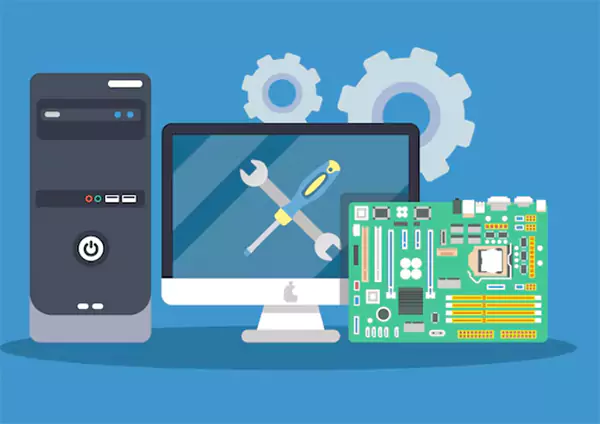
Firmware is found in almost every modern device, including laptops, desktop computers, smartphones, tablets, Wi-Fi routers, SATA hard drives, SSDs and eMMCs, printers, smart TVs, gaming controllers, cameras, and smart home devices.
Manufacturers release firmware updates for several reasons. They may fix bugs, patch security vulnerabilities, optimize performance, or even introduce new features.
For example, a router firmware update may improve Wi-Fi stability and strengthen network security. An SSD firmware update can improve storage performance and fix data reliability issues.
What Does Updating Firmware Do?
A firmware update improves how your device works behind the scenes. You may not notice any visual changes, but you will often see better performance, stability, security, and compatibility. Depending on the device, it can:
- Fix software bugs and unexpected crashes.
- Patch security vulnerabilities.
- Improve battery efficiency.
- Increase hardware stability and responsiveness.
- Add support for new accessories or technologies.
- Resolve Wi-Fi, Bluetooth, or connectivity issues.
- Introduce new features without replacing the hardware.
Unlike a regular software update, which changes the apps or interface you interact with, a firmware update improves the communication between the hardware and software. That’s why it is an important part of keeping your device running.
Why are Firmware Updates Important?
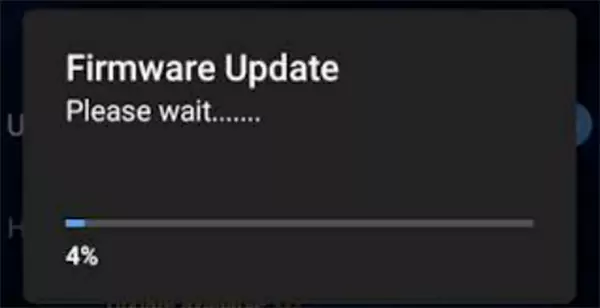
Instead of waiting for problems to appear, think of these updates as preventive maintenance that keeps your hardware running efficiently. Some of the key benefits include:
- Better Security: Protects your privacy online and patches vulnerabilities that could expose your device to cyber threats.
- Improved Stability: Fixes bugs that can cause crashes, freezes, or unexpected errors.
- Better Compatibility: Ensure your device works smoothly with newer operating systems, apps, and accessories.
- Better Performance: Optimizes hardware for improved responsiveness, battery life, storage performance, or connectivity, depending on the device.
- Longer Lifespan: Helps your hardware perform reliably for longer, reducing the need for early replacement.
So, what does upgrading firmware do? Well, they are important for internet-connected devices such as routers, NAS systems, and smart products, where outdated firmware can create security risks.
How to Update Firmware Safely?
The exact steps vary by device, but the best practices are the same. Following them can help you avoid failed updates or corrupted firmware. Here’s how to upgrade the firmware:
Step 1: Confirm Your Device Model
Before downloading an update, verify your device’s model number and current firmware version (like Switch firmware 18.1.0 and Anker C1000 firmware update 1.5.9). Installing firmware meant for a different model can cause problems.
Step 2: Download Firmware Only From Official Sources
Always get updates from the manufacturer’s official website, desktop software, or mobile app. Avoid third-party websites, as they may provide outdated or modified files.
Step 3: Read the Release Notes
Release notes tell you what the update includes. They also help you decide whether the update is relevant to your device.
Step 4: Back Up Important Data
Firmware updates rarely erase your files, but creating a backup is still a smart precaution, especially before updating storage devices, business hardware, or systems containing important data.
Step 5: Keep the Device Powered On
Don’t interrupt the process when you update firmware. Keep laptops plugged in, avoid restarting your device, and don’t disconnect cables or accessories until the installation is complete.
Step 6: Restart the Device if Required
Some firmware updates don’t take full effect until you restart the device. If prompted, complete the restart to finish the installation properly.
Following these simple steps greatly reduces the chances of update failures and helps ensure a smooth installation.
When Should You Update Your Device’s Firmware?
So, now you know how to update the firmware. However, you don’t always need to install a firmware update the moment it is released, but you should not ignore important updates either. It is generally a good idea to update your firmware when:
- The update fixes a security vulnerability.
- It resolves bugs or stability issues you are experiencing.
- It improves compatibility with newer software or accessories.
- The manufacturer recommends installing it.
- It adds features you will actually use frequently.
On the other hand, you may choose to wait a while if the update has just been released and you want to watch for early user feedback. Or, if your device is used for business-critical work where unexpected issues could disrupt your workflow.
Final Thoughts
Firmware works quietly in the background, but it plays a vital role in how your device performs. Whether it is your router, laptop, SSD, or any other device, firmware updates help improve security, increase stability, and sometimes even add new features.
Instead of ignoring update notifications, take a moment to review what the update includes. When downloaded from official sources and installed correctly, updates are one of the safest ways to keep your device performing at its best.
Frequently Asked Questions
What is firmware?
What does a firmware update do?
It improves the software built into your device’s hardware. It can fix bugs, patch security issues, improve performance, enhance compatibility, and sometimes add new features.
How do you update firmware?
Download the correct firmware from the official website or app, keep the device powered on during installation, and follow the provided instructions carefully.
Is it safe to update firmware?
Yes, firmware updates are generally safe when downloaded from the manufacturer’s official source. Also, avoid interrupting the update or installing firmware meant for a different device model.
What happens if you don’t update the firmware?
Your device will continue to work, but it may remain vulnerable to security risks, bugs, compatibility issues, and performance problems that newer firmware versions have already fixed.
Related Posts

How to Run Windows on Mac: 4 Methods That Actually Work
Buying a Mac does not mean you have to give up Windows. You might need a Windows-only work application, open…

How to Fix DISM Error 87 in Windows?
DISM Error 87 usually appears when Windows cannot understand a DISM command or one of its parameters. You may see…

How to Restart Explorer.exe in Windows?
A frozen taskbar, missing desktop icons, or an unresponsive File Explorer can make Windows feel stuck even when your computer…
![How to Reopen Closed Tabs on Mac [Easy Ways to Restore Tabs]](https://datarecovee.com/knowledge-base/wp-content/uploads/2026/10/how-to-reopen-closed-tabs-ftd-img.webp)
How to Reopen Closed Tabs on Mac [Easy Ways to Restore Tabs]
Accidentally closing the wrong tab can be super annoying, especially when you were in the middle of something important. You…

What Is a .BAT file and How Do You Create One?
You may have seen a file ending in .bat and wondered why opening it brings up a Command Prompt window…

How to Disable Microsoft Edge in Windows? 4 Quick Methods
Microsoft Edge can feel difficult to “turn off” because several Windows and Edge settings control when it starts and what…

How to Open EXE Files on Mac: 5 Ways to Run Windows Apps
If you have downloaded a Windows .exe file on your Mac, double-clicking it won’t make it run. macOS does not…

How to Sign Out of iMessage on Mac?
Your Mac can quietly become another place where your private conversations appear. That’s convenient until you are using a shared…

What is Windows Fast Startup and How Does It Work?
Fast Startup can make your PC boot noticeably faster after a shutdown. Instead of completely rebuilding the Windows kernel state…