


Ans. It is a built-in Windows command-line tool that lets you create, delete, format, and manage disks, partitions, volumes, and virtual hard disks.
Diskpart Commands: A Practical Windows Guide to Disk Management
Whether you are setting up a new SSD, fixing a corrupted USB drive, or preparing a drive for Windows installation, Diskpart commands give you more control than the standard Disk Management tool.
It allows you to create, format, delete, and manage partitions directly from the command line, making it a favorite among IT professionals and power users.
However, because every command runs directly on the selected disk, one mistake can erase your data. This guide explains the most useful Diskpart command lines and how to work with them safely.
What is Diskpart Command?
Diskpart cmd is a built-in Windows command-line utility that helps you manage disks, partitions, volumes, and virtual hard disks. Instead of using the graphical tool, you control storage devices by entering commands in Command Prompt, Windows Terminal, or PowerShell.
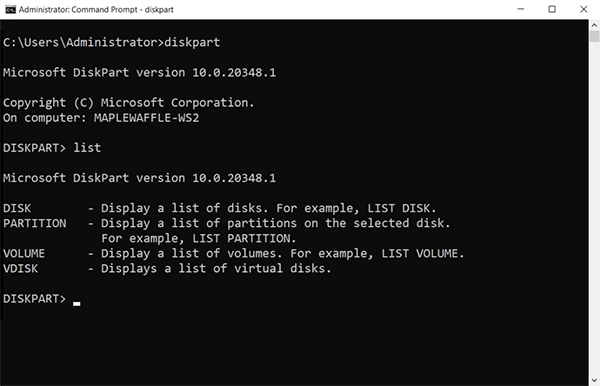
Diskpart tool performs actions directly on the selected storage device. This makes it especially useful for advanced disk management, troubleshooting, and automation.
Before running disk management commands, you need to select the disk, partition, or volume you want to work with. This selected item becomes the current focus, and every command you enter afterward applies only to it.
Some common uses of the Windows Disk Management command line include:
- Initializing a new HDD or SSD.
- Creating, deleting, or recovering partitions
- Formatting an SSD and other storage devices
- Assigning or changing drive letters
- Managing virtual hard disks
- Troubleshooting storage issues that Disk Management can’t resolve
Important: Disk commands such as clean and format can permanently remove data, so double-check the selected disk and back up important files before making changes.
How to Open Diskpart in Windows?
Diskpart comes pre-installed with Windows, so you don’t need to download or install anything. Here’s how to open it:
- Press Windows + S and search for Command Prompt or PowerShell.
- Right-click the application and select Run as administrator.
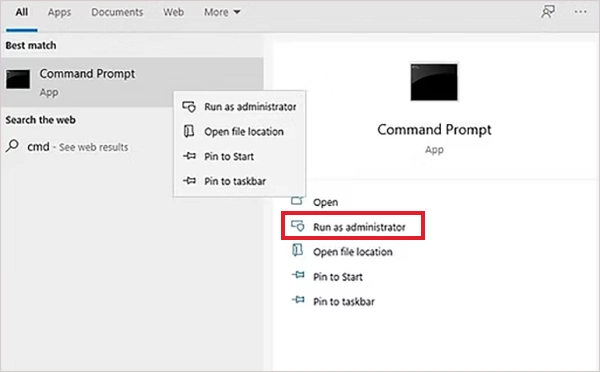
- If the User Account Control prompt appears, click Yes.
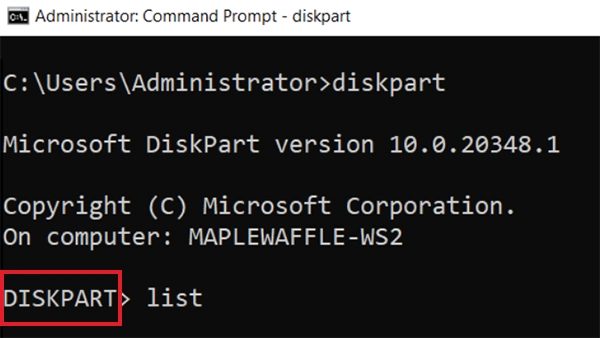
- Now, type “diskpart” and press Enter.
- If Diskpart launches successfully, you will see the prompt change to “DISKPART>”. You can now start entering the disk management command line.
- If you are unsure about a command or its syntax, you can use diskpart help by using “help”.
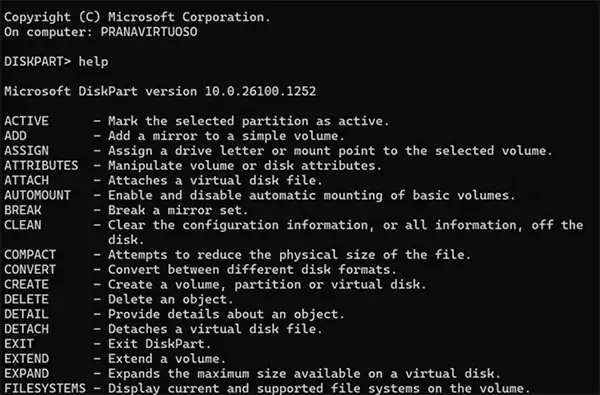
- To learn more about a specific command, type help followed by its name. For example:
help format Or
help clean Diskpart will display a description of the command along with its available options.
Microsoft recommends using Diskpart with administrator privileges because many CMD Disk Management operations require elevated permissions.
Most Useful Windows Diskpart Commands (With Examples)
Diskpart includes dozens of commands, but you will only need a few for most command prompt disk management tasks. Below are the ones you will use most often, along with examples.
1. list d\isk
Diskpart lists disks connected to your computer.
list disk
Run the list disk command to identify the correct disk by checking its number and size.
2. select disk
Select the disk you want to manage.
select disk 1
Replace 1 with the appropriate disk number. Once selected, all subsequent commands apply to that disk.
3. detail disk
Shows detailed information about the selected disk
detail disk
This is useful when multiple drives have similar capacities, as it displays additional hardware details to help confirm you have selected the correct disk.
4. list volume
Lists all volumes available on your system.
list volume
It shows useful information such as drive letters, file systems, labels, and partition sizes.
5. select volume
Selects a specific volume for further actions.
select volume 3
After selecting a volume, any command you run affects only that volume.
6. create partition primary
Creates a primary partition on the selected disk.
create partition primary size=50000
By default, Diskpart uses all available unallocated space. To create a smaller partition, specify the size in megabytes.
7. format
Formats the selected partition with a file system.
format fs=ntfs quick
Common file systems include:
- NTFS: Best for Windows internal drives.
- FAT32: Compatible with older devices and operating systems.
- exFAT: Ideal for USB drives and external storage used across Windows and macOS.
Adding the quick parameter performs a fast format. Otherwise, it runs a full format, which takes longer.
8. assign
Assigns a drive letter to the selected volume.
assign letter=E
Once assigned, the drive becomes accessible in File Explorer.
9. clean
Removes all partition and volume information from the selected disk.
clean
Unlike formatting, clean deletes the disk’s partition structure and leaves it as unallocated space. You will need to create a new partition and format the drive before using it again.
10. exit
This command closes and takes you back to the initial Command Prompt or PowerShell.
exit
How to Manage Disks Using Diskpart Utility?
Once you understand the basic commands, you can combine them to perform common command-line disk management tasks. The general workflow is simple:
- Identify the correct disk or volume.
- Select it.
- Perform the required operation.
- Verify the result.
Since every command applies to the currently selected object, always confirm the disk before making changes. Now, let’s take a look at complete commands for some common Diskpart usage.
Initialize and Prepare a New Drive
If you have installed a new HDD or SSD, use the following commands to make it ready to use:
diskpart
list disk
select disk 1
create partition primary
format fs=ntfs quick
assign
exit
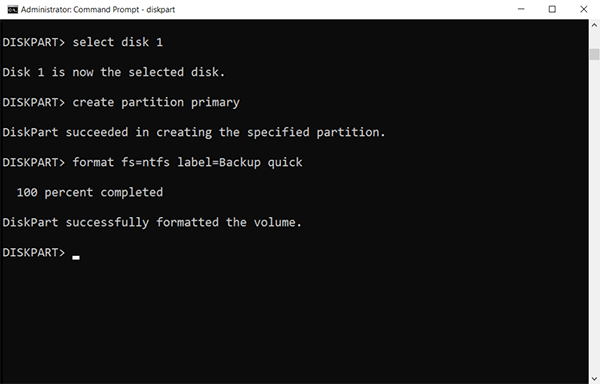
This creates a primary partition, formats it with the NTFS file system, and assigns a drive letter so the drive appears in File Explorer.
Wipe a Disk Before Reusing It
When preparing a drive for reuse or a fresh Windows installation, remove its existing partition structure first.
diskpart
list disk
select disk 1
clean
exit
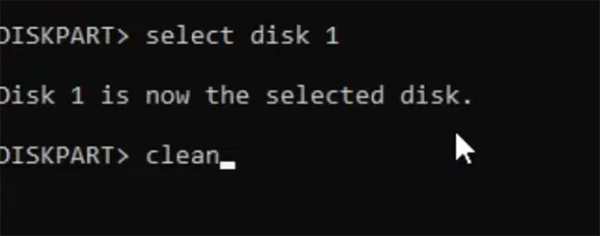
The clean command deletes all partition information, leaving the disk as unallocated space. To use the drive again, create a new partition, format it, and assign a drive letter.
Change or Assign a Drive Letter
If Windows does not automatically assign a drive letter, you can do it manually.
list volume
select volume 3
assign letter=E
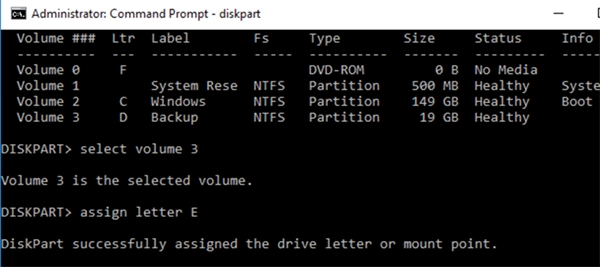
The volume becomes immediately accessible using the new drive letter.
Diskpart Best Practices, Common Errors, and Troubleshooting
Diskpart is reliable, but it performs commands exactly as entered. Following a few best practices can help prevent costly mistakes.
Best Practices
- Run Command Prompt or PowerShell as Administrator.
- Use a list disk and verify the disk size before selecting a drive.
- Back up important data before using commands like clean or format.
- Review each command before pressing Enter.
- Use the help command if you are unsure about a command’s syntax.
Common Errors
- Access is denied: Diskpart was not started with administrator privileges. Just close the terminal, reopen it as Administrator, and try again.
- No fixed disks to show: Windows is not detecting the storage device. Check the drive connection, reconnect the device if necessary, or verify that it is detected in your BIOS/UEFI settings.
- Selected the wrong disk: Compare the disk number and storage size before using commands like clean or format to avoid erasing the wrong drive.
- Drive is not visible after using clean: This is normal; you don’t have to panic. Just create a new partition, format it, and assign a drive letter to use the drive again.
By following these tips and knowing how to resolve common errors, you can use Diskpart more safely and reduce the risk of accidental data loss.
Wrapping Up
Diskpart is one of the most powerful storage management tools built into Windows. It gives you precise control over disks, partitions, and volumes, making it useful for everything from preparing a new SSD to troubleshooting storage issues and automating deployment tasks.
For everyday partitioning and formatting, Disk Management is usually the easier choice. But when you need advanced control or command-line automation, Diskpart remains the better tool.
Frequently Asked Questions
What does Diskpart do in Windows?
How do I see all disks in Diskpart?
Ans. Run “list disk” to display all connected storage devices along with their disk numbers, sizes, and available space.
Are Diskpart format commands safe to use?
Ans. Yes, as long as you have selected the correct disk or partition. Since formatting erases data, verify your selection and back up important files beforehand.
What is the difference between clean and format?
Ans. The clean command removes a disk’s partition information, leaving it as unallocated space. The format command prepares an existing partition with a file system like NTFS, FAT32, or exFAT so it can store data.
Can Diskpart repair a damaged disk?
Ans. Diskpart can resolve partition and drive configuration issues, such as recreating partitions or assigning drive letters. However, it cannot repair physical hardware damage or recover a failing drive.
Related Posts

How to Fix DISM Error 87 in Windows?
DISM Error 87 usually appears when Windows cannot understand a DISM command or one of its parameters. You may see…

How to Restart Explorer.exe in Windows?
A frozen taskbar, missing desktop icons, or an unresponsive File Explorer can make Windows feel stuck even when your computer…
![How to Reopen Closed Tabs on Mac [Easy Ways to Restore Tabs]](https://datarecovee.com/knowledge-base/wp-content/uploads/2026/10/how-to-reopen-closed-tabs-ftd-img.webp)
How to Reopen Closed Tabs on Mac [Easy Ways to Restore Tabs]
Accidentally closing the wrong tab can be super annoying, especially when you were in the middle of something important. You…

What Is a .BAT file and How Do You Create One?
You may have seen a file ending in .bat and wondered why opening it brings up a Command Prompt window…

How to Disable Microsoft Edge in Windows? 4 Quick Methods
Microsoft Edge can feel difficult to “turn off” because several Windows and Edge settings control when it starts and what…

How to Open EXE Files on Mac: 5 Ways to Run Windows Apps
If you have downloaded a Windows .exe file on your Mac, double-clicking it won’t make it run. macOS does not…

How to Sign Out of iMessage on Mac?
Your Mac can quietly become another place where your private conversations appear. That’s convenient until you are using a shared…

What is Windows Fast Startup and How Does It Work?
Fast Startup can make your PC boot noticeably faster after a shutdown. Instead of completely rebuilding the Windows kernel state…

How to Unzip Files on Mac: 3 Easy Ways to Extract ZIP Files
A ZIP file has a funny way of making a simple task feel more complicated than it is. On a…