


Your desktop icons may have disappeared because they may be hidden, the shortcut may have been deleted, Windows Explorer may not have loaded properly, or Windows Update or OneDrive sync may have moved them.
How Do You Open a Program When There Are No Icons on the Desktop?
A missing desktop icon is annoying, but it is not a dead end. In most cases, the applications are still installed, but their shortcuts have been hidden, deleted, or moved.
So, how do you open a program when there are no icons on the desktop? Fortunately, Windows offers several ways to open programs without relying on desktop icons. In this guide, I will explain all the possible ways to easily launch apps and everything you need to know about the missing icons.
TL;DR
- Press the Windows key and search for the program.
- You can open the program from the Start menu or taskbar if the application is pinned.
- Use the Run dialog if you know the program’s name,
- Open the app directly from File Explorer if other options did not work for you, and you know where it is installed.
Why Are There No Icons on Your Desktop?
If your desktop is empty, don’t panic. In most cases, your programs are still installed. Here are the most common reasons why desktop icons go missing:
- Desktop Icons Are Hidden: Windows can hide all desktop icons with a single setting. If enabled, your desktop may look empty even though nothing was deleted.
- Desktop Shortcuts Were Deleted: Desktop icons are usually shortcuts, not the actual programs. Deleting one removes only the shortcut, while the app remains installed.
- Windows Explorer Didn’t Load Correctly: A Windows Explorer issue can temporarily prevent icons from appearing. Restarting Explorer or your PC often fixes it.
- Windows Update or OneDrive Changes Your Desktop: Updates or OneDrive syncing may move or remove some shortcuts. Your programs are usually unaffected.
- Missing System Icons: Icons like This PC, Recycle Bin, or Control Panel in Windows may have been disabled in desktop icon settings.
- Corrupted Icon Cache or Graphics Driver: A damaged icon cache or outdated driver can stop icons from displaying correctly. Rebuilding the cache or updating drivers may help.
Understanding the cause helps you choose the right fix. However, you can still open programs without destroying desktop icons first.
How Do You Open a Program When There Are No Icons on the Desktop?
Desktop shortcuts are convenient, but they are far from the only way to open a program. Windows includes several built-in methods that work even if your desktop is completely empty.
Here’s how to open a program when there are no icons on the desktop:
Method 1: Open the Program from the Start Menu
The Start menu is the easiest place to find installed applications.
- Press the Windows key or click Start.
- Scroll through the list of installed apps.
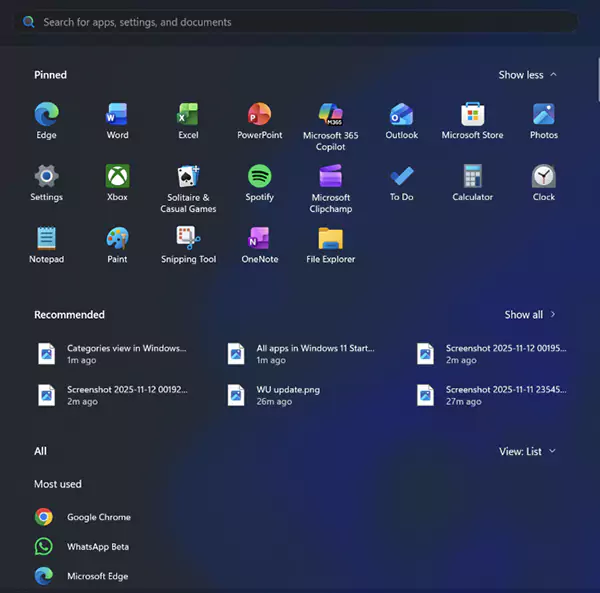
- Select the program you want to open.
If you use the app regularly, consider pinning it to the Start menu or taskbar for quicker access.
Method 2: Search for the Program
If you know the program’s name, Windows Search is usually the fastest option.
- Press the Windows key.
- Type the application’s name and select it from the search results.
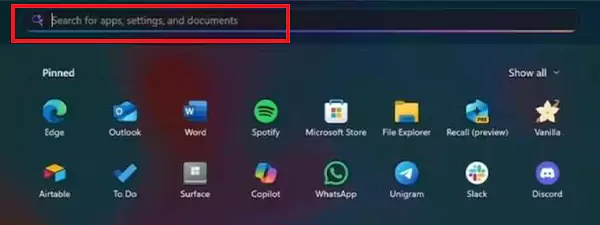
Windows Search can quickly find most installed applications, as well as files, folders, and system settings.
Method 3: Open the Program from the Taskbar
If the program is pinned to your taskbar, you can launch it without searching for it or opening the Start menu. Just look for the application’s icon on the taskbar and click the icon to open the program.
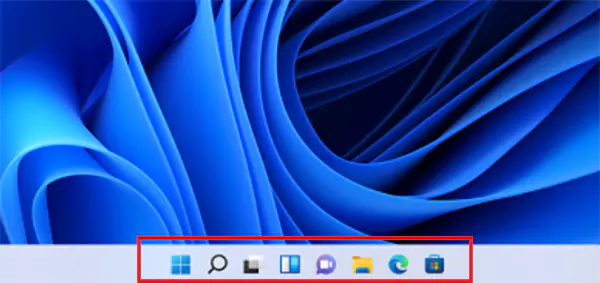
If the app is not pinned yet, open it using another method, then right-click its taskbar icon and select Pin to taskbar for quicker access in the future.
Method 4: Use the Run Dialog
If you know the program’s executable name, the Run dialog provides another quick way to open it.
- Press Windows + R.
- Type the program’s command and press Enter.
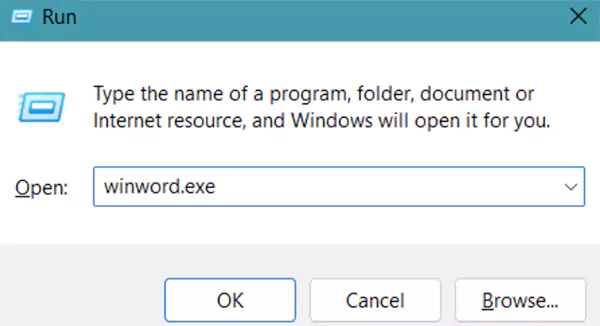
Some common examples include “calc”, “notepad”, “mspaint”, and “cmd”.
Method 5: Launch the Program from File Explorer
If you can’t find the program through Search or the Start menu, open it directly from its installation folder. Here’s how you can do that:
- Open File Explorer.
- Then, browse to the folder where the application is installed. Mostly, you will find the apps stored in C:\Program Files and C:\Program Files (x86).
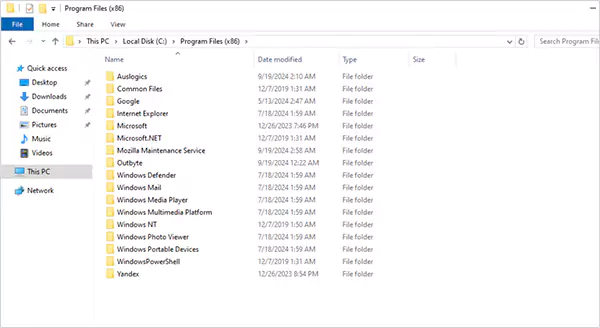
- Now, find the application’s .exe file.
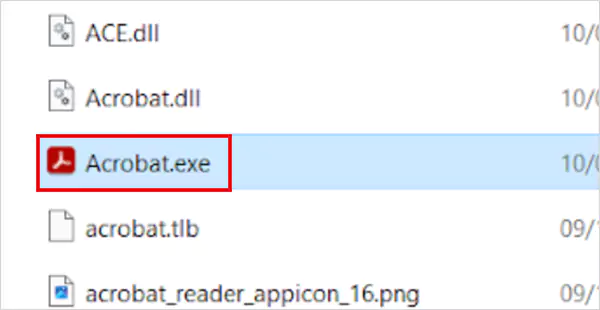
- Double-click it to launch the program.
If you would like the shortcut back on your desktop, right-click the executable and select Send to > Desktop (Create Shortcut).
Method 6: Use Command Prompt or PowerShell
You can also launch applications using PowerShell or Command Prompt commands. Just enter the program’s executable name or its full file path, and you will be able to access it.
This method is particularly useful for advanced users, troubleshooting, or automation.
Using a Mac Instead?
macOS does not rely heavily on desktop shortcuts. So, you can open apps using Spotlight (Command + Space) or from the Applications folder in Finder.
How to Restore Missing Desktop Icons?
If you would prefer to get your desktop icons back, Windows provides a few simple ways to restore them.
1. Show Hidden Desktop Icons
If all your desktop icons disappeared at once, they may simply be hidden.
- Right-click an empty area of the desktop.
- Select View and make sure the Show desktop icons option is checked.
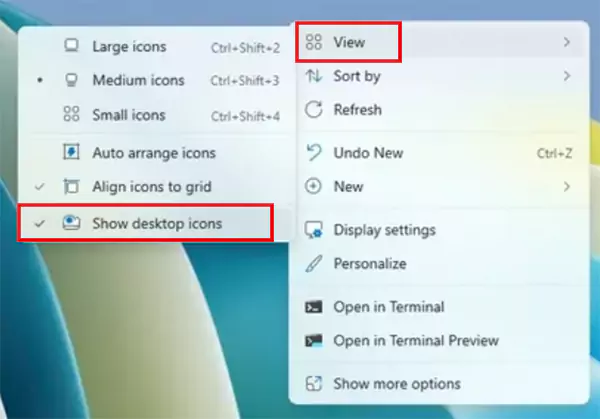
If it was disabled, your icons should reappear immediately.
2. Restore Default System Icons
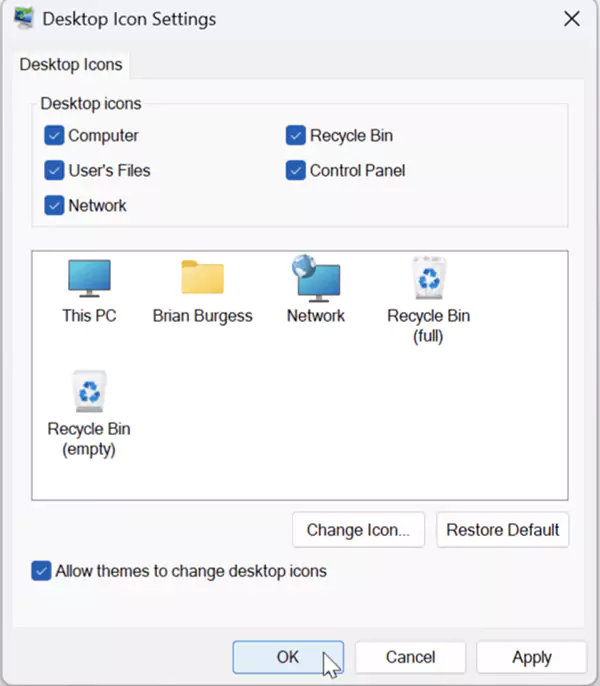
To restore icons like This PC, Recycle Bin, Network, or Control Panel:
- Open Settings.
- Go to Personalization > Themes.
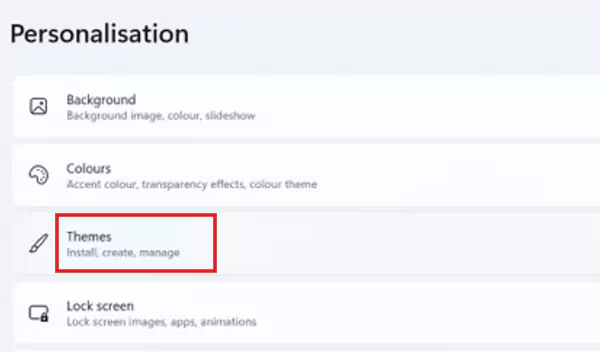
- Click on the Desktop icon settings.
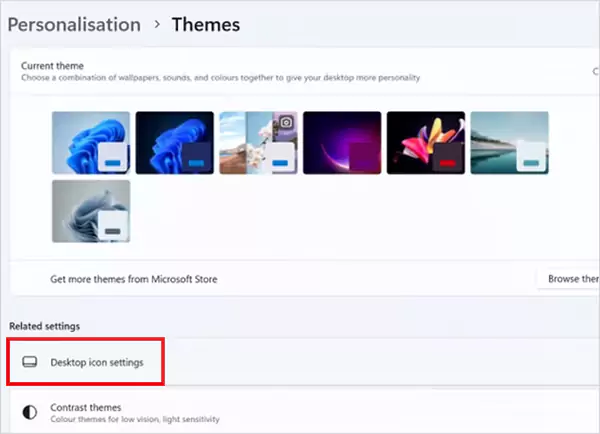
- Select the icons you want to display, click Apply, and then OK.
3. Recreate a Missing Shortcut
If only one program’s shortcut is missing:
- Open the Start menu and find the app, or locate its .exe file in File Explorer.
- Next, right-click the application.
- Select Send to > Desktop (create shortcut).
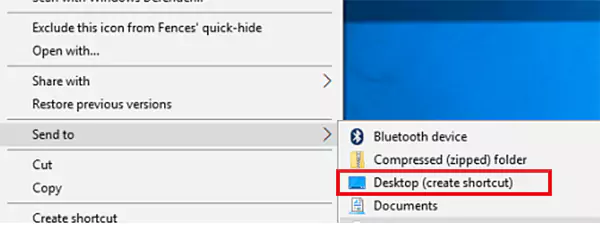
This creates a new desktop shortcut that you can use for easy access.
What if the Program Still Won’t Open?
If you have found the application but it still won’t launch, the issue is likely with the program itself rather than the missing desktop icon. Try these fixes:
- A simple restart can resolve temporary software glitches that prevent programs from opening.
- Some applications need advanced permissions. So, just right-click the program and select Run as administrator.
- Go to Settings > Apps and make sure the application still appears in the installed app list.
- If the program files are damaged, repairing or reinstalling the application is the quickest solution.
- If Windows system files are corrupted, try running the System File Checker by typing the “sfc /scannow” command in Command Prompt. Windows will scan and repair protected files automatically.
If none of these fixes work, the program may need a deeper repair or a fresh reinstallation.
Wrapping Up
Missing desktop icons aren’t something you need to worry about much. You can easily open the programs through the Start menu, Windows search, the taskbar, Run, or File Explorer. If the shortcuts have disappeared, Windows also makes it easy to restore or recreate them.
Whether the issue is hidden icons, deleted shortcuts, or a temporary Windows glitch, these methods should help you get back to your applications in just a few minutes.
Frequently Asked Questions
Why did all my desktop icons disappear?
Can I restore deleted desktop shortcuts?
Yes, you can create a new shortcut from the program’s executable file or by dragging supported apps from the Start menu to the desktop.
How do you open a program when there are no icons?
You can use the Start menu, Windows search, Run (Windows + R), File Explorer, or the taskbar if the app is pinned.
Can I open a program without using the Start menu?
Yes, Windows offers several built-in methods like Windows search, Run, File Explorer, and even Command Prompt or PowerShell to launch most applications.
How to open a program on a Mac if there are no desktop icons?
Press Command + Space to open Spotlight, type the app’s name, and press Return. You can also open applications from the Applications folder in Finder.
Related Posts
How to Run Windows on Mac: 4 Methods That Actually Work
Buying a Mac does not mean you have to give up Windows. You might need a Windows-only work application, open…

How to Fix DISM Error 87 in Windows?
DISM Error 87 usually appears when Windows cannot understand a DISM command or one of its parameters. You may see…

How to Restart Explorer.exe in Windows?
A frozen taskbar, missing desktop icons, or an unresponsive File Explorer can make Windows feel stuck even when your computer…
![How to Reopen Closed Tabs on Mac [Easy Ways to Restore Tabs]](https://datarecovee.com/knowledge-base/wp-content/uploads/2026/10/how-to-reopen-closed-tabs-ftd-img.webp)
How to Reopen Closed Tabs on Mac [Easy Ways to Restore Tabs]
Accidentally closing the wrong tab can be super annoying, especially when you were in the middle of something important. You…

What Is a .BAT file and How Do You Create One?
You may have seen a file ending in .bat and wondered why opening it brings up a Command Prompt window…

How to Disable Microsoft Edge in Windows? 4 Quick Methods
Microsoft Edge can feel difficult to “turn off” because several Windows and Edge settings control when it starts and what…

How to Open EXE Files on Mac: 5 Ways to Run Windows Apps
If you have downloaded a Windows .exe file on your Mac, double-clicking it won’t make it run. macOS does not…

How to Sign Out of iMessage on Mac?
Your Mac can quietly become another place where your private conversations appear. That’s convenient until you are using a shared…

What is Windows Fast Startup and How Does It Work?
Fast Startup can make your PC boot noticeably faster after a shutdown. Instead of completely rebuilding the Windows kernel state…