


No, Mac computers do not have a dedicated refresh key like the F5 key on Windows.
How to Refresh MacBook: Easy Methods for Browsers and Apps
Unlike many Windows PCs, MacBooks don’t have a dedicated F5 key to refresh a web page, an app, or the desktop. Instead, the correct method depends on what you are trying to refresh.
Whether you are reloading a website in the browser, updating Finder, or trying to manage or fix an unresponsive app on Mac, there are different options and Mac refresh hotkeys. This guide explains how to refresh MacBook Air or Pro, perform a hard refresh, and troubleshoot common problems.
Quick Answer: How to Refresh on a Mac?
- Press Command + R to refresh a webpage in Safari, Chrome, or Firefox.
- Use a hard refresh if the page still shows outdated content.
- Finder refreshes automatically, but you can relaunch it if it stops responding.
- For other apps, restart or force quit the app to refresh its content.
How to Refresh MacBook in Different Browsers?
Refreshing a webpage is simple once you know the correct shortcut for refresh on Mac. Unlike Windows, which commonly uses the F5 key, macOS relies on keyboard shortcuts.
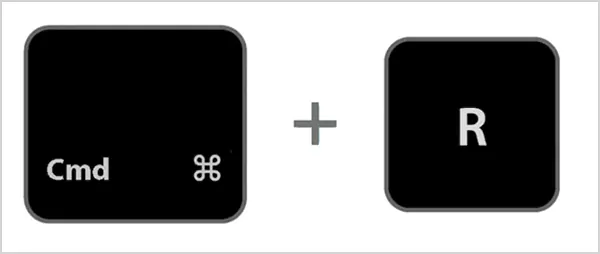
The good news is that the default browser on Mac and most other browsers use the same refresh shortcut. Here’s how to refresh MacBook browsers:
| Browser | Refresh Shortcut Mac | Mouse Option |
| Safari | Command (⌘) + R | Click on the Reload button on Mac Safari located in the address bar. |
| Google Chrome | Command (⌘) + R | Click the reload button. |
| Mozilla Firefox | Command (⌘) + R | Click the reload button. |
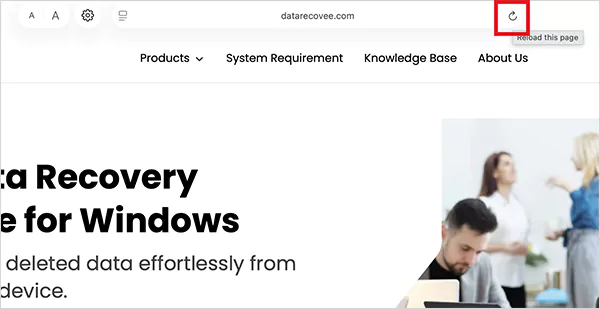
If a webpage still displays outdated content after refreshing, you may need to perform a hard refresh, which forces the browser to download the latest version of the page. I will cover that later in this guide.
How to Refresh on Mac Finder and Other Apps on Mac?
Refreshing a webpage is not the same as refreshing an app for macOS. Most apps don’t have a universal refresh key for Mac, so the steps may vary for the application you are using. In general, here’s how to refresh Mac Pro or Air apps:
- Finder
Finder automatically updates when files or folders change, so it does not include a dedicated MacBook refresh button.
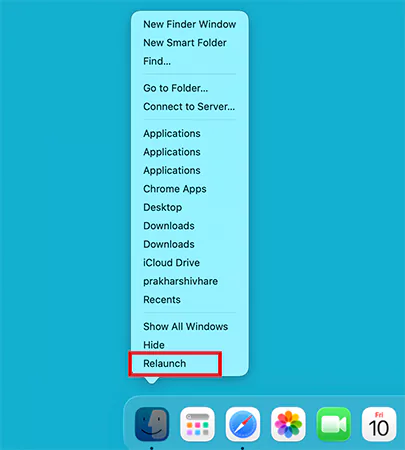
However, if Finder stops responding or does not display recent changes, you can relaunch it to refresh:
- Hold the Option key.
- Right-click the icon in the Dock.
- Select Relaunch.
- Mail
To check for new emails:
- Open the Mail app.
- Select Mailbox from the menu bar and click on Get All New Mail.
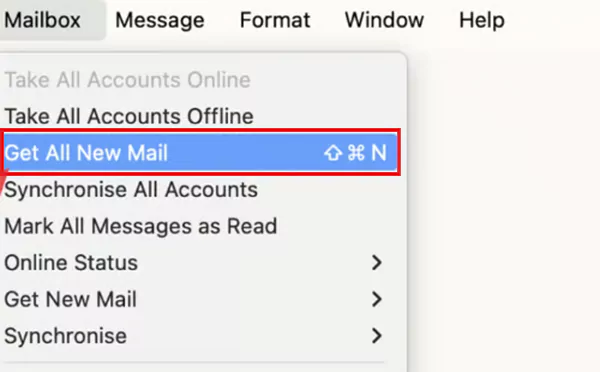
You can also press Shift + Command + N to check for new messages.
- Other Apps
If an app becomes unresponsive or does not refresh or update properly, restarting it is usually the quick solution.
- Press Option + Command + Esc.
- Select the app and click on Force Quit.
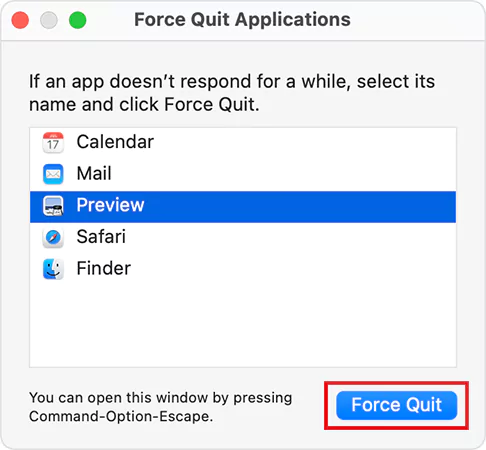
- Open the app again to see the refreshed content.
Apple recommends using Force Quit whenever an application stops responding or a Mac computer freezes.
How to Hard Refresh MacBooks?
A normal Mac refresh keyboard shortcut reloads a webpage using cached files whenever possible. A hard refresh forces the browser to download the latest version of the page, which can help fix loading or display issues.
A hard refresh is useful when:
- A website still shows old content after a refresh.
- Images, CSS, or other page elements don’t load properly.
- A webpage looks broken or incomplete.
- You are troubleshooting website issues.
The hard refresh shortcut in MacBook varies slightly depending on the browser.
| Browser | Hard Refresh Shortcut |
| Google Chrome | Command (⌘) + Shift + R |
| Mozilla Firefox | Command (⌘) + Shift + R |
| Safari | Option + Command (⌘) + R (Reload Page From Origin) |
Is There a Refresh Key or Refresh Button on Mac?
No, MacBooks don’t have a dedicated Refresh or F5 key like Windows. Instead, macOS uses app-specific shortcuts. For example, Command + R refreshes webpages in Safari, Chrome, and Firefox, but the same shortcut performs a different action in Finder by opening the original location of a selected item.
There is also no universal Refresh button across macOS. Browsers display a reload button beside the address bar, while most other apps either refresh automatically or provide their own refresh options.
What to Do When Refresh Does Not Work on Your Mac?
If refreshing does not solve the problem, the issue may not be the webpage or app itself. It could be related to cached data, browser extensions, network settings, or the application you are using. Try the following solutions:
- Perform a hard refresh to bypass cached files.
- Check that your internet connection is working properly.
- Close and reopen the browser or app.
- Disable browser extensions that might interfere with page loading.
- Clear your browser cache if outdated files continue to load.
- Restart your Mac if multiple apps stop responding.
If you are using Safari or another browser, you can also try opening the webpage in a Private Window, clearing website data, or checking whether a VPN, security software, or iCloud Private Relay is affecting how the page loads.
Conclusion
Although the MacBook doesn’t have a dedicated refresh key, refreshing webpages and apps is quick. For most browsers, Command + R reloads the current page, while a hard refresh helps when cached files prevent the latest version from loading.
If Finder or another app is not updating properly, relaunching and restarting it usually resolves the issue. Knowing these simple methods can save time and make troubleshooting much easier.
Frequently Asked Questions
Is there a refresh key on MacBooks?
How do I refresh a page on a Mac?
Press Command + R in Safari, Google Chrome, or Firefox. You can also click the browser’s Reload button.
What is the refresh shortcut on Mac?
The standard refresh shortcut on a Mac is Command + R. It reloads webpages in most web browsers on macOS.
How do I refresh on Mac when it freezes?
Press Option + Command + Esc, select the app, and click Force Quit. If Finder is frozen, relaunch it from the Dock or restart your Mac.
Why is Command + R not working on my Mac?
Command + R works only in supported apps. If it does not refresh a webpage, try a hard refresh. Also, in Finder and some other apps, this shortcut performs a different action.
Related Posts
How to Run Windows on Mac: 4 Methods That Actually Work
Buying a Mac does not mean you have to give up Windows. You might need a Windows-only work application, open…

How to Fix DISM Error 87 in Windows?
DISM Error 87 usually appears when Windows cannot understand a DISM command or one of its parameters. You may see…

How to Restart Explorer.exe in Windows?
A frozen taskbar, missing desktop icons, or an unresponsive File Explorer can make Windows feel stuck even when your computer…
![How to Reopen Closed Tabs on Mac [Easy Ways to Restore Tabs]](https://datarecovee.com/knowledge-base/wp-content/uploads/2026/10/how-to-reopen-closed-tabs-ftd-img.webp)
How to Reopen Closed Tabs on Mac [Easy Ways to Restore Tabs]
Accidentally closing the wrong tab can be super annoying, especially when you were in the middle of something important. You…

What Is a .BAT file and How Do You Create One?
You may have seen a file ending in .bat and wondered why opening it brings up a Command Prompt window…

How to Disable Microsoft Edge in Windows? 4 Quick Methods
Microsoft Edge can feel difficult to “turn off” because several Windows and Edge settings control when it starts and what…

How to Open EXE Files on Mac: 5 Ways to Run Windows Apps
If you have downloaded a Windows .exe file on your Mac, double-clicking it won’t make it run. macOS does not…

How to Sign Out of iMessage on Mac?
Your Mac can quietly become another place where your private conversations appear. That’s convenient until you are using a shared…

What is Windows Fast Startup and How Does It Work?
Fast Startup can make your PC boot noticeably faster after a shutdown. Instead of completely rebuilding the Windows kernel state…