


Ans. Click the Apple Menu in the top-left corner and select System Settings on macOS Ventura and later.
Where is System Preferences on Mac? How to Open and Use It
Table of Contents
If you are looking for System Preferences on Mac but can’t find it, you are probably using a newer version of macOS. Starting with macOS Ventura, Apple renamed System Preferences to System Settings and introduced a redesigned interface.
While the name has changed, its purpose remains the same. In this blog, I will show you how to access system preferences on Macs, the different ways to open it, and how to navigate it quickly on any Mac.
Key Takeaways
- Mac System Preferences was renamed to System Settings in macOS Ventura.
- Go to the Apple Menu > System Settings or Preferences to open it. You can also access it with Spotlight Search, Dock, or Siri.
- Use the built-in Search bar to find specific settings immediately without browsing multiple menus.
Where to Find System Preferences on Mac?
Where is System Preferences in Mac? If you are using a newer Mac and can’t find them, don’t worry. Apple renamed it to System Settings Mac with macOS Ventura. Although the name and layout have changed, it still allows you to manage all your MacBook system preferences from one place.
On macOS Ventura, Sonoma, Sequoia, and later, you will find it inside the Apple Menu as System Settings. However, on macOS Monterey and earlier, it shows up as System Preferences.
How to Open System Preferences on Mac (4 Easy Methods)?
Now that you know “What is System Preferences on Mac?”, you should know all the ways to open it. So, there are several ways to learn how to get to System Settings on Macs.
Whether you prefer using the mouse, keyboard, or voice commands, choose the method that works best for you.
Method 1. Open from the Apple Menu
This is the easiest and most reliable method.
- Click the Apple menu in the top-left corner.
- And just select System Settings or System Preferences.
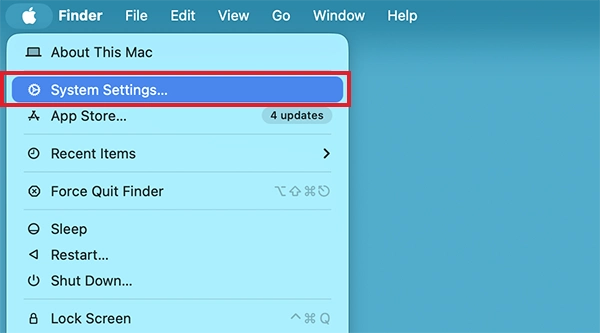
- You will be able to see the System Settings window on your screen.
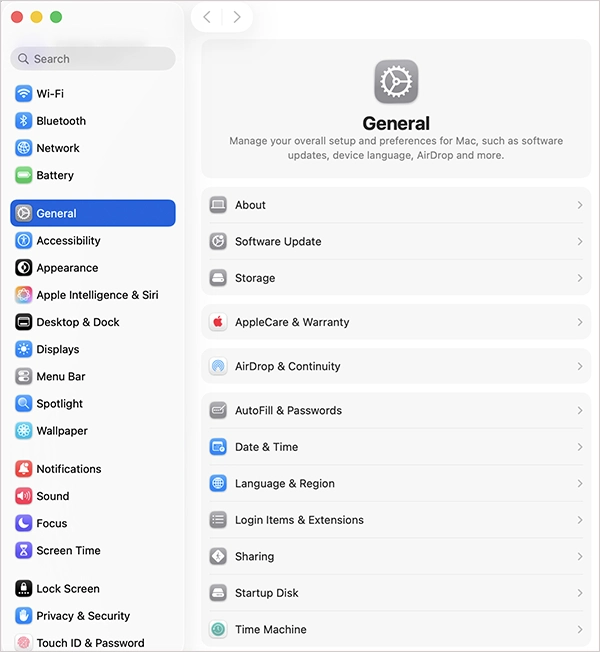
This method works on all Mac models, including MacBook Air, MacBook Pro, iMac, Mac mini, and Mac Studio.
Method 2. Use Spotlight Search
If you prefer keyboard shortcuts, Spotlight is one of the quickest ways. Here’s how to get to System Preferences on Macs using Spotlight:
- Press Command + Space.
- Type System Settings or System Preferences.
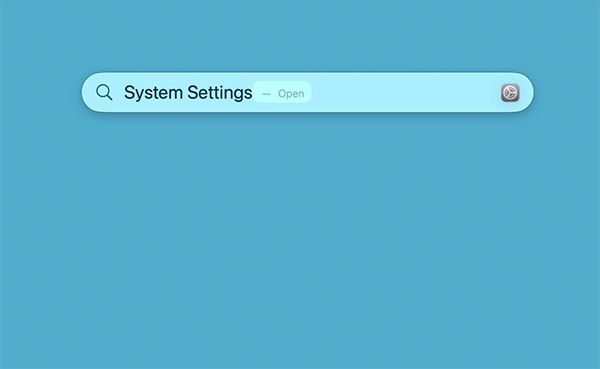
- Press Return.
This saves time when you are already working with the keyboard.
Method 3. Open from the Dock
If you use System Settings regularly, pin it to the Dock for quicker access. Here’s how:
- Open System Settings.
- Now, right-click its icon in the Dock.
- Select Options > Keep in Dock.
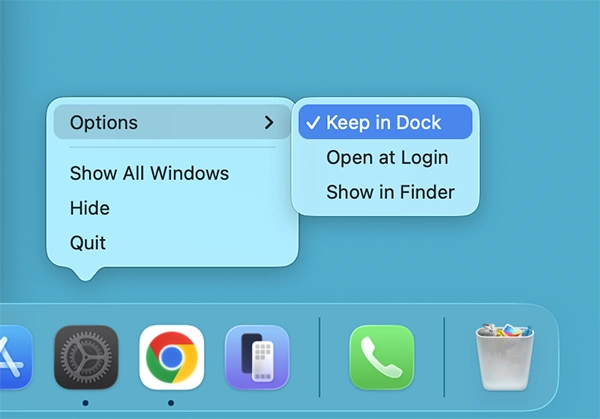
Now, you will be able to open it with a single click whenever you need it.
Method 4. Ask Siri
Siri can also open System Settings for you without navigating through menus. Simply click the Siri icon, or press and hold Function + S, or just say “Hey Siri”, and say: “Open System Settings”.

Siri will launch the app instantly, making it a handy option when you are multitasking. And that’s all you need to know to learn how to find system settings on Macs.
How to Use System Settings in Mac Like a Pro?
macOS System Preferences is where you manage almost everything on your system, from Wi-Fi and Bluetooth to privacy, battery, and software updates. Once you know where things are, finding the right option becomes much easier.
Here are some of the most commonly used sections you will find inside System Settings:
- Apple Account: To manage your Apple ID, iCloud, subscriptions, payment methods, Family Sharing, Find My, and devices connected to your account.
- Wi-Fi and Network: Here, you can connect to Wi-Fi, configure Ethernet, manage VPNs, change DNS settings, and troubleshoot network issues such as DNS errors.
- Notifications: Choose which apps can send notifications, customize alert styles, manage notification previews, and configure Focus modes.
- Sound: Adjust system volume, choose input and output devices, change alert sounds, and manage microphone settings.
- Display: You can change screen resolution, brightness, refresh rate, Night Shift, True Tone, and settings for external monitors.
- Wallpaper: This section allows you to customize your Mac with wallpapers, dynamic backgrounds, and screen savers.
- Accessibility: Enable features like Voiceover, Zoom, Live Speech, Spoken Content, display adjustments, hearing support, and other accessibility tools.
- Privacy & Security: Manage permissions for your camera, microphone, location, files, photos, contacts, and screen recording. You can also configure FileVault, Login Items, and other security settings.
- Battery: Check battery health, view usage history, enable Low Power Mode, optimize charging, and adjust energy-saving options.
- Keyboard: You can customize keyboard shortcuts, function keys, key repeat speed, text replacements, dictation, and input sources.
- Trackpad & Mouse: Adjust gestures, scrolling direction, pointer speed, click sensitivity, and secondary click settings.
- Control Center: Choose which controls appear in the menu bar and Control Center, including Wi-Fi, Bluetooth, focus, Battery, Sound, and Accessibility.
- General: You can access important settings like Software Update, About This Mac, Storage, AirDrop & Handoff, Time Machine, Startup Disk, Language & Region, and Date & Time.
Instead of browsing through multiple menus, think about what you want to change first. Apple groups similar settings together to make things easier for you.
How to Find a Specific Setting on Mac in Seconds?
With dozens of options available, scrolling through every category is not always the fastest approach. Fortunately, System Settings includes a built-in search feature that helps you find what you need instantly.
Here’s how to use it:
- Go to Apple Menu > System Settings.
- Click the Search bar at the top of the sidebar.
- Type the settings you are looking for.
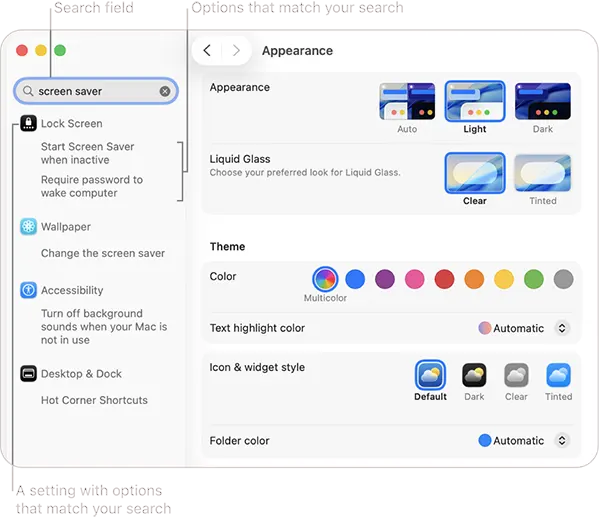
- Now, just click the matching result to jump directly to that setting.
You can also use Spotlight Search and type the setting you want to access. Searching directly is much faster than browsing through multiple menus, especially when you already know what you are looking for.
Tips for Using Mac System Settings (System Preferences) Efficiently
Once you know where System Settings is, a few simple habits can help you navigate it more efficiently and save time.
- Instead of scrolling, type keywords like Bluetooth, Battery, Trackpad, etc, into the search bar to jump straight to the right setting.
- If you frequently adjust Wi-Fi, Displays, or Bluetooth settings, pin System Settings to the Dock.
- Keep your macOS updated to save your Mac from freezing and run your system smoothly and securely.
- Review the privacy permissions occasionally and remove access for apps you no longer trust or use.
- You don’t have to change every available setting. Start with the ones that affect your daily workflow. A few useful changes make a bigger difference than tweaking everything.
Wrapping Up
Whether your Mac uses System Preferences or System Settings, you are opening the same place to manage your device. The biggest difference is the redesigned interface introduced in newer versions of macOS.
Once you know where to find it and how to search for specific options, changing your Mac’s settings becomes much easier. Follow the tips mentioned in the blog to save time and make navigating macOS much simpler.
Frequently Asked Questions
Where is System Settings on Mac?
Is System Settings the same as System Preferences in Mac?
Ans. Yes, Apple renamed System Preferences to System Settings in macOS Ventura. The name and layout change, but it serves the same purpose.
How to go to System Preferences on Mac?
Ans. You can access it from Apple Menu, Spotlight Search, Dock, or by asking Siri to open it.
Why can’t I find System Preferences on my Mac?
Ans. If you are using macOS Ventura or later, there is nothing named System Preferences. Try to open System Settings instead.
What should I do if System Settings is not responding?
Ans. Try to close and reopen the app. If it still does not respond, restart your Mac or update macOS to fix temporary software issues.
Related Posts
How to Open EXE Files on Mac: 5 Ways to Run Windows Apps
If you have downloaded a Windows .exe file on your Mac, double-clicking it won’t make it run. macOS does not…
How to Sign Out of iMessage on Mac?
Your Mac can quietly become another place where your private conversations appear. That’s convenient until you are using a shared…
What is Windows Fast Startup and How Does It Work?
Fast Startup can make your PC boot noticeably faster after a shutdown. Instead of completely rebuilding the Windows kernel state…
How to Unzip Files on Mac: 3 Easy Ways to Extract ZIP Files
A ZIP file has a funny way of making a simple task feel more complicated than it is. On a…
How to Delete Files Completely in Mac Terminal?
Finder makes deleting files simple, but sometimes you need Terminal to remove a file or folder by its exact path…
How to Add Widget in Mac: A Step-by-Step Guide
Your Mac desktop can give you useful information without turning into another dashboard to manage. A weather update, calendar reminder,…
The macOS Installation Couldn’t Be Completed? Learn How to Fix It
You are halfway through a macOS update when the progress bar stops, and a message says the macOS installation couldn’t…
How to Restart Bluetooth Service Windows 11? (Fix Bluetooth Issues)
Bluetooth stopped working in Windows 11? It can suddenly stop working even when your headphones, mouse, or keyboard work perfectly…

How to Fix External Hard Drive Not Showing Up in Windows?
You plug in your external hard drive, wait for Windows to recognize it, and then… nothing pops up. The drive…