


Press Control + Command + F or click the green window button in the top-left corner of the window.
How to Exit Full Screen on Mac (4 Easy Methods)
Full Screen mode on a Mac helps you focus by hiding the dock and menu bar. But there are times when you need to know how to exit full screen on Mac to switch apps, access your desktop, or multitask.
Thankfully, there are macOS full screen shortcuts and other quick ways to leave the mode. I will explain how to exit using keyboard shortcuts, window controls, and other built-in features. I will also show you how to switch between apps without interrupting your workflow.
Quick Answer: How to Get Out of Full Screen on Mac?
- The fastest way to exit full screen on a Mac is to press Control + Command + F.
- You can also move your cursor to the top of the screen and click the green window button in the top-left corner. In some apps, pressing the Esc key also exits full-screen mode.
- If an app gets stuck, use Mission Control or try to restart the app.
What is Full Screen Mode on Mac?
Full screen is a built-in macOS feature that expands an app to fill your entire display. It hides the Dock and menu bar, giving you more screen space and fewer distractions while working, watching videos, or browsing the web.
You can temporarily reveal the menu bar by moving your cursor to the top of the screen, and access the Dock by moving it to the bottom. Full Screen works well when you want to focus on a single task without other windows getting in the way.
How to Exit Full Screen on Mac?
There are several ways to exit full screen mode on a Mac. Choose the method that’s easiest for you; here are four common ways.
Method 1: Use the Keyboard Shortcut
The fastest way to exit is by using the built-in full screen shortcut on a Mac. It is ideal if you prefer to use the keyboard, and it works in most apps that support full-screen mode.
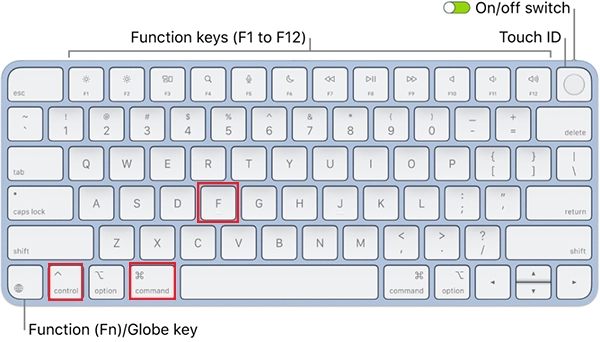
Just press Control + Command + F. This instantly toggles full screen mode on and off. If the shortcut does not work on any app, try the green window button method instead.
Method 2: Click the Green Window Button
If you prefer using your mouse or trackpad instead of the exit full screen shortcut, here is how to escape full screen on Mac:
- Move your cursor to the top-left corner of the screen.
- Wait for the window controls to appear.
- Click on the green window button.
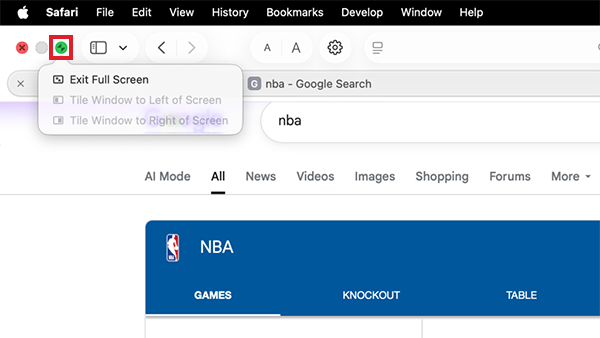
Your app will immediately return to its normal window size.
Method 3: Use the View Menu
Many Mac apps also allow you to leave full screen through the menu bar. Here’s how:
- Move your cursor to the top of the screen.
- Click on View, and select the Exit Full Screen option.
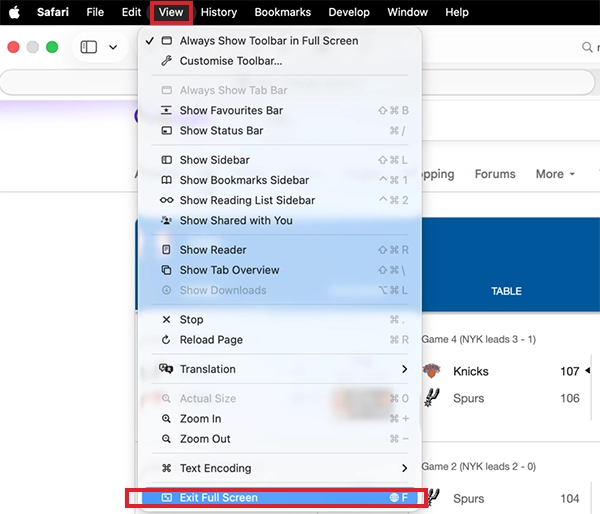
If the option is available, your app will switch back to normal window mode.
Method 4: Press the Esc Key
Some apps, especially video players, presentation software, games, and media apps, let you exit full screen by pressing Esc. Just make sure the app is active, and press the Esc key. If the app supports it, full-screen mode will close immediately.
How to Go Full Screen on Mac?
Entering full screen mode is just as simple as exiting it. But if you are confused, let’s see how to full screen on Mac:
- Open the app normally.
- Now, move your cursor over the green window button in the top-left corner, and click on it.
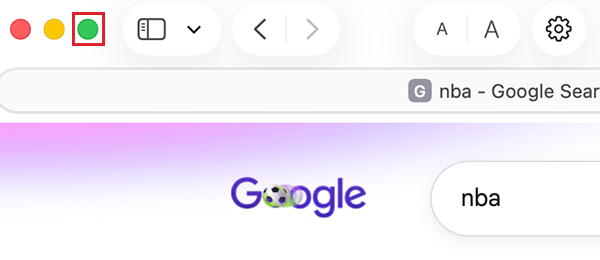
The app will expand to fill your screen, while the Dock and menu bar stay hidden until you move your pointer.
Also, you can use the Control + Command + F keyboard shortcut to switch between normal and full-screen mode instantly. But remember, not every app supports this shortcut for full screen.
How to Switch Apps in Full Screen Mode?
You don’t have to exit full screen every time you want to open another app. macOS provides several ways to switch between apps while staying in full screen.
Here are the easiest methods:
- Press Command + Tab to switch between open apps.
- Swipe left or right with three or four fingers on your trackpad to move between full-screen spaces.
- Press Control + Up Arrow to open Mission Control, then select another app or desktop.
- Press the Mission Control (F3) key on an Apple keyboard to view all open desktops and full-screen apps.
These shortcuts make multitasking much faster without constantly resizing windows.
Full Screen vs. Maximize vs. Split View on Mac
Although these options may look similar, they serve different purposes.
Full Screen expands an app to fill your entire display and hides the Dock and menu bar. It is best when you want to focus on a single task without distractions.

Maximize enlarges the app window while keeping the Dock and menu bar visible. It is a better choice if you want more workspace but still need quick access to your apps and your desktop.
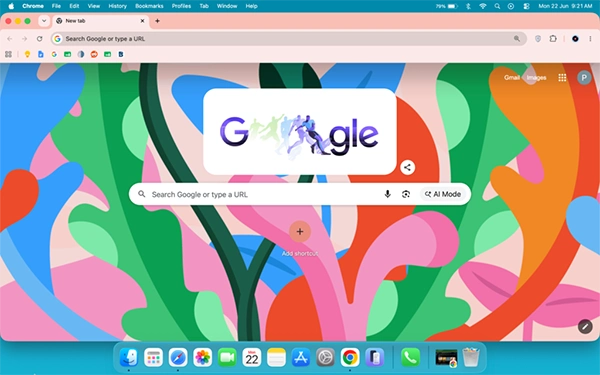
Split Screen on Mac places two apps side-by-side, making it ideal for multitasking. You can use it to compare documents, take notes while attending meetings, or work in two apps at the same time.
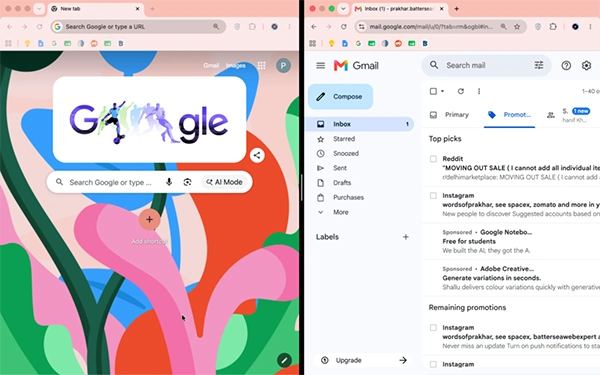
As a general rule, use Full Screen when you need complete focus, use Maximize for everyday work, and Split View when multitasking.
When Should You Use Mac Full Screen?
Full Screen is not the best choice for every task, but it can help you stay focused when you’re working with a single app.
Now that you know how to exit full screen in Mac, you should know that it is most useful when you are:
- Writing reports or long documents.
- Watching videos or movies.
- Editing photos or videos.
- Coding in one editor.
- Reading PDFs or ebooks.
- Giving presentations.
- Working on tasks that require fewer distractions.
If you are constantly switching between apps, dragging files, or comparing documents, using normal windows or Split view will usually be more efficient.
Conclusion
Exiting full screen on a Mac is simple and quick. Whether you use the keyboard shortcut, the green window button, the View menu, or the Esc key, you can switch back to normal view in just a few seconds.
Knowing when to use Full Screen, Maximize, or Split View also helps you work more efficiently. So, choose the option that best fits your task, and you will get the most out of your Mac.
Frequently Asked Questions
How do I exit full screen on Macs?
What is the Mac full screen shortcut?
The default shortcut is Control + Command + F. It helps you in switching between full-screen and normal mode.
Why is my Mac not exiting full screen?
The app may be frozen or not responding. Try the keyboard shortcut, the green window button, Mission Control, or force quit and restart the app.
How to do full screen on Mac?
Click the green window button or press Control + Command + F together to enter full-screen mode on Mac.
How to exit full screen on Windows?
In most Windows apps, you can press F11 to exit full screen mode. If that does not work, press Esc or click the Restore Down button at the top of the window.
Related Posts

How to Fix DISM Error 87 in Windows?
DISM Error 87 usually appears when Windows cannot understand a DISM command or one of its parameters. You may see…

How to Restart Explorer.exe in Windows?
A frozen taskbar, missing desktop icons, or an unresponsive File Explorer can make Windows feel stuck even when your computer…
How to Reopen Closed Tabs on Mac [Easy Ways to Restore Tabs]
Accidentally closing the wrong tab can be super annoying, especially when you were in the middle of something important. You…

What Is a .BAT file and How Do You Create One?
You may have seen a file ending in .bat and wondered why opening it brings up a Command Prompt window…

How to Disable Microsoft Edge in Windows? 4 Quick Methods
Microsoft Edge can feel difficult to “turn off” because several Windows and Edge settings control when it starts and what…

How to Open EXE Files on Mac: 5 Ways to Run Windows Apps
If you have downloaded a Windows .exe file on your Mac, double-clicking it won’t make it run. macOS does not…

How to Sign Out of iMessage on Mac?
Your Mac can quietly become another place where your private conversations appear. That’s convenient until you are using a shared…

What is Windows Fast Startup and How Does It Work?
Fast Startup can make your PC boot noticeably faster after a shutdown. Instead of completely rebuilding the Windows kernel state…

How to Unzip Files on Mac: 3 Easy Ways to Extract ZIP Files
A ZIP file has a funny way of making a simple task feel more complicated than it is. On a…