


Go to Apple Menu > System Settings > General > Login Items & Extensions to locate startup apps on Mac.
How to Manage Mac Startup Apps and Stop Apps Opening Automatically?
Mac startup apps are useful, but some startup items on Mac quietly slow down your system every time you log in. Modern macOS now manages these settings through Login Items & Extensions, where you can control which apps open automatically.
In this guide, I will show you how to manage which apps open at Startup on Mac, add or remove Login Items properly, and prevent your Mac from freezing or slowing down.
Why Do Mac Startup Apps Open Automatically?
macOS startup apps are designed to launch automatically as soon as you log in. Apple calls these Login Items, and they mainly exist for convenience.
Apps like Cloud storage tools, messaging apps, password managers, and music services are often the most used Mac automatic startup applications. On newer macOS versions, Apple manages these through Login Items & Extensions settings, just like the Windows Startup Folder.
This section controls Mac startup software, apps that open at login, background activity permissions, and some helper tools and extensions. A few startup apps are completely normal. But too many can slow login time, increase memory usage, and clutter your desktop right after restarting your MacBook.
How to Stop Apps From Opening on Startup on Mac?
It is really simple to stop apps startup mac once you know where to look. Here’s how to disable startup apps on Mac:
- Open the Apple Menu and go to System Settings.
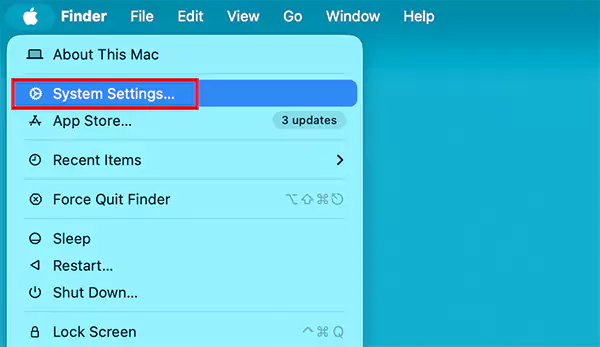
- Next, go to General and open Login Items & Extensions.
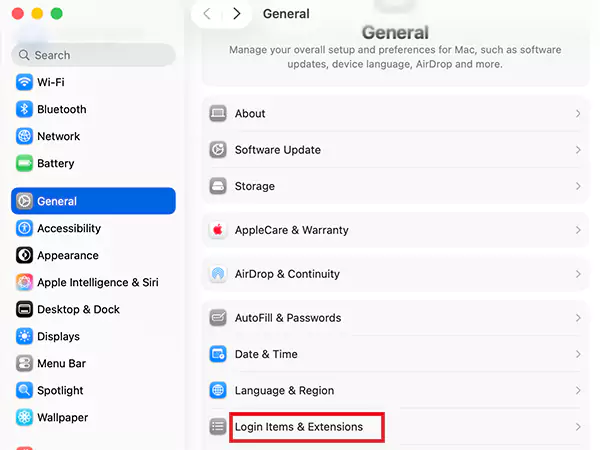
- Under Open at Login, select the app you want to disable.
- Now, just click the minus (-) button.
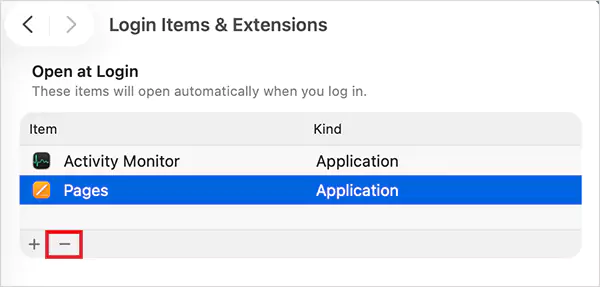
This triggers Mac to change startup programs and stops the app from launching automatically the next time you log in.
ProTip: You can even check the App Background Activity section and disable unnecessary permissions carefully. Turning off the wrong background process can break app functionality.
How to Change Startup Apps on Mac?
Managing the Launch apps on Startup Mac is not only about removing them. You can also change Mac startup programs and add apps you actually want to open automatically. Here’s how:
- Go to System Settings > General > Login Items & Extensions.
- Under Open at Login, click the plus (+) icon.
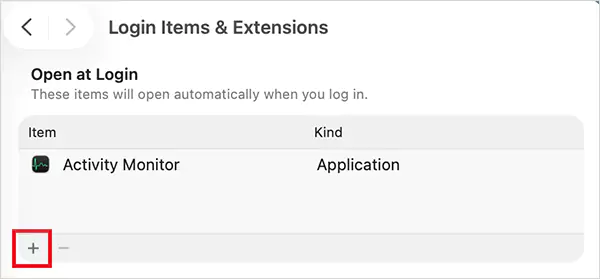
- Now, choose the app you want to add and click on Open.
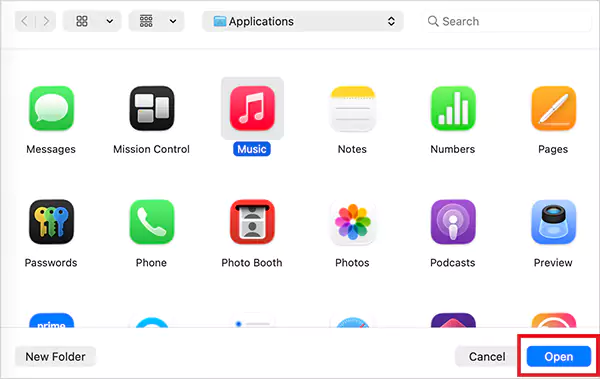
Changing startup apps on Mac works well for the programs you use daily, such as Slack, calendar apps, cloud storage tools, etc.
However, do not add every app you use frequently. Too many startup apps increase CPU and memory usage before you even begin working.
Simple Tips to Manage Mac Startup Programs Properly
A clean startup for Mac is essential for your system to run smoothly. Here are a few practices that can help you:
- Keep only essential apps and workflow-related mac startup apps.
- Review Login Items regularly because many apps quietly add themselves during installation or updates.
- Disable startup permissions before uninstalling apps to avoid leftover helper items and background processes.
- Check background activity carefully since some apps continue running silently for syncing, notifications, or updates.
Also, avoid unnecessary startup cleaner apps because macOS already provides built-in startup management tools.
Conclusion
Mac startup apps are helpful when managed properly and frustrating when left unchecked. The goal is not to remove every startup item. It is understanding which apps actually deserve to launch automatically.
Just keep essential apps, remove unnecessary startup clutter, and review background activity occasionally. Once you clean up your Login Items properly, your Mac usually feels faster, quieter, and much less chaotic during startup.
Frequently Asked Questions
Where do I find startup applications on Mac?
How to stop applications from opening on startup on a Mac?
Open Login Items & Extensions, select the app under Open at Login, then click the minus button to remove it from startup.
How do I turn off startup programs on Macs?
You can disable Mac startup programs by removing unnecessary apps from the login list in Login Items & Extensions settings. Also, do not forget to review background permissions.
Why do some apps keep reopening even after removing them from the Mac startup?
Some apps continue running through background processes, and Apple also allows macOS to reopen windows from your last session if enabled.
Can too many startup apps slow down a Mac?
Yes, too many startup items can increase login time, memory usage, and background CPU activity, especially on older Macs or systems with limited RAM.
Related Posts
How to Disable Microsoft Edge in Windows? 4 Quick Methods
Microsoft Edge can feel difficult to “turn off” because several Windows and Edge settings control when it starts and what…
How to Open EXE Files on Mac: 5 Ways to Run Windows Apps
If you have downloaded a Windows .exe file on your Mac, double-clicking it won’t make it run. macOS does not…
How to Sign Out of iMessage on Mac?
Your Mac can quietly become another place where your private conversations appear. That’s convenient until you are using a shared…
What is Windows Fast Startup and How Does It Work?
Fast Startup can make your PC boot noticeably faster after a shutdown. Instead of completely rebuilding the Windows kernel state…
How to Unzip Files on Mac: 3 Easy Ways to Extract ZIP Files
A ZIP file has a funny way of making a simple task feel more complicated than it is. On a…
How to Delete Files Completely in Mac Terminal?
Finder makes deleting files simple, but sometimes you need Terminal to remove a file or folder by its exact path…
How to Add Widget in Mac: A Step-by-Step Guide
Your Mac desktop can give you useful information without turning into another dashboard to manage. A weather update, calendar reminder,…
The macOS Installation Couldn’t Be Completed? Learn How to Fix It
You are halfway through a macOS update when the progress bar stops, and a message says the macOS installation couldn’t…
How to Restart Bluetooth Service Windows 11? (Fix Bluetooth Issues)
Bluetooth stopped working in Windows 11? It can suddenly stop working even when your headphones, mouse, or keyboard work perfectly…