


You can free up memory by restarting your Mac, quitting unused applications, closing browser tabs, removing unnecessary startup apps, and force-quitting memory-heavy processes through Activity Monitor.
How to Clear RAM on Mac: Easy Ways to Free Up Memory
If your Mac is freezing, slowing down, or showing the “Your system has run out of application memory” warning, memory usage could be the reason. This often happens when too many apps, browser tabs, or resource-heavy programs are running at the same time.
The good thing is that you usually don’t need special software to free memory on Macs and fix it. In this guide, I will explain how to clear RAM on Mac, check what is using memory, and understand when memory is actually causing performance problems.
Understanding RAM on a Mac
RAM (Random Access Memory) is your Mac’s short-term memory. It stores the information apps and system processes need while they are running, allowing your system to access data quickly.
Before you learn how to clear application memory on Mac, you should know that modern Macs are designed to use available memory efficiently. Instead of leaving RAM empty, macOS actively uses it for caching and performance improvements. When another app needs memory, the system automatically reallocates resources.
That’s why high RAM usage alone is not a problem. A better metric to watch is Memory Pressure, which shows whether your Mac can comfortably handle its current workload.
How to Check Memory Usage in Activity Monitor?
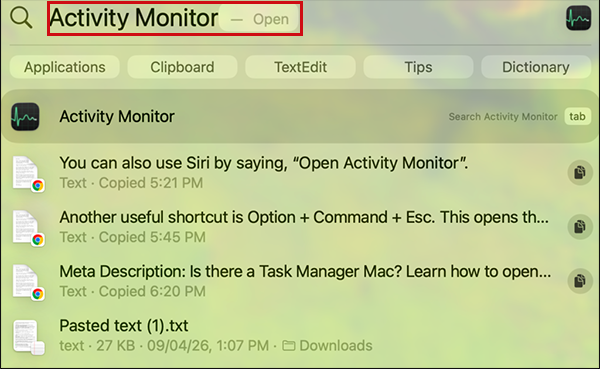
You should not directly dive into learning how to clear memory on MacBooks or Macs. If your computer feels slow, Activity Monitor, also known as the Task Manager of Mac, can show what’s consuming memory. Here’s how:
- Open Activity Monitor on your Mac.
- Next, click the Memory tab.
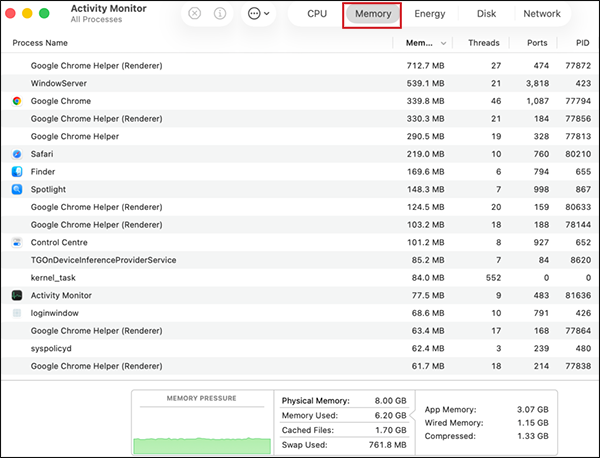
- Here, click on Memory to sort processes by Memory usage.
Now, just review the apps using the most RAM. This makes it easy to identify memory-hungry apps and decide whether they should be closed or restarted.
How to Clear RAM on Mac?
macOS manages memory automatically, so manually clearing RAM is rarely necessary. However, if your Mac becomes sluggish or unresponsive, these methods can help free up memory. Here’s how to clear RAM in Mac computers:
1. Restart Your Mac
Restarting your Mac is the fastest and most effective way to clear RAM. To restart your Mac:
- Click the Apple Menu.
- Select Restart.
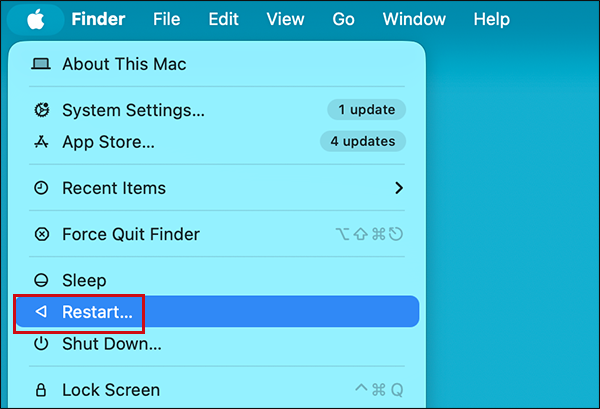
- Allow the system to reboot completely.
A restart closes all running apps, clears temporary data, and refreshes memory usage.
2. Quit Unused Applications
Apps continue using memory even when they are sitting idle in the background. Here’s how to free up application memory on a Mac by quitting an app:
- Right-click the icon of the application in the Dock and select Quit.
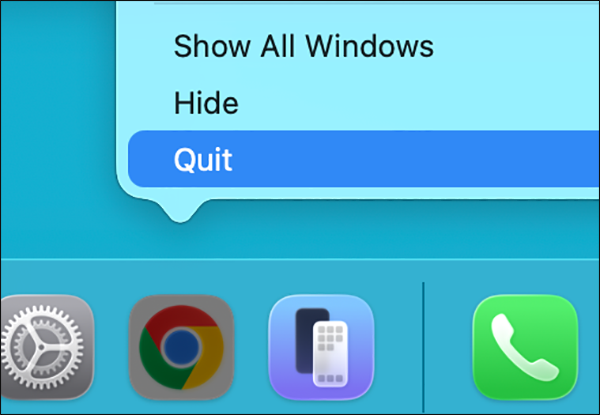
- Or, just press Command + Q when you are on the app screen.
Pay special attention to memory-heavy apps such as web browsers, video editing software, design tools, and virtual machines.
3. Force Quit Unresponsive Apps
Sometimes an app freezes or consumes far more memory than it should. To force quit it:
- Press Option + Command + Esc.
- Select the problematic app.
- Click on Force Quit.
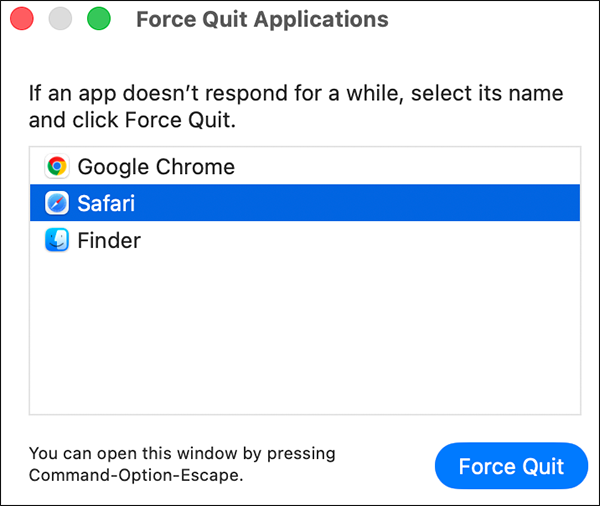
This can quickly restore responsiveness to your system and fix the issue.
4. Close Browser Tabs
Web browsers are often the biggest RAM users on a Mac. Each open tab consumes memory, especially if it contains videos, web apps, social media feeds, and streaming services.
To reduce memory usage, close tabs you no longer need, remove unused browser windows, and bookmark pages instead of just leaving them open.
5. Disable Unnecessary Browser Extensions
You might not know this, but many browser extensions run continuously in the background. So, don’t forget to review installed extensions, disable anything you rarely use, and restart the browser. Even removing a few extensions can noticeably reduce RAM usage.
6. Relaunch Apps Using Excessive Memory
There may be some applications that gradually consume more memory if they stay open for a long time. If you notice an app’s memory constantly increasing, try saving your work, quitting the app completely, and reopening it. This often resolves temporary memory leaks and frees application memory on Mac.
7. Sign Out and Back In
If you don’t want to restart your Mac, signing out of your user account can also refresh memory usage. Before signing out, make sure you save any open work and close important applications. Once you sign back in, macOS starts a fresh session with fewer active processes.
Also, advanced users can use Terminal commands to refresh cached memory resources. However, the modern version of macOS already manages memory efficiently, so this method is rarely necessary.
Unless you are troubleshooting a specific issue, the methods above are usually enough to understand how to clean up memory on Macs.
How to Reduce RAM Usage on Mac?
If memory-related slowdowns happen regularly, reducing overall RAM usage can improve long-term performance. Here’s how to clear RAM on MacBook devices:
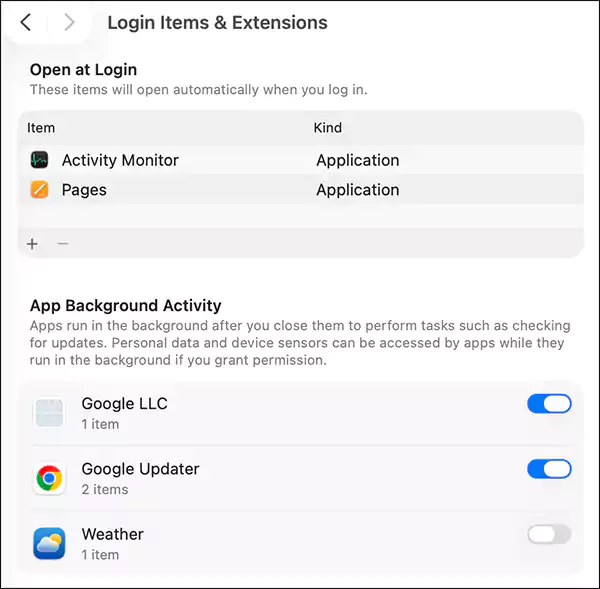
- Disable Unnecessary Login Items: Many apps launch automatically when your Mac starts. To review them, go to System Settings > General > Login Items, and remove apps that don’t need to start automatically. This reduces background memory usage from the moment you sign in.
- Keep Enough Free Storage: When RAM fills up, macOS uses available storage as virtual memory. If your startup disk is nearly full, memory management becomes less efficient. Keeping free storage available helps macOS handle heavy workloads more smoothly.
- Update macOS and Applications: Software updates often include performance improvements, memory optimizations, bug fixes, and memory leak fixes.
- Monitor Memory Pressure: Instead of focusing only on RAM usage numbers, regularly check Memory Pressure in Activity Monitor. If it remains green, your Mac is managing memory effectively. If it frequently turns yellow or red, reducing active workloads can improve performance.

- Consider More RAM for Demanding Workloads: If you regularly use video editing software, virtual machines, development tools, or large creative projects. You may simply need more memory.
For these workloads, upgrading to a Mac with more RAM often provides the biggest long-term improvement.
When Do You Need to Free Up Memory on Mac?
You do not need to free up memory just because Activity Monitor shows high RAM usage. Instead, take action if you notice:
- Apps are taking longer than usual to open, load files, or respond to commands.
- Frequent spinning beachball cursors appear during everyday tasks.
- Your Mac feels sluggish, with lag, stuttering, or delayed response.
- Switching between apps becomes slower than normal.
- Memory Pressure in Activity Monitor consistently stays yellow or red.
- Swap Used value remains high even during regular workloads.
These signs indicate that memory demand may be affecting your Mac’s performance.
Final Thoughts
Clearing RAM on a Mac is not about chasing the highest amount of free memory. macOS is designed to use available RAM efficiently and release resources when needed. Instead of focusing solely on memory usage numbers, pay attention to Memory Pressure and overall system performance.
When slowdowns occur, simple steps like restarting your Mac, closing unused apps, and reducing browser tabs are often enough to get things running smoothly again.
Frequently Asked Questions
How to free up memory on Mac?
How do I check which app is using the most Mac memory?
Open Activity Monitor, select the Memory tab, and sort processes by the Memory column. The apps using the most memory will appear at the top of the list.
How to clear up application memory on Mac?
Quit the application completely or force-quit it if it becomes unresponsive. This immediately releases the memory allocated to that app.
What is the fastest way to clear RAM on Macs?
Restarting your Mac is the fastest and most effective way to clear RAM because it closes all running processes and refreshes system memory.
Do you need a Mac memory cleaner?
In most cases, macOS already manages memory automatically, and Activity Monitor is usually enough for troubleshooting.
Related Posts
How to Disable Microsoft Edge in Windows? 4 Quick Methods
Microsoft Edge can feel difficult to “turn off” because several Windows and Edge settings control when it starts and what…
How to Open EXE Files on Mac: 5 Ways to Run Windows Apps
If you have downloaded a Windows .exe file on your Mac, double-clicking it won’t make it run. macOS does not…
How to Sign Out of iMessage on Mac?
Your Mac can quietly become another place where your private conversations appear. That’s convenient until you are using a shared…
What is Windows Fast Startup and How Does It Work?
Fast Startup can make your PC boot noticeably faster after a shutdown. Instead of completely rebuilding the Windows kernel state…
How to Unzip Files on Mac: 3 Easy Ways to Extract ZIP Files
A ZIP file has a funny way of making a simple task feel more complicated than it is. On a…
How to Delete Files Completely in Mac Terminal?
Finder makes deleting files simple, but sometimes you need Terminal to remove a file or folder by its exact path…
How to Add Widget in Mac: A Step-by-Step Guide
Your Mac desktop can give you useful information without turning into another dashboard to manage. A weather update, calendar reminder,…

The macOS Installation Couldn’t Be Completed? Learn How to Fix It
You are halfway through a macOS update when the progress bar stops, and a message says the macOS installation couldn’t…
How to Restart Bluetooth Service Windows 11? (Fix Bluetooth Issues)
Bluetooth stopped working in Windows 11? It can suddenly stop working even when your headphones, mouse, or keyboard work perfectly…