


It is a Windows bug check 0xA, usually caused by invalid memory access at an elevated IRQL. Faulty drivers are a common cause, but hardware and memory problems can also be involved.
IRQL NOT LESS OR EQUAL: How to Fix the BSOD Error in Windows
One faulty driver or unstable hardware component can suddenly turn a normal session into a Windows blue screen. The IRQL NOT LESS OR EQUAL error means Windows encountered an invalid memory access while operating at an elevated interrupt request level.
Faulty kernel-mode drivers are a common cause, but RAM, hardware, system services, BIOS updates, and corrupted system files can also be involved. In this guide, I will explain what causes the IRQL_NOT_LESS_OR_EQUAL error and walk you through practical ways to fix it.
What Causes the IRQL_NOT_LESS_OR_EQUAL Error?
The Stop Code Driver IRQL NOT LESS OR EQUAL is Windows bug check 0xA. It occurs when Windows or a kernel-mode driver tries to access an invalid or improperly accessible memory address while running at an elevated interrupt request level.
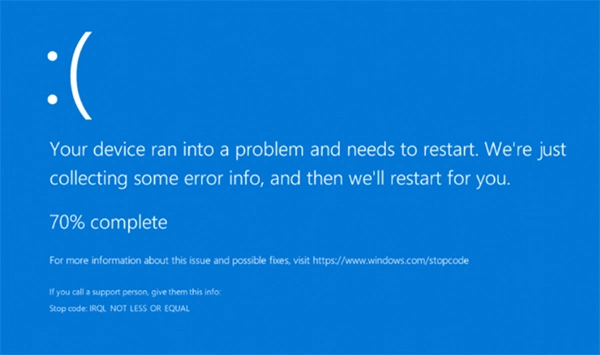
Faulty drivers are one of the most common causes, but the problem can also be linked to:
- Corrupted, outdated, or incompatible device drivers.
- Recently installed hardware.
- Faulty or unstable RAM.
- A problematic system service.
- BIOS or firmware issues.
- Software that conflicts with Windows.
- Corrupted Windows system files.
The timing of the BSOD can provide a useful clue. If the crashes started shortly after installing a graphics, network, storage, or other device driver, investigate that change first. The same applies to recently added hardware, system services, or BIOS updates.
In other words, don’t start replacing random Windows files just because you see the error.
How to Fix IRQL NOT LESS OR EQUAL in Windows?
There isn’t one fix that works for every Windows Stop Code IRQL_NOT_LESS_OR_EQUAL. Work through these solutions in order, starting with recent changes and moving toward hardware and system diagnostics if the problem continues.
1. Disconnect Recently Added Hardware
If you recently installed RAM, a graphics card, storage drive, USB device, or another component, disconnect or remove it if possible. Then restart Windows.
If the BSOD stops, the new hardware or its driver becomes a strong suspect. You can check its compatibility, connections, drivers, and configuration.
If removing the hardware is not practical, move on to Safe Mode and driver troubleshooting instead.
2. Start Windows in Safe Mode
Safe Mode starts Windows with a limited set of drivers and services. If the computer works normally in Safe Mode but crashes during a regular startup, a third-party driver or service may be responsible.
To use Safe Mode:
- Open Windows Recovery options.
- Go to Troubleshoot > Advanced Options > Startup Settings, and click Restart.
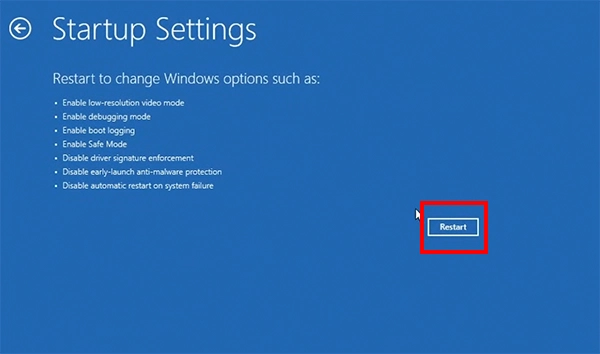
- Then, select Safe Mode by pressing F4 or Safe Mode with Networking by pressing F5.
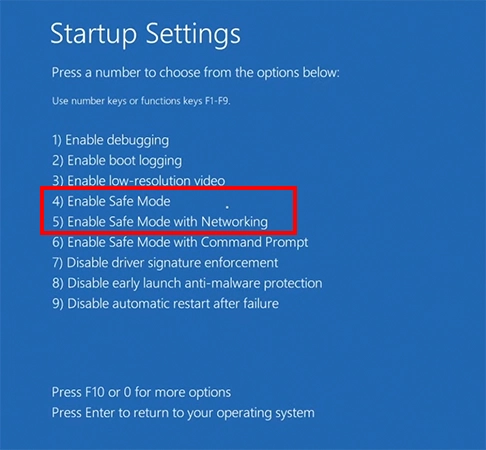
Once you are in Safe Mode, you can remove or roll back a recently installed driver without repeatedly triggering the BSOD during normal startup.
3. Update or Roll Back Your Drivers
Drivers should be one of your first checks, particularly if you see DRIVER_IRQL_NOT_LESS_OR_EQUAL instead of the standard IRQL error.
- Open Device Manager and look for devices whose drivers were recently updated or installed.
- If the crashes started immediately after a driver update, go to that Device > Properties > Driver > Roll Back Driver.
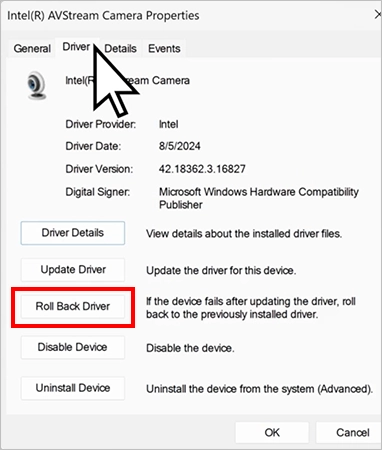
For graphics, Wi-Fi, chipset, and storage drivers, download drivers from the hardware manufacturer’s official support page whenever possible. Avoid random third-party driver sites and questionable driver-updater tools.
4. Check for Windows Updates
Open Settings > Windows Update and check for available updates. Keeping Windows updated can resolve compatibility and stability problems.
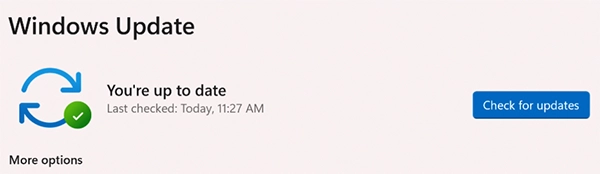
However, don’t assume that installing another update will fix the issue if the BSOD started immediately after a recent Windows update. If the timing points to a recent update, consider whether rolling back that change is more appropriate.
5. Test Your RAM
Faulty or unstable RAM can cause memory-related BSODs, so don’t overlook it when driver troubleshooting does not explain the problem.
To run Windows Memory Diagnostic:
- Press Windows + R.
- Type “mdsched.exe” and press Enter.
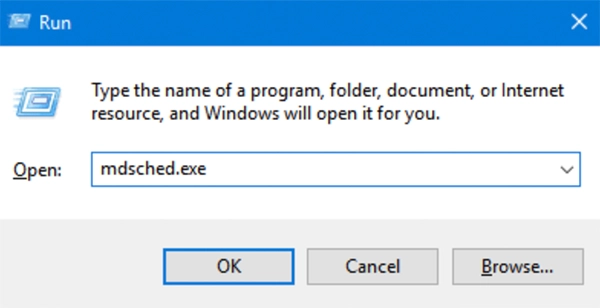
- Now, select Restart now and check for problems.
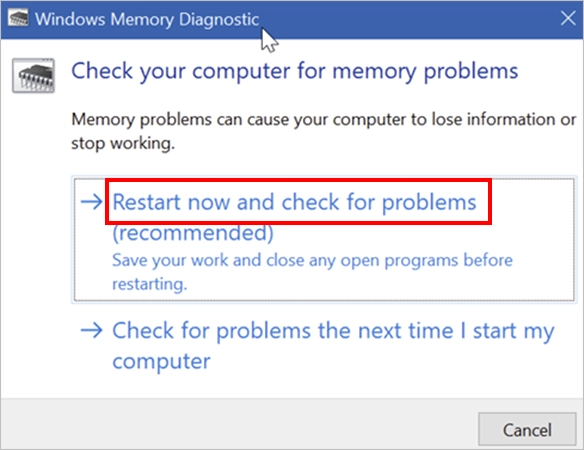
Windows will restart and test your memory. If the test reports errors, investigate the RAM modules, memory configuration, or recently installed memory before spending more time repairing Windows software.
A faulty memory module can continue causing crashes like IRQL and WHEA Uncorrectable Error even after you fix other system issues.
6. Repair Windows System Files
Damaged Windows system files can contribute to system instability. Windows includes two built-in tools that can check and repair them: DISM and SFC.
- Open Command Prompt as administrator.
- Run: “DISM /Online /Cleanup-Image /RestoreHealth”.
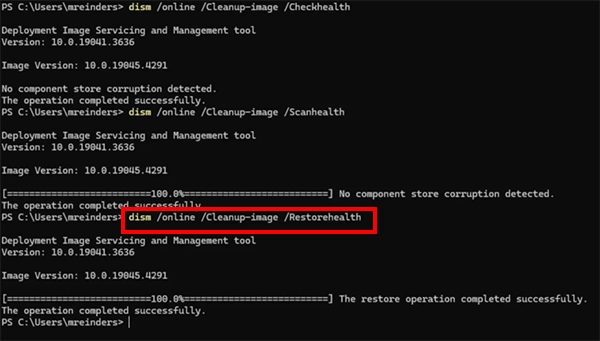
- Wait for the command to finish, then run: “sfc /scannow”.
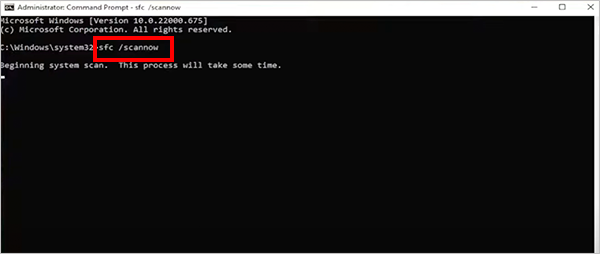
Restart your computer after both commands complete, and check whether the blue screen IRQL_NOT_LESS_OR_EQUAL returns. These tools are useful when Windows itself may be damaged, but they won’t fix faulty RAM or a bad third-party driver.
7. Check Event Viewer for Clues
Windows may record errors around the time of a crash. Event Viewer can help you spot patterns involving the same device, driver, or service.
- Search for and open Event Viewer.
- Go to Windows Logs > System.
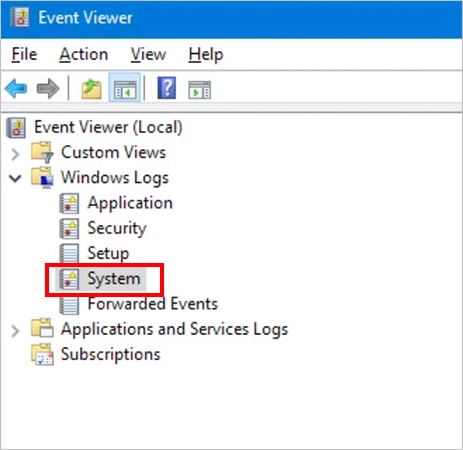
- Look for errors that occurred immediately before the BSOD.
Don’t assume every error listed there caused the crash. Focus on events that match the timing and repeatedly point toward the same device, driver, or service. This can give you a useful lead when the blue screen does not identify the actual cause.
8. Use Driver Verifier Only If Necessary
Driver Verifier is an advanced Windows tool that tests drivers for improper behavior. It can help identify a troublesome kernel-mode driver when standard troubleshooting has not provided an answer.
However, it should not be your first step. Driver Verifier adds extra checks to drivers and can intentionally trigger crashes when it detects a problem. Use it only when you have narrowed the problem down to a possible driver and need additional evidence.
ntoskrnl.exe IRQL_NOT_LESS_OR_EQUAL
If ntoskrnl.exe appears in the crash details, don’t assume the Windows kernel is damaged. It is a core system file, so it often shows up even when the real issue is elsewhere. Think of IRQL NOT LESS OR EQUAL ntoskrnl.exe as a symptom, not the cause.
How to Prevent the BSOD IRQL_NOT_LESS_OR_EQUAL?
You can’t prevent every driver or hardware failure, but a few habits can reduce the chances of repeated IRQL crashes.
- Be Cautious with Driver Updates: Use official manufacturer sources and avoid driver-update tools that replace working drivers without a clear reason.
- Keep Windows Updated: System and security updates can address compatibility and stability issues.
- Don’t Ignore Repeated BSODs: One isolated crash may not reveal much, but recurring crashes with the same stop code deserve proper diagnosis.
- Keep a Backup: Driver and hardware troubleshooting can sometimes require system changes or recovery. An up-to-date backup protects your important files if something goes wrong.
Wrapping Up
The IRQL_NOT_LESS_OR_EQUAL Windows 10/11 error does not point to one specific failed component.
Start with what changed before the crashes appeared. Check recent drivers and hardware, test your RAM, and repair Windows system files. If ntoskrnl.exe appears in the crash information, treat it as a clue rather than the automatic culprit.
That approach is more useful than replacing system files or reinstalling Windows without first finding out what actually triggered the BSOD.
Frequently Asked Questions
What is IRQL_NOT_LESS_OR_EQUAL?
What does IRQL_NOT_LESS_OR_EQUAL ntoskrnl.exe mean?
It does not necessarily mean ntoskrnl.exe is faulty. The Windows kernel may simply have been involved when the crash occurred.
How do I fix the IRQL NOT LESS OR EQUAL BSOD?
Check recent hardware and driver changes, boot into Safe Mode if needed, test your RAM, install Windows updates, and repair system files with DISM and SFC.
Is Windows IRQL_NOT_LESS_OR_EQUAL caused by a driver?
Yes, it can be a reason. Faulty kernel-mode drivers are a common cause, but RAM, hardware, BIOS, and system services can also trigger the error.
Can faulty RAM cause IRQL NOT LESS OR EQUAL?
Yes, defective or unstable RAM can contribute to memory-related BSODs. Run Windows Memory Diagnostic if you suspect a memory problem.
Related Posts

8 Best Online Tools to Identify Unknown Callers
When a call comes on your screen with no name or context, you just zone out, thinking you should pick…
How to Fix Black Shadow on Laptop Screens?
A black shadow on laptop screens can look like a Windows glitch, but the shape and location of the dark…

Fixing Broken IP Allowlists With a Dedicated Static Address
IP allowlisting is one of the easiest security controls available. Tell a service to accept connections only from addresses you…

What is DumpStack.log and Can You Delete It in Windows?
If you have noticed a file named DumpStack.log in the root of your Windows drive, you may wonder why it…

How eSIM Fits Into Your Global Travel Itineraries
Multi-country trips can be exciting, but sometimes mobile device data makes it concerning. Whenever you cross a border, there will…

How to Pick the Right Data Structure Before You Build Your Database
Every application that stores information depends on a structure chosen long before the first row of data arrives. That structure…

Standardizing React Component Iconography Across Distributed Product Teams
Creating a common React component library is essentially a losing battle. During a cross-team review, I shared my screen. I…

Antimalware Service Executable: What It Is and How to Fix High CPU Usage
You open Task Manager and notice Antimalware Service Executable using a surprising amount of CPU or memory. It may keep…

Keeping Your Website Healthy: A Practical Guide to Long Term Success
Introduction The website may appear to be finished once it is launched; however, making sure that the site remains reliable…