


Ans. It’s a Windows Blue Screen stop code that appears when the system detects a critical hardware-related error it can’t safely recover from.
WHEA Uncorrectable Error: Meaning, Causes, and How to Fix It
A sudden blue screen with the stop code WHEA_UNCORRECTABLE_ERROR can be alarming, especially if your PC keeps restarting. Although it is often linked to hardware problems, that’s not always the case.
Outdated drivers, corrupted system files, BIOS issues, or unstable overclocking can trigger the same error. The key is finding the actual cause before trying random fixes. In this guide, I will explain WHEA Uncorrectable Error in Windows 11/10, why it happens, and how to fix it effectively.
What is WHEA Uncorrectable Error?
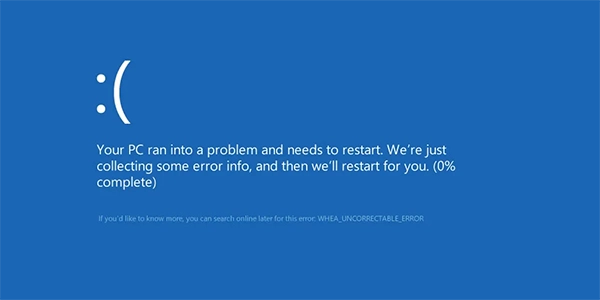
WHEA Uncorrectable Error is a Windows Blue Screen of Death (BSOD) stop code (like Critical Process Died and Kernel Security Check Failure). It appears when the operating system detects a critical hardware-related problem it can’t safely recover from.
WHEA stands for Windows Hardware Error Architecture, a built-in Windows framework that detects and reports hardware errors from components such as the CPU, RAM, storage drives, motherboard, and PCIe devices.
When Windows detects a serious error that could affect system stability or corrupt data, it immediately stops the system and displays WHEA_UNCORRECTABLE_ERROR in Windows 11 and 10 to prevent further damage.
Common Causes of WHEA_UNCORRECTABLE_ERROR
The BSOD WHEA Uncorrectable Error can have several causes, ranging from software issues to failing hardware. Identifying the actual cause makes troubleshooting much easier.
Here are the most common reasons behind this stop code:
- Faulty Hardware: A failing CPU, RAM, SSD, HDD, motherboard, or graphics card can generate hardware errors that Windows can’t recover from, resulting in a blue screen uncorrectable error.
- Corrupted or Outdated Drivers: Drivers allow Windows to communicate with your hardware. If they become outdated, corrupted, or incompatible after a Windows update, they can trigger hardware communication errors.
Unstable Overclocking: Overclocking your CPU, GPU, or RAM can improve performance, but unstable settings often lead to crashes and WHEA errors, especially under heavy workloads. - Corrupted Windows System Files: Missing or damaged system files can interrupt communication between Windows and hardware, leading to critical stop code errors.
- BIOS or Firmware Issues: An outdated BIOS or incorrect firmware settings may create incompatibility or stability problems, particularly after upgrading hardware.
- Storage or Memory Problems: Bad sectors on a hard drive, a failing SSD, or faulty RAM can all generate hardware exceptions that Windows reports through WHEA.
How to Fix WHEA Uncorrectable Error?
Since there is no single cause behind this error, the best approach is to start with the simplest fixes and work your way toward more advanced troubleshooting.
1. Restart Your Computer
If this is the first time you have encountered the error, restart your PC before trying anything else. Temporary driver or firmware issues can sometimes trigger a one-time crash.
2. Install the Latest Windows Updates
Windows updates often include stability improvements, driver updates, and bug fixes that resolve hardware-related crashes. So, just go to Settings > Windows Update, check for updates, and install all available updates.
3. Update or Roll Back Drivers
If the error started after installing a driver update, rolling it back may solve the problem. Otherwise, make sure graphics, chipset, storage, and network drivers are up to date.
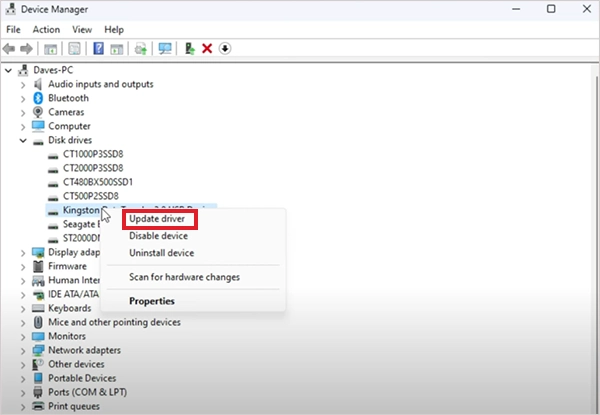
- Press Windows + X and select Device Manager.
- Expand the relevant hardware category.
- Right-click the device and select Update Driver.
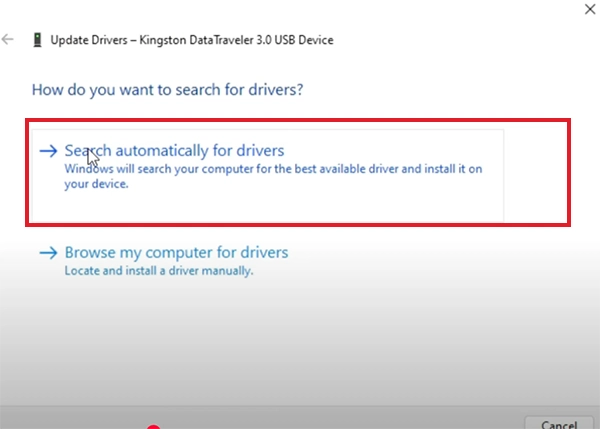
- Choose Search automatically for drivers.
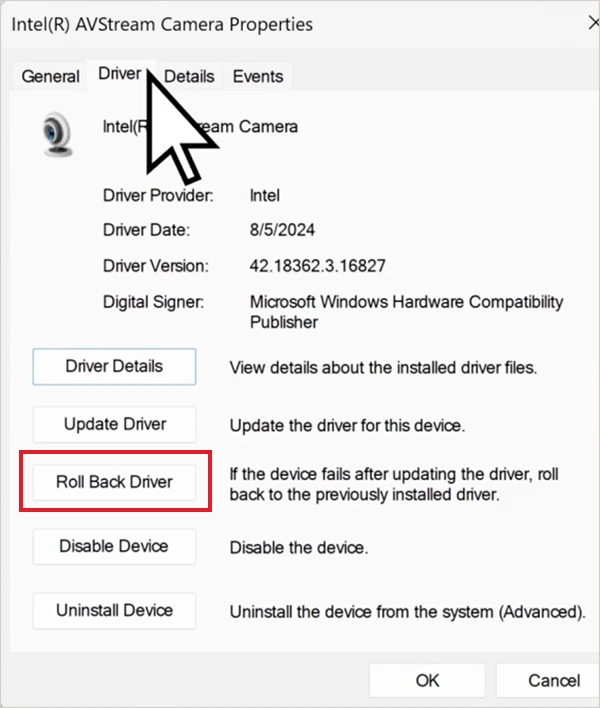
- To roll back a driver, just go to Properties > Driver > Roll Back Driver.
4. Run DISM and SFC
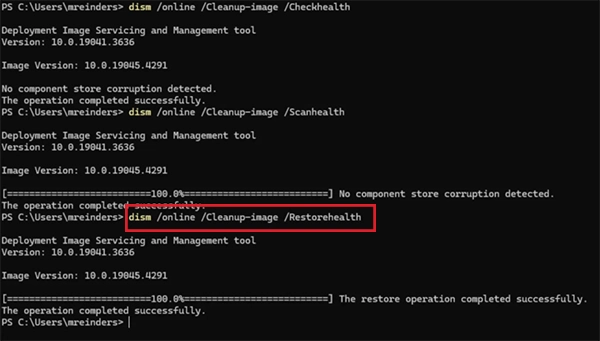
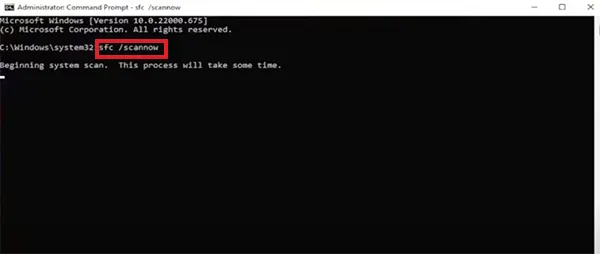
Corrupted Windows system files can trigger WHEA errors. Microsoft recommends running DISM first because it repairs the Windows image that SFC (System File Checker) relies on.
- Run Command Prompt as an administrator and run: “DISM /Online /Cleanup-Image /RestoreHealth”.
- After DISM finishes, run: “sfc /scannow”.
- Restart your PC after both scans are complete.
5. Check Your Hard Drive
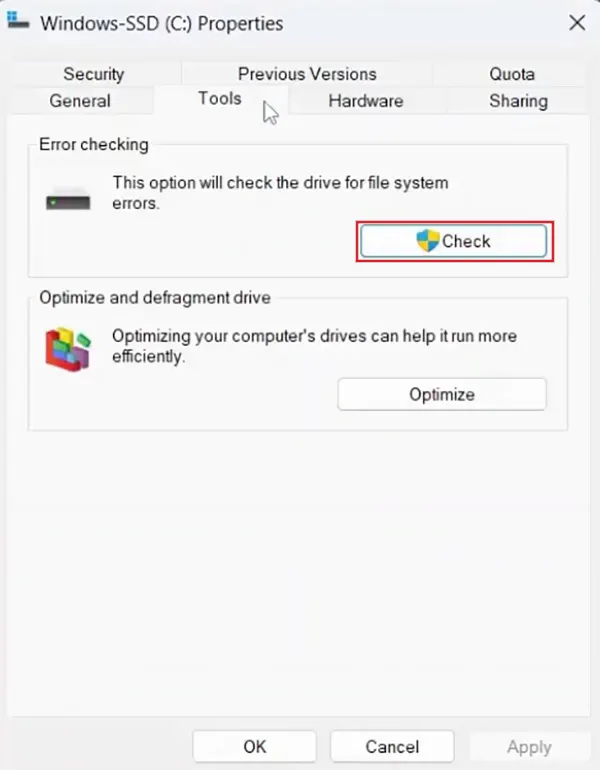
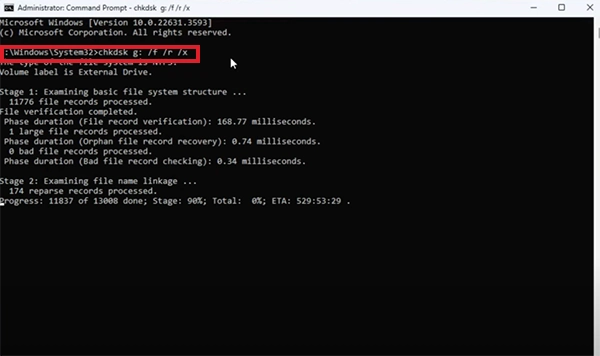
Storage errors and bad sectors can also trigger the Windows stop code WHEA Uncorrectable Error. You can scan your drive using Error Checking or CHKDSK.
Here’s how to use Error Checking:
- Open This PC and right-click your system drive.
- Select Properties and open the Tools tab.
- Click Check under Error checking.
Here’s how to use the CHKDSK tool:
- Run “chkdsk g: /f /r /x” (replace ‘g’ with your drive’s letter) in Command Prompt.
- Restart your computer if Windows asks to schedule the scan.
6. Test Your RAM
Faulty memory modules are another common cause of WHEA errors. Windows includes a built-in Memory Diagnostic tool that can help identify RAM problems.
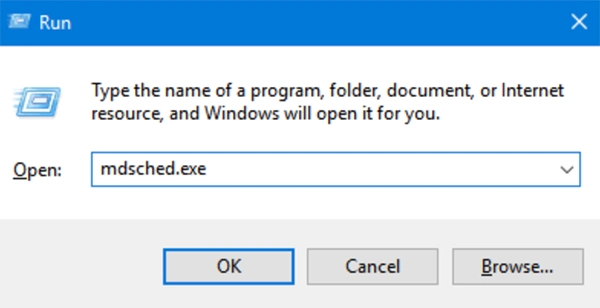
- Press Windows + R.
- Type “mdsched.exe” and press Enter.
- Select Restart now and check for problems.
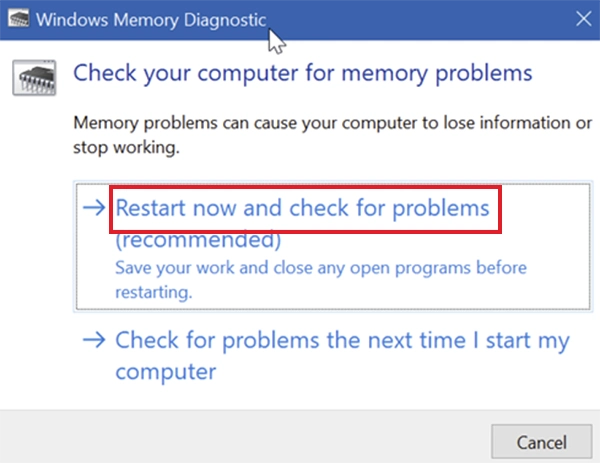
Wait for Windows to complete the memory test, and review the result after your PC restarts.
7. Disable Overclocking
If you have overclocked your CPU, GPU, or RAM, restore the default BIOS settings and check whether the blue screen stops appearing. Even a stable overclock can become unstable after BIOS, Windows, or driver updates.
- Restart your PC.
- Enter BIOS/UEFI (usually by pressing Del, F2, or F10 during startup).
- Select Load Optimized Defaults or Reset Defaults.
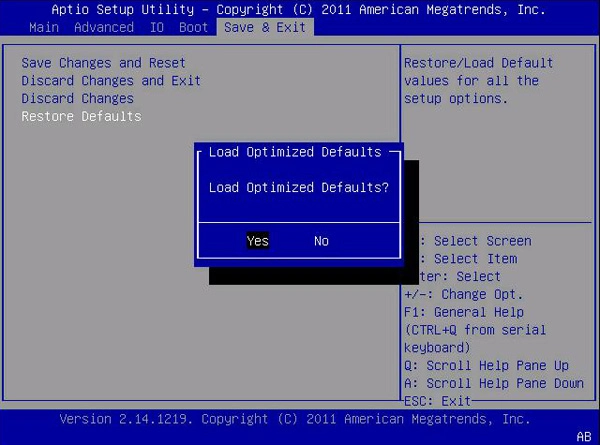
- Save your changes and restart Windows.
8. Update Your BIOS
Motherboard manufacturers regularly release BIOS updates that improve hardware compatibility and system stability.
Before updating, confirm your laptop or motherboard model, download the BIOS only from the manufacturer’s official website, and follow the update instructions carefully. Also, never turn off your computer during the BIOS updates.
9. Check Event Viewer
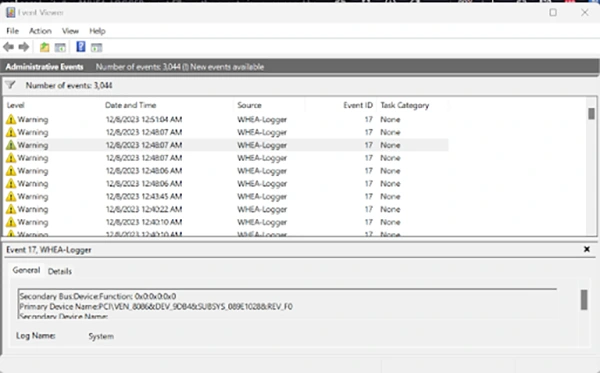
If the errors keep returning, Event Viewer may help identify the hardware component causing the crashes.
- Press Windows + X and open Event Viewer.
- Go to Windows Logs > System.
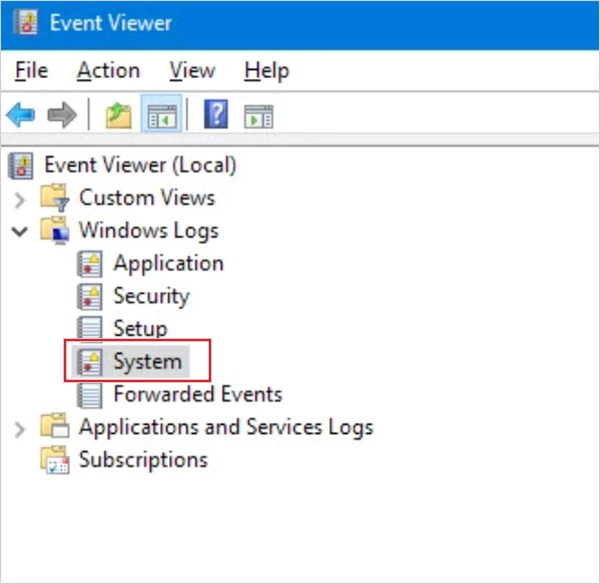
- Click on Filter Current Log.
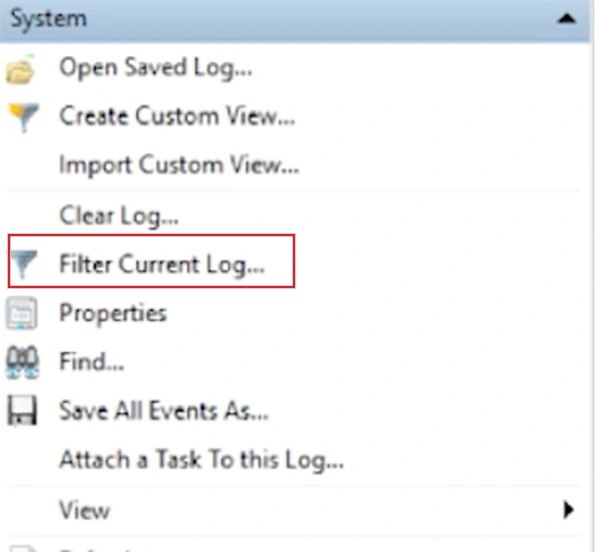
- Search for WHEA-Logger events and review the error details for clues about the affected hardware.
How to Fix WHEA Uncorrectable Error on Startup?
If your PC crashes before reaching the desktop, you will need to use the Windows Recovery Environment (WinRE) to troubleshoot.
Step 1: Access Windows Recovery Environment
Force recovery by interrupting startup 2-3 times, or boot using a Windows installation USB.
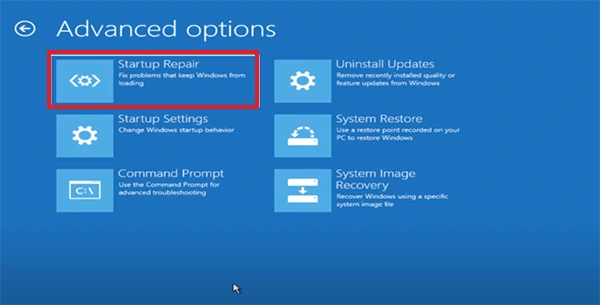
Step 2: Run Startup Repair
Startup Repair automatically fixes boot-related issues. Just go to Troubleshoot > Advanced options > Startup Repair, let Windows scan and repair, and restart your PC.
Step 3: Restore Your System
If the issue started after an update or install, use System Restore. Go to Troubleshoot > Advanced Options > System Restore, choose a restore point before the issue, and follow prompts to restore.
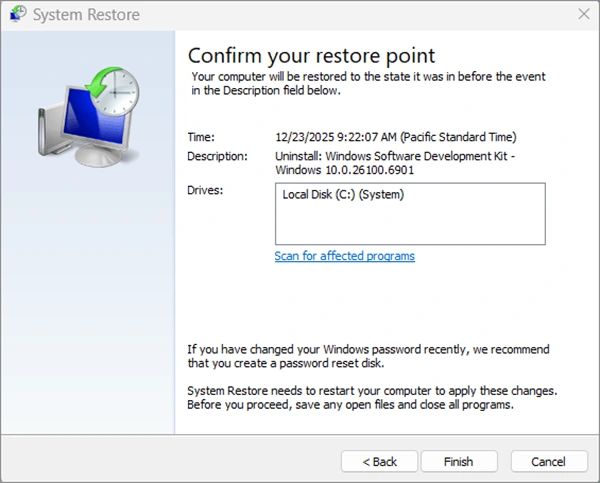
Personal files stay intact, but apps and drivers installed after the restore point will be removed.
Step 4: Boot into Safe Mode
Safe Mode loads only essential drivers, helping isolate the cause.
- Go to Troubleshoot > Advanced Options > Startup Settings.
- Click on Restart.
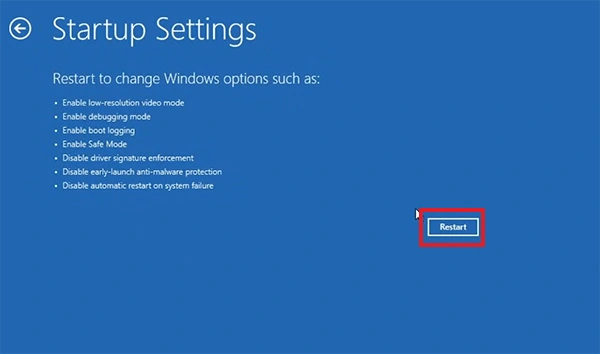
- Select Safe Mode by pressing F4 or F5.
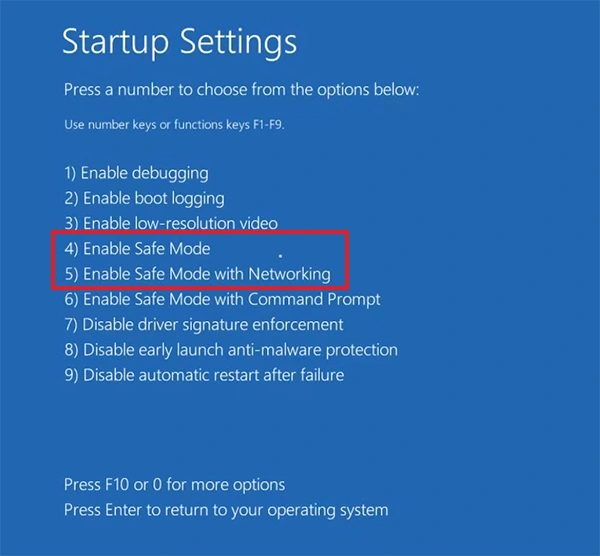
In Safe Mode, you can uninstall recent drivers./software or run system scans.
Step 5: Repair System Files
Run DISM and SFC commands if Safe Mode or Command Prompt is available, and restart after completion.
If Windows still won’t boot, use a bootable USB to access repair tools. From there, you can run advanced repair options, reset Windows, or reinstall Windows as a last resort (after backup).
Final Thoughts
The WHEA Uncorrectable Error stop code does not always mean your hardware has failed. Start with the basic troubleshooting steps, such as installing updates, repairing system files, and checking your drivers.
If the problem persists, move on to hardware diagnostics for your storage drive, RAM, and other components. Following a step-by-step approach makes it easier to identify the root cause and fix the error without replacing hardware unnecessarily.
Frequently Asked Questions
What does Windows WHEA Uncorrectable Error mean?
How do I check hardware for WHEA_UNCORRECTABLE_ERROR?
Ans. Test your RAM with Windows Memory Diagnostic, check your SSD or HDD using CHKDSK or the manufacturer’s diagnostic tool, and review WHEA-Logger entries in Event Viewer.
What are the symptoms of the Windows Uncorrectable Error?
Ans. Common symptoms include blue screen crashes, unexpected restarts, random freezes, boot failures, and repeated WHEA-Logger events.
Can outdated drivers cause a WHEA Uncorrectable Error blue screen?
Ans. Yes, outdated or incompatible drivers can interrupt communication between Windows and hardware, triggering the stop code.
How can I prevent WHEA Uncorrectable Error?
Ans. Keep Windows, drivers, and BIOS updated, avoid unstable overclocking, monitor hardware temperatures, and regularly check your SSD/HDD and RAM to reduce the risk of WHEA errors.
Related Posts
How to Fix DISM Error 87 in Windows?
DISM Error 87 usually appears when Windows cannot understand a DISM command or one of its parameters. You may see…
How to Restart Explorer.exe in Windows?
A frozen taskbar, missing desktop icons, or an unresponsive File Explorer can make Windows feel stuck even when your computer…
How to Reopen Closed Tabs on Mac [Easy Ways to Restore Tabs]
Accidentally closing the wrong tab can be super annoying, especially when you were in the middle of something important. You…

What Is a .BAT file and How Do You Create One?
You may have seen a file ending in .bat and wondered why opening it brings up a Command Prompt window…

How to Disable Microsoft Edge in Windows? 4 Quick Methods
Microsoft Edge can feel difficult to “turn off” because several Windows and Edge settings control when it starts and what…

How to Open EXE Files on Mac: 5 Ways to Run Windows Apps
If you have downloaded a Windows .exe file on your Mac, double-clicking it won’t make it run. macOS does not…

How to Sign Out of iMessage on Mac?
Your Mac can quietly become another place where your private conversations appear. That’s convenient until you are using a shared…

What is Windows Fast Startup and How Does It Work?
Fast Startup can make your PC boot noticeably faster after a shutdown. Instead of completely rebuilding the Windows kernel state…

How to Unzip Files on Mac: 3 Easy Ways to Extract ZIP Files
A ZIP file has a funny way of making a simple task feel more complicated than it is. On a…