


Fast Boot generally refers to Fast Startup, a Windows feature that reduces startup time after shutdown. It reduces the startup time in Windows by using a saved state of the system.
What is Windows Fast Startup and How Does It Work?
Fast Startup can make your PC boot noticeably faster after a shutdown. Instead of completely rebuilding the Windows kernel state every time, the feature saves the kernel session and loaded drivers to the hibernation file before powering off.
That saves startup work the next time you turn on your PC, but it also means a shutdown is not quite the same as a full shutdown. Here’s how fast boot Windows works, when it helps, and when you may want to turn it off.
What is Fast Startup in Windows?
Fast Startup is a Windows feature that reduces startup time after you shut down your PC. It does this by saving the Windows kernel session and loaded kernel-mode drivers to the hibernation file, Hiberfil.sys, instead of closing everything and starting from scratch.
When you turn the PC back on, Windows loads this saved system state rather than rebuilding the kernel state completely. This reduces the amount of work Windows needs to perform during startup.
It is enabled by default on supported Windows systems. You may also see it referred to as Fastboot Windows or Windows Quick Startup, although Fast Startup is the name Windows uses for the feature.
One detail is particularly important when troubleshooting: Fast Startup applies to shutdown, not restart. Restarting the PC performs a full shutdown and boot cycle, so Windows reloads the kernel and drivers instead of using the fast boot state.
How Does Windows Fast Startup Work?
Quick Startup in Windows works somewhere between a traditional shutdown and hibernation.
During a normal shutdown, Windows closes your user session, shuts down the kernel, and powers off the PC. With Fast Startup enabled, Windows still closes your applications and logs you out, but it saves the kernel session and loaded kernel-mode drivers before powering off.
Because part of the system state is already saved, Windows has less work to do before reaching the desktop. Here’s a quick look at the main power options in Windows:
| Mode | What Happens |
| Fast Startup | Logs you out, saves the kernel sessions and loaded drivers, then powers off |
| Normal Shutdown | Completely closes the Windows session and starts fresh next time |
| Hibernate | Saves the broader working state, including the user session, so it can be restored later |
| Restart | Performs a full shutdown and boot cycle |
Fast boot in Windows 10/11 uses the same hibernation infrastructure as Hibernate, but it does not save your open applications or current desktop sessions. That’s why Fast Startup should not be treated as a faster version of Hibernate.
How to Enable Fast Startup in Windows?
If Fast Startup is available but turned off, you can enable it through the classic Power Options panel. Here’s how to activate Fast Startup for Windows 10 and 11:
- Press Windows + S, type Control Panel, and open it.
- Select Hardware and Sound > Power Options.
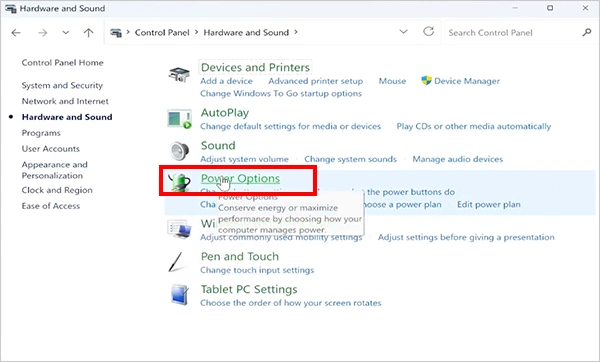
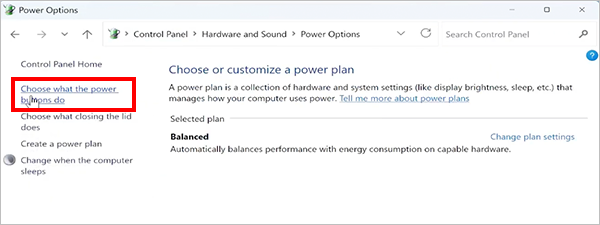
- Click Choose what the power buttons do.
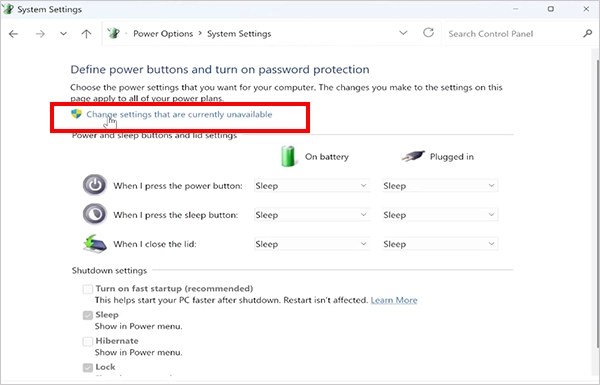
- Select Change settings that are currently unavailable.
- Under Shutdown settings, check Turn on fast startup (recommended).
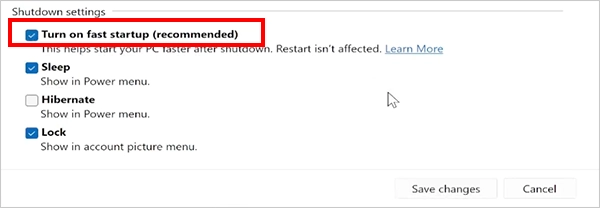
- Finally, click Save changes.
If the Fast Startup option is not listed, it may be because hibernation is disabled in your system. The steps to check this are mentioned in one of the next sections.
How to Disable Fast Startup in Windows?
You can disable quick startup in Windows 10 and 11 from the same Power Options screen.
- Go to Control Panel > Hardware and Sound > Power Options.
- Click Turn on fast startup (recommended), and select Turn on fast startup (recommended).
- Under Shutdown settings, clear Turn on fast startup (recommended).
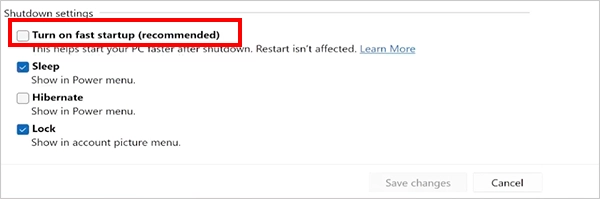
- Click Save Changes.
Disabling this setting can be useful when troubleshooting shutdown problems or when you specifically want Shutdown to use a full shutdown path.
However, you don’t need to disable it just to perform a full boot. Restart already bypasses Fast Startup and gives Windows a fresh kernel and driver initialization.
Should You Keep Fast Startup Enabled?
For most PCs that shut down and start normally, there is little reason to change the default Fast Startup setting. Its main purpose is to reduce the time between pressing the power button and reaching Windows after a shutdown.
You may want to keep it enabled if:
- Your PC starts and shuts down normally.
- You want faster startup after shutting down.
- You don’t regularly troubleshoot driver or shutdown issues.
Temporarily disabling it can make sense if:
- Shutdown or startup is behaving unexpectedly.
- You are troubleshooting a hardware or driver problem, like the ene.sys Driver Cannot Load Error.
- You need the Shut down option to perform a full shutdown.
- You suspect the Fast Startup process is contributing to a problem.
Before changing the setting, try restarting if you are troubleshooting a Windows issue. It often provides the fresh system state you need without permanently changing your fast boot configuration.
What to Do If Fast Startup is Missing?
If Turn on fast startup (recommended) does not appear under Shutdown settings, check whether hibernation is enabled. Fast Startup depends on Windows’s hibernation infrastructure and the Hiberfil.sys file.
Check Available Power States:
Open Command Prompt as an administrator and run:
powercfg /a
This Command Prompt command shows the sleep and hibernation states available on your PC.
Enable Hibernation:
If hibernation has been disabled, run:
powercfg /hibernate on
After this, return to Control Panel and check whether the Fast Startup option is available again.
If the option is still missing, the power states supported by your hardware or the system’s configuration may be limiting it. On managed computers, power-related policies can also affect which options are available on your device.
Conclusion
Windows Fast Startup reduces boot time by saving the kernel session and loaded drivers when you shut down. The next time you turn on the PC, it starts up faster than before with the help of the saved state.
For most users, keeping it enabled is fine if Windows starts and shuts down normally. When you need a completely fresh system state, use Restart. If the setting appears to be involved in a shutdown problem, you can disable it from Power Options and test Windows without the hybrid shutdown process.
Frequently Asked Questions
What is Fast Boot in Windows 10/11?
How do I turn on Fast Startup in Windows 10?
Go to Control Panel > Hardware and Sound > Power Options > Choose what the power buttons do. Select Change settings that are currently unavailable, check Turn on fast startup (recommended), and click Save changes.
Is Fast Startup the same as hibernation?
No, Fast Startup uses hibernation technology but saves the kernel session and loaded drivers after logging out the user. Full hibernation saves the broader working state, including the user’s session.
Is it okay to disable Fast Startup?
Yes, disabling Fast Startup is completely fine. It prevents Shutdown from using the fast boot process and can be useful when troubleshooting shutdown or startup issues.
Does Fast Startup work with Restart?
No, it applies only to the Shut down option, not Restart. Restart performs a full shutdown and boot cycle, which makes it useful when Windows needs to reload the kernel and drivers from a fresh state.
Related Posts

What Is a .BAT file and How Do You Create One?
You may have seen a file ending in .bat and wondered why opening it brings up a Command Prompt window…

How to Disable Microsoft Edge in Windows? 4 Quick Methods
Microsoft Edge can feel difficult to “turn off” because several Windows and Edge settings control when it starts and what…

How to Open EXE Files on Mac: 5 Ways to Run Windows Apps
If you have downloaded a Windows .exe file on your Mac, double-clicking it won’t make it run. macOS does not…

How to Sign Out of iMessage on Mac?
Your Mac can quietly become another place where your private conversations appear. That’s convenient until you are using a shared…

How to Unzip Files on Mac: 3 Easy Ways to Extract ZIP Files
A ZIP file has a funny way of making a simple task feel more complicated than it is. On a…
How to Delete Files Completely in Mac Terminal?
Finder makes deleting files simple, but sometimes you need Terminal to remove a file or folder by its exact path…
How to Add Widget in Mac: A Step-by-Step Guide
Your Mac desktop can give you useful information without turning into another dashboard to manage. A weather update, calendar reminder,…
The macOS Installation Couldn’t Be Completed? Learn How to Fix It
You are halfway through a macOS update when the progress bar stops, and a message says the macOS installation couldn’t…
How to Restart Bluetooth Service Windows 11? (Fix Bluetooth Issues)
Bluetooth stopped working in Windows 11? It can suddenly stop working even when your headphones, mouse, or keyboard work perfectly…