


Ans. ene.sys is a third-party Windows driver commonly associated with RGB and hardware-control software used to manage lighting and other PC components.
How to Fix the ene.sys Driver Cannot Load Error?
A Windows update can suddenly turn a harmless RGB utility into a startup warning: “A driver cannot load on this device. Driver: ene.sys”.
This message does not necessarily mean your PC has a serious hardware problem. ene.sys is commonly linked to RGB and hardware-control software, and Windows may block an older or vulnerable version from loading.
In this guide, I will explain why the ene.sys driver cannot load error appears and the safest ways to fix it.
What is the ene.sys Driver Cannot Load Error?
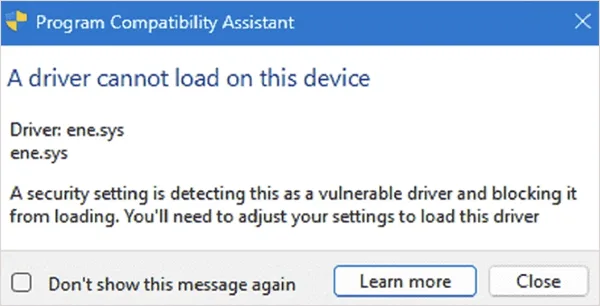
A driver cannot load on this device: ene.sys error means Windows has stopped ene.sys from loading. This can happen when Memory Integrity determines that the driver is not compatible with its security requirements.
As mentioned, ene.sys is commonly associated with RGB and hardware-control software. You may encounter the warning after a Windows update or after installing or updating software that controls your motherboard, memory, keyboard, or other RGB hardware.
The warning does not automatically mean that ene.sys is malicious. A legitimate driver can still be blocked if its version has a security vulnerability or does not meet Windows’ current requirements.
In most cases, the issue is a compatibility problem. It means that Windows is preventing a potentially vulnerable kernel-mode driver from loading, while older hardware-control software still depends on it.
How to Fix Driver ene.sys Cannot Load on Windows?
The best fix for the driver ene.sys cannot load on this device error is to update or remove the software that installed ene.sys. Here’s how you should approach the troubleshooting:
1. Update Windows and Your Device Drivers
First, go to Settings > Windows Update > Check for updates. Install any available updates and restart your PC.
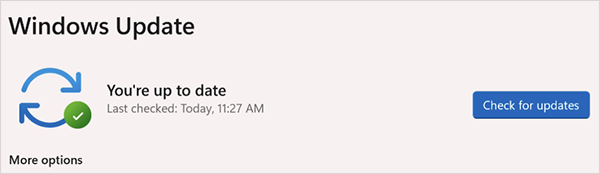
If the warning remains, visit the manufacturer’s support page for your motherboard, PC, mouse, RGB controller, or other related hardware to update drivers. Look for a new driver or RGB control utility and install it directly from the manufacturer.
2. Update or Reinstall the RGB Software
If you use software to control RGB lighting, check it next. Go to Settings > Apps > Installed Apps and look for RGB or hardware-control utilities.
Depending on your hardware, this could include software like:
- Motherboard lighting
- RGB memory
- Keyboard or mouse lighting
- PC case lighting
- Other RGB peripherals
If an update is available, install the latest version from the manufacturer’s website. If you are already running the latest version, uninstall the utility, restart Windows, and try to install it again. This can replace an outdated or damaged driver with a newer version.
3. Uninstall the RGB Utility (If You Don’t Need It)
If you don’t use the RGB features anymore, you don’t need to keep the utility that installed ene.sys.
- Open Settings > Apps > Installed apps.
- Find the relevant RGB or hardware-control application.
- Click the three dots next to it and select Uninstall.
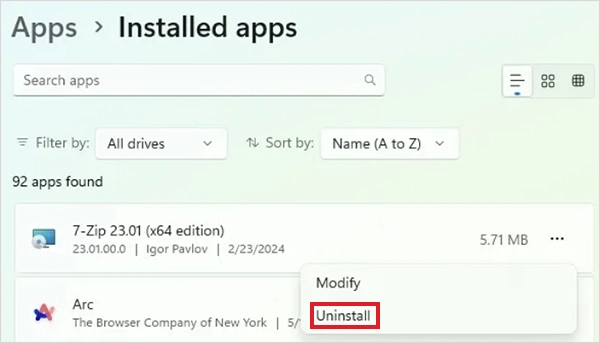
- Restart your PC.
Using the software’s uninstaller is better than manually deleting ene.sys because it can remove the associated components properly. If the Driver Cannot Load ene.sys warning disappears after the restart, you have likely found the software responsible for the driver.
4. Remove the ene.sys Driver Using Device Manager
If you have already removed the related software but Windows still reports ene.sys, the driver or associated device may still be installed.
- Press Windows + X and select Device Manager.
- Select View > Show hidden devices.
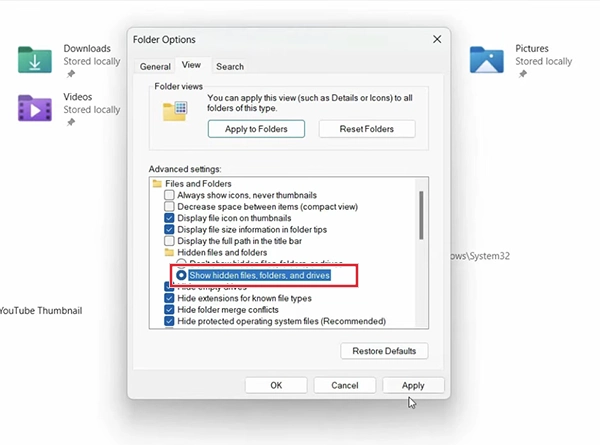
- Look through the hardware categories for a device associated with the RGB or lighting utility.
- Right-click the suspected device and select Uninstall device.
- If Windows offers “Attempt to remove the driver for this device” or a similar option, select it.
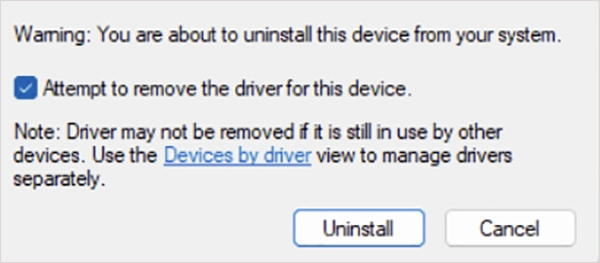
- Click Uninstall and restart your PC.
Be careful with this step. Don’t remove a device simply because its name looks unfamiliar. If you can’t identify which device uses ene.sys, skip this step rather than risking another hardware problem.
5. Uninstall a Recent Windows Update
If the warning appeared immediately after a Windows update, that update may have exposed a compatibility problem with an older version of the driver.
Before removing anything, try updating the affected RGB or hardware-control software. If no compatible version is available, you can consider uninstalling the specific recent update.
- Go to Settings > Windows Update > Update History > Uninstall updates.
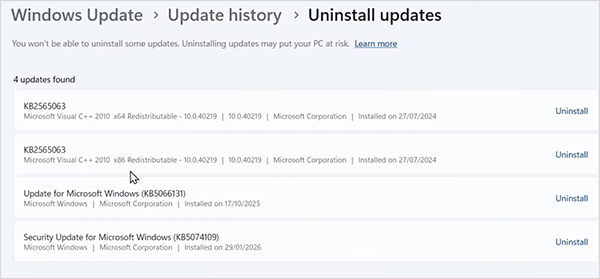
- Find the update installed around the time the problem started and check whether Windows allows you to remove it.
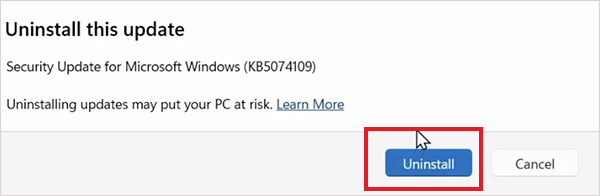
This should be a fallback option, not your first fix. Keeping Windows updated is preferable when updating the incompatible driver resolves the problem.
6. Disable Memory Integrity (Last Resort)
If ene.sys is legitimate, the related hardware or software is necessary, and no compatible driver is available, you can temporarily turn off Memory Integrity.
- Go to Windows Security > Device Security.
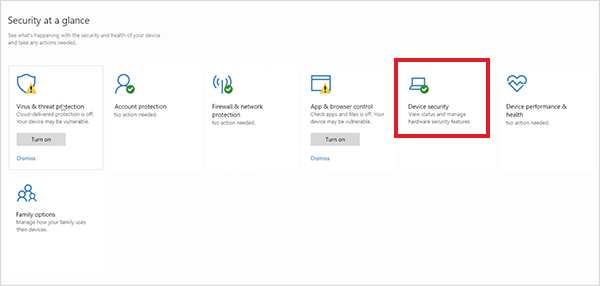
- Click on Core isolation details and find Memory Integrity.
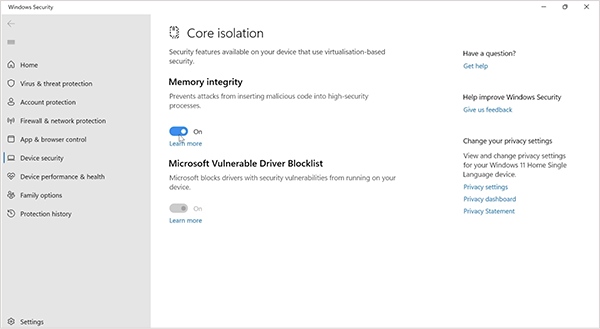
- Now, just turn Memory Integrity off and restart Windows.
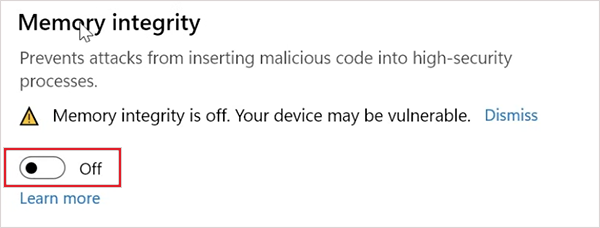
However, this is not the preferred solution. Memory Integrity helps protect Windows from malicious or vulnerable kernel-mode code, so disabling it reduces that protection.
If you are seeing the ene.sys Valorant error while trying to run the game, don’t disable Memory Integrity simply to get the game running. Also, if you eventually get a compatible driver, install it and turn Memory Integrity back on.
Tips to Avoid ene.sys Driver Problems in the Future
A few simple habits can reduce the chances of seeing another ene.sys error. Try to follow these:
- Keep RGB utilities updated because older versions may contain drivers that do not meet newer Windows security requirements.
- Download motherboard, RGB, and peripheral software from the manufacturer’s official support page.
- Remove software you no longer use, as old utilities can leave unnecessary drivers behind.
- Make sure the older utilities you want to download support your current Windows version and security settings.
- Avoid replacing a driver with an unrelated package simply because it has a similar name.
Wrapping Up
The ene.sys driver issue usually means Windows has blocked an incompatible RGB or hardware-control driver through Memory Integrity. Update Windows and the related software, or uninstall the utility if you don’t need it. Remove the driver package only if necessary, and disable Memory Integrity only as a last resort.
Frequently Asked Questions
What is ene.sys?
Why does Windows say “A driver cannot load on this device. Driver: ene.sys”?
Ans. Windows may show this message when Memory Integrity blocks ene.sys because the driver is not compatible with its security requirements.
How do I fix the ene.sys driver cannot load error?
Ans. Update Windows and the RGB or hardware-control software associated with ene.sys. If you don’t need the software, uninstall it. If the driver remains, identify its driver package before removing it.
Can I delete ene.sys from Windows?
Ans. Don’t delete ene.sys manually. Find the software or driver package that installed it and update or uninstall that package instead. If manual removal is necessary, identify the correct package first.
Is it safe to disable Memory Integrity to fix ene.sys?
Ans. Disabling Memory Integrity can allow the incompatible driver to load, but it reduces Windows security protection. It is advisable to use it as a last resort and turn it on once a compatible driver is available.
Related Posts

8 Best Online Tools to Identify Unknown Callers
When a call comes on your screen with no name or context, you just zone out, thinking you should pick…
How to Fix Black Shadow on Laptop Screens?
A black shadow on laptop screens can look like a Windows glitch, but the shape and location of the dark…

Fixing Broken IP Allowlists With a Dedicated Static Address
IP allowlisting is one of the easiest security controls available. Tell a service to accept connections only from addresses you…
What is DumpStack.log and Can You Delete It in Windows?
If you have noticed a file named DumpStack.log in the root of your Windows drive, you may wonder why it…

How eSIM Fits Into Your Global Travel Itineraries
Multi-country trips can be exciting, but sometimes mobile device data makes it concerning. Whenever you cross a border, there will…

How to Pick the Right Data Structure Before You Build Your Database
Every application that stores information depends on a structure chosen long before the first row of data arrives. That structure…

Standardizing React Component Iconography Across Distributed Product Teams
Creating a common React component library is essentially a losing battle. During a cross-team review, I shared my screen. I…
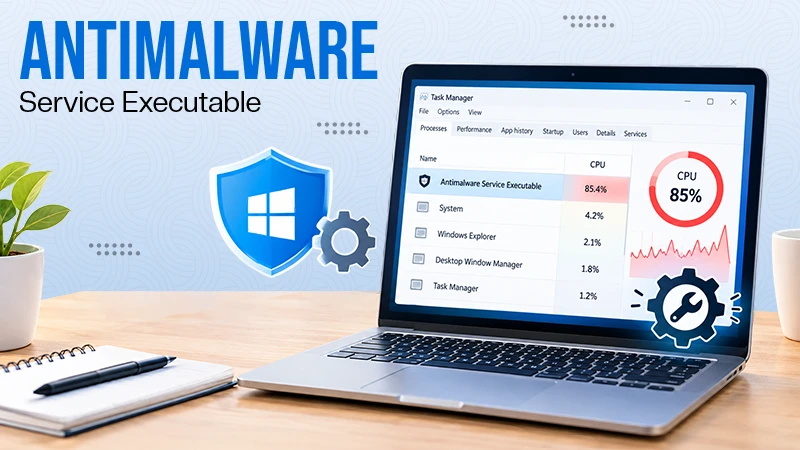
Antimalware Service Executable: What It Is and How to Fix High CPU Usage
You open Task Manager and notice Antimalware Service Executable using a surprising amount of CPU or memory. It may keep…

Keeping Your Website Healthy: A Practical Guide to Long Term Success
Introduction The website may appear to be finished once it is launched; however, making sure that the site remains reliable…