


Windows system uptime is the amount of time your PC has been running since its last boot. For example, if your Windows uptime shows 2 days, 6 hours, 15 minutes, your system has been running for that long since its last boot.
How to Check Windows Uptime? 3 Easy Methods
Your Windows PC may have been running for hours, days, or even weeks without a full restart, and you might not realize it until something starts acting strangely.
Checking Windows uptime tells you how long Windows has been running since its last boot. You don’t need third-party software to find it. Windows already includes built-in options, from the quick Task Manager view to commands you can use. Here’s how to check PC uptime using three simple methods.
Key Takeaways
- Task Manager is the quickest way to check system uptime. Open Task Manager > Performance > CPU and check “Up time”.
- System Information and Command Prompt can show the last Windows boot time.
- PowerShell’s Get-Uptime directly shows how long Windows has been running.
- Fast Startup can make uptime stay high even after a normal shutdown. Use Restart when you need Windows to perform a fresh boot.
How to Check Windows Uptime?
The quickest way to check system uptime is through Task Manager. It shows the amount of time Windows has been running without requiring a cmd uptime command.
Method 1: Check Uptime in Task Manager
- Press Ctrl + Shift + Esc to open Task Manager.
- Select Performance from the left sidebar.
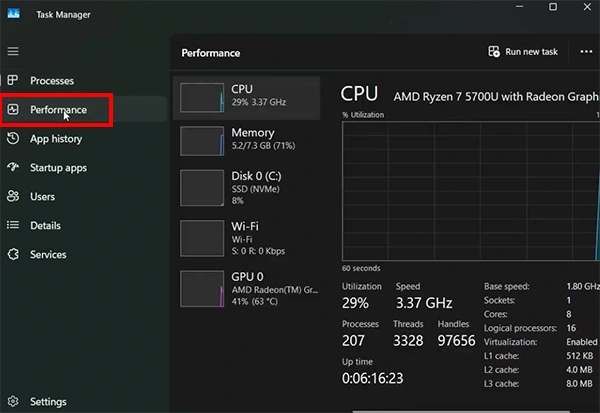
- Click CPU and look for “Up time” near the bottom of the window.
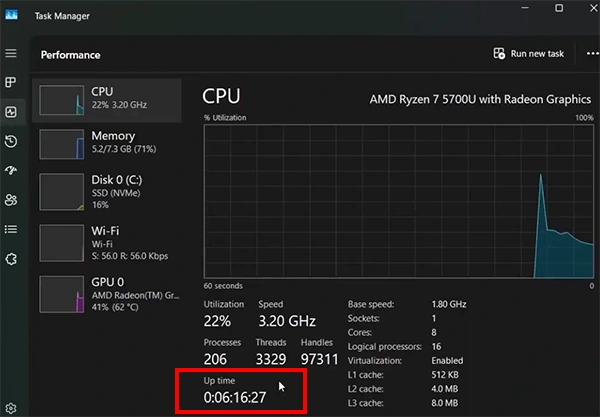
You will see a value similar to “2:04:17:35”. That means Windows has been running for 2 days, 4 hours, 17 minutes, and 35 seconds. This is the best option when you only need a quick check on your own PC.
How to Check Uptime in Windows Using Command Prompt?
Command Prompt gives you a quick way to find the last Windows boot time without opening a graphical tool. Let’s see how to use cmd for uptime.
Method 2: Use the Windows Uptime CMD
- Open Command Prompt.
- Type “systeminfo | find “System Boot Time” and press Enter.
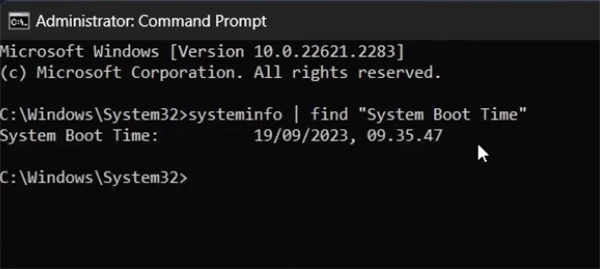
Your Windows will return the last system boot time, similar to what you get in the System Information method.
This method is particularly useful when you are already working in Command Prompt or troubleshooting a computer remotely. Keep in mind that it gives you the boot timestamp, not the elapsed uptime. You can calculate the uptime from that timestamp if needed.
How to Check Uptime on Windows Using PowerShell?
PowerShell is useful when you want the uptime directly or need to collect it repeatedly through scripts.
Method 3: Use PowerShell Get-Uptime
- Open PowerShell on your PC.
- Run: Get-Uptime
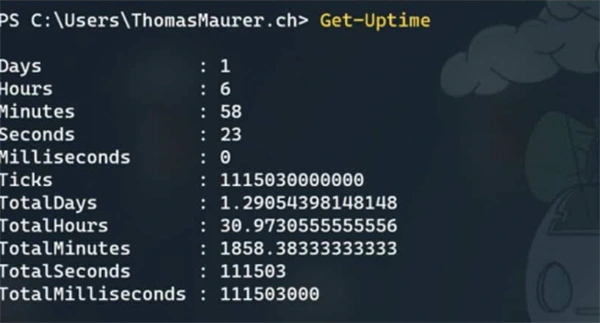
PowerShell returns a TimeSpan showing how much time has passed since Windows last booted.
If you want the exact date and time of the last boot instead, run “Get-Uptime -Since”. This makes getting uptime convenient when you are checking uptime regularly or working with PowerShell scripts.
For more control, you can query the Win32_OperatingSystem class through CIM (Common Information Model).
Run:
(Get-Date) – (Get-CimInstance Win32_OperatingSystem).LastBootUpTime
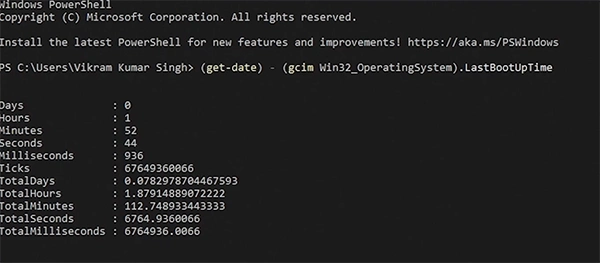
This returns a TimeSpan representing the time since the last recorded boot. If you only want the boot timestamp, run:
(Get-CimInstance Win32_OperatingSystem).LastBootUpTime
This PowerShell uptime approach is especially useful when you are writing scripts or collecting information from multiple Windows computers.
Why Does Windows Uptime Sometimes Stay High After Shutdown?
You may shut down your PC every night and still see a surprisingly high uptime the next morning. This can happen when Fast Startup is enabled.
Fast Startup uses a form of hibernation during shutdown instead of performing the same full boot process as a restart. Because of this, the uptime shown in Windows may not reset after a normal shutdown.
For example, you might shut down your computer at night and turn it back on the next morning, yet Task Manager could still show several days of uptime.
That’s why restarting your computer matters when you are troubleshooting performance problems or need a genuine fresh Windows boot. A restart starts a new boot cycle, while a normal shutdown with Fast Startup may not.
So, if someone says they have “restarted” their PC but Windows uptime is still climbing, check whether they actually selected Restart or simply used Shut down.
Wrapping Up
Checking Windows uptime does not require additional software. Task Manager is the fastest option for a quick check, while System Information and systeminfo are useful when you need the last boot timestamp. If you prefer PowerShell, Get-Uptime gives you the elapsed uptime directly.
Also understand that a normal shutdown may not reset the uptime shown by Windows when Fast Startup is enabled. If you need a genuine fresh boot, use Restart instead.
Frequently Asked Questions
What is Windows System Uptime?
What is the Windows uptime command?
In PowerShell, run Get-Uptime to see the elapsed time. In Command Prompt, systeminfo | find “System Boot Time” shows the last boot time.
Why is my PC uptime so high?
Fast Startup can keep Windows uptime high even after a normal shutdown. Use Restart to start a fresh Windows boot cycle.
How do I check Windows uptime?
Open Task Manager > Performance > CPU and look for “Up time”. You can also use Get-Uptime in PowerShell or systeminfo | find “System Boot Time” in Command Prompt.
How do I check Windows Server uptime?
You can use the same methods on Windows Server. Run systeminfo | find “System Boot Time” in Command Prompt or Get-Uptime in PowerShell.
Related Posts

8 Best Online Tools to Identify Unknown Callers
When a call comes on your screen with no name or context, you just zone out, thinking you should pick…

How to Fix Black Shadow on Laptop Screens?
A black shadow on laptop screens can look like a Windows glitch, but the shape and location of the dark…

Fixing Broken IP Allowlists With a Dedicated Static Address
IP allowlisting is one of the easiest security controls available. Tell a service to accept connections only from addresses you…
What is DumpStack.log and Can You Delete It in Windows?
If you have noticed a file named DumpStack.log in the root of your Windows drive, you may wonder why it…

How eSIM Fits Into Your Global Travel Itineraries
Multi-country trips can be exciting, but sometimes mobile device data makes it concerning. Whenever you cross a border, there will…

How to Pick the Right Data Structure Before You Build Your Database
Every application that stores information depends on a structure chosen long before the first row of data arrives. That structure…

Standardizing React Component Iconography Across Distributed Product Teams
Creating a common React component library is essentially a losing battle. During a cross-team review, I shared my screen. I…
Antimalware Service Executable: What It Is and How to Fix High CPU Usage
You open Task Manager and notice Antimalware Service Executable using a surprising amount of CPU or memory. It may keep…

Keeping Your Website Healthy: A Practical Guide to Long Term Success
Introduction The website may appear to be finished once it is launched; however, making sure that the site remains reliable…