


Use the Shift key to select files in a row and the Command key to select non-adjacent files.
How to Select Multiple Files on Mac Quickly? Step-by-Step Guide
Selecting multiple files on a Mac sounds simple, but most people still waste time clicking one file at a time. macOS already gives you faster ways and Mac shortcuts to select all and multiple files.
In this guide, I will show you exactly how to select multiple files on MacBooks and how to highlight all on Mac computers. You will learn when to use each method and how to organize, move, or delete files efficiently.
Key Takeaways
- Use the Shift key to select adjacent files.
- Use the Command key when files are scattered. It allows you to pick files one by one.
- Press Command + A to select everything in the active window.
How to Select Multiple Files on Mac?
Here’s the one thing you need to understand first. Different situations need different selection methods. macOS mainly gives you two core shortcuts. One for selecting files in a continuous range and another for selecting scattered files.
Most confusion happens when people use the wrong method for the situation. Let’s clear that and learn how to select multiple files on Mac.
How to Select Multiple Adjacent Files?
Use this method when your files are placed next to each other in a list. Here’s how:
- Click the first file of the range.
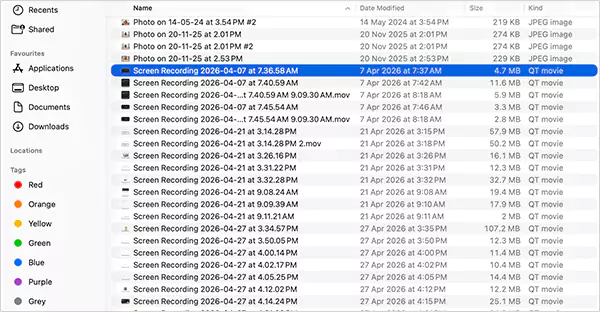
- Hold the Shift key.
- Now, just click on the last file. You can even scroll while holding Shift.
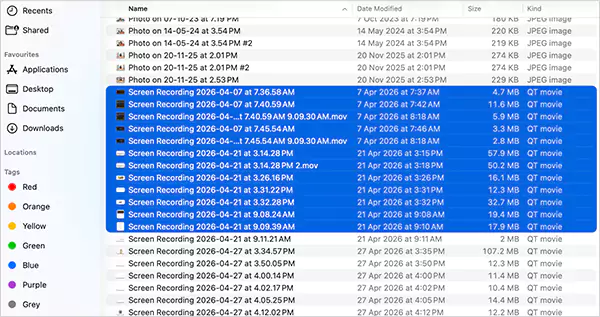
All files in between get selected instantly. This works best while selecting downloads in bulk, choosing files sorted by date or name, and cleaning up the folder quickly.
Alternate Method: You can click and drag across files using the trackpad or mouse to select them. This works especially well in Icon view.
How to Select Non-Adjacent Files?
Now, if the files you want to select are scattered across a folder, use this method:
- Hold the Command key.
- Click on each file you want to select while holding the Command key.
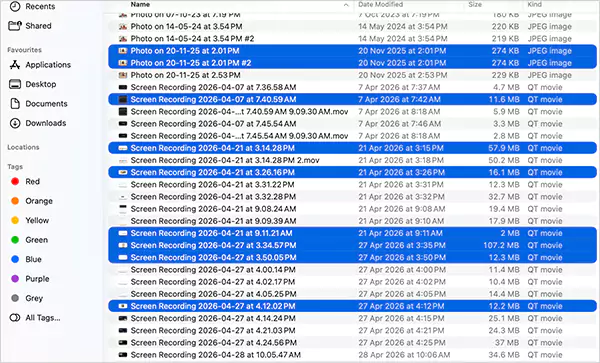
Each click adds that file to your selection. You should use this while picking specific photos, deleting apps on Mac, selecting files from different sections, and removing a few items from a large group. The Command shortcut acts as your precision tool.
How to Select All on MacBooks?
Now, how do you select all on Mac computers? So, if you want everything in a folder selected at once, there is a shortcut on Mac to select all items:
- Press Command + A.
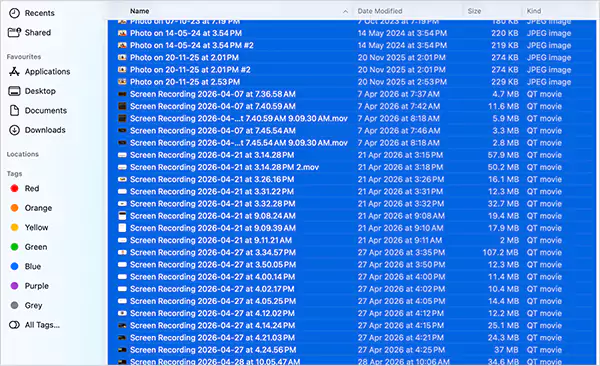
There is another MacBook select all method. Just go to Edit > Select All from the menu bar.
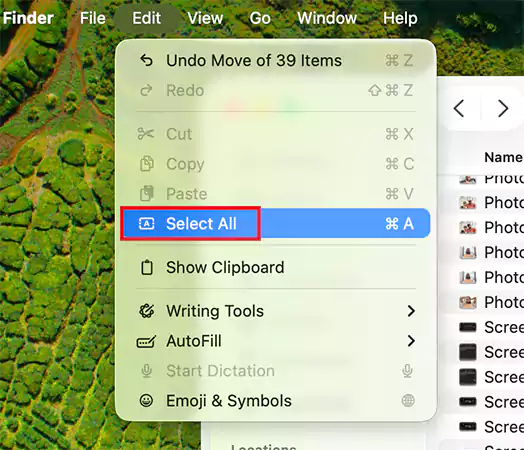
This selects all files in the active Window, and it works across most apps, not just Finder. Make sure the Finder window is active. This can be useful when you want to move all files at once, delete everything in a folder, organize large batches quickly, or free up disk space on a Mac.
How to Deselect Files Without Starting Over?
This is where people may lose time. You select everything, and then notice that one file shouldn’t be there. Most people restart the process, but you don’t need to. Here’s how you can fix it instantly:
- Hold the Command key.
- Click on the selected files you want to remove.
That’s it. This deselects the file you click, and everything else stays selected.
Command key works like a toggle here. You can click once to add, and click again to remove. It saves time during large selections and makes file management smoother.
How to Quickly Move, Group, or Organize Selected Files?
Knowing how to select all in Mac is just step one. What you do next is where the real efficiency comes in.
- Move Files Instantly: Select files and drag any one of them to a folder. All selected files will move together.
- Create a Folder from Selected Files: After selecting files, right-click ( or Control-click) and choose New Folder with Selection.
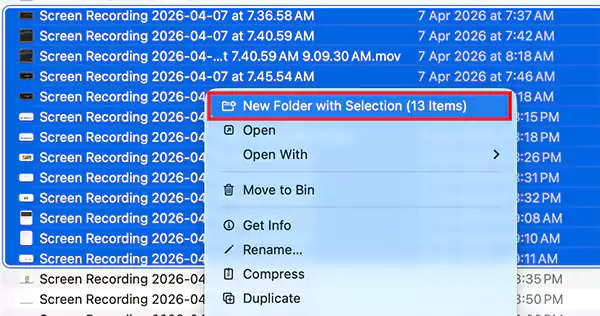
This instantly groups scattered files into one place. Most people don’t use this, but it is one of the fastest ways to organize files.
- Other Useful Actions:
- Press Command + Delete to move files to the Trash.
- Right-click and choose Compress to convert it into a ZIP file.
Mac Finder is designed to give you control and ease of access. You can control everything once the files are selected.
Common Mistakes to Avoid While Selecting Files on Mac
Most issues come down to simple habits, not technical problems. Here’s what you need to avoid:
- Using the Wrong Key: Shift selects a range and Command selects individual files. Mixing them causes most issues.
- Not Activating the Window First: MacBook shortcut to select all, like Command + A, only works when the Finder window is active.
- Selecting Without Reviewing: Quickly check your selection before moving or deleting to avoid losing important files.
Also, do not overuse drag selection because it works best in icon view and can be unreliable in other layouts.
Conclusion
Selecting multiple files on a Mac is not difficult, as now you know how to select multiple files on Mac. It just feels confusing until you understand when to use each method. Once you get this right, file management becomes faster and far less frustrating. The real skill is not knowing the shortcuts, but knowing exactly when to use them.
Frequently Asked Questions
How do I select multiple files on a Mac?
How do I select all on MacBooks?
Press Command + A after clicking the active window. This selects all files instantly.
What is the shortcut to select all on Macs?
The shortcut to select all items in a window is Command + A. It works across Finder and most apps.
How do I deselect one file from multiple selected files?
Just hold the Command button and click the file again. It will be removed from the selection without affecting others.
Can I move multiple files at once on Mac?
Yes, select the files and just drag any one of them to move all the selected files to another folder.
Related Posts

How to Delete a File That Won’t Delete in Windows?
Deleting a file should be simple, but sometimes Windows refuses to remove it. You may see messages saying the “folder…

What Should Businesses Do After Recovering From a Major Data Loss?
Businesses nowadays have entered a new level in terms of storing data, leading to a completely new structure. Customer service,…

How to Protect Your Files From Unexpected Data Loss
Imagine you opened your device and suddenly found out that all the important files are not there. Sounds scary, right?…
How to Fix “File Too Large for Destination File System” on Windows?
Have you ever tried copying a large file to a USB drive or external hard disk, and Windows stopped the…

What is a CRC Error? Meaning, Causes, and How to Fix It
A CRC error can appear when you are copying files, opening a folder, extracting an archive, or accessing a storage…

What is an MKV File? Meaning, Uses, and How It Works
You can often identify a video file by its extension. MP4 is the most common, AVI is an older format,…

Symbolic Links in Windows: A Complete Guide to Creating Symlinks
Have you ever wished to keep a file or folder in one location while making Windows think it exists somewhere…

Data Recovery in 2026: How to Restore Lost Files From Phones, PCs, and Cloud…
Alt: Old Hard Disk Drives Nearly one-third of all data loss is caused by accidental deletion, hardware failure, or a…

How to Evaluate an SEO Agency’s GEO Capabilities Before Signing a Contract
Is SEO outdated? No, it has actually just changed or updated into other forms, such as GEO. The major question…