


Go to Apple menu > System Settings > General > Storage. On older macOS versions, open the Apple menu > About This Mac > Storage.
How to Check Mac Storage (See Available Disk Space and Storage Usage)
Whether you are installing a macOS update, downloading a large app, or wondering why your Mac feels slower than usual, knowing how to check Mac storage is important.
Fortunately, macOS makes it easy to see how much space is available and what is using it. In this guide, you will learn how to see storage on MacBooks in six simple ways, understand what the categories mean, and discover tips to free up space and keep your Mac running smoothly.
Key Takeaways: How to Check Storage on MacBook?
- System Settings is the easiest way to check Mac storage on macOS Ventura or later.
- You can also check storage using Finder, Disk Utility, Terminal, or System Information.
- Review storage categories like Applications, Documents, and System Data to identify what is using space.
- Use the built-in recommendations, remove unnecessary items, and empty the Trash regularly to keep your Mac running smoothly.
How to Check Mac Storage: 6 Easy Ways
macOS offers several built-in tools to check your available storage. Whether you want a quick overview or more detailed information, these methods can help.
Method 1: Check Storage Using System Settings
This is the easiest and most recommended method for Macs running on macOS Ventura 13 or later. Here’s how to check MacBook storage:
- Click the Apple menu.
- Select System Settings.
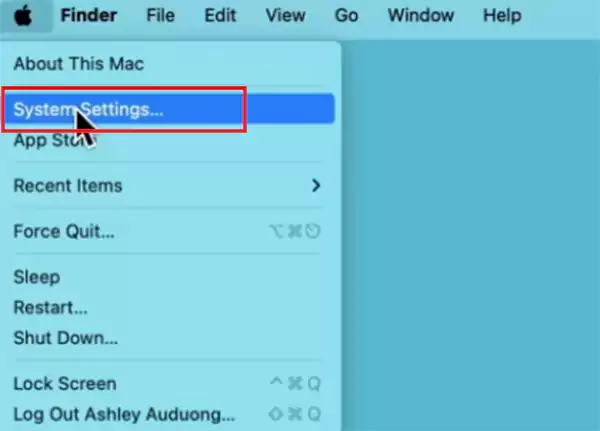
- Then, go to General > Storage.
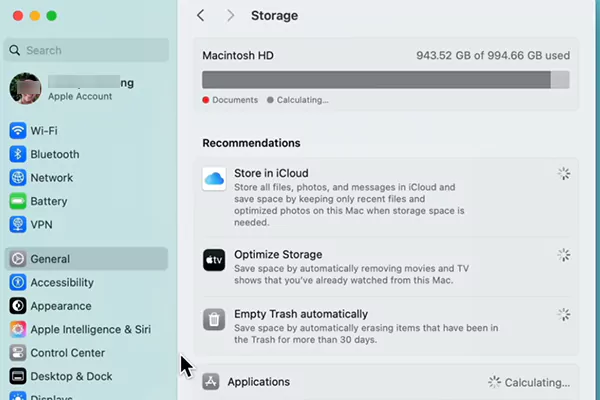
You will see a storage graph showing your used and available space, along with a breakdown of categories such as Application, Documents, Photos, and System Data. You can also view storage recommendations and select All Volumes to check other drives.
Method 2: View Storage from About This Mac
If you are using an older macOS version, such as Monterey or Big Sur, here’s how to find storage on Mac:
- Click the Apple menu.
- Next, select About This Mac.
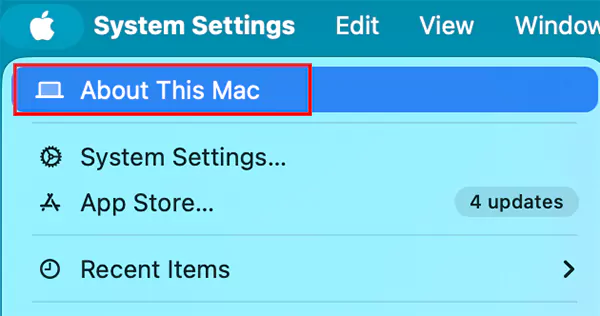
- And open the Storage tab.
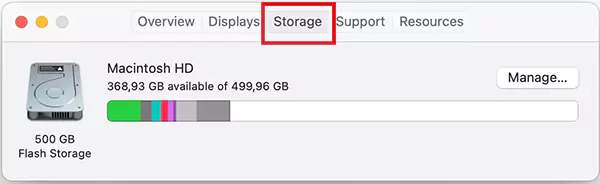
After a short scan, macOS displays a color-coded storage bar showing how your disk storage on Mac is divided.
Method 3: Check Disk Space Using Finder
Finder allows you to quickly check the available space on your startup disk. Let’s see how to check disk space on Mac:
- Open Finder.
- Select your Mac’s drive from the sidebar.
- Now, press Command + I or right-click the drive and choose Get Info.
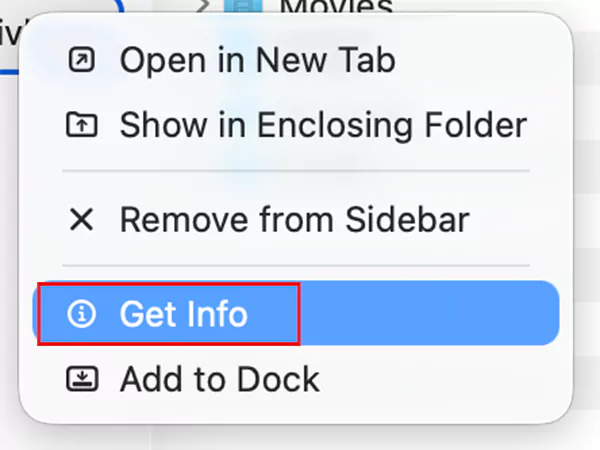
The information window shows your drive’s total capacity, used storage, and available space.
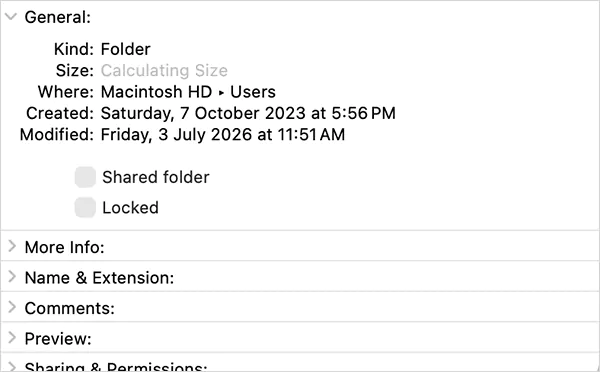
Tip: Turn on the Finder Status Bar (View > Show Status Bar) to see available storage while browsing files.
Method 4: Check Storage Details with Disk Utility
Disk Utility provides a more detailed view of your storage devices and partitions. Here’s how to check storage in MacBooks:
- Open Spotlight Search and type Disk Utility.
- Launch the app.
- Now, just select your startup disk.
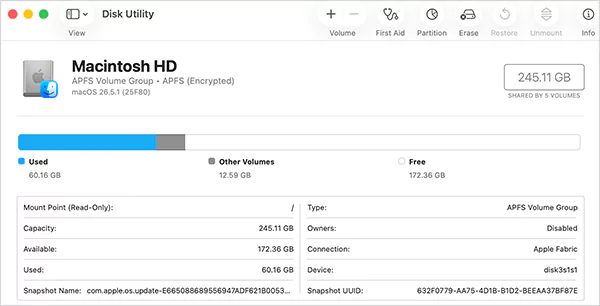
Here, you can view information such as disk capacity, available space, file system, partitions, and connected drives. It is especially useful when troubleshooting storage, checking external disks, or fixing a slow-booting Mac.
Method 5: Check Mac Storage Using Terminal
If you are comfortable using the Terminal, here’s how to view storage on Mac with just a single command:
- Open Terminal from Applications > Utilities.
- Type “df -h”, and press Return.
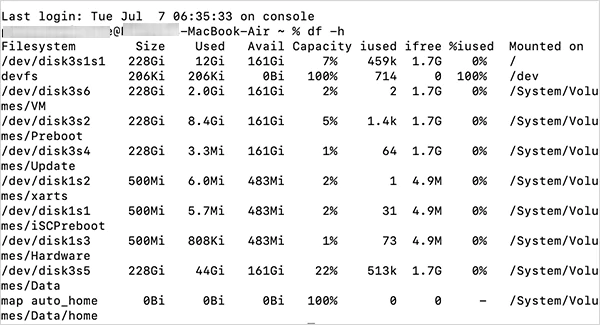
Terminal displays all mounted volumes, along with their total size, used space, available space, and usage percentage. The “-h” flag presents the information in a human-readable format.
Method 6: View Storage Information
System information provides hardware-level details about the device’s storage. Here’s how you can check that:
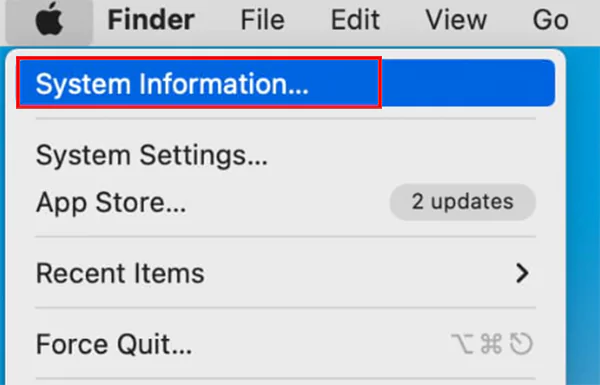
- Hold the Option key.
- Click the Apple menu.
- Now, you will see the System Information option; click on it.
- Under Hardware, click on Storage.
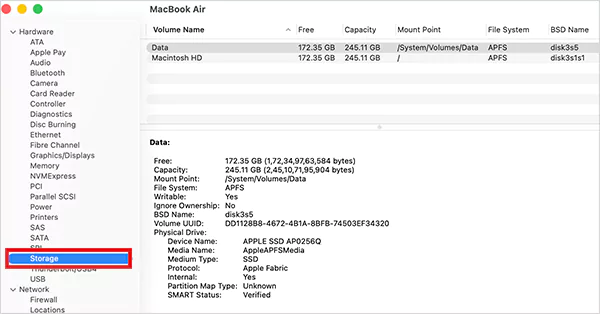
You will see information such as storage capacity, connection type, and other hardware details. This method is useful if you are checking SSD information or diagnosing storage-related issues.
What Do the Storage Categories Mean on Mac?
You now know “Where to find storage on Mac?”. But when you open the Storage space inside the System Settings, macOS groups files into categories to help you understand what is taking up space.
Here’s what the most common categories include:
- Applications: All the installed apps and software.
- Documents: Files such as PDFs, Word documents, spreadsheets, ZIP files, and other personal data.
- Photos: Your Photos library, images, and videos stored on your Mac.
- Music: Downloaded songs, audio files, and Apple Music content.
- Mail: Emails and downloaded attachments from the Mail app.
- Messages: Conversations, photos, videos, and attachments stored in the Messages app.
- System Data: Caches, logs, temporary files, app support files, and other data used by macOS.
- macOS: The operating system files required for your Mac to function.
If System Data on Mac seems unusually large, don’t worry. It often includes temporary files, caches, local snapshots, and other system files that macOS automatically manages. Its size can increase or decrease depending on how you use your Mac.
How to Optimize Mac Storage Space?
Checking your storage is only the first step. Keeping enough free space helps your system perform better, install updates smoothly, and avoid “disk full” warnings.
Here are some simple ways to free up storage on Mac:
- Use Apple’s Optimize Storage feature by going to System Settings > General > Storage.
- Move large files such as photos, videos, and old documents to iCloud Drive or an external drive.
- Empty the Trash regularly to permanently remove deleted files.
- Delete large downloads and duplicate files you no longer need.
- Uninstall or delete unused apps on Mac to reclaim valuable storage.
- Remove old screen recordings, videos, and disk image files that are no longer required.
- Review your Downloads folder regularly, as it often contains forgotten files that take up significant space.
macOS also provides built-in storage recommendations that help you identify large files and remove unnecessary data. Following these suggestions regularly can keep your Mac organized without relying on third-party cleanup apps.
Final Thoughts
Checking your Mac’s storage only takes a minute, but it can help prevent slow performance, failed macOS updates, and unexpected storage warnings.
For most users, System Settings is the quickest and best way to check available space. If you need more information, Finder, Disk Utility, Terminal, and System Information offer additional insights into your storage.
Frequently Asked Questions
How to check storage space on Mac?
How to check storage on MacBook Air?
The steps are the same for all MacBook models. Just open your settings and go to General > Storage to view your available and used storage.
Why is my Mac storage full?
Large apps, photos, videos, downloads, system data, cached files, and old backups are the most common reasons.
How do I free up storage on my Mac?
Delete unnecessary files, uninstall unused apps, empty the Trash, move files to iCloud or an external drive, and use the Optimize Storage feature.
How much free storage should a Mac have?
Keeping 10% to 20% of your storage free helps macOS run smoothly and leaves enough space for updates, temporary files, and new app installations.
Related Posts
How Long Does Backing Up to iCloud Take? Causes and Fixes for Slow Backups
Is your iCloud backup taking ages? When your backup keeps spinning, it can be hard to tell whether it’s making…

How MSPs Package Backup and Recovery as a Subscription That Actually Restores
An MSP technician checks nightly backup job results across several client accounts Some businesses often try to own a backup.…
Best Tools for Recovering Deleted Files on a Mac
A wrong click can leave you sinking in grief and sorrow, just because that accidental click has deleted an important…

What to Back Up Before Migrating Your Business to New Software
Software migration hardly results in data loss during migration. It’s possible that you lose the data after a week or…

How Modern Enterprises Are Scaling Infrastructure with Custom AI
For many businesses, AI works as a collection of tiny experiments such as a chatbot, a coding assistant, or sometimes…

VMware vs. Sangfor aSV vs. Nutanix: Which Hypervisor Actually Saves You Money?
Selecting the right hypervisor isn’t simply an issue of technology; it could end up having a significant effect on your…

SD Card Corruption in IoT Devices: Why It Happens So Often and How to…
IoT devices can have good sensors, robust software, and an excellent housing, but all it takes is one small thing…

5 Best SaaS Platforms for Financial Services and Growing Businesses in 2026
In 2026, SaaS platforms have become essential for businesses that want to build smooth processes, automate routine tasks and clarify…

How Digital Records Support Workplace Injury Claims
An injury in the workplace does not necessarily mean that you have just a physical problem to overcome. It could…