


It rebuilds a computer or server after system failure by restoring its operating system, applications, and backed-up data.
What is Bare Metal Recovery? Meaning, Process, and Benefits
Table of Contents
- What is Bare Metal Recovery?
- How Does Bare Metal Recovery Work?
- What Does a Bare Metal Backup Include?
- When Should You Use Bare Metal Recovery?
- Benefits and Limitations of Bare Metal Recovery
- Bare Metal Recovery vs. System State Recovery
- How to Prepare for Bare Metal Recovery?
- Conclusion
- Frequently Asked Questions
When a computer fails, reinstalling its operating system is only the beginning. You may also need to reinstall applications, restore settings, and recover important files. Bare metal recovery (BMR) allows you to rebuild a system from a suitable backup instead of configuring everything manually.
It is useful after hardware failure, severe system corruption, or a disaster. This guide explains the bare metal recovery meaning, how it works, what its backup includes, and how to prepare for a successful restore.
What is Bare Metal Recovery?
Let’s start with the bare metal recovery definition. Bare metal recovery meaning is the process of restoring a computer or server from a suitable backup to a machine without a usable operating system.
The term bare metal refers to the underlying hardware without a functioning software environment. Instead of reinstalling and configuring everything from scratch, you use a backup to restore the operating system, applications, settings, and included data.
BMR is also called bare metal restore. It is particularly useful after a hardware drive failure, multiple operating system corruption, or a disaster that makes the original system unusable. The backup used for the process is known as a bare metal backup.
How Does Bare Metal Recovery Work?
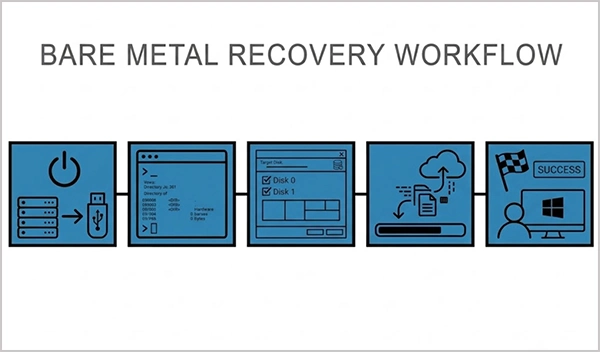
Now that you know the bare metal restore definition, you should also understand how it functions. It uses a system backup and a recovery environment to rebuild a machine. The exact steps depend on the backup software, but the process typically follows this sequence:
- Create a Backup: Capture the operating system, boot information, system configuration, applications, and selected data.
- Store the Backup: Save it to an external drive, network storage, or create a bare metal cloud backup.
- Boot into the Recovery Environment: Start the target machine using bootable USB media, an ISO, or another recovery method.
- Select a Recovery Point: Locate the backup and choose the version you want to restore.
- Restore the system: Recreate the required disk structure and restore the backed-up image.
- Resolve Compatibility Issues: Install or configure necessary drivers if the replacement hardware differs.
- Verify the Recovery: Restart the computer and check that the operating system, applications, and essential data work correctly.
What Does a Bare Metal Backup Include?
A bare metal server backup captures the components needed to rebuild a system. Its contents depend on the bare metal restore software and configuration.
| Component | What It May Include |
| Operating system and boot files | Files and components required to start the machine |
| Disk partitions | The partition layout needed to restore the system |
| Applications | Installed software captured in the backup |
| System settings | Relevant configuration, registry data, and drivers |
| User data | Files and folders included in the backup scope |
A bare metal backup does not necessarily contain every file on every drive. Check which disks, volumes, and folders the backup protects.
The main difference between a bare metal backup and a regular file backup is the recovery goal. A file backup restores selected documents or folders, while a BMR backup is designed to rebuild the system itself.
When Should You Use Bare Metal Recovery?
BMR is most useful when a system needs a complete rebuild rather than routine troubleshooting. Here’s when you should consider this data recovery method:
- Hard Drive or SSD Failure: Restore the system to a replacement drive.
- Operating System Corruption: Recover a computer or server that no longer boots properly.
- Hardware Replacement: Rebuild a workstation or server on compatible replacement hardware.
- Ransomware Attacks: Restore from a verified and clean backup created before the compromise.
- Disasters: Recover systems after events that damage or destroy the original equipment.
- System Migration: Move a protected system to supported hardware or a virtual machine, if the backup tool allows it.
You do not need bare metal recovery for every problem. If you accidentally delete a document, a file-level recovery is usually faster. If Windows still runs and only has a limited system-file issue, a targeted repair may be enough.
Benefits and Limitations of Bare Metal Recovery
BMR can reduce downtime after a major failure, but success depends on having a usable backup and a compatible recovery environment.
Benefits of Bare Metal Recovery:
- Faster Rebuilding: It avoids reinstalling and configuring every component individually.
- Consistent Configuration: Restores applications and settings captured in the backup.
- Hardware Flexibility: Some tools support recovery to different hardware.
- Disaster Readiness: It can rebuild systems after major hardware failures or other disruptions.
- Less Manual Work: Reduces the effort needed to configure a replacement system.
Limitations of Bare Metal Recovery:
- Backup Dependency: A usable backup must exist before the failure for BMR to work.
- Hardware Compatibility: Different drivers or boot configurations may prevent startup.
- Recovery Time: Large backups or slow connections can extend downtime.
- Incomplete Coverage: Excluded files and volumes may need separate recovery.
- Potential Data Loss: Restoring can overwrite data on the target disk.
For reliable recovery, maintain protected backup copies and test the restoration process before an emergency.
Bare Metal Recovery vs. System State Recovery
Bare metal restore rebuilds a broader system environment, while system state recovery restores selected operating system components. They serve different recovery needs.
On Windows Server, a system state backup can include the registry, boot files, and other critical components. It does not necessarily include all applications or user data.
| Feature | Bare Metal Recovery | System State Recovery |
| Purpose | Rebuild the system | Restore selected system components |
| Coverage | System image and included data | Specific operating system components |
| Hardware replacement | Supported by some tools | Not designed as a complete hardware replacement solution |
| Best for | Major failures and complete rebuilds | Recovering supported system components or configuration |
Choose BMR when the machine needs to be rebuilt. System state recovery is more appropriate when the problem concerns components covered by the backup and the broader system remains recoverable.
How to Prepare for Bare Metal Recovery?
You need to prepare for bare metal recovery before a system fails. Having a backup is not enough if you cannot access it or start the recovery environment. Here’s what you need to do:
- Schedule Regular Backups: Set a frequency based on your needs and how much recent data you can afford to lose.
- Keep Separate Backup Copies: Maintain protected copies, including an offsite or cloud copy where appropriate. Following the 3-2-1 backup rule is recommended.
- Create Recovery Media: Prepare a bootable USB drive or ISO before you need to use it for a restore.
- Check Hardware Requirements: Confirm that the target disk has sufficient capacity and that necessary drivers are available.
- Secure Recovery Credentials: Store encryption keys and backup access details securely.
- Test Restoration: Verify that recovery media boots, backups are readable, and the restored system starts correctly.
For business-critical systems, document where backups are stored and how to access them if the production environment becomes unavailable.
Conclusion
Bare metal recovery allows you to rebuild a computer or server from a suitable backup when its operating system or hardware is no longer usable. It can restore the system’s backed-up applications, settings, and data without requiring you to configure everything manually.
Maintain reliable backups, keep recovery media accessible, account for hardware compatibility, and test the restore process before you need it. A backup is only useful if you can successfully recover from it.
Frequently Asked Questions
What is bare metal restore?
Is bare metal recovery backup better than a regular backup?
Neither is universally better. Bare metal backups rebuild systems, while file backups restore individual documents and folders. Using both provides more flexible recovery options.
Can you perform bare metal backup and restore on different hardware?
Yes, if the recovery software supports different hardware. You may need compatible drivers, sufficient disk space, and the correct boot configurations.
Does bare metal recovery restore all files and applications?
It restores only the operating system, applications, settings, and files included in the backup. Excluded drives or files may require a separate recovery method.
Do you need an operating system installed for bare metal recovery?
No, BMR typically uses bootable recovery media or a recovery environment to restore the system without a functioning operating system.
Related Posts

How Long Does Backing Up to iCloud Take? Causes and Fixes for Slow Backups
Is your iCloud backup taking ages? When your backup keeps spinning, it can be hard to tell whether it’s making…
How MSPs Package Backup and Recovery as a Subscription That Actually Restores
An MSP technician checks nightly backup job results across several client accounts Some businesses often try to own a backup.…
Best Tools for Recovering Deleted Files on a Mac
A wrong click can leave you sinking in grief and sorrow, just because that accidental click has deleted an important…

What to Back Up Before Migrating Your Business to New Software
Software migration hardly results in data loss during migration. It’s possible that you lose the data after a week or…

How Modern Enterprises Are Scaling Infrastructure with Custom AI
For many businesses, AI works as a collection of tiny experiments such as a chatbot, a coding assistant, or sometimes…

VMware vs. Sangfor aSV vs. Nutanix: Which Hypervisor Actually Saves You Money?
Selecting the right hypervisor isn’t simply an issue of technology; it could end up having a significant effect on your…

SD Card Corruption in IoT Devices: Why It Happens So Often and How to…
IoT devices can have good sensors, robust software, and an excellent housing, but all it takes is one small thing…

5 Best SaaS Platforms for Financial Services and Growing Businesses in 2026
In 2026, SaaS platforms have become essential for businesses that want to build smooth processes, automate routine tasks and clarify…
How Digital Records Support Workplace Injury Claims
An injury in the workplace does not necessarily mean that you have just a physical problem to overcome. It could…