
When a partition gets deleted, it is marked as inaccessible, and the OS removes it from the partition table. However, the data remains on the drive until you overwrite it with new data.
Partition Recovery Explained: How to Restore Lost or Corrupted Partitions
 Kartik Wadhwa
Updated on: Dec 04, 2025
Table of Contents
- What is Partition Recovery?
- How Disk Partitions Get Lost or Corrupted?
- How to Recover Partition Data Safely?
- 10 Best Partition Recovery Software [Tested on Real World Cases]
- A Quick Showdown of Our Top Partition Data Recovery Tools
- How to Select the Right Disk Partition Recovery Software?
- How to Prevent Disk Partition Loss? [Quick Tips]
- Wrapping Up
- Frequently Asked Questions
If you are worried about partition recovery, I can understand your position. It usually starts with a moment of disbelief; you click on your drive, and suddenly your system says it does not exist. No warning, no explanation, just gone.
But here’s the part you should know: A missing partition does not mean missing data. In most cases, the partition is not lost; it is simply not recognizable.
From years of dealing with storage errors and recoveries, I know how to recover partition data from file paths using the built-in and advanced disk partition recovery software. So, just breathe and follow me.
Quick Glance (If You’re in a Hurry)
- Most lost partitions are recoverable if you act quickly and avoid overwriting data.
- Disk Drill is the best overall software.
- DiskGenius is the best all-rounder for technical users.
- TestDisk (the best free tool) is unbeatable for corrupted partition tables.
- Regular backups, safe shutdowns, and careful partition management are important to avoid future data loss.
What is Partition Recovery?

Your hard drive is divided into various partitions. When one of those partitions disappears due to deletion, formatting, corruption, or a system crash, the data inside does not vanish instantly. The files just become invisible to the operating system.
This is where partition data recovery comes in. Modern data recovery software can scan your drive, looking for these missing partitions and help you bring them back. And they mostly succeed in restoring the original folder structure.
Even though a proper backup is always the ideal solution for you, partition recovery becomes your lifeline when you don’t have one. Some strong software programs don’t just retrieve files, but they can also repair partition-level damage, allowing your system to return to a stable state.
How Disk Partitions Get Lost or Corrupted?
I know losing a partition feels sudden, but it usually comes down to a few predictable causes. So, here are some common reasons behind the partition failure that you should understand:
- Deleted by Accident: Managing storage can get overwhelming and confusing. A single wrong click while cleaning or managing columns can wipe an entire partition.
- Unsupported File Systems: As you may know, different operating systems use different file systems. For example, Windows can’t read Linux-based partitions like Ext2 or Ext3. So, if you plug such drives into Windows, it may ask to initialize the drives. If accepted, this step can permanently erase the data or partitions.
- Misuse of Disk Management Tools: If you use a free partition manager, it can be both powerful and dangerous. Selecting the wrong disk, interrupting an operation, or modifying critical metadata can cause multiple partitions to become inaccessible.
- Data Corruption: Virus attacks, bad shutdowns, or faulty software can corrupt the structures (partition table) that tell your OS where partitions start and end.
- Errors in the Partition Table: The partition table is like your disk’s index page. If it gets damaged due to crashes, malware, or disk errors, partitions may disappear. However, their data still exists somewhere in the system.
- Bad Sectors: If essential metadata happens to be stored on a damaged sector, the partition may vanish from File Explorer even though the files still exist in the system.
- Power Failures: It may come as a surprise, but sudden outages mid-operation can break the link between the OS and the partition table, triggering the error.
- Formatting Errors: A quick format only removes references, so the data is often recoverable. However, a full format overwrites the entire area and usually destroys the data permanently.
In short, partition loss usually comes from a mix of human errors and disk-level failures. The good news is that I will help you with most partitions and data recovery.
How to Recover Partition Data Safely?
So, there are various File Recovery Partition tools. Depending on your comfort level and the situation, you can try:
- Command-line-based partition recovery (for technical users)
- Assigning a new drive letter (when the partition exists)
- Accessing the drive from Linux (for unsupported file systems)
- Fixing corrupted partitions via CHKDSK
- Partition and data recovery software (Datarecovee recommendation; easier and more beginner-friendly)
Now, let’s break down how to recover partitions using all five methods:
Method 1: Recover Using Command-Line Tools
If you know your way around disk management, then this can be a great option for you. Here’ what to do:
- Just open the Command Prompt as an administrator.
- Type ‘diskpart’ and press Enter.
- Then, type ‘list disk’ to see available drives.
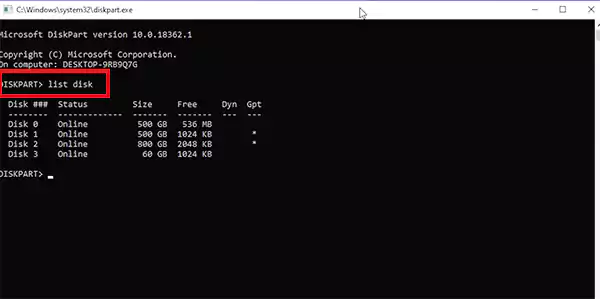
- Select the affected drive by typing ‘select disk #’ (replace # with the drive number).
- Next, type ‘list volume’ to view partitions.
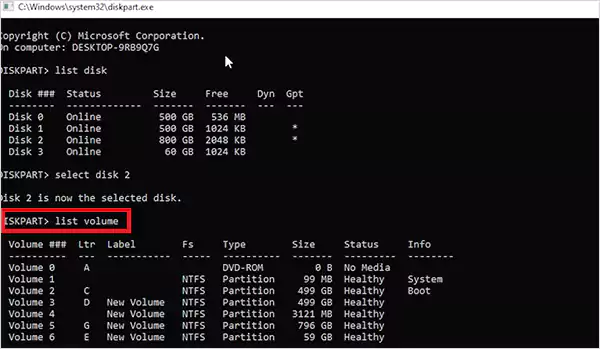
- Type ‘select volume #’ to select the lost volume.
- Now, assign a drive letter by typing ‘assign letter=X’. Here, replace X with a drive letter.
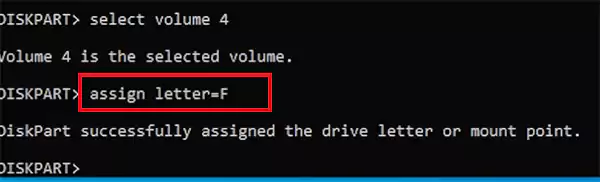
- Finally, just close CMD and check if the partition is now visible to you.
This method works well, but it is slow, requires accuracy, and won’t help if the partition table is deeply corrupted.
Method 2: Assign a New Drive Letter
As I have already mentioned, sometimes the partition exists, but Windows has not assigned it a letter. Here is another simple way to fix this:
- Press Win + X, and go to Disk Management.
- Try to find the missing partition (unallocated), and right-click on it.
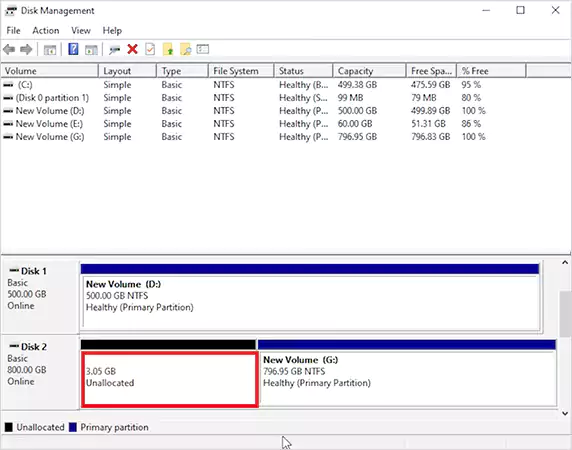
- Now, select Change Drive Letter and Paths.
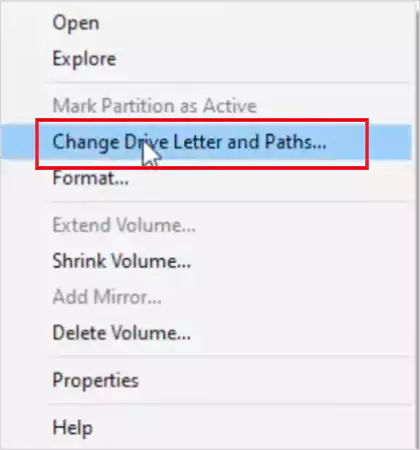
- Click on Add, choose a letter, and confirm.
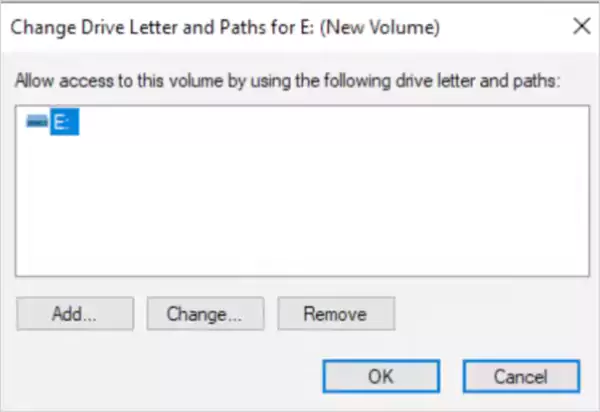
If the issue was simply a missing letter, the partition would appear instantly.
Method 3: Access the Drive from Linux
If your drive uses a Linux file system that your PC can’t understand, try connecting through Linux:
- Download a Linux distro, like Ubuntu, and create a bootable USB drive.
- Next, boot from the USB, and try accessing the drive in Linux.
- Now, just copy your files to a safe location.
This partition recovery method works surprisingly well for Linux-formatted Windows partitions.
Method 4: Fix a Corrupted Partition
A corrupted partition is different from deleted or lost ones. If the partition exists but it is not functioning properly, CHKDSK may help you repair the corruption.
- Launch the Command Prompt as an administrator.
- Type: chksdsk g: /f /r /x (replace D with your drive letter), and press Enter.
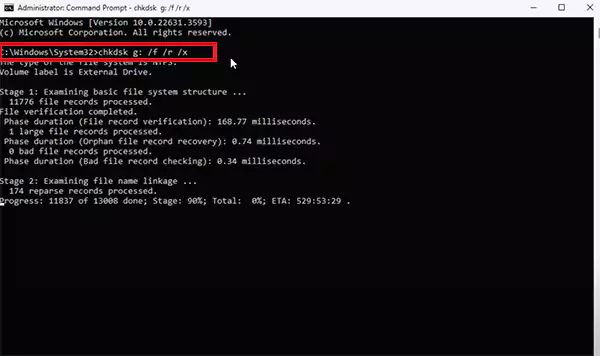
Now, your Windows will scan, repair, and remap bad sectors. For many users, this alone will revive the partition.
Method 5: Recover Lost Partition with Data Recovery Software
Using paid or free partition recovery software is the safest route for most users because the software automates scanning and reconstruction.
The typical steps for most software are as follows:
- Install and launch the software on your device.
- Choose Partition Recovery mode to start the scan.
- Select the lost partition from the scan results.
- Preview and select the files you want to recover.
- Finally, just save them to a different drive. Please remember not to save them on the same drive.
But what is the best partition recovery software? Continue reading, and you will discover the best tools available in the market right now. Some of them can also rebuild broken metadata, making the partition usable again.
10 Best Partition Recovery Software [Tested on Real World Cases]
Why was it necessary to make this list? First, not all partition recovery tools are created equal, and second, most don’t work the way they claim.
How We Tested
To curate the list of the best software and not repeat the generic lists, we tested more than 30 tools on real cases and in a stressed environment. Think deleted partitions, fully formatted disks, RAW volumes, and corrupted MBR/GPT tables. From that list, only 10 tools consistently recovered partitions.
To be fair, we have not included our own strong and reliable Datarecovee data and partition tool in this list. But it is a beast for advanced recovery.
Here’s our expert take on the ones that actually work, based on recovery depth, file system support, and overall usability.
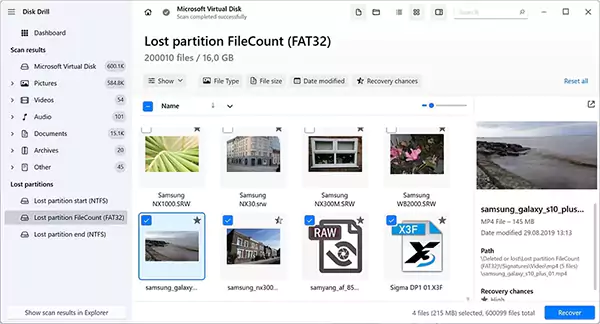
Disk Drill is the most balanced and reliable tool we tested for all kinds of data recovery. It is a professional-grade engine hidden under an extremely beginner-friendly interface. It supports almost every major file system, handles RAW partitions, and still manages to recover partition data from file paths even when the drive is facing errors.
The biggest advantage is that it can find lost partitions even when they are not detectable by typical recovery scans. It is a true lifesaver in serious corruption cases.
Pricing & Plans
- Basic: Free (500 MB recovery)
- Pro: $89 (lifetime license)
- Enterprise: $499
Pros
- Extremely easy-to-use interface
- Strong recovery success rate
- Supports 400+ file formats
- Extra disk tools included
- Works with RAW partitions
Cons
- No phone support
EaseUS partition recovery software is designed for users who want fast results without learning complex tools. Its three-step workflow makes recovery feel almost automatic.
In our testing, it performed particularly well with both MBR and GPT disks and multiple file systems (NTFS/FAT/Ext variants). Plus, the explore mode can help you identify exactly which partition holds the important files before recovering anything.
Pricing & Plans
- Monthly: $49.95
- Yearly: $69.95
- Lifetime: $99.95
Pros
- Very intuitive UI
- High compatibility
- Reliable results across different tests
Cons
- Slower on heavily corrupted disks
- The free version is very limited
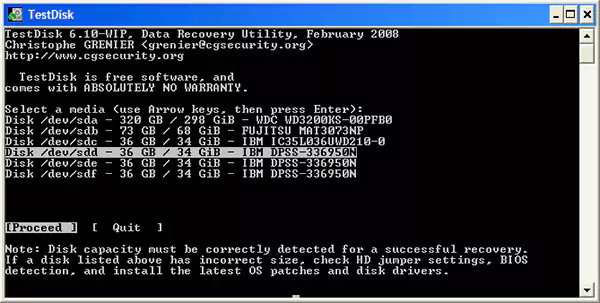
TestDisk is the tool you should use when everything else fails, and you are not afraid of a command line. It is open-source, lightweight, portable, and capable of repairing broken partition tables and MBR structures better than most paid tools.
It is not ideal for everyday use, but for advanced scenarios (like corrupted headers, lost boot sectors, and RAW drives), it is a powerhouse.
Pricing & Plans: Completely free partition recovery.
Pros
- 100% free with no limits
- Great for deep partition repairs
- Works on all OS platforms
Cons
- No GUI; command-line interface only
- Weak file recovery for deleted files
- Steep learning curve
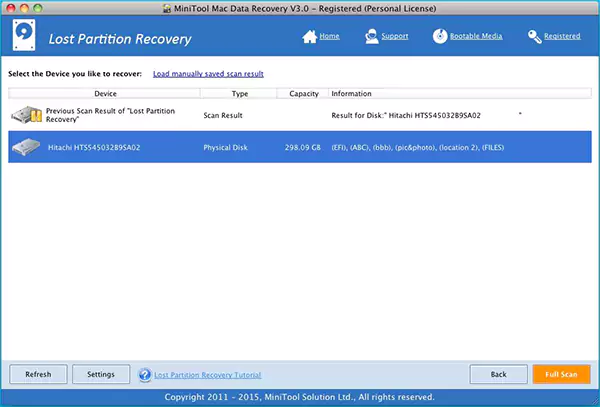
MiniTool offers strong partition recovery performance with a simple UI and a friendly onboarding process. It can handle non-mounting drives very well and even recovers some rare file formats. But compared to newer competitors in the market, its interface feels outdated and lacks features like scanning disk images or managing recovery sessions.
Pricing & Plans
- Trial Version: Free (1 GB recovery)
- Personal Monthly: $69
- Personal Annual: $89
- Personal Lifetime: $99
- Business Plans: $119-$499
Pros
- Reliable tool for most formats
- Can recover CDs/DVDs
- Easy to use
Cons
- Missing disk image scanning
- Subscriptions are slightly expensive
- The preview tool is limited
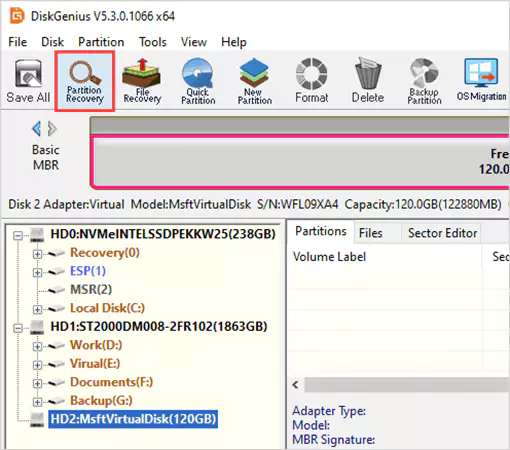
DiskGenius is one of the best software programs in this list, which merges partition recovery with advanced disk management. It is not just a recovery tool; it can repair bad sectors, rebuild partition tables, and create bootable media for recovering system partitions. The only drawback is its heavy and technical user interface that may intimidate rookies.
Pricing & Plans
- Free Version: Limited to files less than 64 KB
- Standard License: $69.9
- Professional License: $99.9
Pros
- Bootable recovery media
- Fast scan speeds
- Bad sector detection and repair are available
- Strong HDD partition recovery software
Cons
- Technical interface
- Limited preview functionality
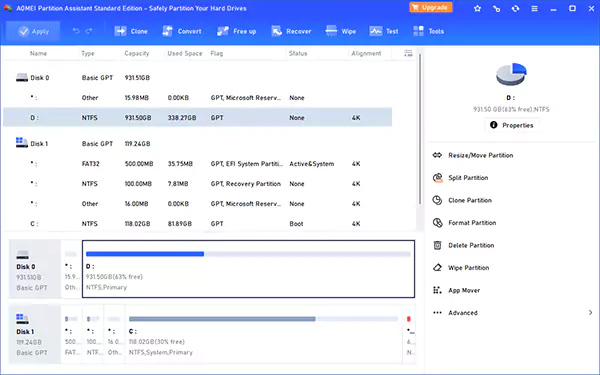
AOMEI Partition Assistant is not just a recovery tool. It is an all-in-one disk management suite that can also handle lost partitions with ease. The drag-and-drop design makes it beginner-friendly, and it supports nearly every common file system.
While the user interface may feel slightly old-school, the performance is solid and the preview function is surprisingly helpful.
Pricing & Plans
- Basis Features: Free
- Pro (Yearly, 2PCs): $49.95
- Pro (Lifetime): $ 59.95
Pros
- Clean and intuitive interface
- Supports common file systems
- Good balance of features
- The free version is available with basic features
Cons
- Weak error handling
- UI looks outdated
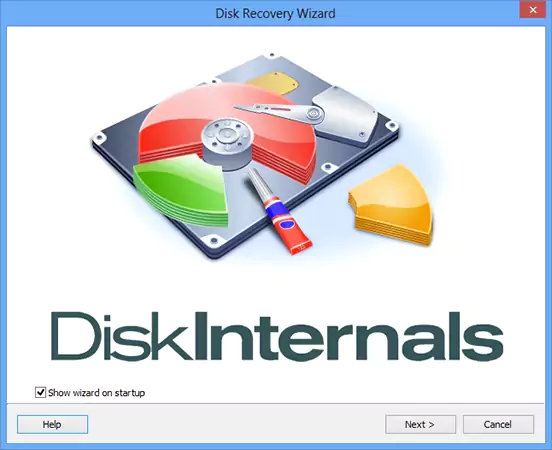
This tool focuses on simplicity. As soon as you open DiskInternals, a wizard guides you step-by-step. It i great for beginners, supports various file systems, and can even open unreadable partitions in Explorer. But its scan times are a bit slow, and the interface feels very old.
Pricing & Plans
- Free Trial: Preview only
- Personal: $139.95
- Business: $219.95
Pros
- Step-by-step assistant for recovery
- Can unlock unreadable partitions
- Supports disk image recovery
Cons
- Slow scans when compared to others
- Outdates UI
- Limited free trial
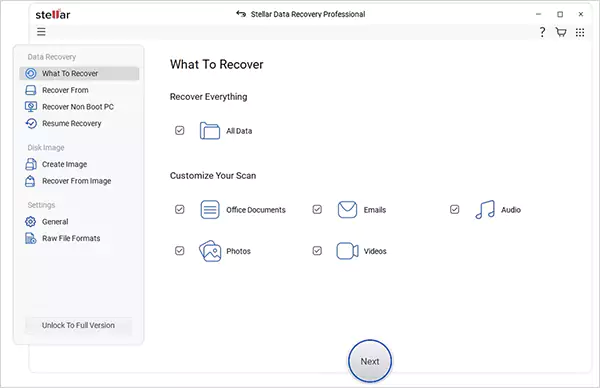
Stellar is all about ease of use, and it is one of the best recovery software programs for Mac and Windows.. Its interface is smooth, modern, and extremely beginner-friendly, especially for non-technical users who want a simple experience. The recovery depth is solid, and its Pro features (like encrypted-drive support) add value. However, pricing is on the higher side for what it offers.
Pricing & Plans
- Professional: $89.99
- Premium: $99.99
- Technician: $199
Pros
- Beautiful and clean UI
- Supports encrypted drives
- Advanced recovery features
Cons
- Expensive subscriptions
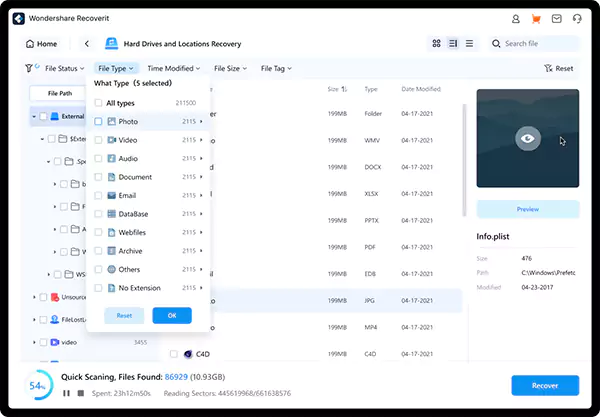
Recoverit behaves differently from typical partition tools. It scans everything at once and allows you to recover either the entire partition or individual files. It is extremely user-friendly, supports 1000+ file types, and includes features like video repair and NAS recovery. It is great for general recovery, but not always the most effective option for deep partition-level corruption.
Pricing & Plans
- Monthly Plan: $64.99
- Annual Plan: $67.49
- Perpetual Plan: $134.99
Pros
- Clean user interface
- 1000+ file type support
- NAS and video recovery tools are available
Cons
- The monthly price is high
- Not ideal for severe data corruption
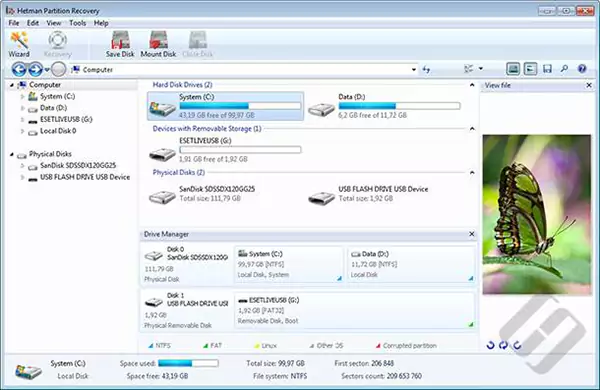
Hetman is affordable and offers a layout similar to Windows Explorer, making it familiar to navigate. It recovers photos, documents, and standard audio files well, and the preview tool offers advanced features (you can even view hex data). But it lacks a few features you would expect from modern tools.
Pricing & Plans
- Free Trial: Preview only
- Home: $77.95
- Office: $197.95
- Business: $317.95
Pros
- Low-cost entry point
- The portable version is available
- Great file preview options
Cons
- Cluttered Windows-style UI
- No data protection features
That is the end of our top 10 list. I would like to clarify that a tool ranking lower on the list does not mean it is weak. It simply means that it is better suited for specific tasks, and not every scenario.
A Quick Showdown of Our Top Partition Data Recovery Tools
To make your decision easier, here is a simple comparison table so you can confidently pick the tool that fits your situation:
| # | Software Name | Price | Supported File Systems | Key Features |
| 1 | Disk Drill | $89 lifetime (Win + macOS) | FAT/FAT32/exFAT, NTFS, HFS/HFS+, APFS, EXT3/EXT4, RAW | User-friendly; strong for RAW and complex recovery |
| 2 | EaseUS | $49.95/month, $69.95/year, $99.95 lifetime | FAT12/16/32, exFAT, NTFS/NTFS5, ext2/3, HFS+, ReFS | Excellent UI for beginners |
| 3 | TestDisk | Free | BeFS, CramFS, FAT12/16/32, FATX, exFAT, HFS/HFS+/HFSX, JFS, btrfs, ext2/3/4, LUKS, RAID arrays, Linux LVM, NTFS, ReiserFS 3–4, UFS/UFS2, XFS, ZFS, WBFS, Solaris disklabel | Advanced/CLI only; great for corrupted partition tables |
| 4 | MiniTool Power Data | $69/mo, $89/yr, $99 lifetime | $69/mo, $89/yr, $99 lifetimeFAT12/16/32, exFAT, NTFS/NTFS5, ext2/3/4, HFS+, ISO9660, Joliet, UDF | Solid recovery tool for most file systems |
| 5 | DiskGenius | Free (limited), $69.90 Standard, $99.90 Professional | FAT12/16/32, exFAT, NTFS/NTFS5, ReFS, ext2/3/4, HFS+, APFS (read), RAID arrays | Powerful for technical users |
| 6 | AOMEI Partition Assistant | Free basic, $49.95 yearly, $59.95 lifetime | NTFS, FAT12/16/32, exFAT, ReFS, Ext2/3/4 | Great for both partition management and recovery |
| 7 | DiskInternals | $139.95 Personal, $219.95 Business | FAT, ReFS, UFS, HFS, NTFS, ReiserFS, APFS (reader), RomFS, Reiser4, XFS, ext2/3/4 | Wizard-style UI; suited for beginners |
| 8 | Stellar Data Recovery | Starts from $69.99 | NTFS, FAT12/16/32, exFAT, ext2/3, encrypted volumes | Clean user interface |
| 9 | Recoverit by Wondershare | $64.99/mo, $67.99/yr, $134.99 lifetime | NTFS, FAT32, exFAT, HFS/HFS+, APFS, ext2/3 | Excellent for file-level recovery |
| 10 | Hetman | $77.95 Home, $197.95 Office, $317.95 Business | FAT, FAT32, exFAT, NTFS, HFS+, Ext2/3/4, ReiserFS, XFS/UFS | Budget-friendly option; capable of basic recovery |
How to Select the Right Disk Partition Recovery Software?
Picking the right partition recovery tool can make the difference between a full recovery and permanent data loss. While most tools on our list are capable, the right one for you depends on your requirements.
Here are the key factors that matter the most:
- Speed and recovery depth: Data recovery is a time-sensitive process. The tool you choose should scan, detect deep or corrupted partitions, and minimize the chances of overwriting lost data.
- Ease of use: Look for clean and straightforward UI, simple recovery steps, clear file previews, and easy identification of lost partitions. The interface should not feel overwhelming to you.
- Supported file system and OS compatibility: Your software should match your hardware ecosystem. For example, Windows tools can’t recover Mac APFS partitions, and Linux EXT needs dedicated support. So, try to match the software’s file system support with your actual device.
- Advanced recovery features: Not all tools can handle deep damage effortlessly. So, if you have to do advanced data recovery, look for features like deep partition reconstruction, RAW recovery, table rebuild, bootable recovery media, and RAID recovery.
- Real-world effectiveness: Ignore marketing claims because they are often exaggerated. Explore independent tests (like ours), expert reviews, verified user feedback, and actual recovery rate in complex cases.
- Pricing and licensing: If you handle recovery frequently (developers, IT admins, content creators, etc.), a lifetime license is usually more cost-effective. So, assess your needs and go for the tool that has a plan for you.
Furthermore, you need to understand that your data is at stake here, so try to select the one that offers better support. Good support can save hours, especially in tricky scenarios.
How to Prevent Disk Partition Loss? [Quick Tips]
Even though modern software can recover lost partitions, prevention is always cheap and safe. Here are the crucial habits that can reduce the risk of losing partitions:
- Back up your partitions regularly. Keep both a local and a cloud backup to prevent total loss in case one medium fails.
- Always keep your device plugged in during disk operations and avoid shutdown and power failures.
- Before deleting, resizing, or formatting, verify the partition label and double-check that you are modifying the correct drive. One wrong click can wipe an entire disk.
- Use tools like CHKDSK or monitoring apps to monitor disk health regularly. Also, avoid unsafe removal of external drives.
- Avoid frequent formatting or file system switching. This increases the risk of errors and disk lifespan.
- Always recover files first and then try to fix the partition.
- Don’t install recovery software on the affected drive; it can overwrite the exact sectors you are trying to recover.
- Restore recovered data to another internal or external drive.
Wrapping Up
Partition loss can happen to anyone, but it does not have to become a permanent setback. I have tried to explain why partitions disappear, which recovery methods truly work, and what partition recovery software can help you.
So, the key is simple. Act quickly, recover safely, and use the right tools for different tasks. With the right approach, even a formatted partition can be fully recovered.
Frequently Asked Questions
What happens when a partition is deleted?
How to recover data from a partition?
Using the command prompt, assigning a new drive letter, and recovering via a reliable recovery software is recommended to recover lost data from a partition.
How to retrieve a lost partition on external hard drives?
Use tools like TestDisk and Disk Drill to scan and restore partitions on external hard drives.
What is the best partition recovery software?
Disk Drill, EaseUS, TestDisk, and DiskGenius are some of the best partition recovery tools in the market.
Is a recovery partition necessary?
No, it is not necessary, but experts recommend using it. It offers a convenient way to repair Windows if the OS fails to boot.
Related Posts
Recovering Lost YouTube Videos from a Corrupted Drive
Losing your videos strikes fear into any YouTuber. One instant everything runs smoothly—crisp footage, clean sound, visuals locked in place—the…
How to Fix Windows Update Error? 10 Reliable Fixes
Windows Update keeps your Windows system secure, fast, and packed with the latest features. But let’s be honest, sometimes Windows…
How to Recover Data on Mac
People who work on a Mac almost every day often lose data, whether on purpose or by accident. And it…
Making Games Accessible Worldwide on Your Chromebook
Historically seen as a device for educational purposes, Chromebooks have become a global hub for gaming due to their use…
Best Ways To Convert Email Files (EML) To Images
An EML file is a saved email message. It contains the full content of the email, including the text, sender…
The Ultimate Guide to Becoming a Data Scientist
Whether you are someone choosing a career, switching it, or still deciding on what to pursue, a thorough knowledge of…

Practical Benefits Of Authentication Employee Time Clock Systems
Accurate attendance tracking plays a critical role in workforce management. Authentication-based employee time clock systems help organizations verify employee identity…

Top 7 Technology Consultant Services Every Data-Driven Business Needs (2026)
Data loss isn’t just an IT inconvenience. It is a threat to the survival of a business. Research shows that…
What is Hardware Accelerated GPU Scheduling and How to Enable It? (Windows 10 &…
Hardware accelerated GPU Scheduling allows the user’s graphics card to run its own memory management and task queue, rather than…