
Yes, there are multiple solutions available online that can help you to unlock an Android if you forget the password.
How to Unlock an Android Phone When You Forgot the Password (Without Guesswork)
 Kartik Wadhwa
Updated on: Feb 28, 2026
Table of Contents
- Part 1. Identify a Standard Android Screen Lock (PIN, Pattern, or Password)
- Part 2. What Google Account Verification (FRP) Means After Resetting an Android Phone
- Part 3. 5 Key Points of a Reliable Android Phone Unlocking Tool
- Part 4. Where FRP Bypass Fits in the Android Unlock Process
- Part 5. Step-by-Step: Unlock Your Android Phone Safely Using Dr.Fone
- Conclusion
- Frequently Asked Questions
It feels very frustrating to lose all your digital data due to just one panic mistake of selecting a password on your phone that you no longer remember. A lot of people try random tricks that fail because they ignore the lock type.
No matter whether you are trying to remember a PIN or face a Google screen, guessing creates more room for only confusion. At this particular point, the secret is finding a path that fits your specific phone and model.
Many users have found out that tools like Dr.Fone Screen Unlock make this difficult process very simple. It helps you match the right unlocking steps to your phone’s exact situation without risks. So, this guide helps you identify your lock and find the right fix without hassle.
Key Takeaways
- Understanding how to identify a standard Android screen lock.
- Looking at what Google account verifications mean after resetting the Android phone.
- Exploring some key points to measure the reliability of unlocking tools.
- Decoding a step-by-step process to unlock your devices using Dr.Fone.
Part 1. Identify a Standard Android Screen Lock (PIN, Pattern, or Password)
Before you fix the device, you must identify the specific lock type first. A basic screen lock is the biggest pitfall for most Android users. This usually appears as a request for a PIN, pattern, or your password. In case the screen allows you to enter these digits, you can unlock your Android phone. Besides, this scenario means the system is still waiting for the correct security code.
Alongside this, it is not the same as being stuck on a Google account screen. Therefore, you should check if your phone allows multiple attempts at the lock screen. A normal prompt typically suggests that your internal data is still quite safe. Understanding this difference saves you from using the wrong repair method later on.
Interesting facts
Roughly 51% of users admit to resetting a password at least once a month because they cannot remember it
Part 2. What Google Account Verification (FRP) Means After Resetting an Android Phone
Sometimes, a reset might not be the quick fix you initially expected. After wiping your data, you may see a specific Google login prompt. At this point, this screen asks for an account that was previously synced to the phone. In case you see this message, your phone is protected by the FRP system. This lock is different from the basic PIN or pattern you used before.
In addition, it prevents someone from accessing your device after a full factory reset. Moreover, standard tricks will not work when this security layer is fully active now. You must use a different solution path to unlock this specific account block via the FRP bypass tool. Thus, understanding this barrier is vital before you try to access the main menu.
Part 3. 5 Key Points of a Reliable Android Phone Unlocking Tool
Finding the right software is the main step to unlocking Android phones. Yet, you need a tool that works for your specific model without any risk. A good program should be very simple for any non-technical user today. So, look for these vital features when you choose your next unlocking solution:
- Wide Support: The software must work on many different brands, like Samsung and Xiaomi. It should also support the newest versions of the Android operating system, including 16.
- Clear Steps: Its interface must provide very simple instructions for every single user. You should not need any special technical skills to finish the process.
- Data Safety: A strong tool tries to keep your personal files safe during use. It protects your privacy while removing the lock from your mobile device.
- High Speed: The process of disabling the passwords should be rapid and work within a few minutes. Thus, you don’t have to wait for many hours to access your data.
- High Success: It must have a very high rate of success for various locks. This ensures you do not waste your time on tools that often fail.
Part 4. Where FRP Bypass Fits in the Android Unlock Process
You must realize that unlocking the screen is often just the very first step. Even after the PIN is gone, a hidden security layer might still appear. This is where you need to look for the correct FRP bypass files now. Without this step, you will stay stuck on the Google verification screen forever. So, the following table explains how these two different locks function in your journey:
| Feature | Screen Lock Phase | FRP Bypass Phase |
| Primary Goal | Remove the PIN or pattern. | Skip Google account login. |
| When It Happens | Before you reach the home screen. | After performing a force factory reset. |
| User Action | Enter a code or swipe. | Verify the previous owner’s email. |
| System Level | Local device security barrier. | Cloud-based Google protection layer. |
| Common Result | Access to the phone menus. | Complete setup of the device. |
Part 5. Step-by-Step: Unlock Your Android Phone Safely Using Dr.Fone
When you are locked out, you need a tool that actually works for you. This is why you should choose a professional tool like Dr.Fone – Screen Unlock (Android). It provides a safe and effortless way to regain full control of your mobile device. This Android screen unlocker can remove any lock types, including fingerprint or even face lock. Alongside this, it supports the latest Android 16 and new devices like the Samsung S25.
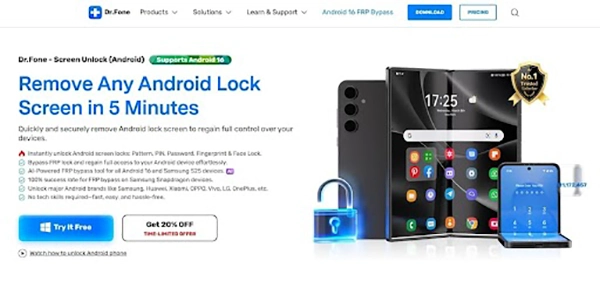
Even most Samsung or LG phones can be unlocked without any personal information. In addition, it serves more than 2,000 Android models of 30 brands. Apart from that, the device even unlocks the FRP on multiple Samsung, Realme, Motorola, and Xiaomi devices. This process is very fast and typically takes only about 5 total minutes. In addition, no technical skills are required to use this simple and very effective interface.
Key Features
- Snapdragon Support: Achieve 100% success on Samsung phones with Snapdragon chips.
- MTK Support: Easily bypass security on all devices that run on the MTK chipsets.
- AI-Powered: Advanced artificial intelligence helps find the best unlocking path for your phone.
Guide to Unlock Your Android Phone without a Password Using Dr.Fone
Following the right steps is the only way to unlock an Android phone. You must use a clear process to avoid any mistakes or data loss. Thus, take guidance from the given steps below to regain access to your mobile device:
Step 1. Open the Android Screen Unlock Tool
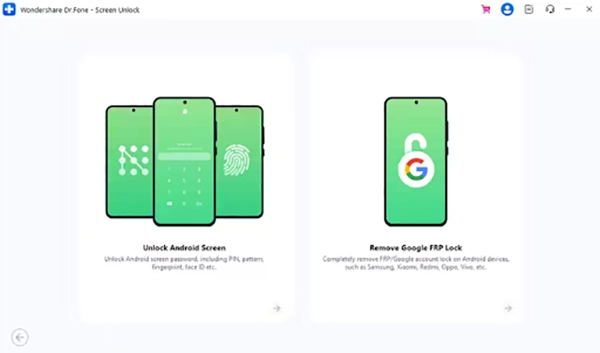
Launch Dr.Fone and enter the “Toolbox,” then select “Screen Unlock.” Choose “Android” to opt for “Unlock Android Screen” and connect your phone to the computer.
Step 2. Select Your Device Manufacturer for Unlocking
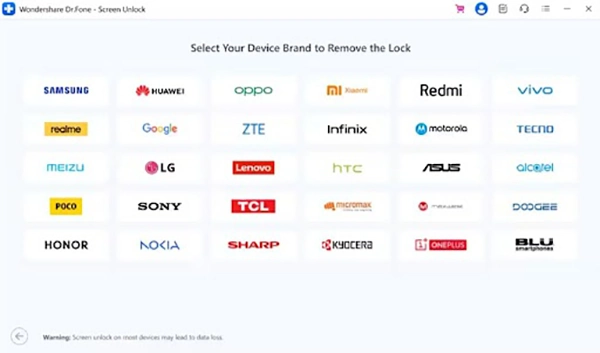
When the brand list appears, you need to pick your phone’s manufacturer. Here, follow the given prompts to place the device into the required mode.
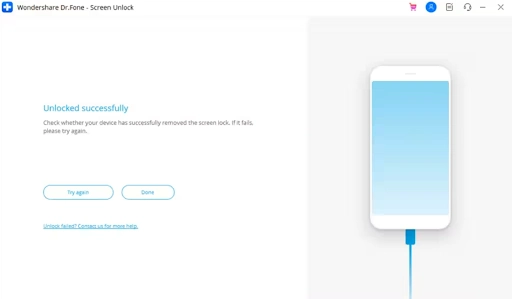
Step 3. Finish Unlocking the Android Phone
As the phone is ready, this dedicated tool will automatically remove the lock. Subsequently, a confirmation prompt will appear after the process finishes.
Conclusion
In summary, unlocking your Android phone starts with knowing the right lock type first. Random methods waste time and lead to bigger problems. Screen locks need simple code removal while FRP requires account bypass steps.
This article provides complete information about how to match each situation with safe solutions. Moreover, always pick tools that work fast and keep your data protected, too. For the best results without having a hassle, choose Dr.Fone Screen Unlock.
Frequently Asked Questions
Can you unlock an Android if you forgot the password?
Is it possible to unlock an Android without losing data?
Yes, if remote unlock, Smart Lock, or account recovery features are active.
What is *#2663 used for?
The code *#2663# is a Samsung secret dialer code used to access the TSP/IP/Wacom Firmware Update menu.
Related Posts

8 Best AI Presentation Makers for Business-Ready Slides
Making a presentation doesn’t just mean designing slides. It’s about defining a clear structure, using defined logic, useful visuals, and…

Queue Management Software Troubleshooting Guide: 8 Common Faults and Fixes
The long wait times and ineffective management of customer queues can have a significant impact on customer satisfaction and business…

How to Use Similarweb Website Traffic Data for Competitor Research
Competitor research without traffic data is guesswork. You can guess who your rivals are, guess how big they are, guess…

Choosing the Right Hosting Model for Scalable Digital Platforms
The performance of digital business is directly related to website speed, uptime, and scalability. Slow page performance has a negative…

How Data-Driven Performance Tools Are Transforming Employee Recognition in Tech Companies
“People work for money but go the extra mile for recognition, praise, and rewards.” — Dale Carnegie (Writer & Teacher)…

Why Businesses Struggle to Collect Reliable Data from the Web
Almost every company that depends on data runs into the same problem: although they can find the data they need,…

Why Financial Data Recovery Matters for Businesses
Financial data supports every part of a business, directly affecting cash flow, payroll, tax reports, audits, customer billing, and daily…

CMMC Compliance Is Coming for Manufacturers. Here Is What You Need to Do
“Cybersecurity is much more than a matter of IT.” — Stephane Nappo (Cybersecurity Professional) For manufacturers working within the defense…

How Data-Based Tools Influence Learning Performance
Learning has transformed in the modern age with the integration of new technologies to help students and professionals prosper in…