


Ans. It is a Windows encryption feature that protects data stored on supported drives from unauthorized offline access, particularly if the device is lost or stolen.
What is BitLocker and How Does It Work?
A stolen laptop can expose far more than the device itself. Your documents, work files, photos, and personal information may all be stored on its drive. BitLocker helps protect that data by encrypting the Windows volume, making the contents unreadable without the required authentication or recovery information.
But what actually happens when BitLocker encrypts a drive? Why might Windows suddenly ask for a recovery key? And what is BitLocker? This guide explains how it works, how secure it is, and what to know before using it.
What is BitLocker?
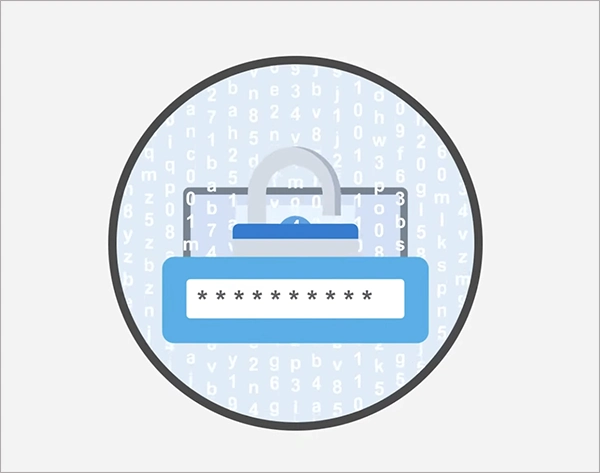
Let’s first try to understand “What is the BitLocker?”. It is Windows’ built-in full-volume encryption feature. It encrypts data stored on supported Windows drives so that someone who gains unauthorized offline access cannot simply remove the drive and read its contents.
This is different from a Windows sign-in password. Your password controls access to your Windows account, while Bit Locker protects the data stored on that encrypted volume itself. That makes it particularly useful for laptops and other devices that could be lost or stolen.
BitLocker primarily protects data at rest, meaning information stored on the device when Windows is not providing normal access to it. It does not replace antivirus software or protect every threat while you are actively using an unlocked Windows session.
On supported PCs, BitLocker can use a Trusted Platform Module (TPM) to protect encryption keys and help verify the startup environment before unlocking the drive.
How Does BitLocker Work?
BitLocker encrypts data on a protected volume so the contents cannot be read until the drive is unlocked with the appropriate key or authentication method.
On a compatible PC, the TPM helps protect BitLocker keys and verify the startup environment. You can also use a PIN or USB startup key for additional authentication.
BitLocker disk encryption can work without a TPM, but the setup requires an alternative startup method, such as a USB key. Without a TPM, you also lose the hardware-based preboot integrity verification that TPM provides.
This is why simply removing an encrypted drive and connecting it to another computer should not expose its contents. It is designed to protect data when a Windows installation is offline, or the device is lost or stolen.
The recovery process is separate from your normal Windows sign-in. If Windows detects a condition that prevents the usual unlock process, such as certain changes to the boot environment, it may enter BitLocker recovery and request the recovery information.
How Secure is BitLocker?
BitLocker provides strong protection against unauthorized offline access to encrypted drives. It supports AES-based encryption, with available configurations including 128-bit and 256-bit encryption. The exact encryption method depends on the configuration and Windows policies.
However, BitLocker Whole Disk Encryption does not protect against every threat while you are logged into Windows. It is primarily designed to protect stored data if a device is lost, stolen, or accessed offline.
Your recovery key is critical. Anyone with the required recovery information may be able to unlock the encrypted drive, so store it securely and separately from your computer.
How to Use BitLocker in Windows?
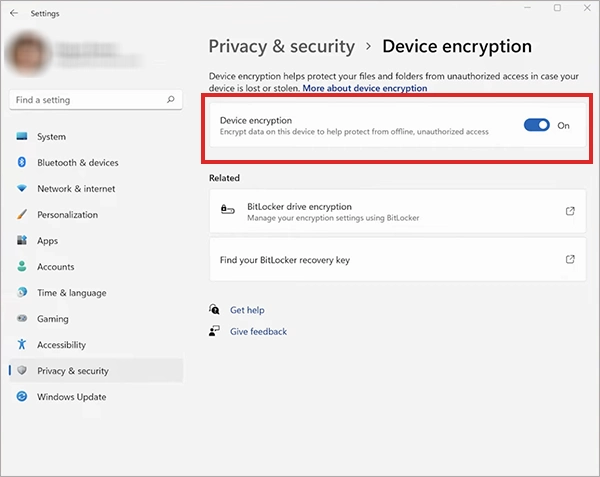
Full BitLocker controls are available on supported Windows Pro, Enterprise, Pro Education/SE, and Education editions. Eligible devices can also use Device Encryption, a simpler BitLocker-based option.
Before enabling BitLocker, check that your Windows edition supports it. To check your encryption options:
- Open Settings and go to Privacy & security > Device encryption and check if the option is available.
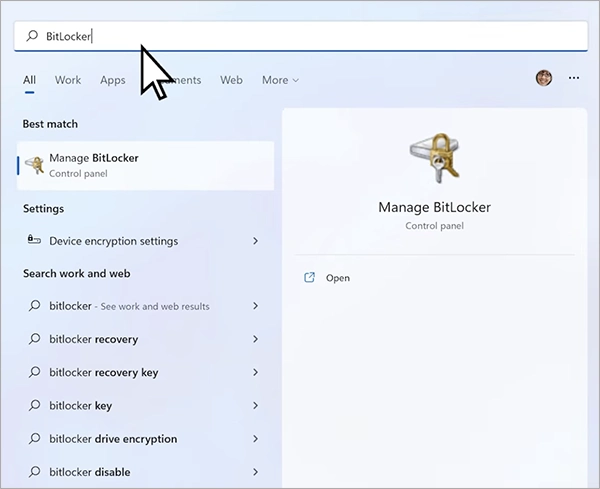
- For full BitLocker controls on supported editions, search for Manage BitLocker and click on it.
- You will see the BitLocker Drive Encryption window.
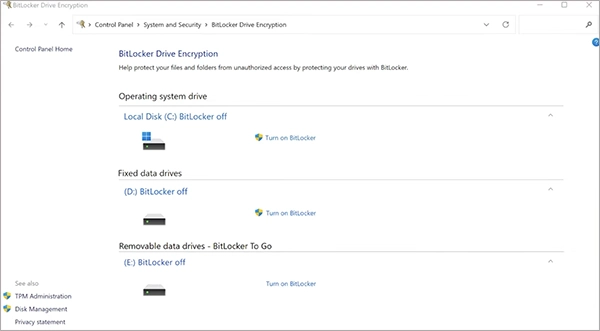
- Select the drive you want to protect and choose Turn on BitLocker.
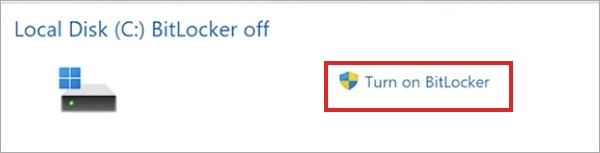
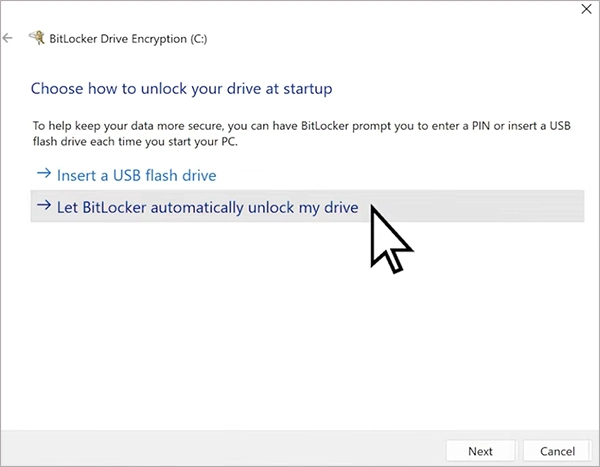
- Follow the setup instructions and choose the available unlock method.
- Back up the recovery key when prompted.
- Store the recovery information somewhere secure that you can access if Windows later enters recovery mode.
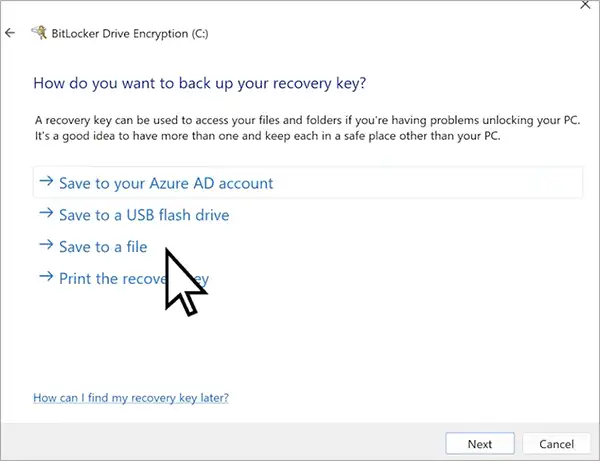
The exact option can vary depending on your Windows edition, device hardware, and organization policies.
Do not skip the recovery-key step. If BitLocker later asks for recovery information and you cannot provide it, you may be unable to access the encrypted data.
What is the Difference Between BitLocker and Device Encryption?
Device Encryption uses BitLocker technology, but it is designed to provide a simpler and more automated encryption experience. Full BitLocker offers more configuration and management options, while Device Encryption is intended to make encryption easier on eligible devices.
| Feature | BitLocker | Device Encryption |
| Encryption technology | BitLocker | BitLocker |
| Configuration | More control | Simpler, can turn on automatically |
| Availability | Pro, Enterprise, Pro Education/SE, Education | All Windows editions on eligible devices |
| Recovery Key | Can be managed through different methods | Automatically backed up through supported account or organizational mechanisms. |
Recovery information for Device Encryption can be automatically backed up to a different Microsoft account, Microsoft Entra ID, or Active Directory, depending on how the device is configured.
So, it is not a completely different encryption technology. It is just a simpler way of using BitLocker on supported devices.
What is a BitLocker Recovery Key?
A BitLocker recovery key is a backup method for unlocking an encrypted drive when the normal unlock process fails. Windows may ask for a 48-digit recovery password after certain hardware, firmware, or boot changes, or when it cannot verify the expected startup environment.
Depending on how the PC is configured, recovery information can be stored in:
- Microsoft account
- Microsoft Entra ID
- Active Directory
- A file
- A printed copy
- Removable media
For personal PCs, you can save the recovery key to your Microsoft account. Managed devices may store it through Microsoft Entra ID or Active Directory. Make sure you keep the key secure and separate from the computer.
Pros and Cons of BitLocker Encryption
BitLocker provides strong protection of data on Windows drives, but it also comes with some practical considerations.
Pros
- Protects data if your computer or drive is lost or stolen.
- Encrypts supported drives instead of requiring individual files to be protected.
- Can use TPM hardware to protect encryption keys and verify the startup environment.
- Built into supported Windows editions.
- Supports additional startup authentication such as a PIN or USB key.
Cons
- Losing the recovery key can make encrypted data inaccessible forever.
- Advanced BitLocker features depend on your Windows edition.
- Windows may request recovery after certain hardware, firmware, or boot changes.
- Managing encryption and recovery can add extra work, especially on business PCs.
Final Thoughts
BitLocker encrypts data stored on Windows and can use TPM to protect encryption keys and help verify the startup environment. Its main purpose is to prevent unauthorized access to stored data.
The recovery key is equally important. Before relying on BitLocker, make sure you know where your recovery information is stored and can access it when needed. And if your PC supports Device Encryption, you may already have BitLocker-based protection without manually configuring full BitLocker.
Frequently Asked Questions
What is BitLocker on my computer?
Is BitLocker free to use?
Ans. Yes, BitLocker is included with supported Windows editions such as Pro, Enterprise, Pro Education/SE, and Education. Eligible devices with the Home edition can also use Device Encryption, which provides a simpler version of BitLocker protection.
How safe is BitLocker encryption?
Ans. It provides strong protection, particularly when used with a TPM and appropriate startup protection. However, it does not replace other security measures such as antivirus protection.
Is it good to have BitLocker on my computer?
Ans. Yes, it can protect your files if your computer or drive is lost or stolen. Before enabling or relying on encryption, make sure your recovery information is securely stored.
What user rights are required to use BitLocker?
Ans. Enabling or changing BitLocker configuration on operating system and fixed data drives generally requires administrator privileges. The exact permissions can vary depending on the drive, Windows edition, and organizational policies.
Related Posts
How to Protect Business Data From Unwanted Scrapers
Scrapers are a well-known problem for businesses; protecting private records, discouraging unwanted bulk copying, and preserving access are topics one…
Your Email is Data Too: Testing AI Tools That Work Without an Account
People who read about data recovery are most likely to think hard about the place where the files can go.…

UX Design Firm or Full Product Partner: Who Owns the Outcome?
The ownership argument between both kinds of suppliers never ends. The sentence costs nothing to say, but blindly trusting that…

Beyond the Checkout: 5 Best High-Risk Merchant Account Providers for Online Businesses
Even with polished checkouts, online stores can still have trouble getting secure, suitable payments. The process is more complex than…

The 8 Best Automated Accessibility Testing Tools for Websites
Great copy and sharp design don’t prove that your website is accessible. It’s things like colour contrast, missing alt text,…

Cybersecurity Training for Beginners: 4 Practical Options Compared
Starting in cybersecurity is confusing because most beginner options look similar on the surface. Some are compact awareness courses, some…
The Ultimate Guide to Electronic Signatures for Businesses 2026
Electronic signatures are making modern workflows more convenient and time-saving. This guide to electronic signatures will let you know how…
How Email Authentication Fits Into a Layered Cybersecurity Strategy
One convincing email can be sufficient to pose major problems regarding security for a business. An email that appears to…

7 Best Client Intake Software Tools in 2026 for Service Businesses
A client intake form works best for collecting data like names, contact information, and project needs. But what does a…