


Ans: For moderate users, 50GB of space is more than enough, but if you are someone who takes tons of photos, then 200GB might be an ideal choice for you.
How to Clear iCloud Storage? 6 Easy Methods to Clear Up the Unwanted Data
Using your iPhone with an iCloud account comes with so many challenges. As you all know, the file size of videos and photos is usually large on iOS devices. This is why learning how to clear iCloud storage is becoming a necessity nowadays. Check out this guide till the end, and try the 6 different methods that can help you to declutter your iCloud storage to store more memories.
At a glance
To clear iCloud storage effectively and without the fear of losing crucial data, you need to follow 6 easy steps:
- Deleted the files you don’t want now, including images, videos, and PDFs.
- Reduce the Backup Listing of the apps that don’t contain any useful information.
- Start using external devices for storing utilities instead of paying more for cloud storage.
- Clear the cache regularly of the apps to prevent trash collection in your iCloud servers.
- Uninstalling unwanted apps that you don’t use often, as they take up space with no use.
- Turn off backups of all the unnecessary things.
How to Clear iCloud Storage: 6 Tried and Tested Methods
To clear all the junk files and add new memories to your iCloud storage, the foremost thing you need to do is select and remove all the older pieces of data, and if you are still unsatisfied, then make sure to follow methods like:
1. Clear Mail Storage
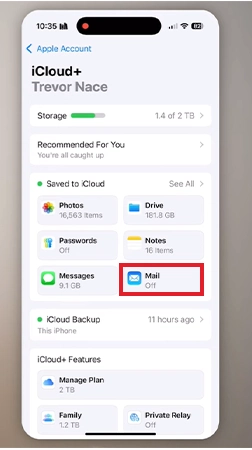
The first thing you need to do is to check whether the mail backups on iCloud are ON or OFF. As in mobile, you can limit the data protection and storage management within a few clicks, while you require data recovery software for Mac. So, in your iPhone:
- Open Settings.

- Then Tap on your Profile Icon.

- Tap on iCloud.
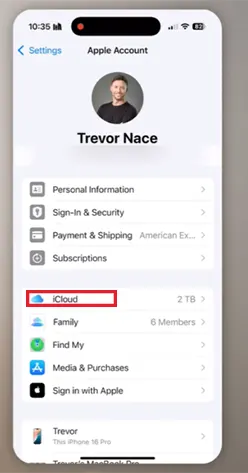
- In this catalog, you will see multiple options saved to iCloud, and check whether the mail backup is disabled.
2. Delete Unwanted Photos
Most of your iPhone storage is filled because of unwanted photos or videos stored in duplicate. So to delete them, you need to follow some easy steps:
- In the same iCloud settings, tap on iCloud Backup.
- Tap on iCloud Photos.
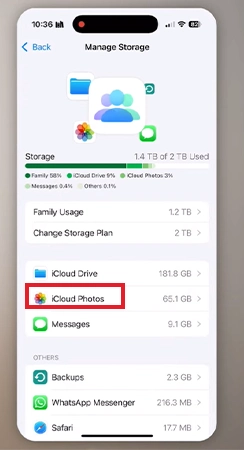
- Click on Review Photos and Videos.
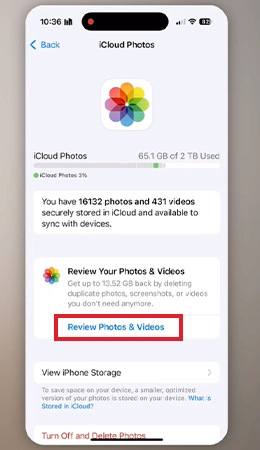
- Then, here you will find the Duplicates option. Tap on it
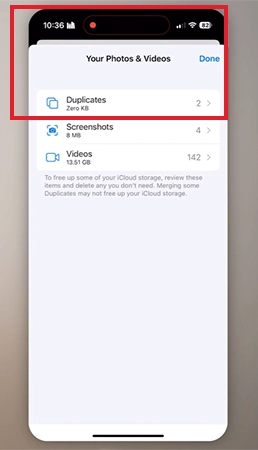
- Select the Duplicates.

- Then, Delete one of them by tapping on Merge 2 Exact Copies.

3. Turn Off Unnecessary Backups
Sometimes the storage that is filling up wasn’t your fault; it’s the system behavior that is working in favor of storing unnecessary things in our devices. Well, to avoid these hampering situations, you can do an easy setting.
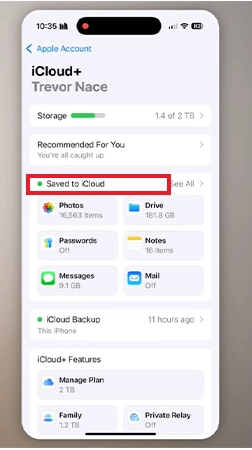
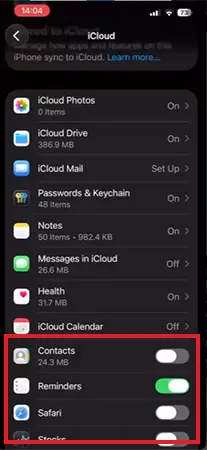
- Come to the same iCloud page again
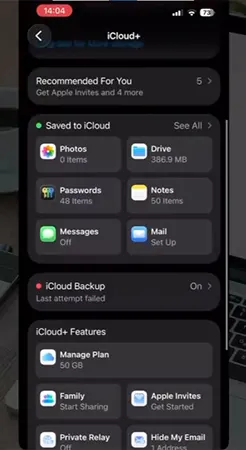
- Tap on See All next to Saved to iCloud.
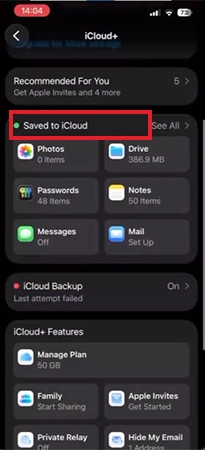
- Here you will see a catalog of apps that are storing their data, so just disable them.
4. Move Some Data To External Drives

People are spending 100s of dollars every month just for purchasing bits of storage on cloud servers, which seems costly if you want to preserve data in the long run. That’s why buying items like hard drives and SSDs makes more sense, as you will get a permanent set of data storage that stays forever on your desk, and you won’t stumble upon the internet again and again for asking how to clean up iCloud storage.
5. Uninstall Unwanted Apps
There are so many apps in our system that we don’t need anymore, but they are just being kept on the shelf in the memories of devices and sending their app data to the iCloud, so to avoid this situation, we need to delete apps on iPhone using steps like:
- Open the App Library.

- Search for the app you want to choose.

- Hold on to the App icon, and hold it to see options, then press the Delete App button.
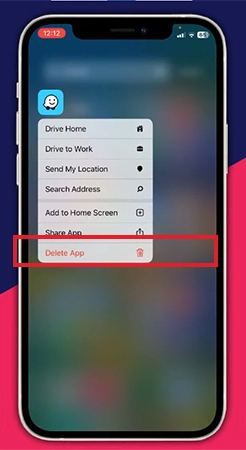
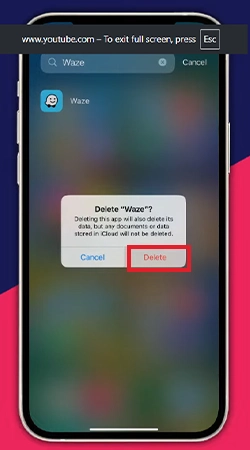
- Tap on Delete.
6. Delete Messages Data
Lastly, we recommend clearing the messages, images, and videos sent to the old conversation that you don’t see anymore so that your iCloud can take in more new texts and other utilities. To do this thing simply, just:
- Come back to iCloud settings and tap on See all.
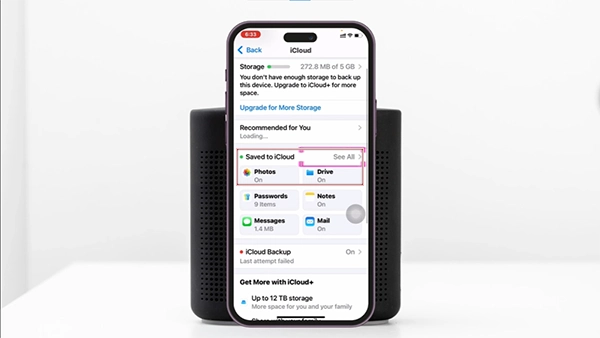
- Tap on Messages in iCloud.
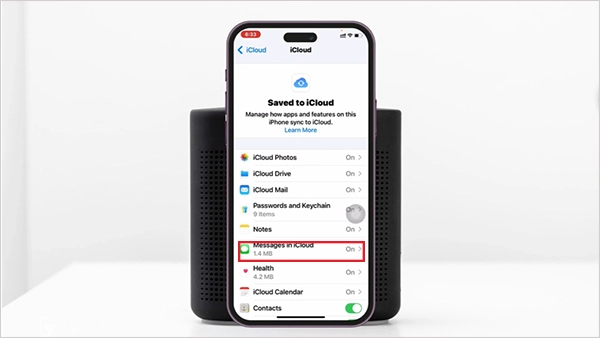
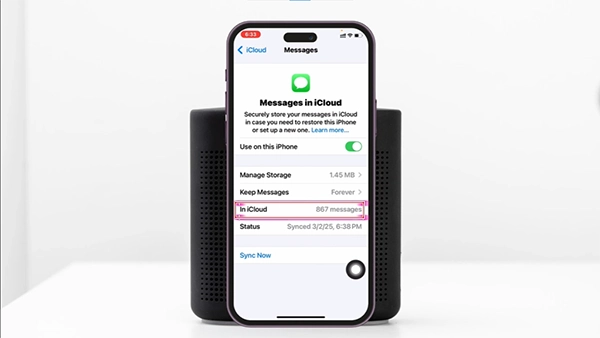
- Tap on In iCloud
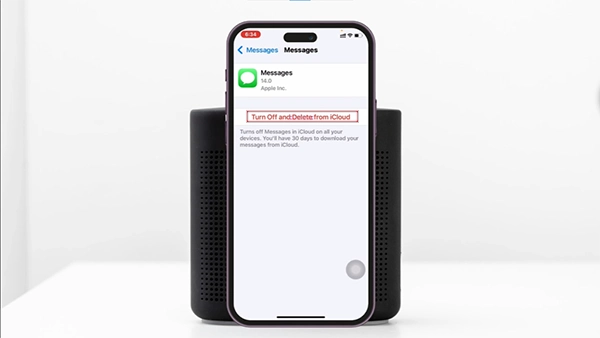
- Tap on Turn Off and Delete from iCloud
Conclusion
These are some simple methods which you can use to clear your iCloud storage, and among them, there are some preventive measures also, like turning off backups and using external storage devices like hard drives as well.
Doing these practices can make your device stable and prevent you from having to buy more storage to preserve your memories. At last, we hope that you’ve found this article useful, and for more such updates, follow Datarecovee
Frequently Asked Questions
Should I get 50GB or 200GB iCloud storage?
How many photos can 200GB hold?
Ans: On average, 200 GB of iCloud storage can store up to 50,000 to 60,000 photos in high quality, and if you compress them, then it can store more than 2,00,000 images at once.
Will I lose my photos if I stop paying for iCloud storage?
Ans: No, you won’t lose your photos if you stop buying iCloud storage immediately, but instead you will lose all your accessibility in 30 days after they get deleted from the server.
Related Posts
Best Tools for Recovering Deleted Files on a Mac
A wrong click can leave you sinking in grief and sorrow, just because that accidental click has deleted an important…

What to Back Up Before Migrating Your Business to New Software
Software migration hardly results in data loss during migration. It’s possible that you lose the data after a week or…

How Modern Enterprises Are Scaling Infrastructure with Custom AI
For many businesses, AI works as a collection of tiny experiments such as a chatbot, a coding assistant, or sometimes…

VMware vs. Sangfor aSV vs. Nutanix: Which Hypervisor Actually Saves You Money?
Selecting the right hypervisor isn’t simply an issue of technology; it could end up having a significant effect on your…

SD Card Corruption in IoT Devices: Why It Happens So Often and How to…
IoT devices can have good sensors, robust software, and an excellent housing, but all it takes is one small thing…

5 Best SaaS Platforms for Financial Services and Growing Businesses in 2026
In 2026, SaaS platforms have become essential for businesses that want to build smooth processes, automate routine tasks and clarify…

How Digital Records Support Workplace Injury Claims
An injury in the workplace does not necessarily mean that you have just a physical problem to overcome. It could…

What Happens When Your Office Emergency Plan Is a Drawer?
An office emergency plan should not end with the first aid box sitting in the last drawer. All employees should…

How Data Recovery and Recordkeeping Failures Cost Businesses More Than They Realize
Most businesses file data recovery issues and recordkeeping gaps under different headings, treating one as an IT problem and the…