


Ans. Make sure your iPhone is unlocked and trusted by your Mac. Then try another data-capable USB cable or port, restart both devices, and install available updates.
How to Transfer Photos from iPhone to Mac: 4 Easy Methods
Moving photos from your iPhone to your Mac does not have to be complicated. You can use a USB cable for large batches, send a few using AirDrop, or let iCloud Photos do the magic.
The right option to save photos from iPhone to Mac depends on how many photos you are moving and what you want to do with them afterward. In this guide, I will explain how to transfer photos from iPhone to MacBook using Apple’s built-in tools.
Quick Answer: How to Move Photos from iPhone to Mac?
- Need to move hundreds of photos now? – Use a USB cable and the Photos app.
- Want photos saved as regular files in a specific folder? – Use Image Capture.
- Moving a few pictures quickly? – Use AirDrop.
- Want your iPhone and Mac to stay synced automatically? Use iCloud Photos.
How to Transfer Photos from iPhone to Mac?
You can learn how to import photos from iPhone to Mac in a few different ways, depending on how many files you are moving and how you want to store them. Some methods are better for quick sharing, while others work best for large photo libraries or automatic syncing.
Transfer iPhone Photos to Mac Using a USB Cable
The Photos app is the simple wired method for importing photos into your Mac’s Photos library, especially for large batches. Here’s how to copy photos from iPhone to Mac:
- Connect your iPhone to your Mac using a USB cable that supports data transfer.
- Unlock your iPhone and tap Trust if prompted, and enter your passcode.

- Open the Photos app on your Mac and select your iPhone under Devices in the sidebar.
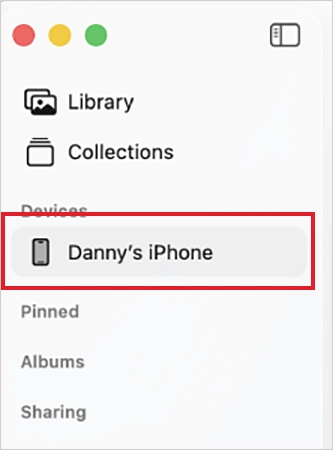
- Choose the photos, select an album or create a new one, and click on Import Selected or Import All New Photos.

Now, just wait for the import to complete before disconnecting. This method is best for large imports into the Photos library.
Import iPhone Photos to Mac Using Image Capture
Use Image Capture if you want photos saved as files instead of inside the Photos app. Let’s see how to download photos from iPhone to Mac:
- Connect your iPhone to your Mac with a USB cable.
- Open the Image Capture app on your Mac

- Select your iPhone under Devices, then choose the photos or videos.
- Next, select a destination folder and click Download.
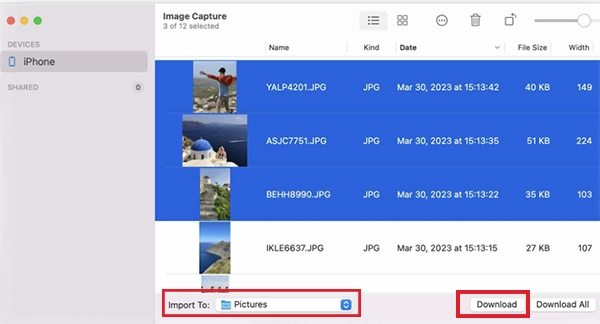
Image Capture is best for those who want to save files to folders or external drives.
Get Photos from iPhone to Mac With AirDrop
AirDrop is the fastest option for a small number of photos. Ensure Wi-Fi and Bluetooth are enabled on both devices and keep them within range.
- Open Photos on your iPhone.
- Tap Select and choose photos.
- Tap Share and select AirDrop.

- Now, choose your Mac and accept the transfer.

If both devices use the same Apple Account, transfers may complete automatically without any permission. It is convenient for a few photos, but it is not the method I would choose for an entire camera roll.
Transfer iPhone Photos to MacBook With iCloud Photos
If you regularly use both an iPhone and a Mac, iCloud Photos can save you from transferring photos manually. Instead of copying individual files, it keeps your photo library available across devices signed in to the same Apple Account.
Here’s how to sync iPhone photos to Mac:
On your iPhone:
- Open Settings, tap your name, and go to iCloud > Photos.
- Turn on Sync this iPhone.
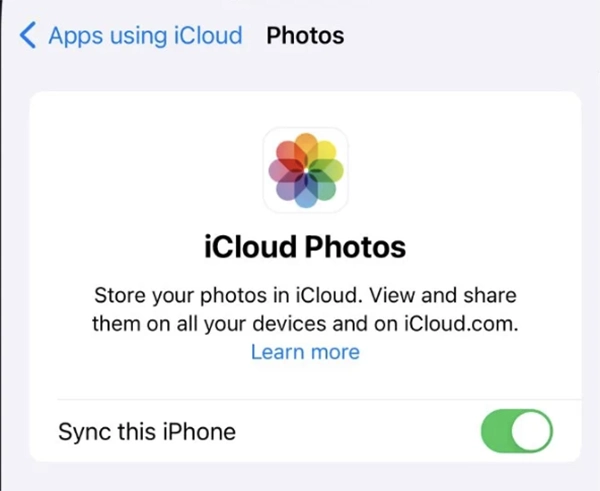
On your Mac:
- Open the Photos app.
- Go to Photos > Settings.
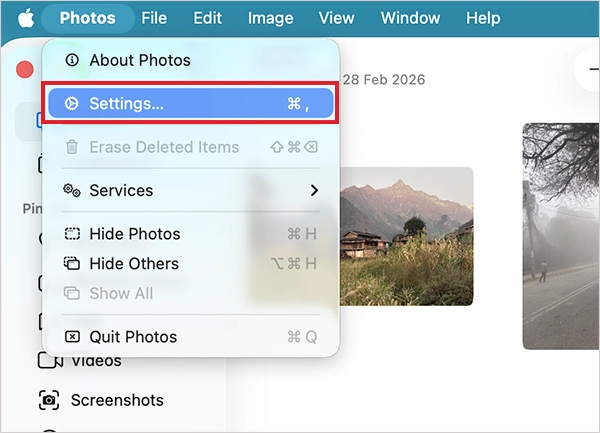
- Here, go to the iCloud tab and enable iCloud Photos.
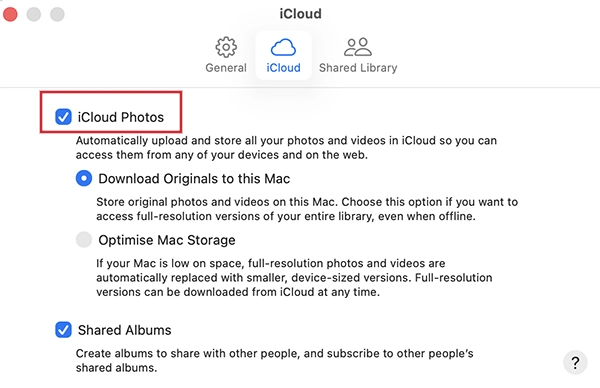
Once enabled, photos sync automatically across devices. Originals are stored in iCloud, while optimized versions may be kept locally to save space.
What to Do If Your Mac Doesn’t Recognize Your iPhone?
If your iPhone does not appear in Photos or Image Capture, start with the connection before changing other settings. A charging cable is not necessarily a data cable, so the iPhone can charge while the Mac fails to detect it. Try the following fixes:
- Unlock your iPhone and keep it unlocked while connecting it.
- Reconnect the USB cable and check for the Trust This Computer prompt on your iPhone.
- Try a different USB cable that supports data transfer.
- Try another USB port on your Mac.
- Restart your iPhone and Mac and try to reconnect them.
- Open Photos or Image Capture again and check whether your iPhone appears on your Mac.
You can also reset Location & Privacy settings on your iPhone to re-trigger the permission prompt, then reconnect and try again.
How to Keep Your iPhone Photos Safely Backed Up?
Transferring photos to your Mac gives you another copy, but that should not be your only layer of protection, especially for photos you can’t replace.
If you use iCloud Photos, your library stays synced across your Apple devices. You can also choose Download Originals to this Mac in Photos settings if you want full-resolution copies stored locally on your Mac.
For additional protection, keep an independent copy of important photos on an external drive. You can also use Time Machine to back up your Mac and the photos stored on it.
Remember that iCloud Photos is primarily a syncing service, not a separate offline backup. If you delete a photo while iCloud Photos is enabled, that deletion can sync across your connected devices. For irreplaceable photos, keep a separate copy that is not affected by those changes.
Final Thoughts
The best way to transfer photos from an iPhone to a Mac depends on what you need. Use Photos with a USB cable for large batches, Image Capture when you want files in a specific folder, AirDrop for a few photos, and iCloud Photos when you want your library to stay synced automatically.
Frequently Asked Questions
Why can’t I import photos from iPhone to Mac?
How do I import photos from iPhone to Mac without iCloud?
Ans. Connect your iPhone using a USB cable, unlock it, and Tap Trust if prompted. Open Photos, select your iPhone, choose the photos, and click on Import Selected.
How to sync photos from iPhone to MacBook?
Ans. Turn on iCloud Photos on both devices using the same Apple Account. On your iPhone, turn on Sync this iPhone in the iCloud settings. On your Mac, enable iCloud Photos.
What is the easiest way to transfer photos from iPhone to Mac?
Ans. For a small media transfer, AirDrop is usually the simplest option. For a large collection, use a USB cable and the Photos app. If you want photos to appear automatically on your Mac, use iCloud Photos.
Can I save iPhone photos directly to a folder on Mac?
Ans. Yes, you can use Image Capture to download photos directly to a folder or external drive.
Related Posts

8 Best Online Tools to Identify Unknown Callers
When a call comes on your screen with no name or context, you just zone out, thinking you should pick…

How to Fix Black Shadow on Laptop Screens?
A black shadow on laptop screens can look like a Windows glitch, but the shape and location of the dark…

Fixing Broken IP Allowlists With a Dedicated Static Address
IP allowlisting is one of the easiest security controls available. Tell a service to accept connections only from addresses you…

What is DumpStack.log and Can You Delete It in Windows?
If you have noticed a file named DumpStack.log in the root of your Windows drive, you may wonder why it…

How eSIM Fits Into Your Global Travel Itineraries
Multi-country trips can be exciting, but sometimes mobile device data makes it concerning. Whenever you cross a border, there will…

How to Pick the Right Data Structure Before You Build Your Database
Every application that stores information depends on a structure chosen long before the first row of data arrives. That structure…

Standardizing React Component Iconography Across Distributed Product Teams
Creating a common React component library is essentially a losing battle. During a cross-team review, I shared my screen. I…

Antimalware Service Executable: What It Is and How to Fix High CPU Usage
You open Task Manager and notice Antimalware Service Executable using a surprising amount of CPU or memory. It may keep…

Keeping Your Website Healthy: A Practical Guide to Long Term Success
Introduction The website may appear to be finished once it is launched; however, making sure that the site remains reliable…