


Your iCloud sync may pause because of weak internet, Low Power Mode, full storage, outdated software, or temporary Apple server issues.
Why is Syncing with iCloud Paused and How to Fix It?
iCloud is a great tool to keep your photos, messages, notes, and files synced across Apple devices. But sometimes, you may suddenly see a “Syncing with iCloud Paused” message on your iPhone, iPad, or Mac.
When that happens, your data may stop updating across devices properly. In most cases, the issue is temporary and easy to fix. In this blog, I will elaborate on why it happens and cover quick ways to get iCloud syncing working normally again.
TL;DR
- Most syncing with iCloud paused issues are usually caused by the internet, storage, battery, or software issues.
- Turning off Low Power Mode and reconnecting to stable Wi-Fi fixes the issue in many cases.
- Full iCloud storage can stop Photos, Messages, backups, and iCloud Drive from syncing properly.
- Using the same Apple Account and updated OS across devices is important for smooth syncing.
What Does Syncing with iCloud Paused Mean?
The syncing with iCloud paused message means your Apple device has temporarily stopped uploading or updating data through iCloud. This can affect Photos, Messages, Notes, Contacts, iCloud Drive, and backups.

In simple terms, your devices are no longer staying updated with each other at the moment. In most situations, syncing is paused temporarily, not permanently broken.
Your data usually remains safe unless there is a serious storage or account problem involved. And remember, if syncing stays paused for too long, recent data or backups may stop appearing across devices.
Why is My iCloud Syncing Paused?
There is no single reason behind the issue. Usually, iCloud syncing pauses because your device temporarily cannot complete the process properly. The most common reasons are:
- Weak or unstable internet connection.
- Low Power Mode is enabled.
- Full iCloud storage.
- Low local device storage.
- Outdated iOS, iPadOS, or macOS versions.
- Apple server outages and temporary software glitches.
- Apple ID sync issues.
The good news is that most of these problems are easy to fix once you identify the actual cause.
How to Unpause Syncing with iCloud?
Apple recommends checking the internet connection, storage, battery settings, and software updates first. Here’s how to approach the issue:
1. Check Your Internet Connection
iCloud syncing depends heavily on a stable internet connection. If your Wi-Fi keeps disconnecting on your iPhone or switching networks, syncing may pause automatically. You should try to:
- Connect to a stable Wi-Fi network.
- Turn Airplane Mode on and off.
- Temporarily disable VPN services.
- Avoid public Wi-FI while syncing large files.
Apple also recommends keeping devices connected to both Wi-Fi and power during large syncing tasks.
2. Turn Off Low Power Mode
Low Power Mode can pause background syncing to preserve battery life. Here’s how to disable it:
- Go to Settings on your Apple device.
- Then, tap on Battery.
- Turn off Low Power Mode.

After disabling it, allow some time for the syncing process to resume naturally.
3. Free Up iCloud Storage
One of the biggest reasons iCloud syncing pauses is full storage. Here’s how you can check storage:
- Go to Settings and tap on your Apple Account.
- Then, go to iCloud and tap on Storage to check the details.
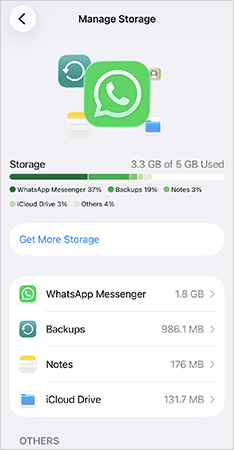
If the iCloud storage is nearly full, try to delete old backups, remove unnecessary photos or videos, clear large message attachments, or just upgrade to iCloud+ if needed.
4. Restart Your Device
This sounds basic, but restarting a MacBook or iPhone often fixes temporary media or iMessage syncing with iCloud paused issues.
A restart helps refresh background services, stuck sync processes, and iCloud connections. If syncing suddenly stopped without warning, this should be one of the first things you should try.
5. Update Your OS
Outdated software can create compatibility issues with iCloud services. It is recommended to keep all connected devices updated for smoother syncing.
This becomes even more important when one device runs newer software and another device still uses an older version. That mismatch can interrupt syncing behavior.
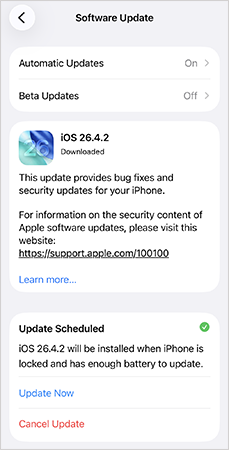
So, just go to Settings > General > Software Update, install any available updates, and restart your device.
6. Check Apple System Status
Sometimes the issue is on Apple’s side, not yours. Apple occasionally pauses syncing because of server maintenance, service outages, and iCloud disruptions.
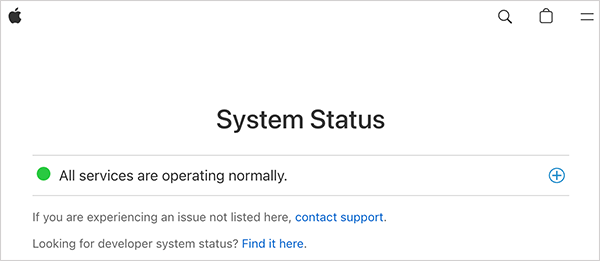
Before changing too many settings, check Apple’s System Status page. If iCloud services are unavailable, the best you can do is wait for Apple to resolve the issue.
7. Verify Your Apple Account
iCloud syncing works properly only when devices use the correct Apple account. You should verify:
- You are signed into the correct Apple ID.
- All Apple devices use the same account.
- iCloud services are enabled properly.
This is one of the most overlooked causes behind syncing problems.
8. Check Date and Time Settings
Incorrect date and time settings can interfere with Apple services. To fix this:
- Open the Settings app on your device.
- Go to General and tap on Date & Time.
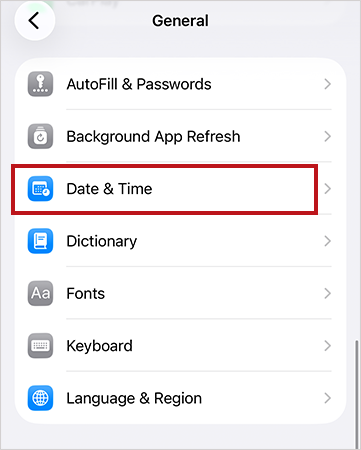
- Now, make sure that Set Automatically is enabled.
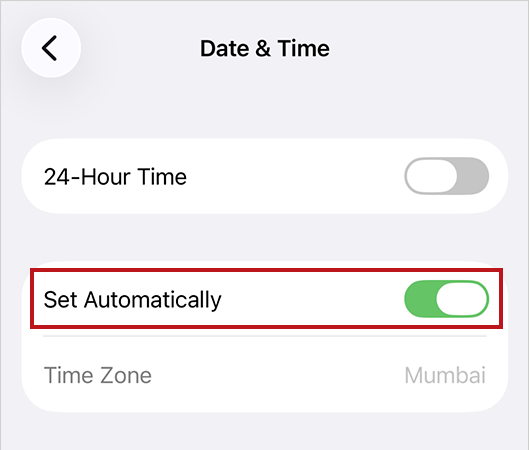
This allows your device to sync with Apple’s servers correctly.
9. Reset Network Settings
If nothing else works for you, resetting network settings may help resolve deeper connectivity issues. Here’s how to reset network settings:
- Open Settings and go to General.
- Here, scroll down and tap on Transfer or Reset iPhone.
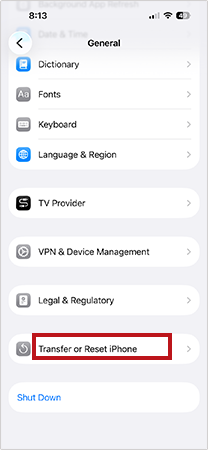
- Next, choose Reset.
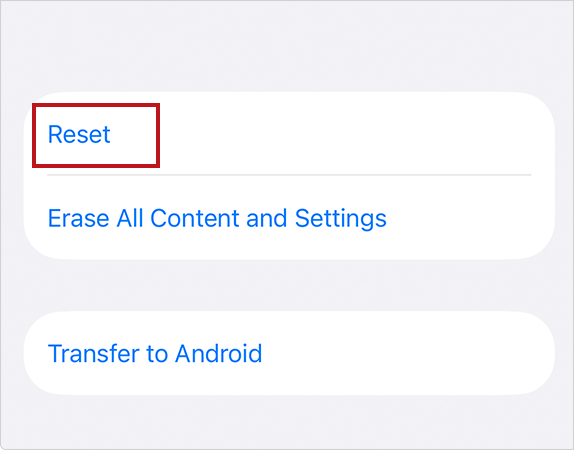
- Finally, tap on Reset Network Settings.
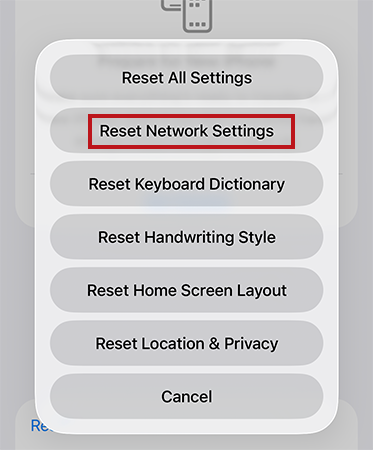
Unlike a factory reset, this does not delete personal data, but saved Wi-Fi networks and Bluetooth pairing will be removed.
These solutions will fix most syncing with iCloud paused issues. If you are still facing trouble, your next step should be to contact Apple Support.
Why is Messages Syncing with iCloud Paused?
“Syncing with iCloud paused iMessages” issues are slightly different from regular iCloud syncing problems.
This specifically affects conversations, SMS forwarding, attachments, and synced chats across Apple devices. The most common reason, apart from the general ones I covered in the above sections, is that Messages in iCloud is disabled.
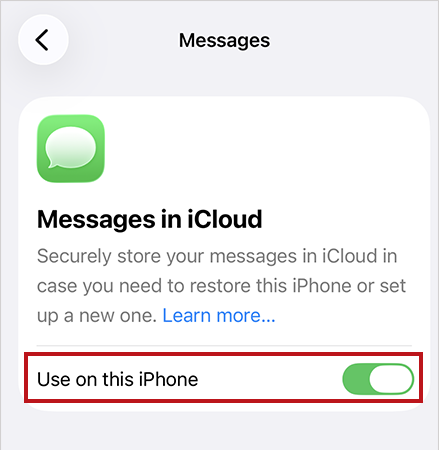
To fix this, make sure Messages in iCloud is turned on, and you are using the same Apple account on all devices. If your Messages library contains a lot of media and attachments, syncing may simply take more time than expected.
Conclusion
The “Syncing with iCloud paused” issue usually looks more serious than it actually is. In most cases, the issue comes from temporary problems. Once you check storage, Wi-Fi, battery settings, software updates, and Apple Account settings, syncing usually starts working again without much effort.
Frequently Asked Questions
Why is my iCloud sync paused?
Why is syncing with iCloud paused on messages?
This usually happens because Messages in iCloud is disabled, storage is full, or devices use different Apple Accounts.
How do I fix iMessage syncing with iCloud paused?
Try to connect to stable Wi-Fi, disable Low Power Mode, optimize iCloud storage, restart your device, and tap Sync Now inside iCloud settings.
Does Low Power Mode pause iCloud syncing?
Yes, Low Power Mode can temporarily pause background syncing activities to save battery life.
Will restarting my iPhone fix iCloud syncing issues?
Yes, it can refresh stuck background services and fix iCloud syncing problems in many cases.
Related Posts
Best Tools for Recovering Deleted Files on a Mac
A wrong click can leave you sinking in grief and sorrow, just because that accidental click has deleted an important…

What to Back Up Before Migrating Your Business to New Software
Software migration hardly results in data loss during migration. It’s possible that you lose the data after a week or…

How Modern Enterprises Are Scaling Infrastructure with Custom AI
For many businesses, AI works as a collection of tiny experiments such as a chatbot, a coding assistant, or sometimes…

VMware vs. Sangfor aSV vs. Nutanix: Which Hypervisor Actually Saves You Money?
Selecting the right hypervisor isn’t simply an issue of technology; it could end up having a significant effect on your…
SD Card Corruption in IoT Devices: Why It Happens So Often and How to…
IoT devices can have good sensors, robust software, and an excellent housing, but all it takes is one small thing…

5 Best SaaS Platforms for Financial Services and Growing Businesses in 2026
In 2026, SaaS platforms have become essential for businesses that want to build smooth processes, automate routine tasks and clarify…

How Digital Records Support Workplace Injury Claims
An injury in the workplace does not necessarily mean that you have just a physical problem to overcome. It could…

What Happens When Your Office Emergency Plan Is a Drawer?
An office emergency plan should not end with the first aid box sitting in the last drawer. All employees should…

How Data Recovery and Recordkeeping Failures Cost Businesses More Than They Realize
Most businesses file data recovery issues and recordkeeping gaps under different headings, treating one as an IT problem and the…