
MBR is an older partition style with a 2 TB disk limit and four primary partitions, while GPT supports larger drives and many more partitions.
MBR vs GPT: Which Disk Partition Style Should You Use?
 Saipansab Nadaf
Updated on: Mar 19, 2026
If you are setting up a PC or formatting a drive, you will likely run into one common question: MBR vs GPT, which one should you choose? Both are disk partition styles, but they work very differently.
MBR is the older and simpler system designed for smaller drives and legacy BIOS setups. GPT is the newer standard built for modern computers, larger storage, and features like Secure Boot.
Choosing the wrong one can affect how your system boots, storage availability, and setup. Today, I will break down GUID vs MBR, practical limits, and a safe way to switch between them.
What is MBR?
MBR (Master Boot Record) is one of the earliest disk partitioning methods used in personal computers. It was introduced in the early 1980s along with the first IBM PCs.
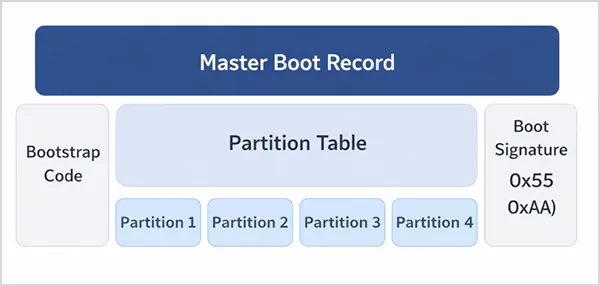
It is like a small map placed at the beginning of a hard drive. This map tells the computer:
- How the disk is divided into partitions
- Where each partition starts
- Which partition contains the operating system
When the computer starts, the BIOS reads this map and loads the operating system from the correct partition. However, MBR was built for much older hardware, so it comes with some limitations.
What is Disk Partitioning?
When you install an operating system or set up a new hard drive, the computer needs a partition style to organize the storage. This is where MBR or GUID comes in.
What is GPT?
GPT (GUID Partition Table) is the modern replacement for MBR. It was designed to work with UEFI firmware, which is used by most modern computers.
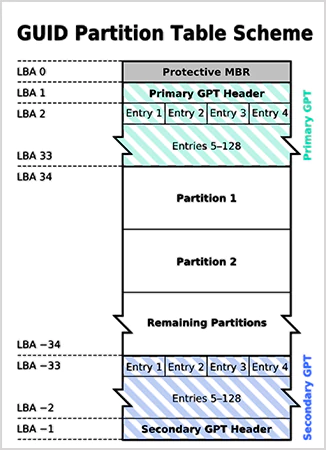
Now, what is a GUID partition? Instead of storing partition information in just one place. GPT keeps multiple copies of that information across the disk. This makes it much more reliable.
In simple terms, GPT is designed for modern hardware, larger drives, and better reliability. Because of these advantages of the GUID partition table vs MBR, GPT is the default partition style in modern OS like macOS, Windows, and Linux.
MBR vs GPT: What are the Key Differences?
Now, let’s understand GPT vs MBR partition in more detail. Both manage how storage is divided and how the operating system boots. But here is the difference between GPT and MBR:
1. Disk Size Support
When comparing the master boot record vs GPT, one of the biggest limitations of MBR is disk size. It supports drives only up to 2 TB. Anything beyond that cannot be fully utilized.
GPT supports extremely large drives. In theory, it can handle up to 9.4 zettabytes, which is far beyond current storage needs. So, if you are confused about MBR vs GPT for SSDs and HDDs of the modern age, go for GPT.
2. Number of Partitions
Now let’s compare MBR vs GUID partitions. MBR restricts partitions to amaximum of 4. While GPT allows up to 128 partitions in Windows. So, you don’t need extended or logical partitions, which makes disk management simpler in a GPT disk vs MBR.
3. Reliability and Data Protection
MBR keeps its partition data in a single sector at the beginning of the disk. If that sector gets corrupted, the entire partition structure may break.
GPT is built differently. It stores multiple copies of partition data across the disk and includes error detection mechanisms, which also make partition recovery easy. This design is more reliable and favors GPT vs MBR disk.
4. Boot Compatibility
Another major difference in this MBR versus GPT comparison is how the system boots. MBR works with Legacy BIOS, and GPT works with UEFI.
UEFI brings several improvements, such as faster boot times, improved hardware support, and security features like Secure Boot.
5. Partition Identification
MBR identifies partitions using simple numeric codes. GPT assigns each partition a GUID (Globally Unique Identifier). This helps operating systems manage partitions more accurately and reduce conflicts.
These are the five key master boot record vs GUID partition differences you should know about.
MBR vs GPT: Quick Comparison Table
Master Boot Record or GUID Partition Table (MBR vs GPT partition); which one is better? To help you decide, here’s a quick side-by-side comparison:
| Feature | MBR | GPT |
| Full Name | Master Boot Record | GUID Partition Table |
| Maximum Disk Size | ~2 TB | Up to 9.4 ZB |
| Partition Limit | 4 primary partitions | Up to 128 partitions |
| Boot System | Legacy BIOS | UEFI |
| Partition Storage | Single table | Primary and backup tables |
| Data Protection | No redundancy | Backup tables and error checks |
| Best For | Older computers | Modern systems and large drives |
MBR Partition vs GPT Partition: Pros and Cons
Here’s the information in the form of advantages and disadvantages of the partition scheme GPT or MBR for better clarity:
1. Pros and Cons of MBR
Pros
- Works well with older BIOS-based systems.
- Supported by many legacy tools and OS.
- Suitable for smaller drives.
Cons
- Cannot fully use drives larger than 2 TB.
- Limited to four primary partitions.
- Partition data stored in one location, which increases corruption risk.
2. Pros and Cons of GPT
Pros
- Supports very large storage drives.
- Allows up to 128 partitions.
- Includes backup partitions for reliability.
- Designed for modern UEFI systems.
Cons
- Some very old operating systems may not support it.
- Typically requires UEFI firmware for booting.
How to Convert a Disk to MBR or GPT Without Losing Data?
After the partition MBR vs GPT comparison, you should also know how to change the partition style.
For example, Windows installation may require GPT when switching to UEFI. Modern Windows systems provide various tools to do this.
Method 1: Using the MBR2GPT Tool
Windows includes a built-in utility called MBR2GPT that converts an MBR disk to GPT without deleting data. Here’s the simple process.
- Open Command Prompt as an administrator.
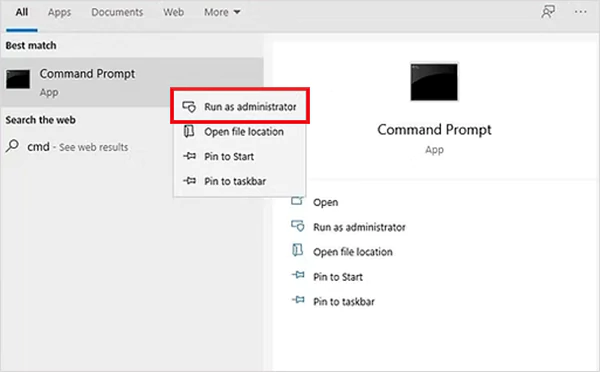
- Now, validate the disk by typing “mbr2gpt /validate”.
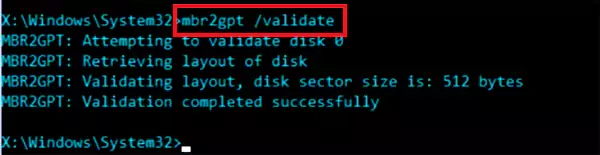
- Next, convert the disk with “mbr2gpt / convert”.
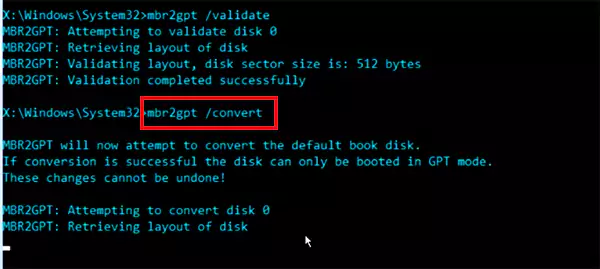
- Restart the system and enable UEFI mode in BIOS.
This method is commonly used when upgrading older systems.
Method 2: Using Windows Disk Management
You can also convert disks through Disk Management, but this usually requires deleting existing partitions first. Here’s how to do that:
- Open Disk Management on your device.
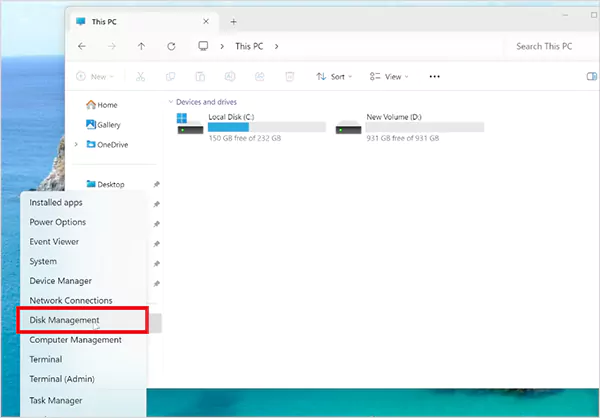
- Then, right-click on the disk you are looking for.
- Here, select Convert to GPT Disk or Convert to MBR Disk.
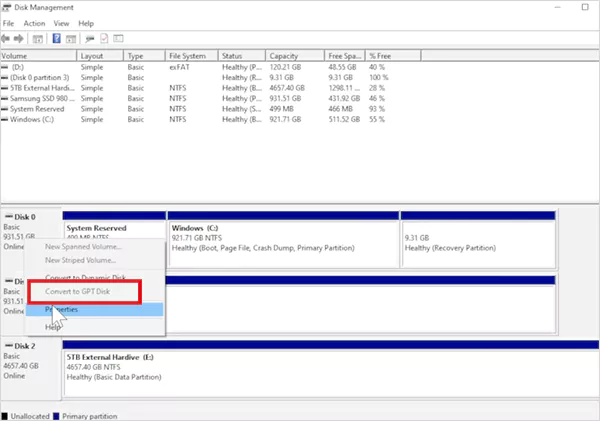
Always back up important data before converting and making any disk changes.
Conclusion: Should You Use MBR or GPT?
After comparing MBR vs GPT, you now know that both partition styles organize how data is stored on a disk. The difference lies in how much storage they support and how reliable they are.
For most modern computers, GPT is the better and recommended choice, especially if you use large hard drives, SSDs, or recent versions of Windows.
Frequently Asked Questions
What is the main difference between MBR and GPT?
Should I use MBR or GPT for SSDs?
You should use GPT for SSDs because it works better with modern UEFI systems and supports more storage.
Can I convert back to MBR after GPT?
Yes, you can use disk management and command-line tools to convert back to MBR after GPT.
How to choose between MBR and GPT?
Use MBR for older BIOS-based systems and small drives. On the other hand, GPT is better for modern UEFI systems and large storage devices.
Can I convert MBR to GPT without losing data?
Yes, you can use the official Windows tools known as MBR2GPT. It allows you to convert disks without deleting existing data.
Related Posts

8 Best AI Presentation Makers for Business-Ready Slides
Making a presentation doesn’t just mean designing slides. It’s about defining a clear structure, using defined logic, useful visuals, and…

Queue Management Software Troubleshooting Guide: 8 Common Faults and Fixes
The long wait times and ineffective management of customer queues can have a significant impact on customer satisfaction and business…

How to Use Similarweb Website Traffic Data for Competitor Research
Competitor research without traffic data is guesswork. You can guess who your rivals are, guess how big they are, guess…

Choosing the Right Hosting Model for Scalable Digital Platforms
The performance of digital business is directly related to website speed, uptime, and scalability. Slow page performance has a negative…

How Data-Driven Performance Tools Are Transforming Employee Recognition in Tech Companies
“People work for money but go the extra mile for recognition, praise, and rewards.” — Dale Carnegie (Writer & Teacher)…

Why Businesses Struggle to Collect Reliable Data from the Web
Almost every company that depends on data runs into the same problem: although they can find the data they need,…

Why Financial Data Recovery Matters for Businesses
Financial data supports every part of a business, directly affecting cash flow, payroll, tax reports, audits, customer billing, and daily…

CMMC Compliance Is Coming for Manufacturers. Here Is What You Need to Do
“Cybersecurity is much more than a matter of IT.” — Stephane Nappo (Cybersecurity Professional) For manufacturers working within the defense…

How Data-Based Tools Influence Learning Performance
Learning has transformed in the modern age with the integration of new technologies to help students and professionals prosper in…