As we all know, our daily lives are completely dependent on technological utilities, and especially storage devices. SD cards play a pivotal role in keeping our memories and private information.
Although sometimes, due to many unforeseen circumstances, these volatile chips get wrecked in no time. However, these things don’t usually happen, but when they do, we completely fall into so much confusion.
But the main question is, how do you fix a corrupted SD card without losing data? In this blog post, we’ll walk through the process of safe file recovery first and then demonstrate reliable ways to repair the card for continued use.
Let’s begin!
Key Takeaways
Understanding how to recover data before starting the repair
Decoding how to fix a corrupted SD card
Looking at some essential tips
How to Recover Data from an SD Card Before Repair
The first step to fix a corrupted SD card is to secure your data. Data Recovery Experts often highlight that some repair methods can overwrite or erase existing files, so you should focus on SD card data recovery before attempting repairs.
Even corrupted SD cards of various capacities and brands, including SanDisk card recovery, can be scanned using specialized tools. And if you’ve already tried to fix the issue by formatting the card, this is exactly how to recover formatted SD card, too.
The only requirement is that the device be detectable by the computer. You can quickly check this in Disk Management (which we’ll go over later), or simply download a data recovery program and see if your card appears in the list of available drives.
We use Disk Drill as an example, but the majority of tools work more or less the same. You can proceed with the steps below:
Insert the card into a USB 3.0/USB-C reader. Avoid a direct phone or camera connection. A reader gives stable, direct block-level access.
Download and install Disk Drill on your computer’s internal drive.
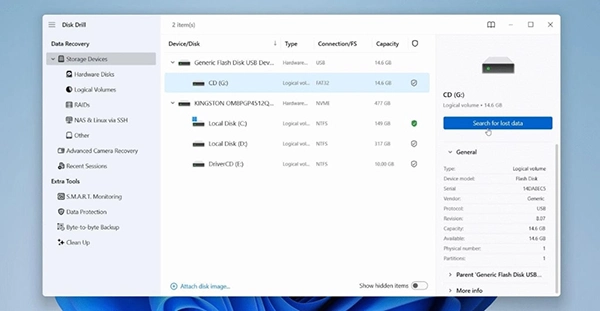
Open the app, locate the SD card in the device list, and select it. Confirm that capacity and file system look correct.
Click the Search for lost data button to start a full scan. Disk Drill will ask which type of scan to run; choose Universal.
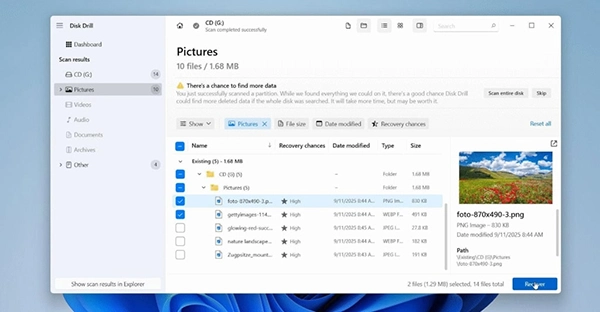
Browse found files, filter by type (photos, videos, documents), or search by name. You will see both the files that existed before the corruption and those that were deleted earlier, organized into categories such as Deleted or Lost, Existing, and Reconstructed. Click a file to open the preview pane.
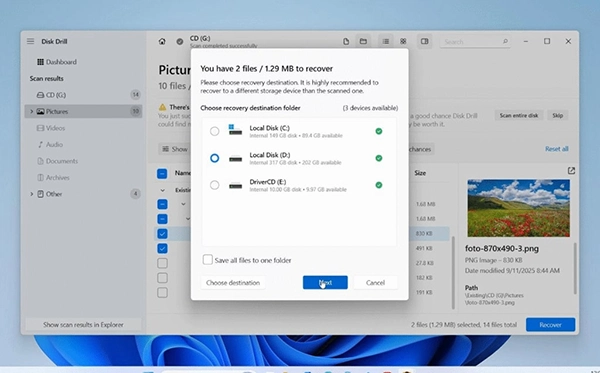
Click Recover.
Choose a safe destination. Pick a folder on a different drive, not the SD card.
If Disk Drill or the reader fails to detect the card, try another reader or port.
For physically damaged media (cracks, burn marks, severe controller faults), contact SD card recovery services. Generally, files can be restored using do-it-yourself recovery software. However, software cannot assist if the card is physically damaged.
PRO TIP If data is critical, always attempt to recover files first before formatting.
How to Fix a Corrupted SD Card
Once you recover important files, you can focus on repairing the corrupted SD card so it becomes usable again. For memory card recovery, Windows and official tools offer a number of choices.
Method 1. Use CHKDSK in Windows
CHKDSK (Check Disk) is a command-line utility that scans a storage device for logical errors, such as bad sectors or damaged file system structures, and repairs them automatically. Many SD card problems are caused by such file system errors, so CHKDSK is a good first step.
Insert the SD card into your computer through a reader.
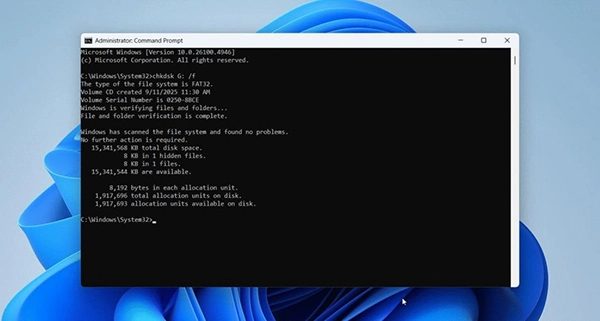
Press Win + S, type cmd, right-click Command Prompt, and select Run as administrator.
In the Command Prompt window, type the command: chkdsk X: /f. Replace X with the drive letter of your SD card. /f tells Windows to fix detected errors automatically.
Press Enter. Windows will begin scanning the card. The process may take several minutes, depending on the size of the card and the number of errors.
When the scan completes, check the report. If CHKDSK has repaired errors, safely eject and reinsert the card, then test file access in File Explorer
Intriguing Insights
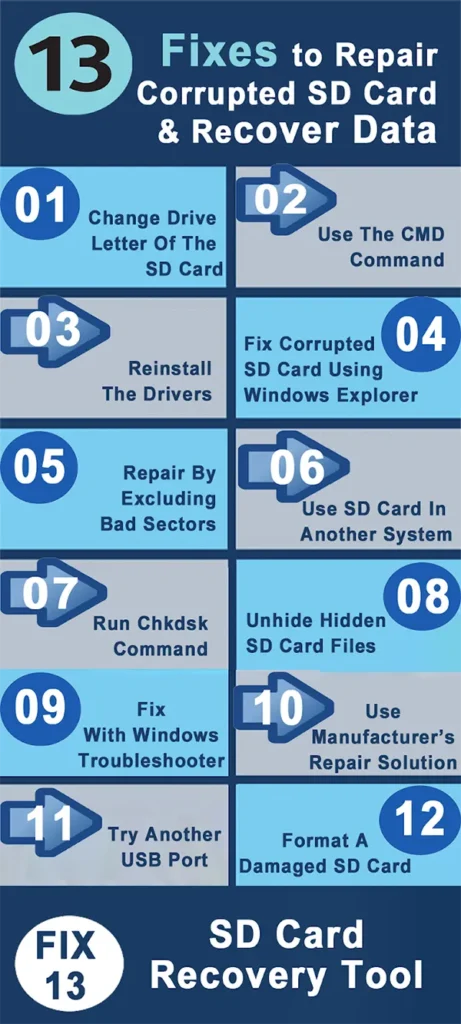
This infographic shows the 13 best ways to recover corrupted data from SD cards
Method 2: Manage the Card in Disk Management
If the SD card does not appear in File Explorer or displays incorrect information, Disk Management can usually restore access. This is how to repair a corrupted SD card:
Right-click the Start button and choose Disk Management.
Find your SD card in the list of drives.
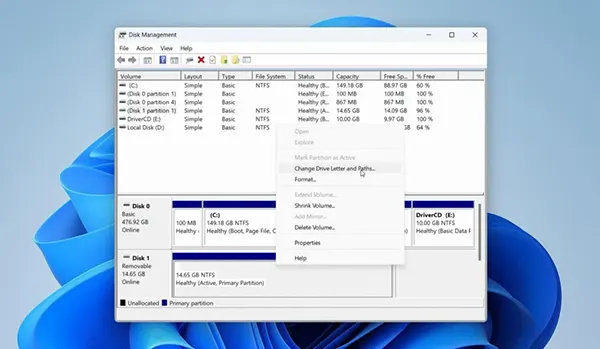
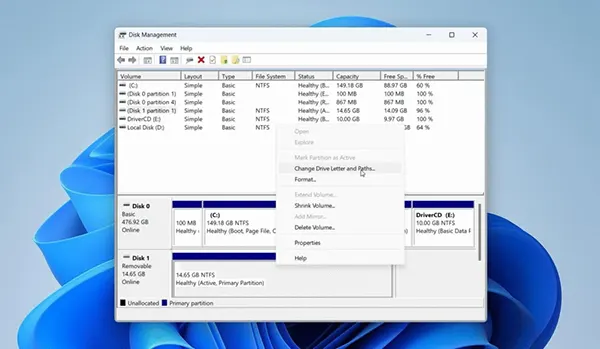
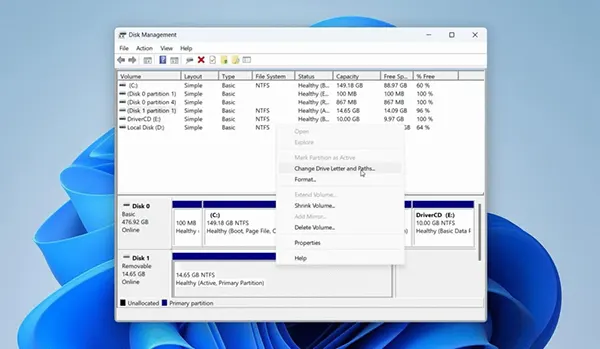
If the card has no drive letter: right-click, select Change Drive Letter and Paths.
Then click Add and assign a letter.
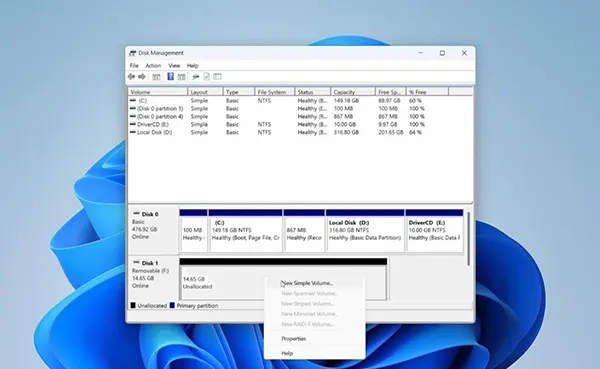
If the card shows as Unallocated: right-click, select New Simple Volume, and follow the wizard to reinitialize it.
Close Disk Management and check if the card now appears in File Explorer.
Method 3: Format the SD Card
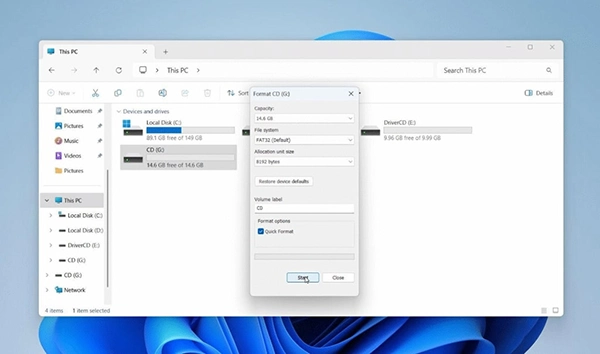
When other fixes fail, formatting may be the only option. Windows offers quick and full format options. To repair the SD card via formatting, follow these steps:
Open File Explorer and right-click your SD card.
Select Format.
Choose a File System: FAT32 for cards up to 32 GB, exFAT for larger sizes. Select Quick Format for speed or uncheck it for a full format. Click Start and wait for Windows to finish the process.
This method erases all data, so make sure you have already completed data recovery beforehand.
Final Tips to Keep Your SD Card Safe
The safest approach always begins with SD card data recovery. Data recovery tools help you restore files before you attempt repairs with CHKDSK or Disk Management. To reduce the chance of corruption in the future, experts recommend:
● Always eject the card safely before removal. ● Use high-quality card readers and storage devices. ● Avoid filling the card. ● Keep backups of important files on multiple devices or in the cloud. ● Replace SD cards that show repeated errors or slow performance.
In cases of physical damage, professional services provide the best chance of success. However, the steps given above work in most cases.
Frequently Asked Questions
Is it possible to recover data from a corrupted SD card?
Yes, it’s possible to recover data from a corrupted SD card using data recovery software, the Windows File Recovery tool, or professional data recovery services, depending on the extent of the damage.
How to uncorrupt an SD card without losing data?
CHKDSK, in particular, can eliminate all the bad sectors present in the SD card, enabling it to run again.
What is the lifespan of an SD card?
An SD card’s lifespan varies, but is often around 10 years for storing data and much less for frequent use

 Mahima Dave