


It means macOS could not finish installing or updating. Common causes include low storage, internet problems, startup disk errors, a damaged installer, or incompatibility.
The macOS Installation Couldn’t Be Completed? Learn How to Fix It
You are halfway through a macOS update when the progress bar stops, and a message says the macOS installation couldn’t be completed. This can happen because of low storage, an unreliable internet connection, startup disk problems, a damaged installer, or compatibility issues.
It does not necessarily mean you need to erase your Mac. In this guide, I will explain why macOS installations fail and walk you through the safest ways to fix the macOS could not be installed error.
Why Does the macOS Installation Couldn’t Be Completed Error Occur?
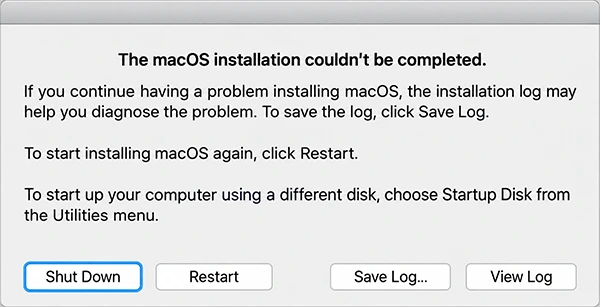
The macOS installation couldn’t be completed message does not identify one specific problem. Common reasons include:
- Insufficient Storage: macOS needs enough free space to download, prepare, and install the update.
- Internet Connection Problems: An unstable connection can interrupt the download or prevent Recovery from getting the information it needs.
- Damaged or Unverifiable Installer: A corrupted macOS installer may fail verification or stop during installation.
- Startup Disk Errors: Problems with the disk’s file system or directory structure can prevent macOS from installing correctly.
- Software Interference: Third-party software or Mac startup items can sometimes interfere with the installation process.
- Compatibility Issues: Not every Mac supports every version of macOS.
If the installation repeatedly fails at roughly the same point, pay attention to the mac OS could not be installed error message, available storage, and the condition of the startup disk. These clues can help you identify the problem without immediately resorting to a factory reset.
How to Fix macOS Installation Couldn’t Be Completed?
If the installation of macOS could not continue, work through these fixes in order. The first few are relatively low-risk and should be tried before you consider erasing the Mac.
1. Check Your Mac’s Available Storage
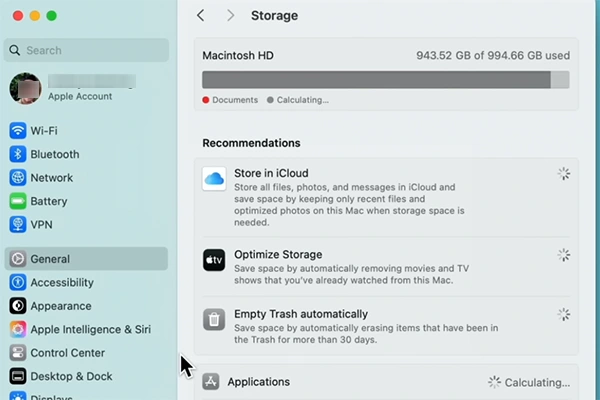
A macOS update needs enough free space to download and install. Check your Mac storage, and if it is running low, remove large personal files, old downloads, or unused applications, then empty the Trash. Avoid deleting system files and focus on items you can safely remove or move elsewhere.
2. Check Your Internet Connection
The macOS installer needs an internet connection to download macOS and obtain firmware information for your Mac.
Use a reliable Wi-Fi connection or Ethernet if available. Avoid public or hotel networks that require browser-based sign-in, as captive portals can interfere with Recovery. If the download fails repeatedly, switch to a more reliable connection.
3. Restart Your Mac and Try Again
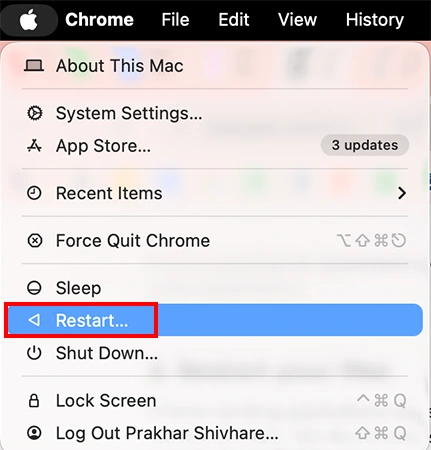
A temporary download or preparation problem may cause the installation to fail. Restart your Mac and try again. If the same error appears, continue with the next troubleshooting step instead of repeatedly restarting.
4. Try Installing in Safe Mode
Safe Mode prevents certain software and startup items from loading, which can identify interference from third-party software.
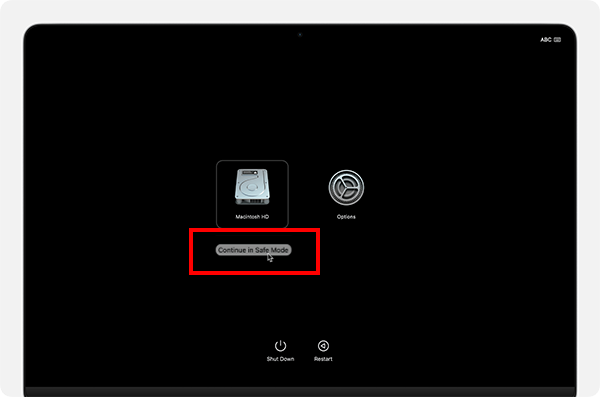
On Mac with Apple Silicon:
- Shut down your Mac.
- Press and hold the power button until Loading startup options appears.
- Now, click on your disk, hold Shift, and click Continue in Safe Mode.
On Intel-based Mac:
- Restart your Mac.
- Immediately press and hold Shift until the login window appears.
Once in Safe Mode, try installing macOS again to see if the problem is resolved.
5. Run First Aid in Disk Utility
Startup disk errors can prevent macOS from installing. Run Disk Utility First Aid from macOS Recovery to check and repair certain formatting and directory problems. To start macOS Recovery:
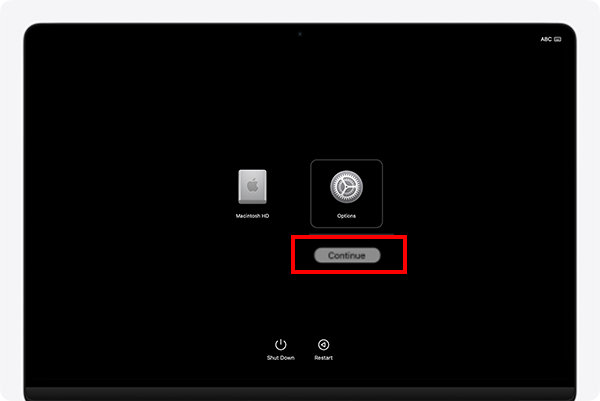
For Apple Silicon:
- Shut down your device.
- Hold the power button until you see “Loading startup options”.
- Click on Options > Continue.
For Intel Mac:
- Restart your device.
- Then, hold Command + R.
Once you are inside Recovery:
- Open Disk Utility.
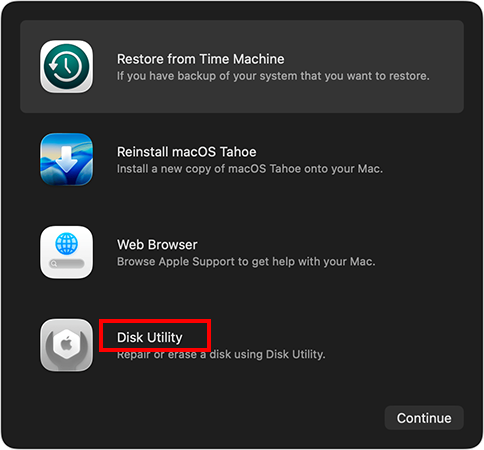
- Select View > Show All Devices, if available.
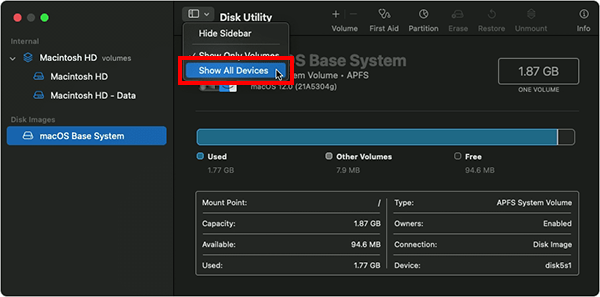
- Select the last volume listed for the startup device.
- Select First Aid > Run.
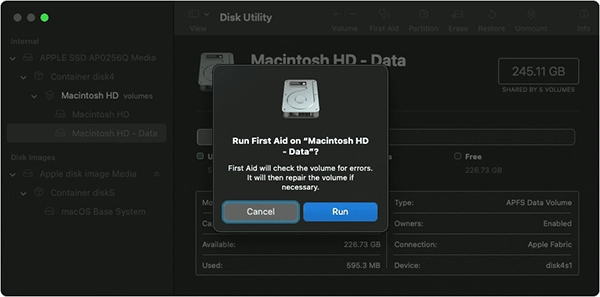
- Continue upward through the volumes, container, and physical device as applicable.
When First Aid finishes, quit Disk Utility and try installing macOS again.
6. Reinstall macOS From Recovery
If Software Update or the regular installer keeps failing, use macOS Recovery instead.
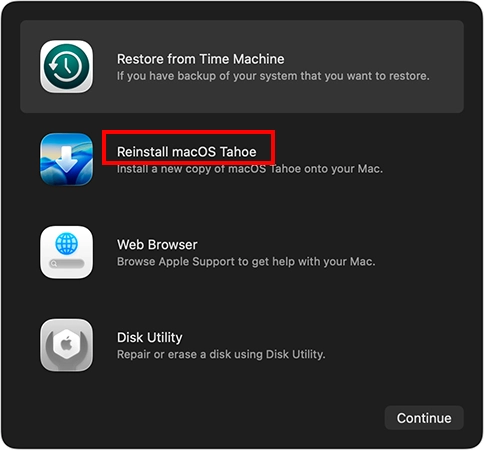
Start macOS Recovery, select Reinstall macOS, and follow the on-screen instructions. A normal reinstall does not usually remove apps or personal data, but back up your Mac beforehand whenever possible.
Keep the Mac connected to power and don’t interrupt the installation. Your Mac may restart several times, and the screen may remain blank temporarily.
7. Delete a Damaged Installer and Download It Again
If macOS says the installer is damaged or could not be verified, delete it and download a fresh copy from Apple.
If necessary, repair the startup disk with Disk Utility before downloading the installer again. This step is most useful when the installer itself is damaged rather than when the Mac has a hardware problem.
8. Check Whether Your Mac Supports the macOS Version
Not every Mac model supports every macOS version. Software Update normally offers compatible updates, but check Apple’s compatibility requirements if you are manually installing an older version. Confirm compatibility before retrying an installer downloaded separately from Software Update.
When Should You Erase and Reinstall macOS?
Erasing your Mac should be a last resort after you have tried basic troubleshooting. Disk Utility’s Erase function deletes everything on the selected device, so create a current backup before proceeding.
If installation continues to fail after checking storage, verifying your internet connection, using macOS Recovery, and running First Aid, erasing the Mac may be necessary. If Disk Utility can’t see or erase the startup disk, contact Apple Support or an authorized service provider.
Conclusion
The “macOS installation couldn’t be completed ” message does not necessarily mean your Mac needs a clean installation. Start with the basics, and if the problem continues, try Safe Mode and run First Aid in macOS Recovery.
When the regular installation keeps failing, reinstalling macOS through Recovery is the next step. And remember, only consider erasing the Mac after you have backed up your data and exhausted all the non-destructive options.
Frequently Asked Questions (FAQs)
Frequently Asked Questions
What does macOS installation couldn’t be completed mean?
What should I do if macOS could not be installed on my Mac?
Check your storage and internet connection, then restart your Mac. If the problem continues, try Safe Mode, run First Aid in Disk Utility, or reinstall macOS from Recovery mode.
Will reinstalling macOS delete my files?
A normal macOS reinstall from Recovery usually keeps your files and apps, but you should still back up your Mac first. An erase and reinstall is different because erasing the startup disk deletes its content.
How do I fix “OS X couldn’t be installed on your computer”?
Start by checking storage and internet connectivity. If required, run First Aid and reinstall macOS from Recovery mode. Also confirm that your Mac supports the macOS version.
What if macOS still won’t install after using Recovery?
Run First Aid again and retry the Recovery installation. If it still fails, back up your data and consider an erase and reinstall. However, if it still does not work, you may have to contact Apple Support.
Related Posts
How to Run Windows on Mac: 4 Methods That Actually Work
Buying a Mac does not mean you have to give up Windows. You might need a Windows-only work application, open…

How to Fix DISM Error 87 in Windows?
DISM Error 87 usually appears when Windows cannot understand a DISM command or one of its parameters. You may see…

How to Restart Explorer.exe in Windows?
A frozen taskbar, missing desktop icons, or an unresponsive File Explorer can make Windows feel stuck even when your computer…
![How to Reopen Closed Tabs on Mac [Easy Ways to Restore Tabs]](https://datarecovee.com/knowledge-base/wp-content/uploads/2026/10/how-to-reopen-closed-tabs-ftd-img.webp)
How to Reopen Closed Tabs on Mac [Easy Ways to Restore Tabs]
Accidentally closing the wrong tab can be super annoying, especially when you were in the middle of something important. You…

What Is a .BAT file and How Do You Create One?
You may have seen a file ending in .bat and wondered why opening it brings up a Command Prompt window…

How to Disable Microsoft Edge in Windows? 4 Quick Methods
Microsoft Edge can feel difficult to “turn off” because several Windows and Edge settings control when it starts and what…

How to Open EXE Files on Mac: 5 Ways to Run Windows Apps
If you have downloaded a Windows .exe file on your Mac, double-clicking it won’t make it run. macOS does not…

How to Sign Out of iMessage on Mac?
Your Mac can quietly become another place where your private conversations appear. That’s convenient until you are using a shared…

What is Windows Fast Startup and How Does It Work?
Fast Startup can make your PC boot noticeably faster after a shutdown. Instead of completely rebuilding the Windows kernel state…