


Ans. It depends on your exact model and year. Go to the Apple menu > About This Mac to identify your Mac and then compare it with Apple’s compatibility list.
macOS Compatibility Guide: What macOS Can My Mac Run?
Trying to update an older Mac can leave you with one simple question: what version of macOS can my Mac run?
Apple does not support every Mac with every new release, and the compatibility cutoff can change with each major version. For example, macOS Tahoe 26 has a much smaller list of supported Intel Macs than recent releases.
The good news is that you don’t have to guess. This macOS compatibility guide shows you how to identify your Mac and find the latest macOS it officially supports.
How to Check macOS Compatibility of Your Mac?
The easiest way to check Mac OS compatibility is to identify your exact model and compare it with Apple’s compatibility information.
Simply knowing that you have a MacBook Air, MacBook Pro, or iMac is not enough because different generations can have different macOS version compatibility.
1. Find Your Mac Model
Go to the Apple menu > About This Mac.
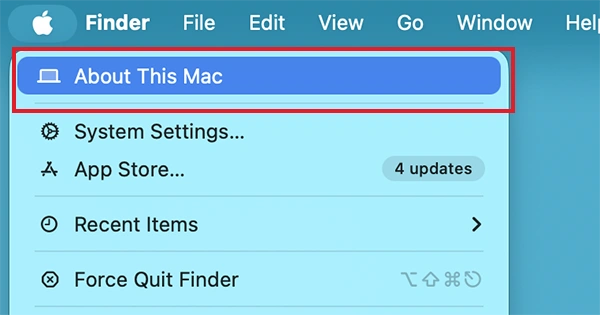
You will see your Mac’s model and current macOS version. Note the model year, screen size, or Apple silicon chip, as these details affect MacBook compatibility.
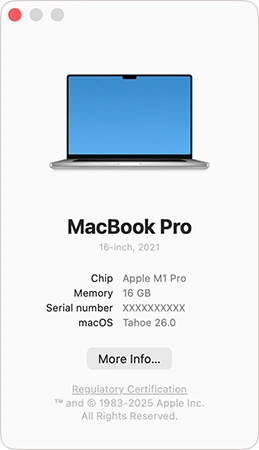
2. Check Your Current Mac Version
In About This Mac, find the installed macOS name and version, such as macOS Sequoia 15.7.9 or macOS Tahoe 26.6.2.Your current version does not confirm whether a newer major release is supported, so compare your model with Apple’s compatibility list or check for software updates.
3. Check Software Update
Go to System Settings > General > Software Update.
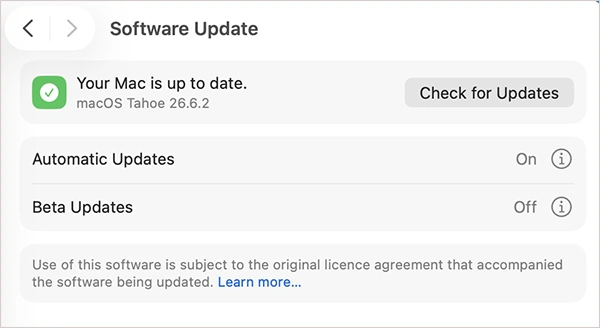
Software Update checks your Mac and shows only compatible updates and upgrades. If a newer version does not appear, your Mac may have reached its official limit, although you might need to install an earlier update first.
As a quick macOS compatibility checker, you can use Software Update. However, Apple’s model-specific compatibility pages are better for comparing Macs or confirming an older model’s maximum supported version.
Check macOS Version Compatibility
macOS Compatibility Chart (2026)
The easiest way to understand Mac compatibility is to look at the oldest Mac generations supported by each recent release. Keep in mind that these are general cutoffs, not blanket rules.
| macOS Version | Oldest Supported Mac Generations |
| macOS Tahoe 26 |
|
| macOS Sequoia 15 |
|
| macOS Sonoma 14 |
|
| macOS Ventura 13 |
|
| macOS Monterey 12 |
|
Use Apple’s official macOS compatible versions pages for the final check because the cutoff can vary between product lines and individual models.
One notable change with macOS Tahoe vs Sequoia is its narrower support for Intel Macs. For example, Tahoe supports the 16-inch MacBook Pro from 2019, but not every Intel MacBook Pro released that year. Most MacBook Air models supported by Tahoe also require Apple silicon.
What is the Latest macOS My Mac Can Run?
What macOS is compatible with my Mac? Well, the latest macOS your Mac can run depends on its exact model. Here are some useful examples:
| Mac model | Latest compatible macOS |
| MacBook Air (Early 2015) | macOS Monterey 12 |
| MacBook Air (2017) | macOS Monterey 12 |
| MacBook Air (2018) | macOS Sonoma 14 |
| MacBook Air (2019) | macOS Sonoma 14 |
| MacBook Air (M1, 2020) | macOS Tahoe 26 |
| MacBook Pro (Early 2015) | macOS Monterey 12 |
| MacBook Pro (2016) | macOS Monterey 12 |
| MacBook Pro (16-inch, 2019) | macOS Tahoe 26 |
| Mac mini (Late 2014) | macOS Monterey 12 |
| Mac mini (2018) | macOS Sequoia 15 |
| Mac mini (M1, 2020) | macOS Tahoe 26 |
| iMac (Late 2015) | macOS Monterey 12 |
| iMac (2017) | macOS Ventura 13 |
| iMac (2019) | macOS Sequoia 15 |
| iMac (2020) | macOS Tahoe 26 |
These examples show why the exact model matters. For instance, a 2015 MacBook Air tops out at macOS Monterey compatibility, while a 2019 MacBook Air supports Sonoma and an M1 MacBook Air supports Tahoe.
If your specific model is not listed above, use Apple’s compatibility list to find its official maximum supported version.
Should You Upgrade to the Latest Compatible macOS?
In most cases, upgrading to the latest officially supported macOS is recommended for better security, stability, and compatibility. But before upgrading:
- Check Your Apps: Confirm that essential work, school, and editing software support the new macOS.
- Back Up Your Mac: Use Time Machine backup or another method before installing a major upgrade.
- Consider Performance: Older Macs may run more slowly after upgrading, especially with limited storage or memory.
A major upgrade, such as moving from Sequoia 15 to Tahoe 26, differs from a smaller update, such as Tahoe 26.6.1 to 26.6.2.
If your Mac does not support Tahoe, check whether your current macOS still receives security updates before considering an unofficial patcher. Apple currently provides security releases for Tahoe, Sequoia, and Sonoma.
Final Thoughts
Finding the right macOS for your Mac is mostly identifying the exact model, not guessing from its age or general specifications.
Identify your Mac, then use Apple’s official information to confirm its maximum supported version. If you simply want to know whether an upgrade is available, Software Update will show the versions your Mac can officially install.
For an older Mac, the latest officially supported version matters more than having the newest version. A 2015 MacBook Air, for example, tops out at Monterey, while an M1 MacBook Air can run Tahoe.
Frequently Asked Questions
Which macOS is compatible with my Mac?
How do I check which macOS I have?
Ans. Click the Apple menu > About This Mac. You will see the name and version of macOS installed on your Mac. You can also click the version number to view the build number.
What macOS can my MacBook Air 2015 run?
Ans. A 2015 MacBook Air can officially run macOS Monterey 12. Both the 11-inch and 13-inch early 2015 models are compatible with Monterey.
What is the latest OS my Mac can run?
Ans. It depends on your exact Mac model. macOS Tahoe 26 is the current major release, but older Macs may top out at an earlier macOS version.
What is the oldest macOS that is still supported?
Ans. Apple currently provides security releases for recent versions such as Tahoe, Sequoia, and Sonoma. Older versions may still be available for download, but that does not necessarily mean they are still receiving current security updates.
Related Posts

What Is a .BAT file and How Do You Create One?
You may have seen a file ending in .bat and wondered why opening it brings up a Command Prompt window…

How to Disable Microsoft Edge in Windows? 4 Quick Methods
Microsoft Edge can feel difficult to “turn off” because several Windows and Edge settings control when it starts and what…

How to Open EXE Files on Mac: 5 Ways to Run Windows Apps
If you have downloaded a Windows .exe file on your Mac, double-clicking it won’t make it run. macOS does not…

How to Sign Out of iMessage on Mac?
Your Mac can quietly become another place where your private conversations appear. That’s convenient until you are using a shared…

What is Windows Fast Startup and How Does It Work?
Fast Startup can make your PC boot noticeably faster after a shutdown. Instead of completely rebuilding the Windows kernel state…

How to Unzip Files on Mac: 3 Easy Ways to Extract ZIP Files
A ZIP file has a funny way of making a simple task feel more complicated than it is. On a…

How to Delete Files Completely in Mac Terminal?
Finder makes deleting files simple, but sometimes you need Terminal to remove a file or folder by its exact path…
How to Add Widget in Mac: A Step-by-Step Guide
Your Mac desktop can give you useful information without turning into another dashboard to manage. A weather update, calendar reminder,…
The macOS Installation Couldn’t Be Completed? Learn How to Fix It
You are halfway through a macOS update when the progress bar stops, and a message says the macOS installation couldn’t…