


Ans. It may be missing a drive letter, or Windows may not be detecting the drive because of a faulty cable, USB port, power supply, drive, or the drive’s hardware.
How to Fix External Hard Drive Not Showing Up in Windows?
You plug in your external hard drive, wait for Windows to recognize it, and then… nothing pops up. The drive does not appear in File Explorer, there is no drive letter, and Windows seems to ignore the connection.
A faulty USB connection, missing drive letter, power problem, driver issues, or file system error can cause this. In this guide, I will show you what to check first and how to troubleshoot the external hard drive not showing up error without unnecessary risk.
Why is My External Hard Drive Not Showing Up?
An external drive not showing up in Windows can happen because of a connection, power, drive, file system, or hardware problem. Check where it disappears:
- HDD not showing up in File Explorer but appears in Disk Management: It may lack a drive letter, be offline, or have a file system problem.
- HDD not showing in Disk Management: Check the USB cable, port, power supply, enclosure, drivers, and drive hardware.
Common causes of a USB hard drive not showing up include:
- Missing Drive Letter: Windows detects the disk but does not assign a letter, so File Explorer can’t display it.
- USB Connection Problem: A damaged cable, faulty port, loose connection, or USB hub prevents detection.
- Insufficient Power: Some drives need more power than a USB port or hub provides.
- Offline or Uninitialized Disk: Disk Management detects the disk but marks it Offline or Not Initialized.
- File System Error: A damaged or unsupported file system makes the volume inaccessible.
- Driver Problem: An outdated or malfunctioning USB or storage driver disrupts communication.
- Hardware Failure: Clicking sounds, repeated disconnections, overheating, or absence from Disk Management may indicate a failing drive, enclosure, cable, or power supply.
If the drive contains important files, don’t format, initialize, or create a new volume just because the external hard drive won’t show up. These actions can make the data inaccessible and complicate recovery.
How to Fix External Drive Not Showing Up on PC?
HDD not showing up? Start with the least destructive checks and move toward Windows troubleshooting only after you have ruled out basic connection problems.
1. Reconnect the External Hard Drive
Disconnect the external drive, then connect it to another USB port on your computer. Avoid USB hubs, adapters, or docking stations while testing.
If the drive uses a detachable USB cable, try another compatible cable. For larger external hard drives with a separate power adapter, make sure the power cable and adapter are securely connected.
If possible, connect the drive to another computer. If it works normally there, the external hard disk not showing up on the computer problem is more likely to be related to your original PC’s USB port, drivers, power delivery, or Windows configuration.
2. Check the Drive in Disk Management
Disk Management can tell you whether Windows detects the physical drive, even if it doesn’t appear in File Explorer.
Press Windows + X and select Disk Management. Alternatively, press Windows + R, type diskmgmt.msc, and press Enter.
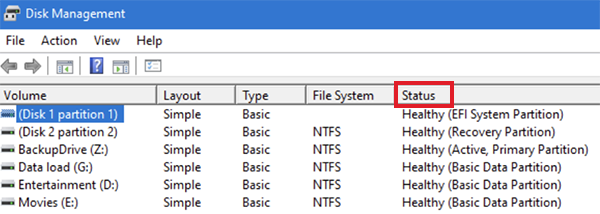
Look for your external drive in the list and check its status.
| Disk Status | What You Should Do |
| Healthy volume but no drive letter | Assign a drive letter |
| Offline | Right-click the disk and select Online |
| Unallocated | Don’t create a new volume if the drive contains important data |
| Not initialized | Don’t initialize it if it contains existing data |
| RAW | Prioritize data recovery if the files are important |
| Drive isn’t listed at all | Check the connection, USB port, drivers, enclosure, power, and hardware |
The status is important because not every Disk Management option is safe to use when the drive contains existing data.
3. Assign a Drive Letter
If Disk Management shows a healthy partition but no drive letter, Windows may simply be unable to expose it in File Explorer. To assign one:
- Right-click the external drive’s volume in Disk Management.
- Select Change Drive Letter and Paths.
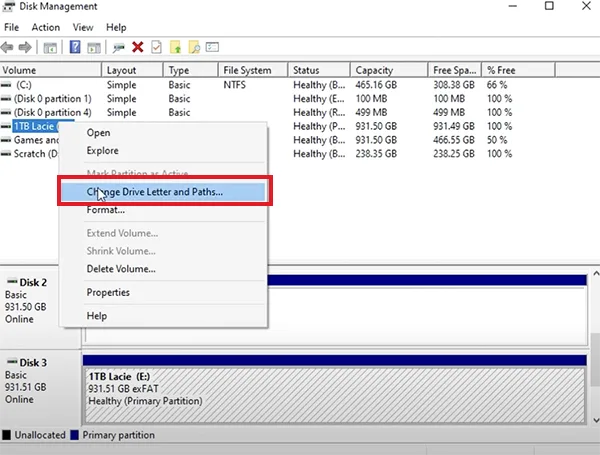
- Select Add.
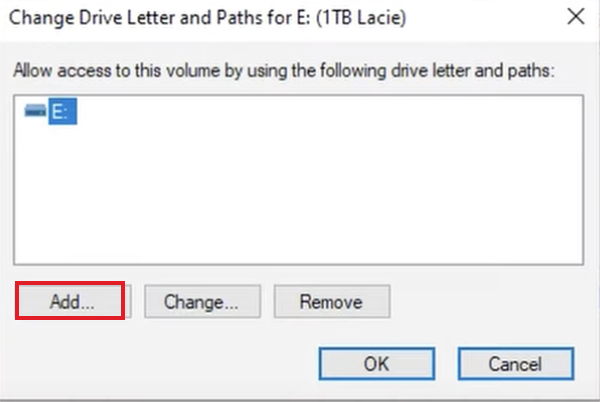
- Choose an available drive letter and select OK.
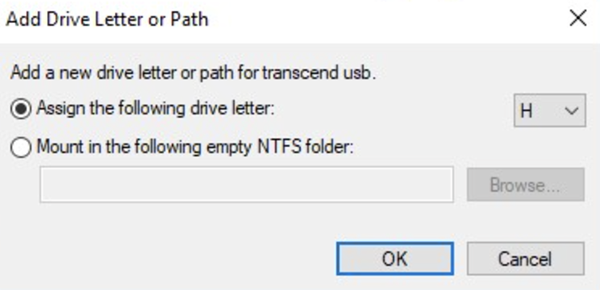
Open File Explorer and check whether the external drive now appears.
4. Bring an Offline Disk Online
If Disk Management shows the physical disk as offline, right-click the disk and select Online.
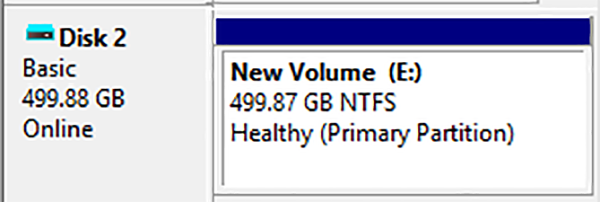
Once Windows brings it online, check whether the volume appears normally in File Explorer.
Don’t use this option blindly if the drive is behaving abnormally. If it’s repeatedly disconnecting, making unusual choices, or contains important files that are not backed up, minimize unnecessary operations and consider data recovery first.
5. Run CHKDSK to Check the File System
If the external drive appears in Disk Management, has a drive letter, but won’t open, use CHKDSK to check for file system errors.
- Type cmd in the search bar.
- Right-click Command Prompt and choose Run as administrator.
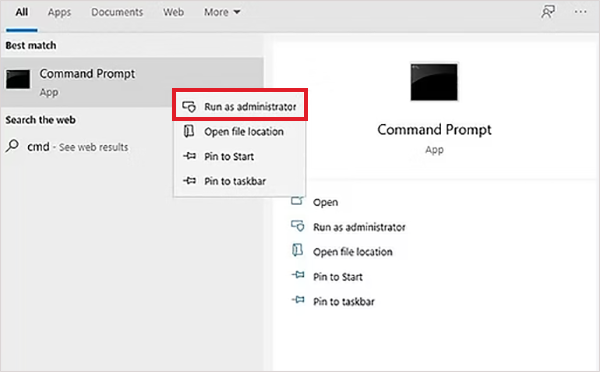
- Type chkdsk g: /f /r /x (replace ‘g’ with your drive’s letter), and press Enter.
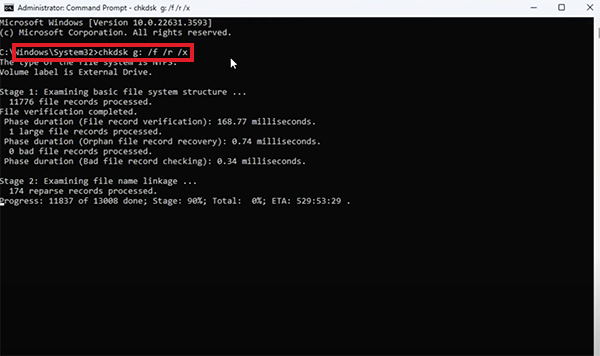
This process can take a long time and may put additional stress on the drive. Don’t run CHKDSK if the drive makes clicking or grinding sounds, repeatedly disconnects, or contains important files that aren’t backed up.
CHKDSK modifies file system structures and may make later data recovery more difficult. If Disk Management shows the drive as RAW, Unallocated, or Not Initialized, don’t run this command first; prioritize data recovery.
6. Check the Drive’s Status in Device Manager
A drive problem can prevent Windows from communicating correctly with an external drive.
- Press Windows + X and open Device Manager.
- Expand categories such as Disk Drives and Universal Serial Bus Controllers to find your problematic drive.
- Right-click it and select Update driver.
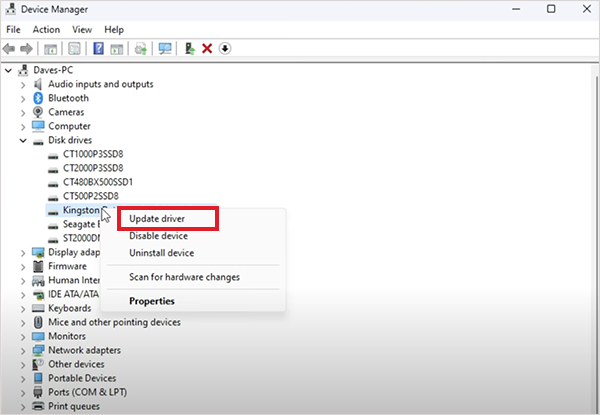
- Next, choose the Search automatically for drivers option.
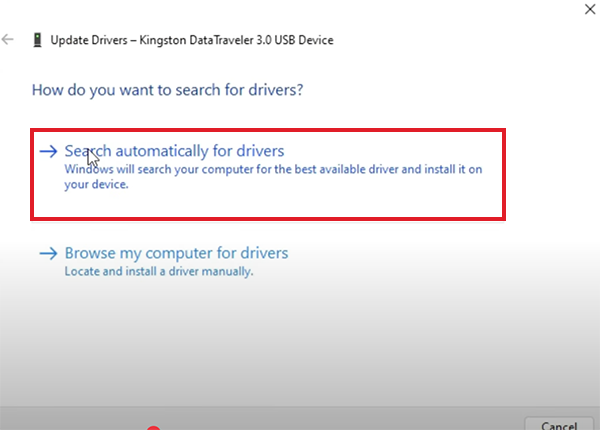
Also, make sure you update drivers in Windows using official methods. Avoid downloading unknown driver packages from any third-party websites.
7. Check Whether the Drive Works on Another PC
Testing the drive on another computer is one of the simplest ways to isolate the portable hard drive not showing up problem.
If the drive works normally on another PC, the drive and its data may be fine. Focus your troubleshooting on the original computer’s USB ports, drivers, power delivery, or Windows configuration.
If the disk is not showing up in Disk Management on multiple computers, the problem is more likely to be with the drive.
Tips to Prevent External Hard Drive Problems
A few simple habits can reduce the chances of connection problems, file system corruption, premature drive failures, and needing drive repair tools.
- Use the Windows Eject option before physically disconnecting the drive. This helps prevent interrupted write operations.
- Avoid using a damaged or unreliable cable. It can cause intermittent disconnections that look like a drive failure.
- Don’t keep the only copy of important files on an external hard drive. For valuable data, follow the 3-2-1 backup approach.
- Wait until copying or writing has finished before disconnecting the drive.
- Avoid drops, vibration, moisture, and excessive heat, especially with mechanical hard drives.
Furthermore, regularly check for slow performance, unusual sounds, or frequent disconnections early.
Wrapping Up
An external hard drive missing from your computer may have a connection, drive letter, driver, enclosure, power, or file system problem. If it appears as RAW, Unallocated, Not Initialized, or is not detected at all, avoid formatting or initializing it. Try to recover important data before attempting repairs.
Frequently Asked Questions
Why is my external hard drive not showing up in File Explorer?
Why is my external hard drive not showing up in Disk Management
Ans. Windows may not be detecting the hardware. Try another cable, USB port, computer, or compatible enclosure. If it remains undetected, the drive or enclosure may be faulty.
How do I fix an external hard drive not showing up in Windows 10
Ans. Check the connection, then open Disk Management. Try another cable, USB port, computer, or compatible enclosure. If it remains undetected, there might be some issue with the drive itself.
Should I initialize an external hard drive?
Ans. Only initialize a new or empty drive. If it contains existing files and appears as Not Initialized, don’t initialize it, as this may make the data inaccessible.
Can a damaged USB cable make an external hard drive disappear?
Ans. Yes, try another compatible cable and USB port before assuming the drive has failed.
Related Posts

How to Fix DISM Error 87 in Windows?
DISM Error 87 usually appears when Windows cannot understand a DISM command or one of its parameters. You may see…

How to Restart Explorer.exe in Windows?
A frozen taskbar, missing desktop icons, or an unresponsive File Explorer can make Windows feel stuck even when your computer…
![How to Reopen Closed Tabs on Mac [Easy Ways to Restore Tabs]](https://datarecovee.com/knowledge-base/wp-content/uploads/2026/10/how-to-reopen-closed-tabs-ftd-img.webp)
How to Reopen Closed Tabs on Mac [Easy Ways to Restore Tabs]
Accidentally closing the wrong tab can be super annoying, especially when you were in the middle of something important. You…

What Is a .BAT file and How Do You Create One?
You may have seen a file ending in .bat and wondered why opening it brings up a Command Prompt window…

How to Disable Microsoft Edge in Windows? 4 Quick Methods
Microsoft Edge can feel difficult to “turn off” because several Windows and Edge settings control when it starts and what…

How to Open EXE Files on Mac: 5 Ways to Run Windows Apps
If you have downloaded a Windows .exe file on your Mac, double-clicking it won’t make it run. macOS does not…

How to Sign Out of iMessage on Mac?
Your Mac can quietly become another place where your private conversations appear. That’s convenient until you are using a shared…

What is Windows Fast Startup and How Does It Work?
Fast Startup can make your PC boot noticeably faster after a shutdown. Instead of completely rebuilding the Windows kernel state…

How to Unzip Files on Mac: 3 Easy Ways to Extract ZIP Files
A ZIP file has a funny way of making a simple task feel more complicated than it is. On a…