


Ans. Yes, it is possible. You can install Linux using automated terminal scripts for modern Apple Silicon chips or a bootable USB installer for older Intel Macs.
How to Install MacBook Linux? Easy Step Guide
Apple hardware is legendary, but macOS isn’t the only way to experience it. I decided to install Linux on Mac to escape the limitations of the Apple ecosystem. And to my surprise, MacBook Linux installation lowered the RAM and CPU usage and gave me complete ownership over my system configuration (which MacBook doesn’t allow).
In fact, Linux takes 2.63% of the Desktop Operating System Market Share in the United States of America – April 2026. So if you are here just to try Linux, or looking to install Linux on Mac Pro or any Mac in the future, save this blog because here I will show you how to install Linux on Intel Macs and Apple Silicon Macs.
Quick Takeaway:
- Installation steps depend entirely on whether your Mac uses an Intel processor or an Apple Silicon M-series chip.
- Modern M1 to M4 Macs use an automated terminal script by the Asahi Linux Project.
- Older MacBooks need a traditional bootable USB drive flashed using software like BalenaEtcher.
How to Install Apple Silicon MacBook Linux?
If you are wondering, can you run Linux on a MacBook with a modern M-series chip? Let me tell you, yes, it is possible. Settling on a MacBook Linux environment used to be complex, but Asahi Linux has made native Linux for Mac easily accessible. This method involves writing scripts in the Terminal on Mac instead of using traditional USB tools.
“And so really a lot of the philosophy behind the [Framework Laptop 13] Pro was ‘let’s build the MacBook Pro for Linux users. Let’s take the software that they want, the distro that they prefer, and then make sure that the hardware experience lives up to what they would expect coming from a MacBook Pro.’”
- Nirav Patel (Framework’s CEO)
Framework’s CEO recognizes this massive shift in favor of Linux.
Fedora Asahi Remix makes the entire Linux installation on Mac safe right from the first step.
Let’s see how I installed Linux on my Mac.
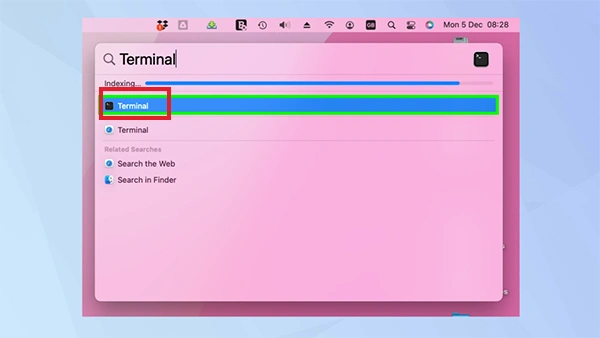
Step 1: To start off my Linux Mac setup, I open the macOS Terminal app by using the Spotlight Search.
Step 2: Copy-paste the official download command from Asahi Linux to get the automated installer scripts:
curl https://alx.sh | sh
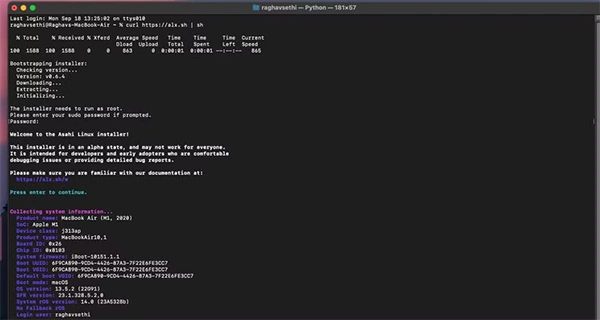
Step 3: Once you press Return, the Terminal will ask you for the Administrator password. Enter the admin password and press Return to start the download.
Step 4: When installing Linux on Mac hardware, the installer will ask how much space you want to allocate for your new Linux distribution. I recommend giving 20 GB – 40 GB of your drive. Type your preferred size and press “Y”.
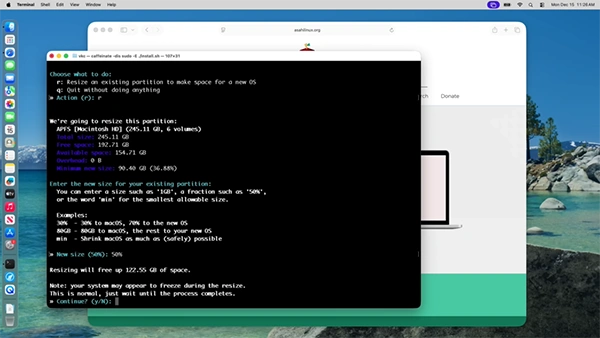
Step 5: Next, the Terminal prompts options to choose what to do:
f: Install an OS into free space
r: resize an existing partition to make space for a new OS
q: Quit without doing anything
Type “f” to install Linux on the free space that was just created.
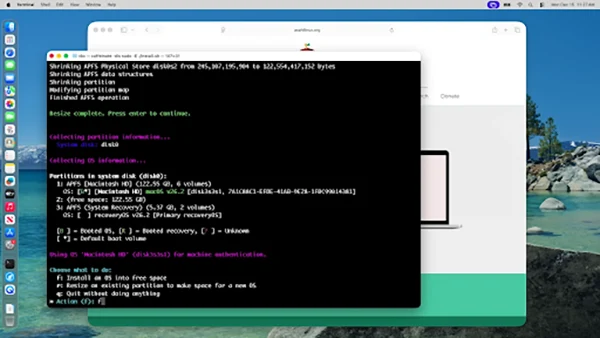
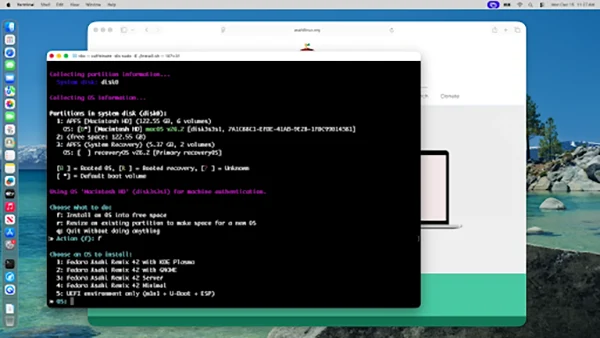
Step 6: Choose an OS to install for all the Fedora Asahi Remix. (My personal recommendation would be choosing KDE Plasma or the GNOME environment)
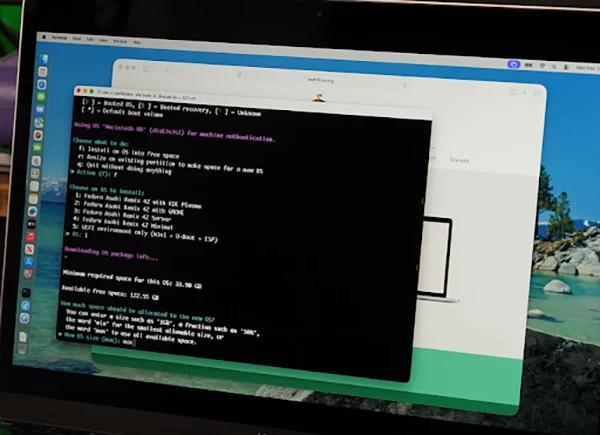
Step 7: You will see the space required and the available free space. Type “max” when asked to let the new OS use how much of the space you created.
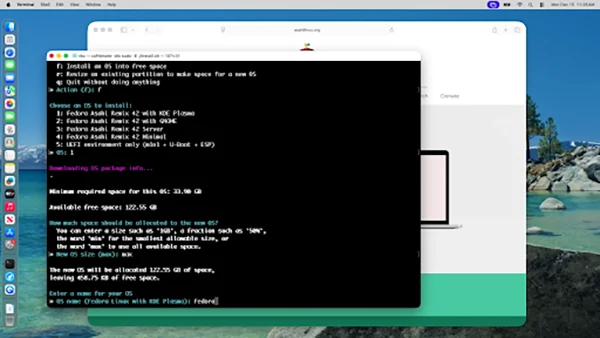
Step 8: Enter a name for your partition, and then it installs a submacOS into that partition. This will take 25-30 seconds.
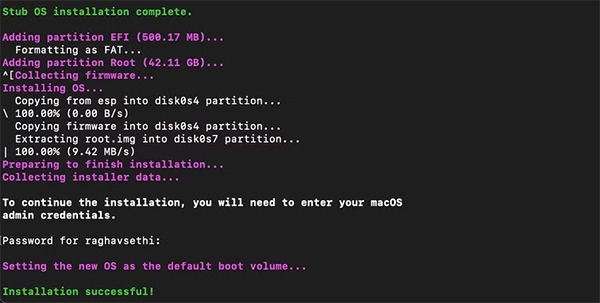
Step 9: Enter the admin credentials once more to set the new OS.
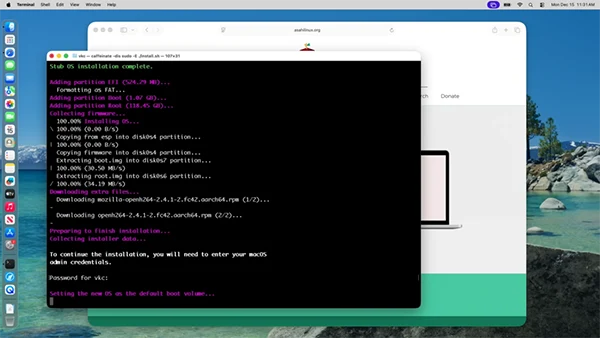
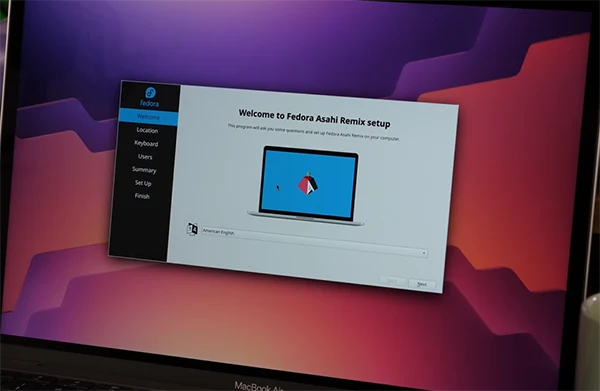
Step 10: The final step is to boot the system. Press and hold the power button until you see “Loading startup options…” on your screen. Select your new Linux volume and enter the password. You will boot into a Linux environment. And finally, your MacBook Linux is created. You will be welcomed with the Fedora Asahi Remix setup.
How to Install Linux on Intel Macs?
If you’re working with an older Intel-based Mac, setting up a MacBook with Ubuntu is the best option. Unlike Apple Silicon, running Ubuntu on a MacBook Pro or setting up Linux on iMac desktops requires a traditional USB installation process. Having personally tested these setups on both Intel and Apple Silicon machines, here’s how to install Linux on a Mac:
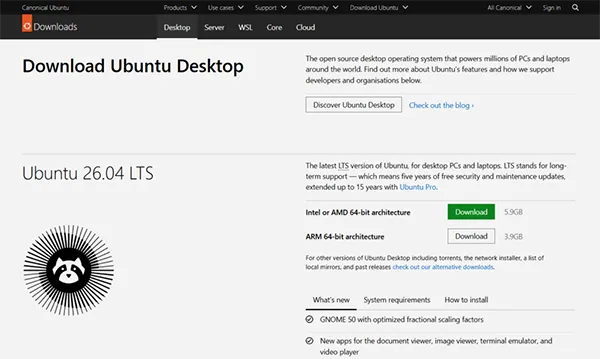
Step 1: To begin the installation of Linux on Mac with an Intel processor, I downloaded the official Ubuntu Desktop ISO image file onto my desktop.
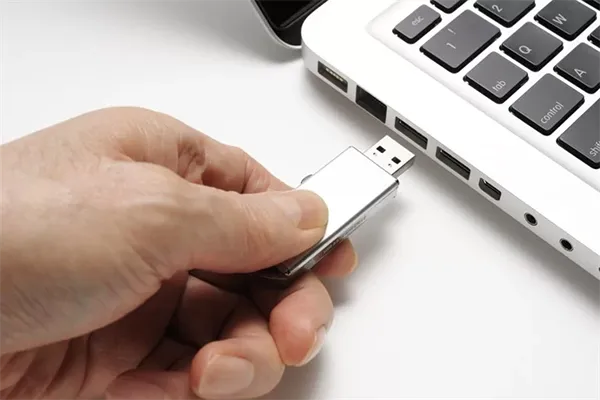
Step 2: Next, I plug in a blank 8GB or larger flash drive that I don’t mind erasing.
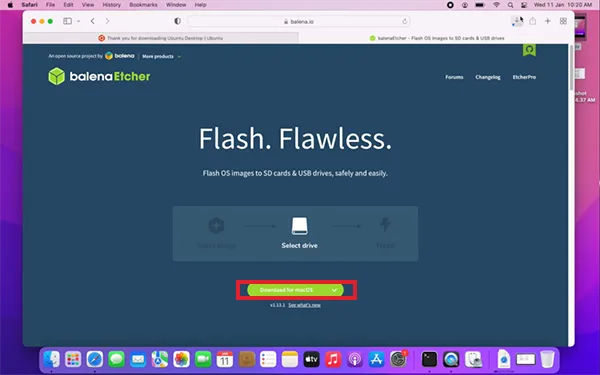
Step 3: Open a free open-source tool called BalenaEtcher and download it to create a bootable USB installer with Ubuntu ISO.
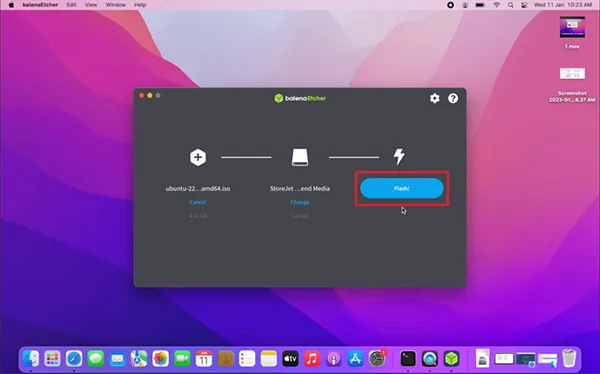
Step 4: Launch BalenaEtcher, click Flash from file, and select the downloaded Ubuntu ISO. Select the target, i.e, the USB attached, and click the Flash button. This handles the complex task of making the drive bootable.
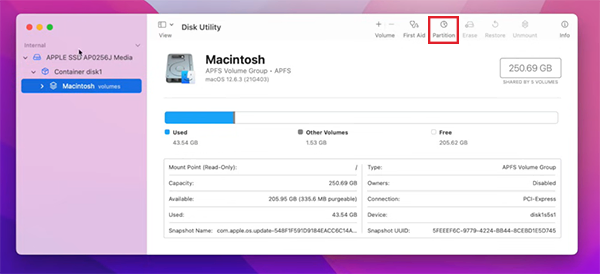
Step 5: Before flashing, I need to clear out the dedicated storage space alongside macOS for MacBook Linux. For this, I select the main internal hard drive from the left side bar in Disk Utility and click the Partition button at the top.
Step 6: Click the plus (+) icon to add a new volume. I formatted this new partition as MS-DOS (FAT) and allocated at least 40 GB of space.
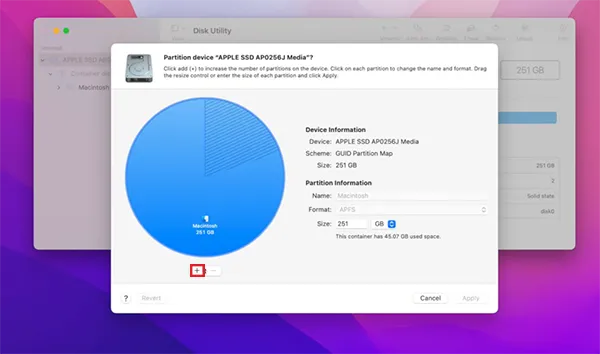
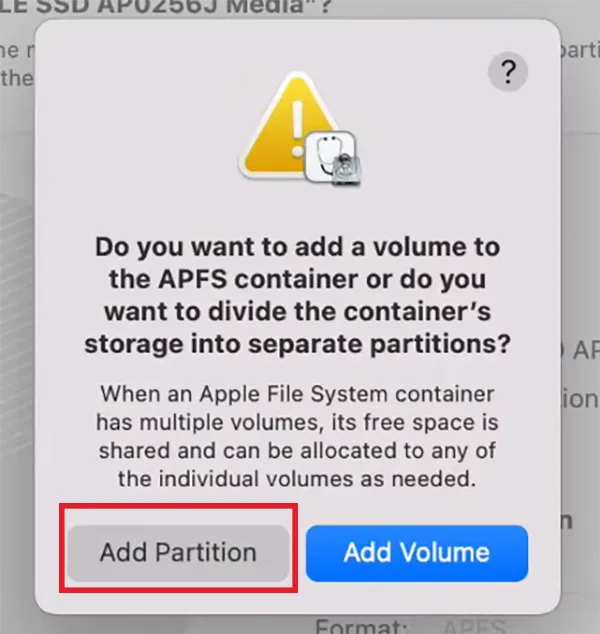
Step 7: Choose Add Partition to make space for Linux installation on Mac.
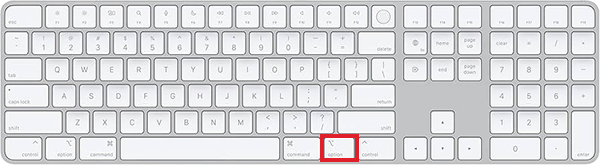
Step 8: Now boot my Intel Mac. I restart the Mac, and while it’s restarting, I hold the Option key until entering the boot menu.
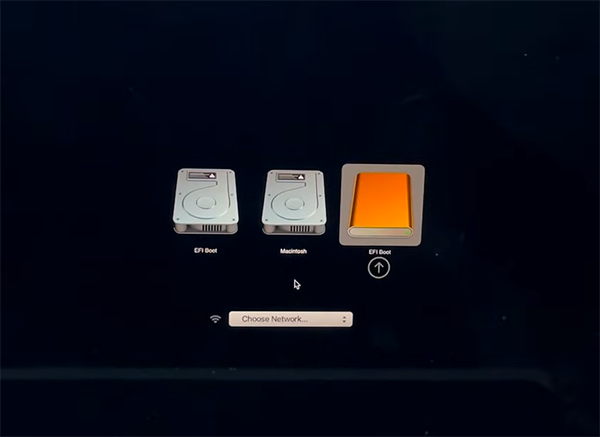
Step 9: A screen with Macintosh HD alongside a yellow/orange icon labeled “EFI Boot” appears. Use the arrow keys to select the EFI Boot and hit Return to load the live Linux environment.
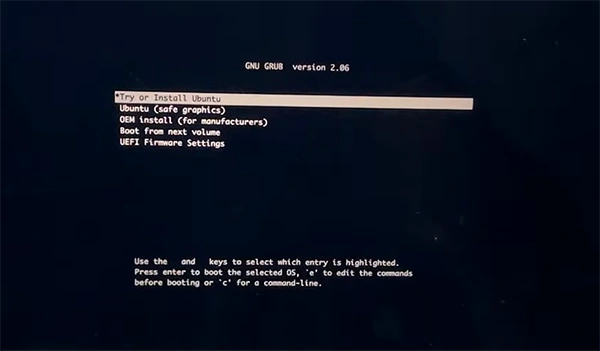
Step 10: When the desktop boots up, a welcome menu will ask if you want to try or install Ubuntu. Select it, and press Return. Your MacBook Linux is successfully installed. Follow the wizard to set up your Linux.
Essential Pre-Installation Steps and Backups
Before I touch a single partition to type a terminal command, I always prepare my environment. Modifying the core operating system comes with the risk of data loss, so skipping these precautions isn’t even a choice.
- Start by running a complete system backup using a Time Machine. It backs up your data, so in case you fail to install Linux, you can restore your important files from this backup.
- Make sure the MacBook is plugged into a reliable power adapter for an undisturbed MacBook Linux installation. A sudden power loss mid-process can permanently corrupt the file system.
Is the Mac Architecture Linux Compatible?
If you face errors, your Mac architecture likely does not match your chosen setup method. Apple hardware falls into 2 completely different eras. And each has its own set of compatible installations. Otherwise, you may face issues like Mac computer freezing during setup.
1. Apple Silicon Macs
Because modern M-series chips use custom Apple architecture, traditional Linux USB installers won’t boot in them.
- Run the Asahi Linux Project terminal script to install Fedora Asahi Remix directly on your hardware.
- Use virtual tools like UTM, Parallels (non-free), or VMware to run lightweight versions of Ubuntu or Debian on a Mac.
2. Intel- Based Macs
Older Macs use standard computer firmware. It gives you complete freedom to run almost any operating system.
- The one I used, BalenEtcher, to flash standard desktop distros like Ubuntu, Linux Mint, etc, onto a USB drive and install them directly. If you are stuck between Linux Mint vs Ubuntu, both run smoothly on older Intel hardware.
- Install a tool called rEFInd to replace Apple’s plain startup picker with a clean dual-boot selection menu.
- Use completely free tools like Oracle VirtualBox to test Linux setups right inside your current desktop workspace.
Core System Requirements
No matter your chosen path, make sure you have these bare minimums to prevent installation crashes:
- Storage Space: A minimum of 30GB of free drive space is required to safely hold a dual-boot operating system architecture. If you don’t have enough available storage, checking how to free up disk space on Mac beforehand can help you create room for Linux installation.
- Security Clearance: If your Intel Mac has an Apple T2 Security Chip, you must boot into macOS Recovery Mode. Also, change the Startup Security Utility settings to allow booting from external media and turn off Secure Boot.
Wrapping Up Your MacBook Linux
Switching my Mac over to Linux was one of the most rewarding tech projects. Once you turn your Macbook Linux, you will have a machine built for your own customization, no more Mac limitations. Don’t worry if you hit a few hurdles during your installation process. Datarecovee is ready to assist you in overcoming them!
Frequently Asked Questions
Is it possible to install Linux on a Mac?
Is Asahi Linux legal?
Ans. Yes, Asahi is completely legal. It does not use any proprietary Apple code and is built using legal reverse -engineering methods.
Which Linux distribution is best for MacBooks?
Ans. Fedora Asahi Remix is best for modern Apple Silicon MacBook Linux. For older Intel Macs, Ubuntu and Linux Mint are good choices.
Can I completely remove Linux and go back to macOS?
Ans. Yes. You can delete Linux partitions using macOS Disk Utility and expand your original storage back to its full size.
Will installing Linux on my Mac make it run fast?
Ans. Yes. Linux is lightweight and uses less RAM and CPU power than macOS. Thus, using Linux instantly speeds up older hardware.
Which OS is better than Linux?
Ans. It depends on your technical needs. macOS is better for ecosystem integration, Windows for gaming, and Linux for customization and programming.
Is running Linux on Mac legal?
Ans. Yes, running Linux on Mac is completely legal. You own the physical hardware and have the right to modify its operating system.
Related Posts
How to Fix Black Shadow on Laptop Screens?
A black shadow on laptop screens can look like a Windows glitch, but the shape and location of the dark…

Fixing Broken IP Allowlists With a Dedicated Static Address
IP allowlisting is one of the easiest security controls available. Tell a service to accept connections only from addresses you…
What is DumpStack.log and Can You Delete It in Windows?
If you have noticed a file named DumpStack.log in the root of your Windows drive, you may wonder why it…

How eSIM Fits Into Your Global Travel Itineraries
Multi-country trips can be exciting, but sometimes mobile device data makes it concerning. Whenever you cross a border, there will…

How to Pick the Right Data Structure Before You Build Your Database
Every application that stores information depends on a structure chosen long before the first row of data arrives. That structure…

Standardizing React Component Iconography Across Distributed Product Teams
Creating a common React component library is essentially a losing battle. During a cross-team review, I shared my screen. I…
Antimalware Service Executable: What It Is and How to Fix High CPU Usage
You open Task Manager and notice Antimalware Service Executable using a surprising amount of CPU or memory. It may keep…

Keeping Your Website Healthy: A Practical Guide to Long Term Success
Introduction The website may appear to be finished once it is launched; however, making sure that the site remains reliable…
How to Fix the ene.sys Driver Cannot Load Error?
A Windows update can suddenly turn a harmless RGB utility into a startup warning: “A driver cannot load on this…