
Mostly due to accidental deletions and application or system crashes.
Top Free Methods to Recover Deleted Word Documents for Students
 Kartik Wadhwa
Updated on: Mar 16, 2026

Tomorrow is project submission, and here you’re scouring every drive and folder for the document. All of us have encountered a similar situation, and it’s peak stressful.
You can lose that research document in many ways. Deleting by accident, application crash, or even system shutdown. Accidental data loss might seem uncommon, but almost every other person (46%) experiences it at least once (Source).
However, the good news is that you can get that project file back. There are various free tools that can recover your lost file.
In this guide, I’ll list those exact recovery methods. Those range from built-in Microsoft options, system recovery features, and various free tools that safely undelete your important Word document.
KEY TAKEAWAYS
- Losing a Doc file can waste all the efforts that you put into writing the academic project.
- First, try the built-in MS Word options to recover your file.
- System failures can also corrupt your file, but there are system options that can back it up as well.
- If everything fails, install dedicated file recovery software that are free and safe.
Check Built-In Microsoft Word Recovery Options First
The first method to recover that lost Doc file should always be the built-in options available for the purpose. Microsoft Word automatically saves temporary copies, previous versions, and backups that can help you recover an unsaved document quickly. These methods are safe, free, and usually the fastest way to restore your work.
If the file cannot be restored and the deadline is approaching, some students turn to platforms like EssayShark, an essay writing service that can help complete the assignment while the original document issue is being solved.
Recover Unsaved Word Documents
If MS Word closes unexpectedly, the program may still store a temporary copy of your file. Many students do not realize that Word keeps unsaved versions for a limited time.
To recover an unsaved document, you can:
- Open MS Word
- Go to File → Info → Manage Document
- Click Recover Unsaved Documents
- Select the file and save it again
This is one of the easiest methods to restore deleted Word documents without software, because it uses the built-in AutoRecover system.
Use AutoRecover Files
AutoRecover automatically saves your document every few minutes. If the program crashes, you can restore the last saved version.
AutoRecover files are usually stored in system folders, and MS Word shows them when you reopen the program after a crash. Students should check the recovery panel before starting a new document, because the previous version may still be available.
Restore Previous Versions in Windows or Mac
Operating systems sometimes save older versions of files. If you overwrite or delete a document, you may still be able to restore it.
Steps usually include:
- Right-click the file folder
- Open Properties or Get Info
- Check Version History or Previous Versions
This option works best when backup features are enabled.
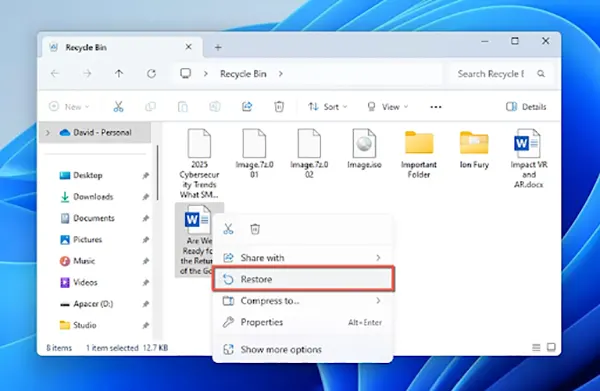
Check the Recycle Bin or Trash
The simplest solution is often the correct one. When a file is deleted, it usually goes to the Recycle Bin (Windows) or Trash (Mac).
Students should:
- Open the bin
- Search for the file name
- Restore it to the original location
Many people skip this step, even though it is the obvious free and fastest way to recover a deleted Word document without using any extra tool.
Free System Methods to Recover Deleted Word Files
MS Word didn’t keep a copy of your doc? Maybe the storage system does. Windows, macOS, and cloud storage services often create backups automatically. These are reliable methods to restore deleted Word documents without software, and they work even if the file was permanently removed from the desktop.
Use Windows Backup or File History
Windows File History saves copies of files when backup is enabled. If the document existed before, there is a chance that an older version is stored.
You can recover files by:
- Opening the folder where the document was saved
- Right-clicking inside the folder
- Choosing Restore previous versions
This method is especially useful for long academic projects.
Search for Temporary Files (.tmp, .asd, .wbk)
Microsoft Word creates temporary files while you work. These files may remain on the computer even after deletion.
Common file types include:
- .tmp — temporary system files
- .asd — AutoRecover files
- .wbk — backup copies
Searching for these formats in the system search bar can help you recover unsaved Docs when the original file is missing.
Use OneDrive or Google Drive Version History
Many students save assignments in cloud storage. Services like OneDrive and Google Drive keep version history automatically, which makes recovery easier.
You can:
- Open the file in the cloud
- Check version history
- Restore an older copy
This works even if the file was overwritten.
Before the table below, it is important to understand that different storage locations offer different recovery chances. The table shows where you should look first when trying to restore a document.
| Location | Recovery Chance | Why It Works | Recommended For |
| Recycle Bin / Trash | High | File not permanently deleted | Recent deletion |
| AutoRecover folder | High | Word saves temporary copies | Crash or unsaved file |
| File History / Backup | Medium | The system keeps previous versions | Long projects |
| OneDrive / Cloud | High | Version history enabled | Shared or online files |
| Temporary files search | Medium | Hidden copies remain | Missing documents |
Checking these locations in order increases the chance of success.
Check Email Attachments or Shared Copies
Students often send documents to teachers or classmates. If you cannot find the file, check your email or shared folders.
This method helps when:
- You sent the document earlier
- The file was shared in a group
- You uploaded it to a platform
Sometimes, the easiest way to recover a deleted document is simply finding a copy you forgot about.
Best Free Recovery Tools Students Can Use (No Payment Required)
If the Word application and system both fail you, it’s time to get the help of external applications. These free file recovery tools scan the disk and try to restore deleted files. They should be used carefully, but they are useful when other methods to restore deleted Doc files without software fail.
Free File Recovery Programs for Windows and Mac
Many programs allow basic recovery without payment. Free versions usually have limits, but they are enough for small documents.
Popular free tools include:
- Recuva
- Disk Drill (free limit)
- PhotoRec
- EaseUS free version
Use recovery software only after checking Word and system backups, because installing new programs may overwrite deleted files.
Online Recovery Tools for Corrupted Files
Sometimes the file exists, but cannot be opened. In this case, the document may be corrupted.
Online repair services can:
- Fix damaged Word files
- Extract text from broken documents
- Restore readable content
Students should upload files only to trusted websites, because academic work may contain personal information.
Tips to Avoid Losing Word Documents Again
The best recovery method is prevention. Students who save correctly rarely lose important work.
Follow these tips:
- Turn on AutoSave
- Save files in OneDrive or Google Drive
- Keep multiple copies
- Save after every major change
- Use clear file names
These habits reduce stress and help avoid searching for how to recover a deleted Word document again.
When Recovery Is Impossible
Sometimes recovery does not work. This usually happens when:
- The disk was overwritten
- The file was deleted long ago
- No backups were enabled
Students should act quickly and try recovery methods immediately if they want to recover the unsaved Doc file.
Conclusion
Many students lose hope after they’re unable to find their academic document on their PC and start over the work from scratch. That is an option, but it’s unlikely that you would be able to complete the assignment in time.
With the right approach, students can often recover deleted Word documents using free methods using built-in tools, backups, or safe recovery programs. Always check Word recovery options first, then system backups, and only after that use external tools. Learning these methods saves time, reduces stress, and helps you stay prepared for deadlines in the future.
Frequently Asked Questions
How do people commonly lose their important Word files?
Top free methods to recover deleted Word documents?
First, check the recycle bin and cloud backup files. Otherwise, try file recovery tools.
How to recover unsaved Word document?
Try the built-in MS Word feature, “Recover Unsaved Documents”.
Related Posts

8 Best AI Presentation Makers for Business-Ready Slides
Making a presentation doesn’t just mean designing slides. It’s about defining a clear structure, using defined logic, useful visuals, and…

Queue Management Software Troubleshooting Guide: 8 Common Faults and Fixes
The long wait times and ineffective management of customer queues can have a significant impact on customer satisfaction and business…

How to Use Similarweb Website Traffic Data for Competitor Research
Competitor research without traffic data is guesswork. You can guess who your rivals are, guess how big they are, guess…

Choosing the Right Hosting Model for Scalable Digital Platforms
The performance of digital business is directly related to website speed, uptime, and scalability. Slow page performance has a negative…

How Data-Driven Performance Tools Are Transforming Employee Recognition in Tech Companies
“People work for money but go the extra mile for recognition, praise, and rewards.” — Dale Carnegie (Writer & Teacher)…

Why Businesses Struggle to Collect Reliable Data from the Web
Almost every company that depends on data runs into the same problem: although they can find the data they need,…

Why Financial Data Recovery Matters for Businesses
Financial data supports every part of a business, directly affecting cash flow, payroll, tax reports, audits, customer billing, and daily…

CMMC Compliance Is Coming for Manufacturers. Here Is What You Need to Do
“Cybersecurity is much more than a matter of IT.” — Stephane Nappo (Cybersecurity Professional) For manufacturers working within the defense…

How Data-Based Tools Influence Learning Performance
Learning has transformed in the modern age with the integration of new technologies to help students and professionals prosper in…