
Yes, you can fix it using Startup Repair, BCDBoot, DiskPart, or Bootrec commands from the Windows recovery Environment.
How to Fix Bootrec /Fixboot Access is Denied on Windows?
 Mahima Dave
Updated on: Apr 29, 2026
Getting the “bootrec /fixboot access is denied” error? It can feel stressful, especially when your PC is stuck in a boot loop or refuses to start.
This problem usually happens because of damaged boot files, corrupted BCD data, missing EFI partition settings, or issues in the Windows recovery environment.
The good part is that you do not need to reinstall or factory reset your PC in most cases. Today, I will explain why the bootrec /fixboot error appears and walk you through the most effective ways to fix it and get your Windows running normally again.
TL;DR
- The fixboot access denied error usually happens because Windows cannot access the EFI partition.
- On newer UEFI and GPT systems, BCDBoot is often more useful than bootrec /fixboot.
- Start with Startup Repair before trying manual commands.
- Assigning a drive letter to the EFI partition and rebuilding boot files can solve the issue in most cases.
- Avoid formatting the drive unless nothing else works, and your data is backed up.
What Does “Bootrec /Fixboot Access is Denied” Mean?
The “bootrec fixboot access is denied” error appears when Windows cannot repair the boot files through Command Prompt in the Windows Recovery Environment.
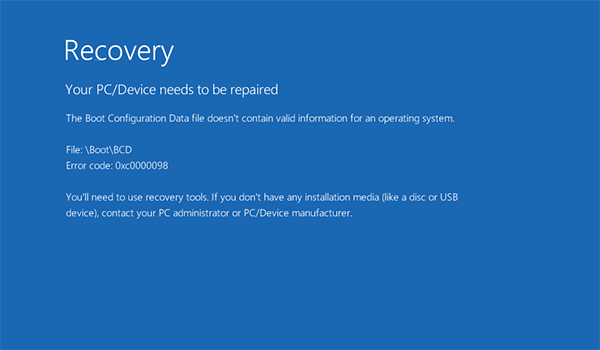
In simple terms, Windows is unable to access the partition that stores the files needed to start your PC. On older systems that use BIOS and MBR, this issue is linked to the boot sector. But on modern PCs that use UEFI and GPT, the problem is usually related to the EFI System Partition.
The bootrec /fixboot command was designed mainly for older systems. On modern UEFI and GPT setups, rebuilding the boot files with BCDBoot is often the better and more reliable solution.
How to Fix the Bootrec /Fixboot Access Denied Error?
Before trying any fix, avoid making rushed changes. In most cases, your files are still safe, and the problem can be fixed. Keep these points in mind:
- Do not format the system drive.
- Do not use random Windows CMD commands.
- Do not use “clean disk” unless your data is backed up.
- Always try the safest repair options first.
Here’s how you can fix the bootrec fixboot access denied issue:
1. Try Startup Repair
Before you try the “Fix MBR Windows 11 command prompt”, start with Startup Repair. Go to:
Boot into the Windows Recovery Environment (WinRE) > Troubleshoot > Advanced options > Startup Repair
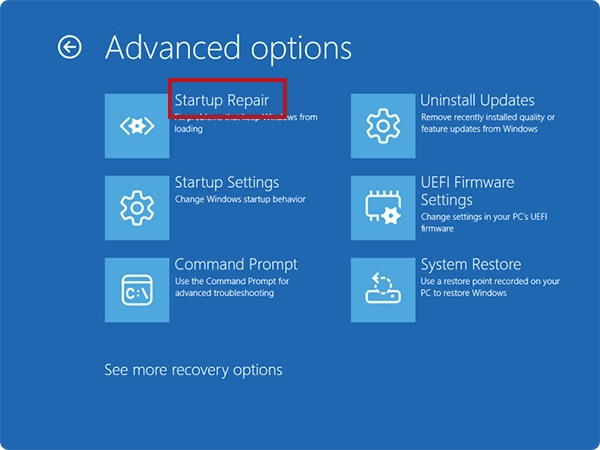
This tool can automatically fix damaged or missing startup files. It is often the safest option, especially if the problem started after a Windows update, crash, or sudden shutdown.
2. Assigning a Drive Letter to the EFI Partition
A missing drive letter is one of the most common reasons behind the bootrec not recognized error. Here’s how you can fix that:
- Open Command Prompt as an administrator and run:
diskpart
list disk
select disk 0
list volume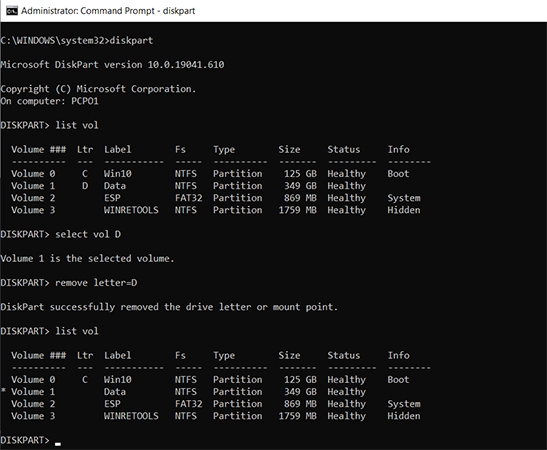
- Then run:
select volume X
assign letter c
exit(Replace X with the correct volume number)

This assigns a visible drive letter to the EFI partition, so Windows repair tools can access it properly. This is a crucial step for partition recovery.
3. Rebuild Boot Files Using BCDBoot
After assigning a drive letter to the EFI partition, it is time to rebuild the boot files using the BCDBoot command-line tool.
To tackle the Access Denied in command prompt, just run:
| bootrec /scanos bootrec /rebuildbcdbcd boot C:\Windows /s X: /f UEFI |
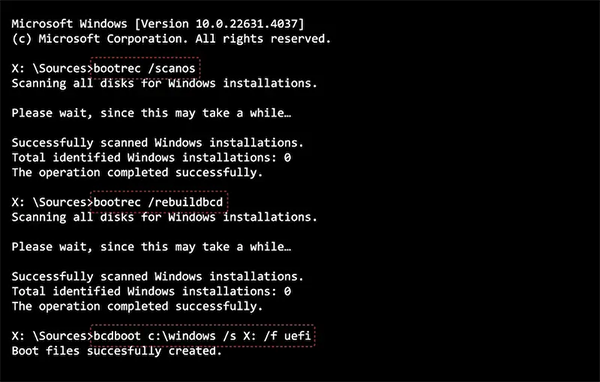
If Windows is installed on another drive letter in recovery mode, replace C:\Windows with the correct path.
This command creates fresh boot files and rebuilds the Boot Configuration Data. On modern UEFI and GPT systems, this method is usually more effective than repeatedly using bootrec /fixboot.
4. Run Bootrec Commands in the Correct Order
If you are using an older BIOS or MBR-based system, try the Bootrec commands in this order:
- bootrec /fixmbr
- bootrec /scanos
- bootrec /rebuildbcd
- bootrec /fixboot
The bootrec fixmbr and other commands repair the master boot record, scan for Windows installations, rebuild the BCD store, and repair the boot sector.
However, if your PC uses UEFI, the final command may still show “access is denied” even when the other commands work.
5. Use CHKDSK if the Drive Has Errors
In some cases, file system corruption or bad sectors on the drive can cause boot problems.
Open the command prompt and run “chkdsk C: /f /r”. Here, replace C: with the correct Windows drive letter if required.
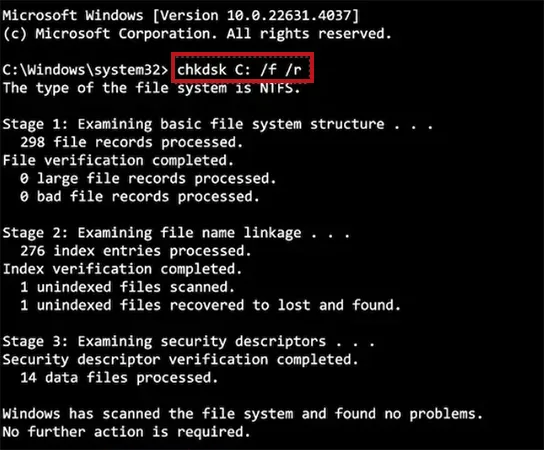
CHKDSK checks the drive for errors, repairs damaged file system data, and tries to recover bad sectors. It is also a great tool to repair USB drives.
6. Disconnect Other Drives Before Repairing
If your PC has multiple SSDs or hard drives connected, Windows recovery tools can sometimes select the wrong partition. Temporarily disconnecting extra drives can make the repair process more accurate.
It also reduces the chances of Windows rebuilding the boot files on the wrong disk. This simple step often solves stubborn “access is denied” errors when other methods do not work.
Why Does the Bootrec /Fixboot Access Denied Issue Happen?
There is no single reason behind this error. In most cases, Windows cannot properly access the EFI System Partition, which stores the files needed to start your PC. Some of the most common causes include:
- Missing or damaged EFI boot files.
- Corrupted Boot Configuration Data.
- No drive letter assigned to the EFI partition.
- Repairing the wrong partition.
- Using MBR commands on a GPT or UEFI-based system.
- Failed Windows updates or sudden shutdowns.
- Disk errors, bad sectors, or partition corruption.
- Running commands from the wrong recovery environment.
In some cases, the recovery environment itself is limited or damaged. This can stop Bootrec from modifying the boot files properly. Disk errors, corrupted partitions, and even cloning drives can also trigger the Bootrec not recognized error.
Tips to Avoid Bootrec Fixboot Access Denied in the Future
A few simple habits can help you avoid the error and reduce the chances of Windows failing to boot again.
- Avoid shutting down your PC during Windows updates, driver installations, or major system changes. Sudden shutdowns can corrupt files and damage the EFI partition.
- Keep a bootable Windows USB drive ready. It gives you instant access to repair tools if Windows stops loading.
- If your PC has multiple drives, avoid disconnecting or rearranging them after Windows is installed. Sometimes Windows stores boot files on a different drive, which can later create startup problems.
- It is also smart to check drive health every few months. You can use CHKDSK to check.
- Make regular backups so that you don’t lose your data even if the EFI partition and boot files get badly damaged.
Also, be careful if you use a dual boot with Linux or another operating system. Removing Linux partitions or uninstalling GRUB incorrectly can break the Windows bootloader and trigger this error.
Conclusion
The “bootrec /fixboot access is denied” error may look serious, but it is usually fixable if you follow the right steps. The safest approach is to start with Startup Repair, then move to DiskPart, BCDBoot, or Bootrec if needed.
The biggest mistake people make is focusing only on the command itself instead of checking the EFI partition, drive letter, or boot file structure. Once the correct partition is repaired and the boot files are rebuilt, Windows usually starts normally again.
Frequently Asked Questions
Can I fix bootrec /fixboot access denied without reinstalling Windows?
How to fix access is denied bootrec fixboot?
First, try Startup Repair, then move to Command Prompt in Windows Recovery Environment and try DiskPart, BCDBoot, CHKDSK, and Bootrec commands manually.
Why does bootrec /fixboot access is denied happen?
It usually shows up during boot repair when Windows needs a different recovery path.
Is bootrec /fixmbr safe to use?
Yes, it only rewrites the master boot record and does not erase personal files or the Windows installation.
Should I run bootrec /fixmbr before bootrec /fixboot?
If you are working with legacy MBR boot code, it is usually better to run bootrec /fixmbr before bootrec /fixboot.
Related Posts

8 Best AI Presentation Makers for Business-Ready Slides
Making a presentation doesn’t just mean designing slides. It’s about defining a clear structure, using defined logic, useful visuals, and…

Queue Management Software Troubleshooting Guide: 8 Common Faults and Fixes
The long wait times and ineffective management of customer queues can have a significant impact on customer satisfaction and business…

How to Use Similarweb Website Traffic Data for Competitor Research
Competitor research without traffic data is guesswork. You can guess who your rivals are, guess how big they are, guess…

Choosing the Right Hosting Model for Scalable Digital Platforms
The performance of digital business is directly related to website speed, uptime, and scalability. Slow page performance has a negative…

How Data-Driven Performance Tools Are Transforming Employee Recognition in Tech Companies
“People work for money but go the extra mile for recognition, praise, and rewards.” — Dale Carnegie (Writer & Teacher)…

Why Businesses Struggle to Collect Reliable Data from the Web
Almost every company that depends on data runs into the same problem: although they can find the data they need,…

Why Financial Data Recovery Matters for Businesses
Financial data supports every part of a business, directly affecting cash flow, payroll, tax reports, audits, customer billing, and daily…

CMMC Compliance Is Coming for Manufacturers. Here Is What You Need to Do
“Cybersecurity is much more than a matter of IT.” — Stephane Nappo (Cybersecurity Professional) For manufacturers working within the defense…

How Data-Based Tools Influence Learning Performance
Learning has transformed in the modern age with the integration of new technologies to help students and professionals prosper in…