
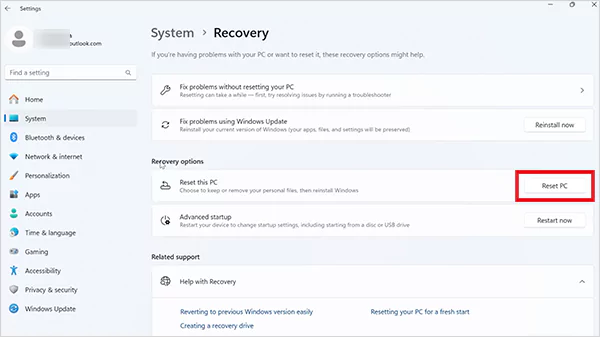
Go to Settings > System > Recovery > Reset PC. If Windows does not start, use the Advanced Startup or SupportAssist OS Recovery method to reset the computer.
How to Reset Dell Laptop Safely?: Step-by-Step Guide
 Mahima Dave
Updated on: Feb 03, 2026
If your Dell laptop is freezing, slowing down, or acting strange, a reset can fix more than you think. But jumping in blindly can cost you files and waste time.
I will break down how to reset Dell laptops effectively, from quick restarts to full factory resets. You will learn when to use each method, what to back up first, and how to restore a Dell laptop without damaging your data.
Whether you want to fix software errors, remove malware, or prepare your Dell laptop for resale or recycling, this step-by-step guide will help you.
When Should You Reset a Dell Laptop?
A factory reset on your PC and laptop should not be your first move. It is your last clean fix when normal troubleshooting fails. You should think about resetting your Dell laptop only in one of these situations:
- Persistent Software Issue: If your laptop keeps freezing, crashing, or behaving weirdly even after restarts, scans, and updates, chances are that the system files are damaged. A reset clears that mess completely.
- Windows won’t Start Properly: When the laptop gets stuck on loading screens, shows boot errors, or never reaches the desktop, knowing how to reprogram Dell laptops becomes essential.
- Preparing the Laptop to Someone Else: A factory reset removes your data, accounts, and settings so the new user gets a clean device with zero access to your files.
- Updates or Drivers Broke Something Important: Sometimes Windows updates, or driver installations, interfere with performance, Wi-Fi, sound, or display. If rollbacks don’t help, resetting can bring stability back.
Quick Rule: Reset only when normal fixes don’t work, or when you need a completely clean system. Always try to restart your Dell laptop first.
How to Restart a Dell Laptop?
Most laptop issues don’t need a reset. A proper restart alone can fix many problems because it clears temporary system files and reloads Windows cleanly. Here’s how to reboot Dell laptops:
Normal Restart
Use this when your system is working normally:
- Click on the Start button.
- Select the Power icon.
- Click on Restart.
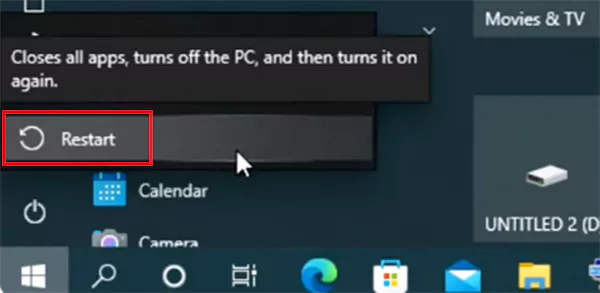
This safely closes all your apps and reloads Windows.
When the Screen Freezes But Windows Still Responds
Use this shortcut method if the screen feels stuck, but your keyboard still works:
- Press Ctrl + Alt + Delete together.
- Click the Power button in the bottom-right corner
- Select Restart.
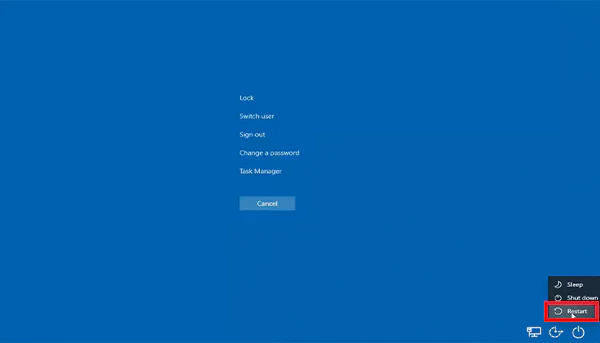
This bypasses frozen apps without forcing a shutdown.
Force Restart
Use this only if your Windows key is not working and the screen is completely frozen:
- Press and hold the Power button for about 10–15 seconds until the laptop shuts off.
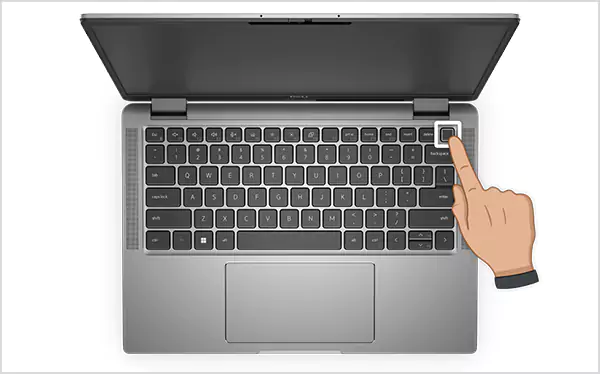
- Wait a few seconds.
- Press the Power button again to turn it back on.
This cuts power instantly, so don’t use it until necessary.
Restarting does not delete files or change settings. It is a diagnostic step before moving toward Dell laptop reset options.
How to Factory Reset a Dell Laptop?
A factory reset brings your Dell laptop back to its original Windows state. It removes installed apps, custom settings, and personal files. This option makes sense when problems continue to return, or Windows becomes unusable.
But before you learn how to restore a Dell laptop to factory settings, pause and check the following box.
Things to Check Before You Factory Reset Dell Laptops
- Back up your data: Save your important documents, photos, and files to cloud storage or an external drive.
- Keep your Microsoft account details ready: You will need them after the reset during setup.
- Power and battery: Keep the laptop plugged into a power source throughout the process.
- Optional recovery media: If built-in recovery fails, a USB created using the Dell OS Recovery Tool can rescue you.
Once this is sorted, choose the right reset method from below according to your situation.
How to Restore Factory Settings on Dell Laptops Using Windows Settings?
If your laptop can start and you can reach the Windows desktop, the easiest way is to use your system settings. Here’s how to reset a Dell computer laptop on Windows 10 and Windows 11:
- Open Settings from the Start menu.
- Select System, then Recovery.
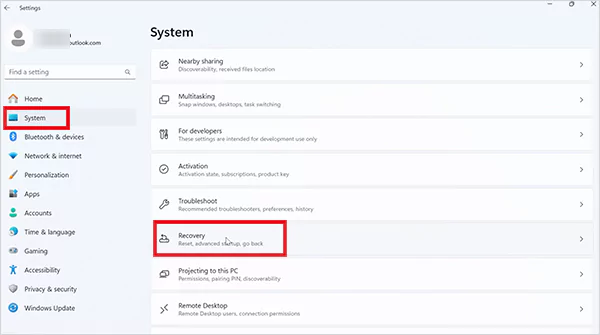
- Under Recovery options, click on Reset PC.
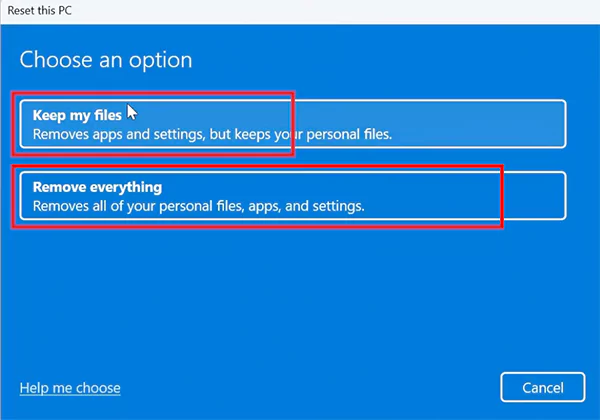
- Choose either Keep my files (if you only want to remove apps and settings) or Remove everything (for a complete reset).
- Follow the on-screen prompts to complete the reset.
This is the easiest and safest reset method because Windows handles everything internally.
How Do I Restore a Dell Laptop to Factory Settings Without a Password?
Forgot your login password? Don’t worry, you can still reset the laptop using Advanced Startup. Here’s how:
- On the login screen, hold Shift.
- Click on Power, and then Restart.
- Now, Windows will load Advanced Startup.
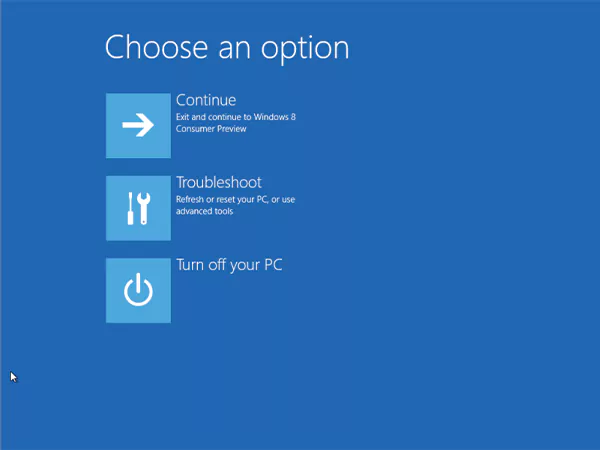
- Choose Troubleshoot > Reset this PC > Remove everything.

- If prompted, choose between Cloud download or Local reinstall to reinstall the operating system.
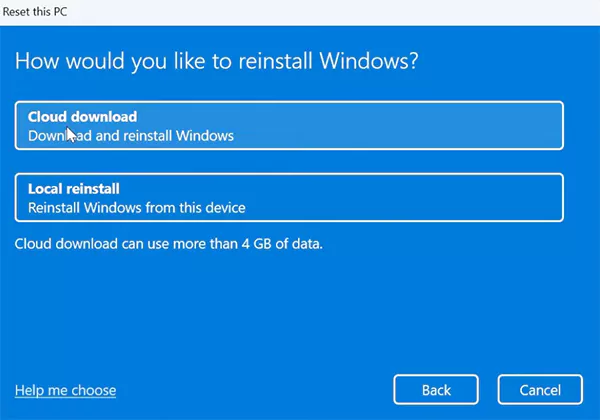
You don’t need the old password for this method. If this doesn’t work for you, the next section helps you reset via the boot menu.
How to Restore a Dell Laptop to Factory Settings Using SupportAssist OS Recovery?
If Windows does not load at all, this is your strongest recovery option. Many Dell laptops come with SupportAssist OS Recovery preinstalled. Here’s how you can use it to reset your Dell system:
- Turn on or restart your Dell laptop.
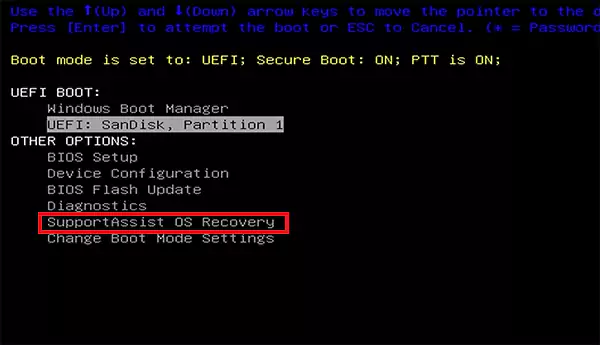
- When you see the Dell logo, press the F12 key repeatedly until the One-Time Boot Menu appears.
- Next, select SupportAssist OS Recovery and press Enter.
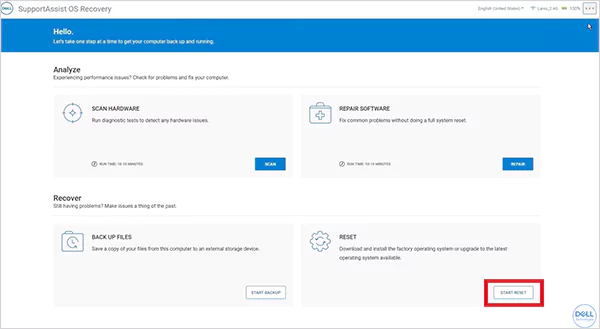
- On the SupportAssist home screen, choose Start Reset.
- Here, select Reset to factory settings.
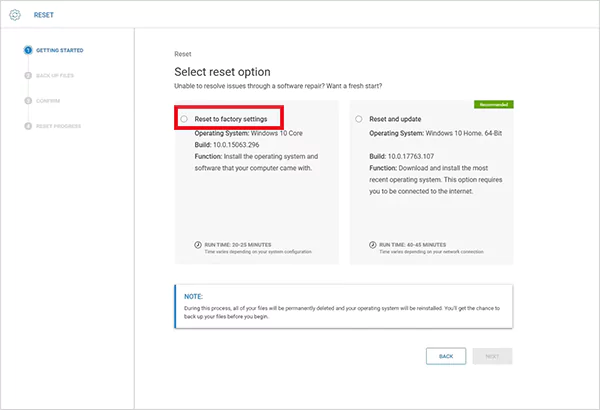
- Back up files if prompted, or continue without backup.
- Finally, just follow the on-screen steps.
SupportAssist can also run hardware checks before resetting, which helps in ruling out physical issues. If you don’t see this option, it may be disabled, unsupported on your model, or the recovery partition may be missing. In that case, a recovery USB can save the day for you.
How to Perform a Hard Reset on Dell Laptops?
A laptop hard reset on Dell computers is different from a hard reset on an iPad or other devices. It is not a factory reset, and it does not delete files or reinstall Windows.
A hard reset simply clears leftover electrical charge from the hardware. This helps when the laptop refuses to power on, gets stuck on the Dell logo, or behaves oddly after shutdown. Here’s how you can do that:
- Shut down the laptop completely and unplug the power adapter.
- If your laptop has a removable battery, remove it.
- Now, press and hold the Power button for 15–20 seconds to drain residual charge.
- Reconnect the battery (if removed) and power adapter.
- And finally, press the Power button again to turn the laptop on.
That’s it. If the problem was electrical or firmware-related, the laptop usually boots normally after this.
Wrapping Up
Performing a Dell laptop reset is not guesswork. You need to make a decision based on the type of problem you are facing. Here’s how you should approach:
- Restart first for minor glitches.
- Hard reset if the laptop won’t power on or freezes before boot.
- Try Windows reset if the system can load.
- And, use the SupportAssist method if Windows does not start.
After reset, take a few minutes to update the system and install essential apps so you’re ready to work or play again.
Frequently Asked Questions
How do I factory reset my Dell laptop?
What is the F12 key on a Dell laptop?
F12 opens the One-Time Boot Menu. It allows you to choose recovery tools, diagnostics, or boot devices.
How to reset Dell laptops using F12?
Restart the laptop and press F12 repeatedly when the Dell logo appears. This opens the boot menu, where you can access recovery tools or a USB installer.
What does a hard reset do to a Dell laptop?
It drains residual electrical charge from hardware components. This can fix power or boot-freeze issues but does not delete data or reinstall Windows.
Will a reset remove my Windows license?
No, Windows activation is linked to your laptop’s digital hardware license. After a reset, it usually reactivates automatically once online.
How to start a Dell laptop?
Make sure the laptop is charged, open the lid, and press the Power button to start your laptop.
How long does a factory reset take?
It usually takes between 20 minutes and 1 hour, depending on system speed and reset method.
Related Posts

8 Best AI Presentation Makers for Business-Ready Slides
Making a presentation doesn’t just mean designing slides. It’s about defining a clear structure, using defined logic, useful visuals, and…

Queue Management Software Troubleshooting Guide: 8 Common Faults and Fixes
The long wait times and ineffective management of customer queues can have a significant impact on customer satisfaction and business…

How to Use Similarweb Website Traffic Data for Competitor Research
Competitor research without traffic data is guesswork. You can guess who your rivals are, guess how big they are, guess…

Choosing the Right Hosting Model for Scalable Digital Platforms
The performance of digital business is directly related to website speed, uptime, and scalability. Slow page performance has a negative…

How Data-Driven Performance Tools Are Transforming Employee Recognition in Tech Companies
“People work for money but go the extra mile for recognition, praise, and rewards.” — Dale Carnegie (Writer & Teacher)…

Why Businesses Struggle to Collect Reliable Data from the Web
Almost every company that depends on data runs into the same problem: although they can find the data they need,…

Why Financial Data Recovery Matters for Businesses
Financial data supports every part of a business, directly affecting cash flow, payroll, tax reports, audits, customer billing, and daily…

CMMC Compliance Is Coming for Manufacturers. Here Is What You Need to Do
“Cybersecurity is much more than a matter of IT.” — Stephane Nappo (Cybersecurity Professional) For manufacturers working within the defense…

How Data-Based Tools Influence Learning Performance
Learning has transformed in the modern age with the integration of new technologies to help students and professionals prosper in…