
Type cd followed by the full directory path and press Enter in command prompt to change directory.
How to Change Directory in Command Prompt? Quick and Easy Methods
 Reviewed By Brijesh Kumar Singh
  Mahima Dave
Updated on: May 19, 2026
Table of Contents
- How to Change Directory in Command Prompt: A Step-by-Step Guide
- Why is Directory Change in CMD Needed?
- Methods to Change Directory in CMD
- How to Change Folders in Command Prompt?
- How to Change the CMD Directory: Advanced Navigation Techniques
- Common Command Prompt (CMD) Commands
- What are Common Issues while Changing Directory in Command Prompt?
- Conclusion
- Frequently Asked Questions
The Command Prompt is a powerful CLI (Command line interface)
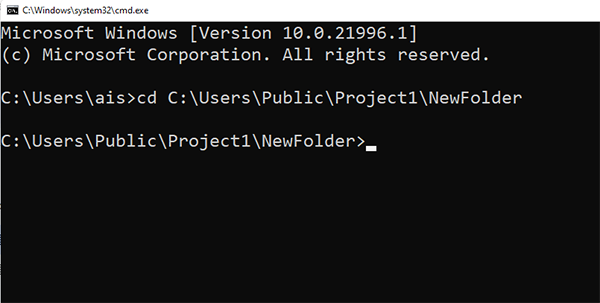
used for Windows interaction, mainly for file management, application execution, and network diagnostics via text commands. If you’ve ever used a command prompt, you’ve probably seen something like C:\Users\ais> and wondered what it is. That’s actually your current directory.
This article explains how to change directory in command prompt, a step-by-step guide using both basic and advanced commands like cd, pushd, etc.
Quick Answer: To change directories in command prompt, use the cd (change directory) command. Type cd followed by the folder path (e.g., cd Documents) and press Enter.
Quick Commands:
- Go to root drive: cd \
- Move up one level: cd ..
- Move into a folder: cd folder_name
- Change drive: Type D: (or another letter) to switch drives.
- Change drive & folder: cd /d D:\Folder
- Path with spaces: cd “Program Files”
How to Change Directory in Command Prompt: A Step-by-Step Guide
Firstly, you should know what directory you want to switch to, and its complete path. Type cd in the command prompt and you can see the current directory path. Entering “dir” shows you the list of all the directories in the current location.
Open the command prompt (Windows key + R and search cmd) and follow these steps:
Method 1. Changing the Root Directory
Step 1: In the command prompt, type “cd\” and press Enter. This will take you to the root directory regardless of your location.
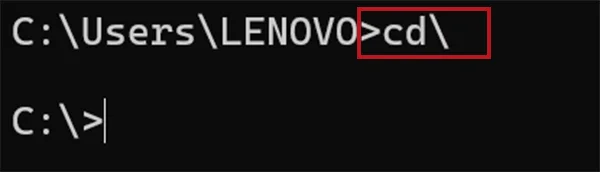
Step 2: Type a drive letter (for example, D) followed by a semi-colon,i.e., “D:” and press Enter. This changes the root directory to D.

Method 2. Changing the Parent Directory
Every directory has a parent directory except the Root.
Step 1: In the command prompt, type “cd” followed by 2 dots “..” and press Enter. This will take you to the parent directory.
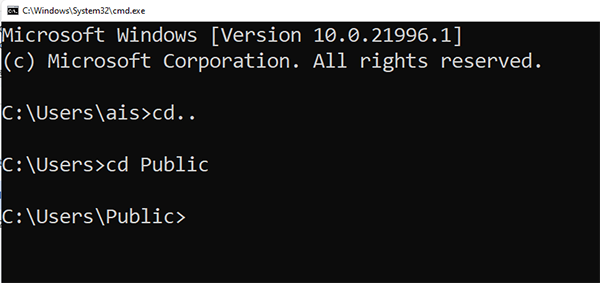
Step 2: Type the name of the folder (for example, project) and press Enter. You can see the change in the path.
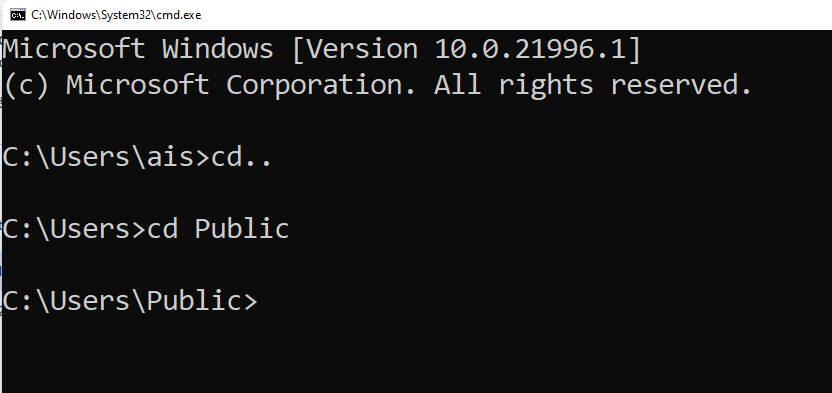
The parent directory is changed.
Method 3. Changing the Subdirectory
In the command prompt, type “cd” followed by the folder name and press Enter. This will change the following subdirectory.
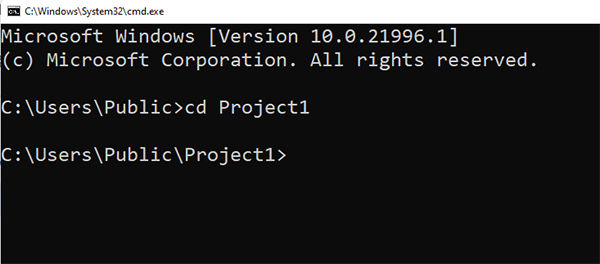
You can see that the folder name is added after “>”. This means you are into the respective folder.
Why is Directory Change in CMD Needed?
You may think we only use the CMD command to change directory, but its use case is not limited to only accessing the file/folder; it goes beyond that. Since programmers use CMD as a CLI to access the OS. Here’s why you might need to change directory path in cmd windows:
- Software development and deployment
- Navigating and accessing specific files and programs
- System administration and troubleshooting
- Tasks automation
- Direct access to system-level operations
- Automate repetitive tasks
Methods to Change Directory in CMD
Now that we’ve discussed basic ways on how to change CMD directory, let’s see advanced ways to change directory path in cmd windows.
Method 1: Drag and Drop
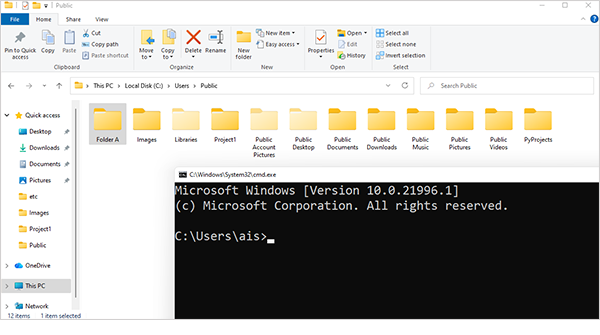
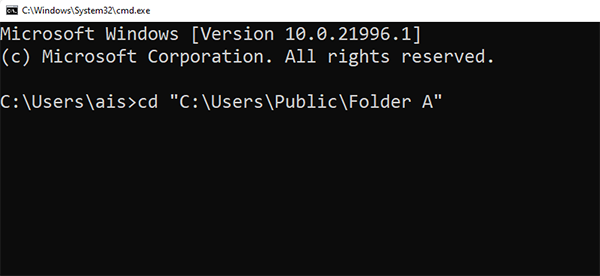
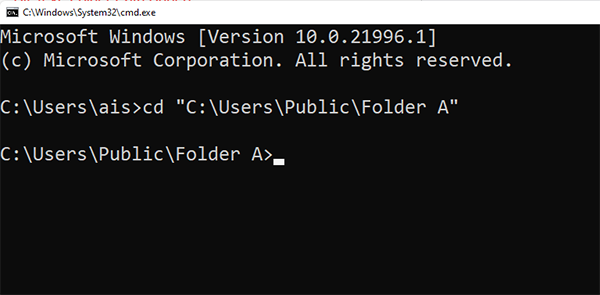
If you are too lazy to enter the complete directory path, you can just drag the path from the file explorer and drop it in the command prompt after “cd”. This will automatically insert the complete path.
Method 2: Create & Switch to a New Directory Simultaneously
Just in case the directory doesn’t exist, and you want to make a new directory and enter it, you may do it directly from the CMD.
mkdir NewFolder && cd NewFolder
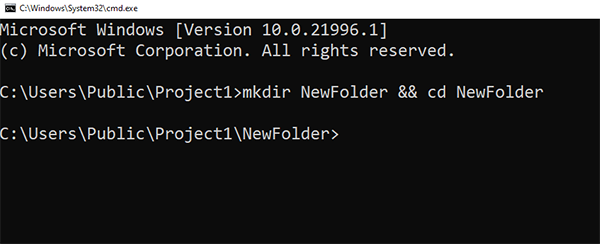
This will make a directory named NewFolder and will take you to that directory.
Method 3: Absolute Paths
To avoid ambiguity, you may enter the absolute directory path after cd. This will reduce any chance of error occurrence due to mistyping or a file name error. This is a good approach to change directory paths in CMD windows.
How to Change Folders in Command Prompt?
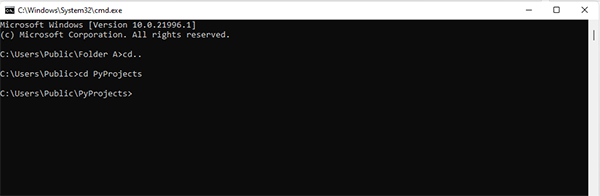
Switching folders in the command prompt is easier than you think. Here are the steps you can follow to change folders in CMD:
Step 1: Open the command prompt and you will see the current directory you are in.
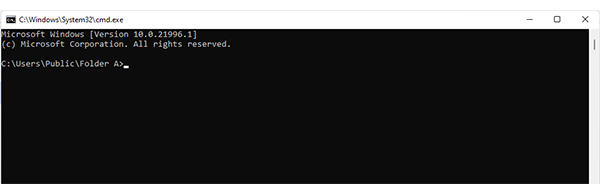
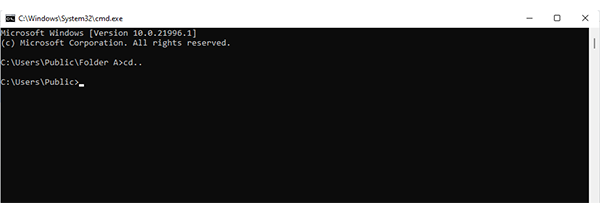
Step 2: Type “cd..”. This will take you into the parent directory.
Step 3: Type “cd” and a space, followed by the folder name you want to navigate to. This will let you change the folder you are in. For example, you want to enter the folder PyProjects, type cd PyProjects.
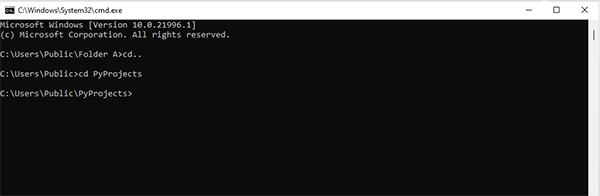
Step 4: Press Enter. You can see the updated path; this means that you are navigated to the folder you typed.
In this way, you can change folders in the command prompt.
Check this out: How to Fix Windows Update Error? 10 Reliable Fixes
How to Change the CMD Directory: Advanced Navigation Techniques
Apart from basic CD command prompt to change directory, there are Advanced Navigation Techniques that let you use Windows Command Prompt like a pro. Let’s understand how they work.
Technique 1: pushd and popd
pushd and popd manage a stack of directories that allows you to temporarily enter another directory to do a task and pop back to the previous directory without the need to type the path again and again. This is useful when you are thinking, how can I change directory in the command prompt while working simultaneously on different directories?
pushd changes the current directory and pushes it to the stack. A stack is a storage that works similarly to a physical stack, where you place one thing above another.
popd allows you to easily return to the directory that you pushed in. This removes the most recent directory pushed.
Technique 2: Tab completion
In command prompt, to change directory, while entering the directory path, suppose you have entered a few letters of the file/folder name, now pressing the tab key automatically completes the name of the respective file/folder, given there is only a single file/folder of the respective name. In case there is more than one folder with a similar name, like Project, Project1, Project2, and so on, pressing the tab key once more will take you to the subsequent folder. This eases directory change in CMD.
Technique 3: Environment variables
Windows allows users to change directories directly using environment variables, too. These are like shortcuts to navigate.
- %USERPROFILE% – The common folder
- %HOMEPATH% – User’s home directory
- %TEMP% or %TMP% – Windows temporary folder
- %SYSTEMROOT% or %WINDIR% – Windows directory
- %OneDrive% – Local folder used for personal OneDrive storage
So now you know how to change directory in command line without needing the complete path.
Read Next: How to Install Windows on Chromebook: A Practical Guide
Common Command Prompt (CMD) Commands
| Command | Stands For | Uses |
| cd | change directory | Used to change directory in the command prompt |
| dir | directory | Displays all the files and folders in the current directory |
| mkdir | make directory | Creates a new folder |
| rmdir | remove directory | Removes the folder |
| Rename (ren) | rename | Rename a file or folder |
| xcopy | extended copy | An advanced version of copy, used to copy the files and entire directory trees |
| robocopy | robust file copy | Robust copy for syncing directories |
| path | directory path | Displays the list of path system searches |
| title | directory title | Sets the title for the command prompt window |
| copy | copy | Copies one or more files to another location |
| move | move | Moves the file/folder to another location |
| del | delete | Deletes one or more files |
| pushd | push directory | Changes the current directory and pushes it to the stack |
| popd | pop directory | Returns to the directory that is on top of the stack |
What are Common Issues while Changing Directory in Command Prompt?
Here are a few errors that you might encounter while changing directories in CMD:
Error 1: “The directory name is invalid.”
Reason: Mistyping
How to resolve it?
- Check if the directory exists.
- Check the spelling of the directory.
- If the path contains spaces, put the path in inverted commas, or else CMD will interpret it as a special character.
Error 2: The command prompt ignores the command
Reason: Improper command
How to resolve it?
- Use cd correctly.
- Check the syntax of the command entered.
Error 3: “System can not find the specific path.”
Reason: Directory doesn’t exist
How to resolve it?
- Check the path again.
- The command is case sensitive, so enter the exact file/folder name.
- If the file name contains a space, put the path in inverted commas.
Error 4: “Access is denied.”
Reason: No admin rights
How to resolve it?
- Open CMD with admin access.
- Check if your account has required permissions.
Error 5: Wrong Hard Drive
Reason: Forgetting to switch drives
How to resolve it?
- Navigate to the correct drive.
- Check the location of the accessed file/ folder.
Conclusion
With the help of this article, you now know how to change directory in the Windows command prompt. Apart from this, as discussed, the common CMD commands, navigating a folder on Windows, and changing directory in the command prompt, let you get an understanding of CMD. Whether you are inspecting malware, diagnosing, installing software, or automating repetitive tasks, using CMD makes the process faster and more efficient.
Frequently Asked Questions
How to change the directory in command prompt?
How to go from C:\ to D:\?
To go from C:\ to D:, in the command prompt type cd\ and press enter (this takes you to the root directory). Now type D: and press enter.
Why am I not able to change directory in cmd?
If you are not able to change directory in command prompt, you may have entered the wrong path or may lack permission. Try running as administrator after rechecking.
Can I also change the directory using PowerShell?
Yes, PowerShell also lets you change directory using cd command.
How to open the command prompt in a specific folder?
To open a command prompt in a specific folder, open the folder in the file manager and in place of the path in the address bar, type cmd and press enter or you may also right-click on the folder and click open in Terminal.
Is there any shortcut to go to the root folder?
You can use cd\ to go to the root folder.
Related Posts
Shared vs VPS vs Node.js Hosting: What Works Best?
A 1-second delay in page load time can result in a 7% reduction in conversions. Speed isn’t just a technical…
How Data-Driven Performance Tools Are Transforming Employee Recognition in Tech Companies
“People work for money but go the extra mile for recognition, praise, and rewards.” — Dale Carnegie (Writer & Teacher)…

Why Businesses Struggle to Collect Reliable Data from the Web
Almost every company that depends on data runs into the same problem: although they can find the data they need,…

Why Financial Data Recovery Matters for Businesses
Financial data supports every part of a business, directly affecting cash flow, payroll, tax reports, audits, customer billing, and daily…

CMMC Compliance Is Coming for Manufacturers. Here Is What You Need to Do
“Cybersecurity is much more than a matter of IT.” — Stephane Nappo (Cybersecurity Professional) For manufacturers working within the defense…

How Data-Based Tools Influence Learning Performance
Learning has transformed in the modern age with the integration of new technologies to help students and professionals prosper in…

Why Offline Communication Tools Still Matter in a Digital-First Business World
Marketing teams and other professionals feel like SEO, reels and digital ads are the only way to do marketing. This…

4 Essential Principles to Prevent Data Loss in Business IT Systems
Building a reliable IT setup that ensures good performance and doesn’t compromise on security under budget restrictions is a major…

Best SaaS SEO Firms for Tech Startups and Scale-Ups in 2026
Technology is growing and advancing every day in Edinburgh. Scotland’s capital is home to a thriving mix of fintech, healthtech,…