


Ans. The fastest way to delete emails in Gmail is using the master checkbox (☐) on a computer. Click the single square box at the top of the emails. Click the “Select all conversations” link and then click the Trash icon (🗑).
How to Mass Delete Emails on Gmail from Your Inbox?
You can mass delete emails on Gmail by clicking the top-left master checkbox (☐) and selecting the “Select all conversations” link to wipe out your entire inbox at once. Recent data shared by All About Cookies shows that the average person sits on a backlog of over 1,000 unread emails, creating a huge digital mess. When thousands of emails pile up, your free Google storage runs out of space, which stops you from getting new mail. Instead of clicking the emails one by one, I found out about built-in filters and queries to safely delete emails in bulk.
In this article, I will share how to delete all emails in Gmail, whether it’s by a specific sender or older emails. Read on to learn how to mass delete emails on Gmail.
TL;DR
- Delete every email: Click the top-left master checkbox (☐), click “Select all conversations”, and hit the Trash icon.
- Filter by Sender or Date: Type the sender’s name or a time shortcut like older_than:1y into the search bar, selecting all messages, and delete.
- Delete on mobile: Long-press an email icon, tap “Select All” at the top, scroll down to load more messages, and delete.
- Free storage space: Open the Trash folder and click “Empty Trash now.”
How to Mass Delete Emails on Gmail?
Last month, my Gmail hit 99% full, and I stopped getting important work emails. I saw 7292 emails stacked, 80% unread newsletters, and promotional unwanted emails. I used to think clearing it would take hours of clicking individual messages.
Instead, I found out three simple tricks for how to delete all Gmail emails at once that wiped the whole mess out in seconds. You can mass delete emails on Gmail by checking the master checkbox (☐) to select multiple emails on the page, clicking the “Select all conversations” link to delete more than 50 emails at once, and using keyboard shortcuts to bulk delete fast. Here is how I did it.
Method 1: Select and Delete Multiple Emails in Gmail at Once
I started by clearing out just one page of emails at a time because I wanted to have a look at emails and then delete them, and guess what? This method lets you select the first 50 emails, which you can easily parse, and uncheck if you want to keep any, and delete the rest of the emails in bulk. This is perfect if you want to look over your emails before you delete them.
Step 1: Open your Gmail inbox on your computer.
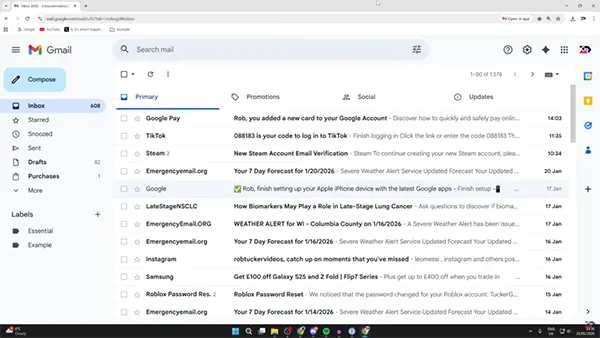
Step 2: Click the master checkbox (☐) (the small square with an adjacent arrow) at the very top left of your screen, just above your first email.
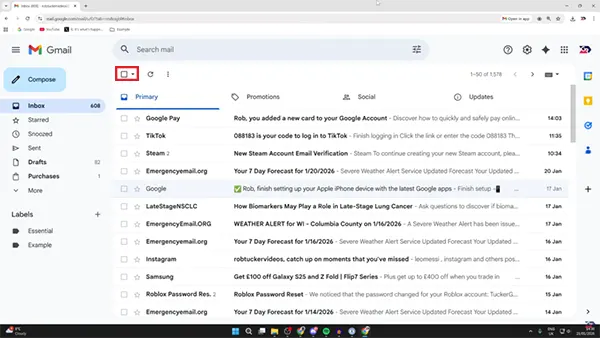
Step 3: Look at the screen and see that all 50 emails on the page are now highlighted.
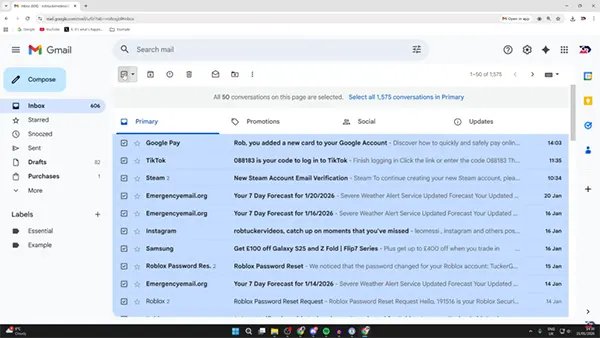
Step 4: Click the Trash icon at the top of the page to delete them all at once.
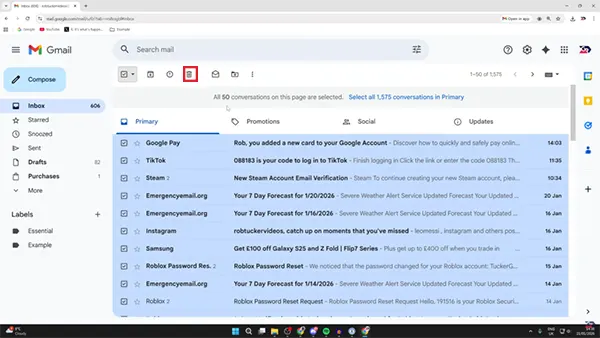
Method 2: Delete More than 50 Emails in Gmail using the Master Checkbox
When I realised that deleting 50 emails at once would take me all weekend, I knew I needed a faster workaround. I saw a blue text that showed me an option to clear all the emails at once. If you want to delete all the emails in the primary, you can definitely use this method.
Step 1: Open the Gmail inbox.
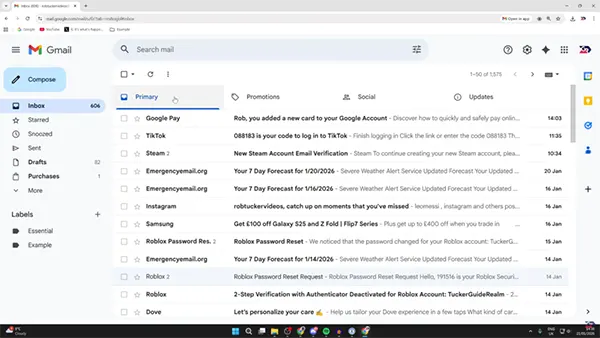
Step 2: Click the master checkbox (☐) at the top left to select the first 50 emails.
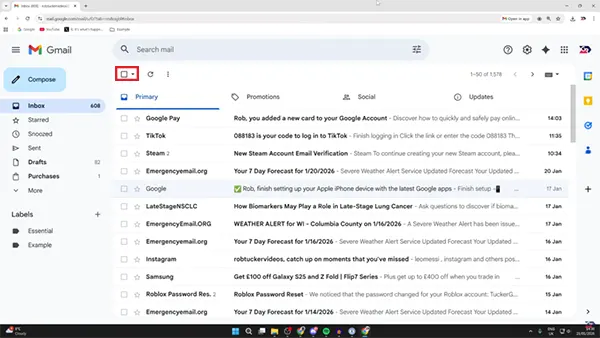
Step 3: Look for the blue text link that pops up right above your email list.
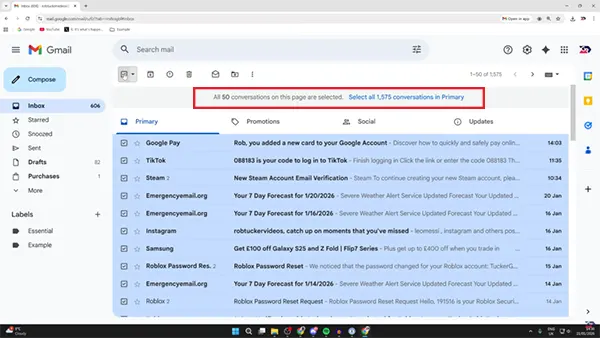
Step 4: Click the link that says “Select all X Conversations in Primary” (X would be replaced with the total number of emails in your primary).
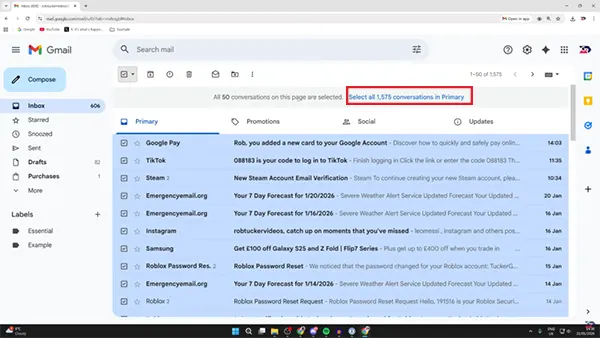
Step 5: Click the Trash icon to wipe out every single email in that folder instantly.
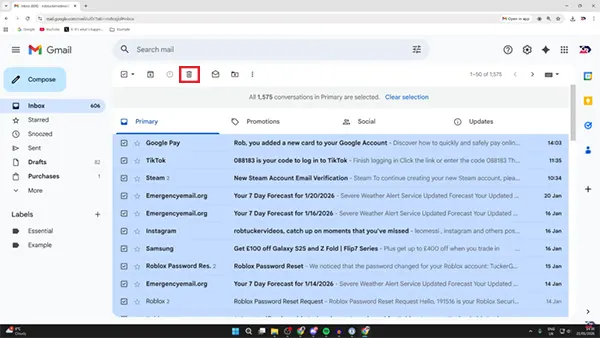
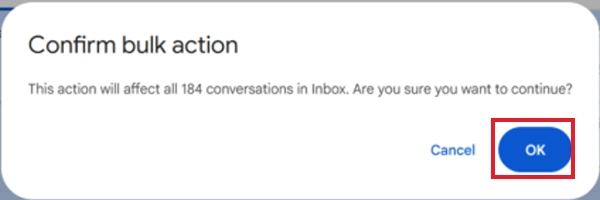
Step 6: To confirm bulk email deletion, click OK.
Method 3: Use Keyboard Shortcut to Bulk Delete Gmail Fast
So, for someone who hates shifting hands between mouse and keyboard, this is a free-hand alternative. I actually went into my settings and tried it out myself to see how it works. It does make the deletion fast, but honestly, I don’t use it very much because a quick slip of the finger might delete something important by mistake. But if you are good with keyboard hacks, it is definitely worth a shot.
Here’s how to delete all mails in Gmail using keyboard shortcuts:
Step 1: Open Gmail on your browser.
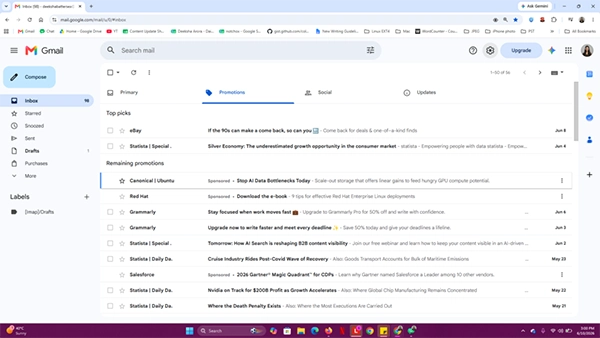
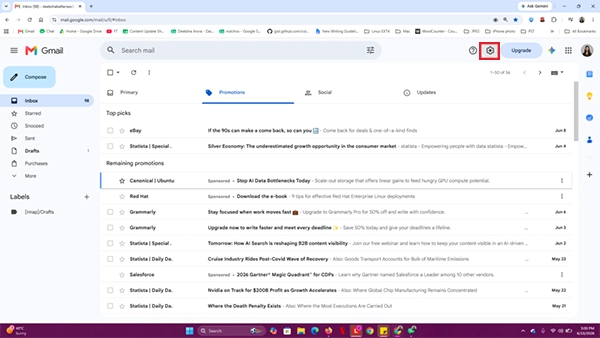
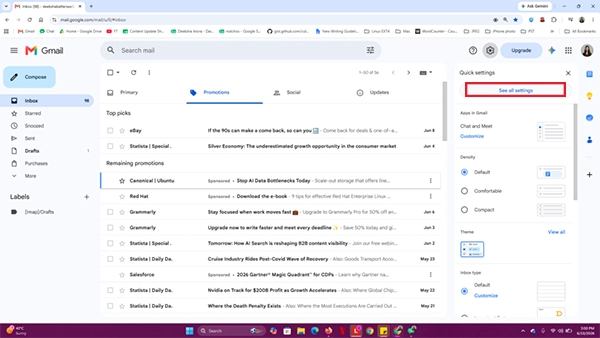
Step 2: Click the Settings (gear icon) at the top right of the Gmail window.
Step 3: Choose “See all settings” to go into the settings and enable shortcuts.
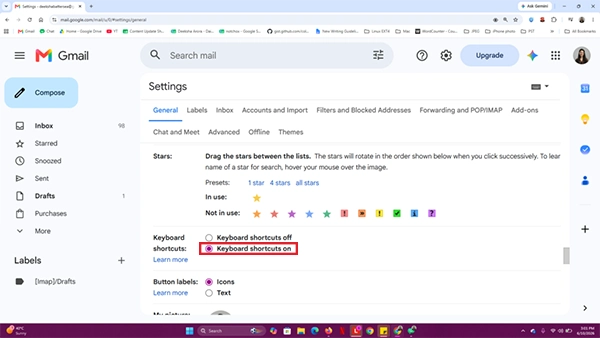
Step 4: Scroll down to “Keyboard shortcuts” and click “Keyboard shortcuts on.”
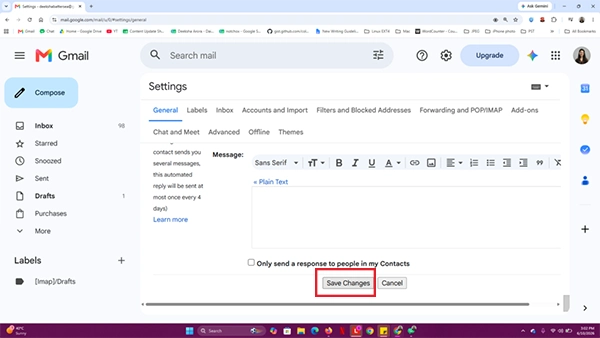
Step 5: Scroll further down and click on the Save Changes button.
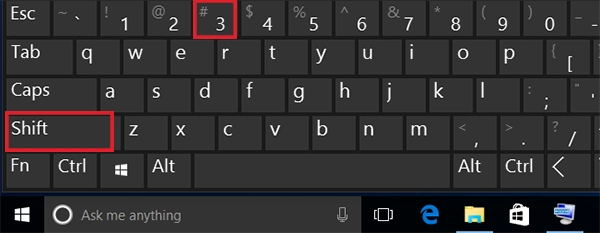
Step 6: Go back to your inbox and press the * key, then the a key (* + a) to select all emails on the page.
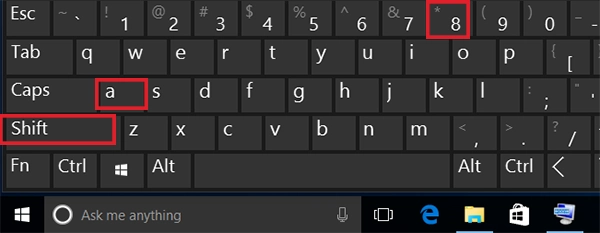
Step 7: Press the # key on your keyboard to instantly send all selected emails to the trash.
How to Mass Delete Emails on Gmail by Specific Criteria?
You might not always want to delete all the emails. So did I. I needed a way to quickly delete emails in Gmail, but only the unwanted ones, like LinkedIn, promotional, horoscopes I signed up for once, and such emails. That is when I started using Gmail’s built-in search filters to target specific groups of messages. By filtering my inbox, I could easily delete the ones I wanted to delete, keeping everything else perfectly safe.
Method 1: Delete All Emails from One Sender
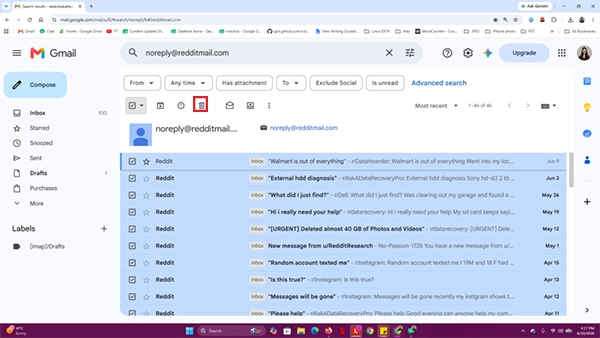
If you also get bombarded with dozens of daily notification emails from LinkedIn and Pinterest, you need to learn this method to delete all emails from one sender in one click. Just type the sender’s name in the search bar and follow the previous method to select all and delete.
How to delete all emails from one sender on Gmail?
Step 1: In Gmail’s search bar, type the sender’s name or the email address.
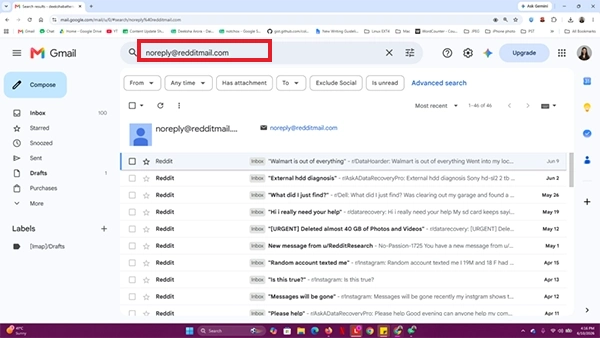
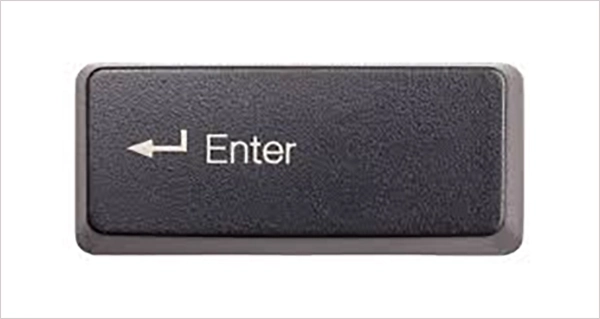
Step 2: Press Enter/Return to filter and show only the emails from that person/business.
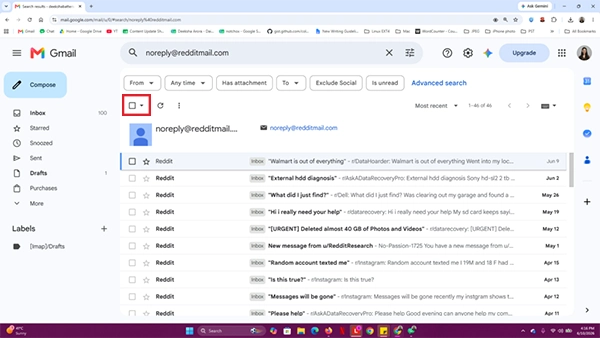
Step 3: Click the master checkbox (☐) at the top left of the results page.
Step 4: Click the Trash icon to remove every single email from that sender.
Method 2: Mass Delete Gmail Emails by Label
Labels in Gmail are the best way to organize your emails. But did you know these labels can make mass email deletion so easy? When there are project notes of emails from the finished project, I can simply delta the emails by label using this method.
Step 1: Look at the left sidebar of your Gmail screen to find your Labels.
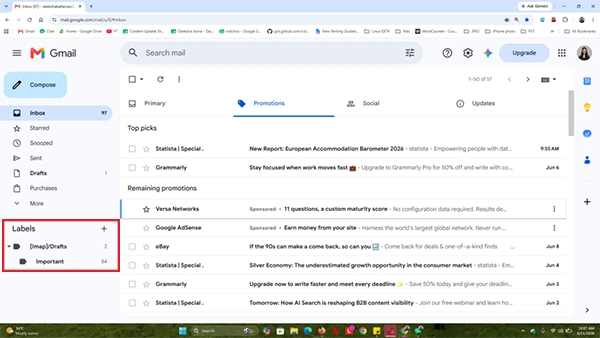
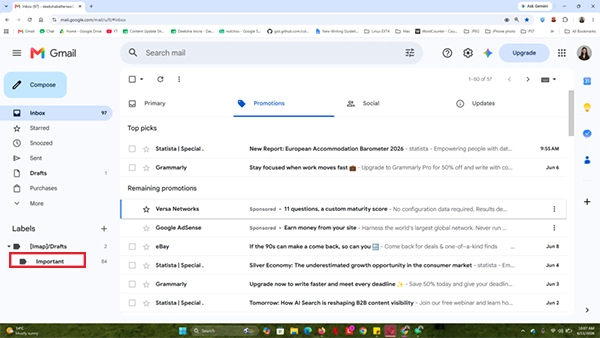
Step 2: Click on the specific label or folder you want to delete.
Step 3: Click the master checkbox (☐) at the top left to select the first 50 items.
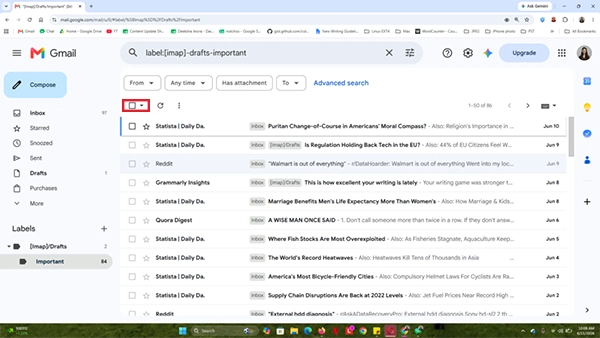
Step 4: Click the link above the list to select all conversations in that folder.
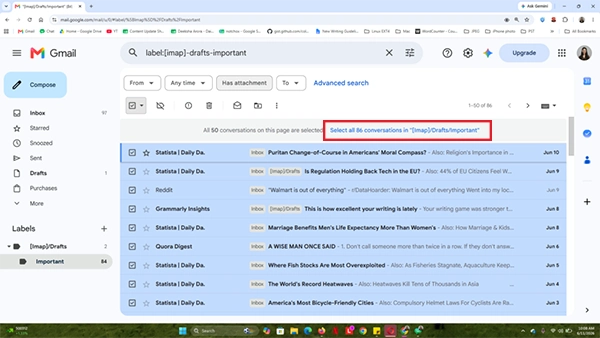
Step 5: Click the Trash icon (🗑) to completely clear out that label.
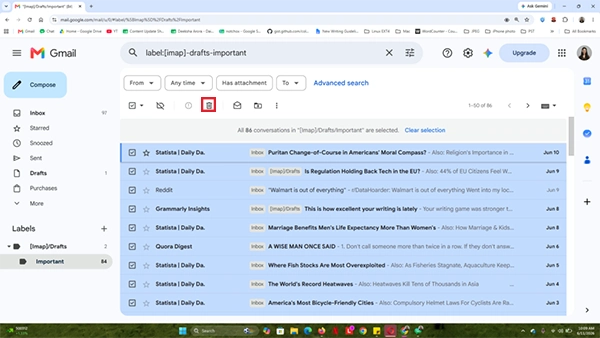
Method 3: Bulk Delete Emails by Read or Unread Status
My biggest problem was how to delete all unread emails in Gmail. I had lots of store advertisements that I knew I would not open, but they were mixing with the important read messages I wanted to save. So, for this you can use Gmail’s selection tool to separate them instantly. By selecting only the unread messages, you can sort and delete.
Also, for this, I have two easy ways to do this: one using the master checkbox drop down menu and the other using quick search commands.
Option 1: Use the Master Checkbox Menu
Step 1: Look at the master checkbox (☐) at the top left of your inbox screen.
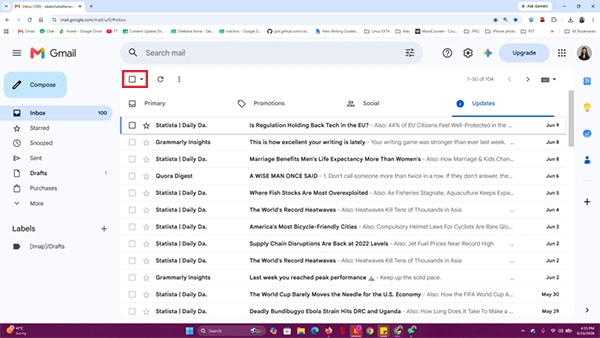
Step 2: Click the small arrow (▼) right next to the checkbox.
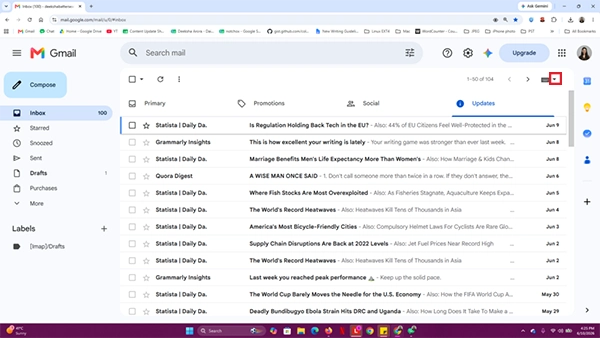
Step 3: Select the word “Unread” from the drop-down menu. This will select all the unread emails on that page.
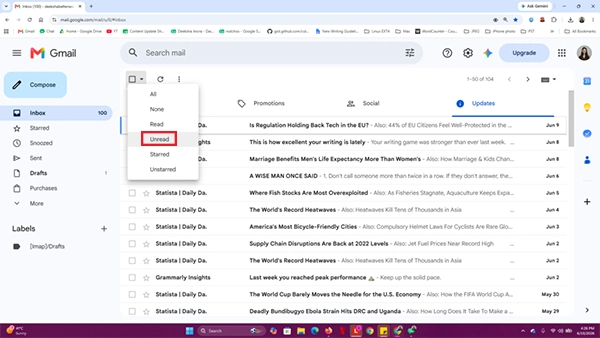
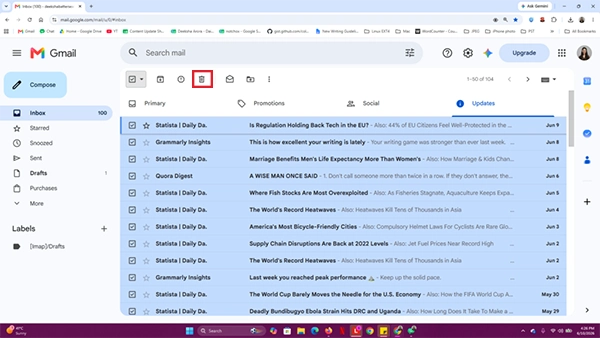
Step 4: Click the Trash icon (🗑) to remove them all.
Option 2: Use the Search Bar Filter
Step 1: Click in the search bar at the very top of your Gmail screen.
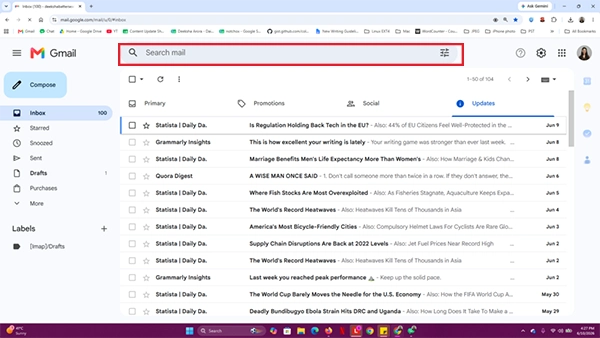
Step 2: Type is:unread to find unopened mails.
Or type is:read to find messages you have already opened.
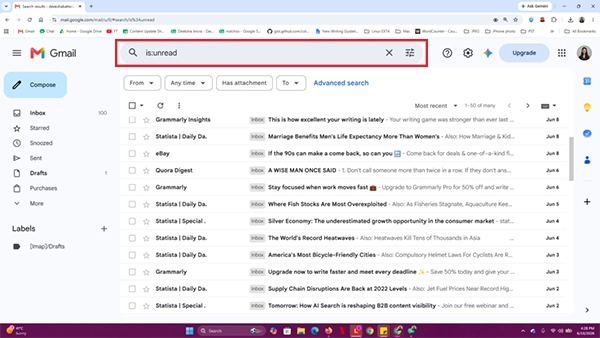
Step 3: Press Enter/Return on your keyboard to run the search filter.
Step 4: Click the master checkbox (☐) at the top left of the selected filtered results.
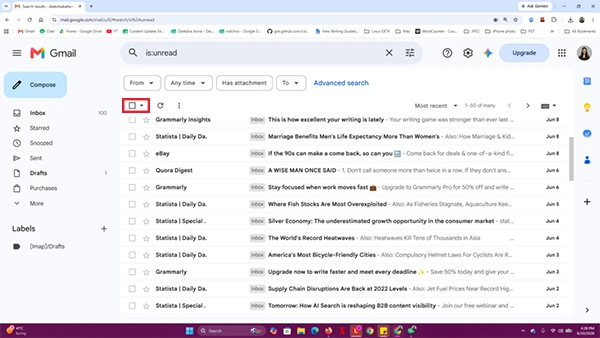
Step 5: You will see that the blue link will appear. Click on “Select all the conversations that match this search.”
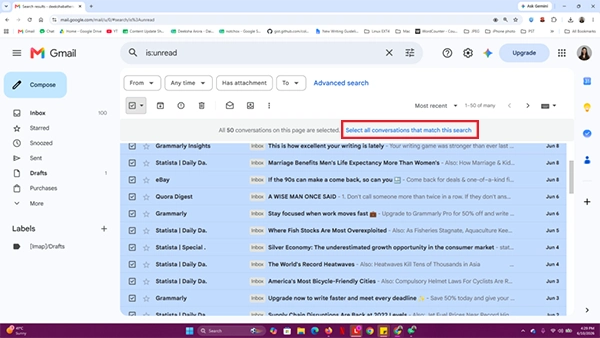
Step 6: Click the Trash icon (🗑) to delete all the read/unread emails.
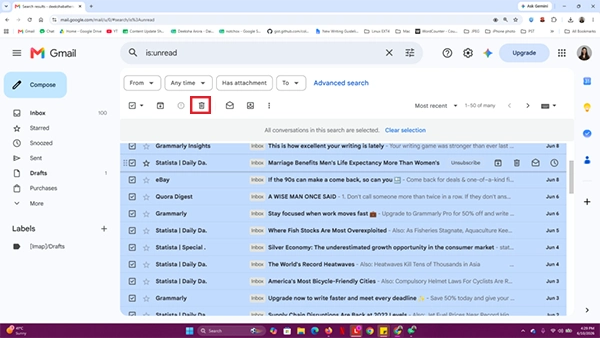
Step 7: Click Ok to confirm the bulk action.
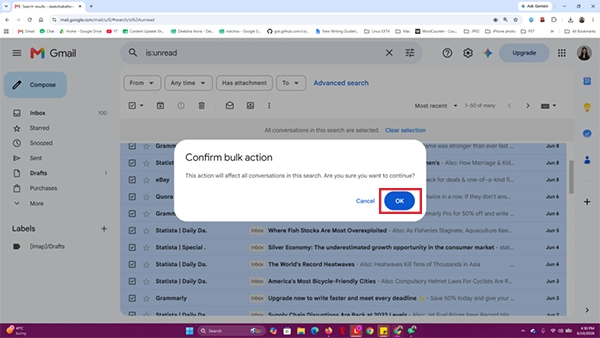
Method 4: Find and Delete Old Email by Date
When you want to delete old emails, you can use this search command to tell Gmail exactly how far back to look. Here’s how you can use the search query to delete old emails:
Step 1: Click in the search bar at the top of your Gmail page.
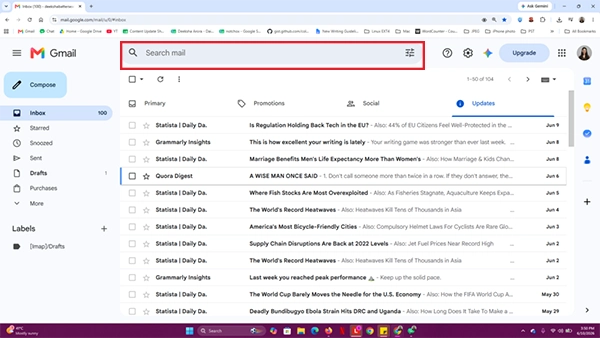
Step 2: Type the command.
- To target a specific year: Type before 2023, to find everything before that year
- To target by age: Type older_than:2y to find emails older than two years (change 2y to any number of years, or use 6m for 6 months).
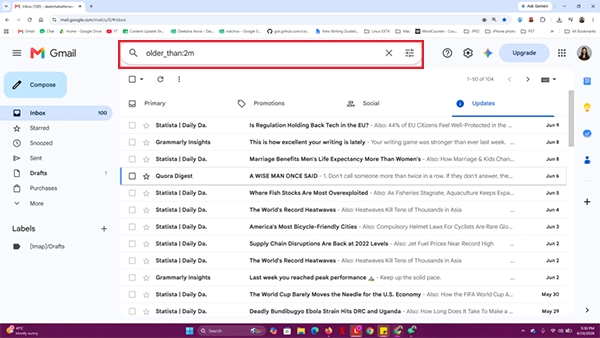
Step 3: Press Enter/Return on your keyboard to run the search filter.
Step 4: Click the master checkbox (☐) present at the top left corner of the screen to select all the emails.
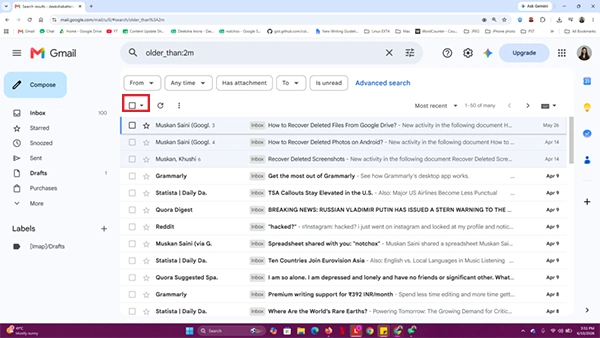
Step 5: Click the Trash icon (🗑) to delete all the selected old emails (top 50 only).
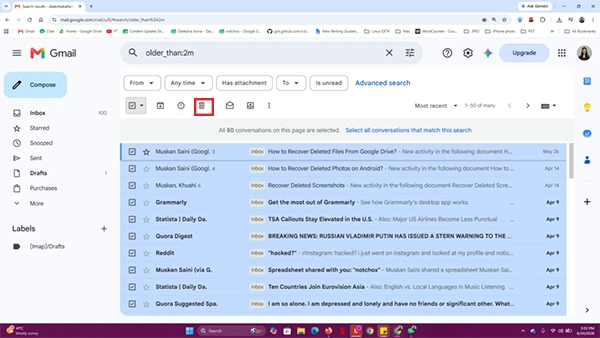
Step 6: To select all the emails, click on Select all conversations that match this search.
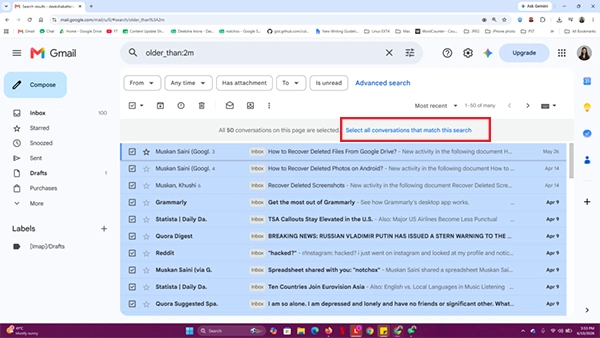
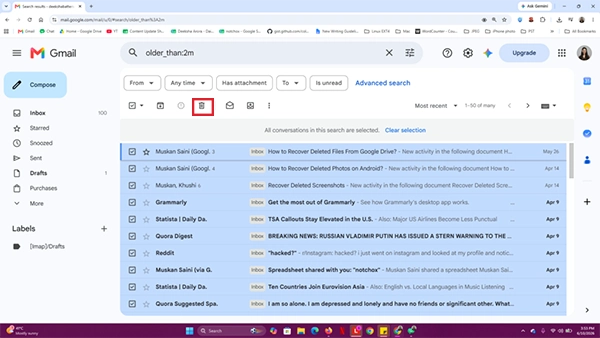
Step 7: Now click on the Trash icon (🗑) to delete all the older emails.
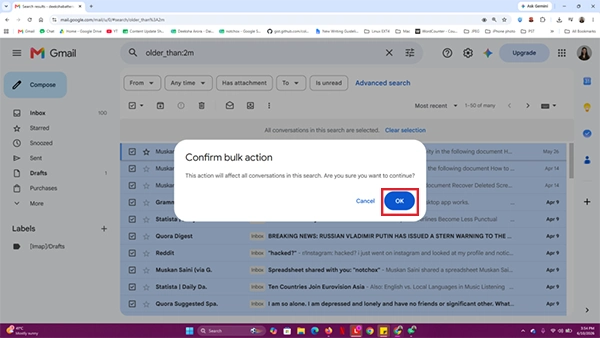
Step 8: Click on OK to confirm bulk action.
Method 5: Delete Social or Promotional Tabs
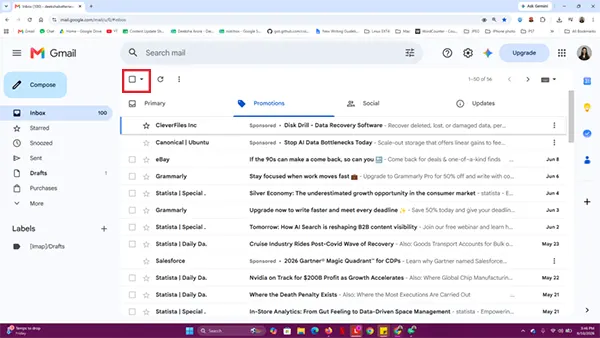
Google tries to help by sorting your mail into tabs: Promotions, Social, and Updates. And this makes clearing out emails much easier. You just have to go to that tab, select all the emails, and click the Trash icon (🗑).
How to delete emails in Gmail in the Promotions, Social, and Updates tabs?
Step 1: Click on the Promotions or Social tab to the very top of your email list.
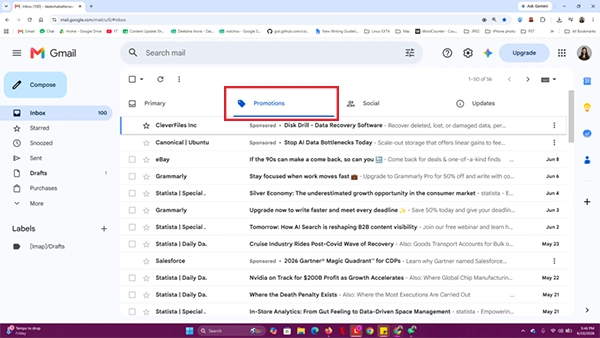
Step 2: Click the master checkbox (☐) in the top left corner of the specific tab to select all the emails in that page.
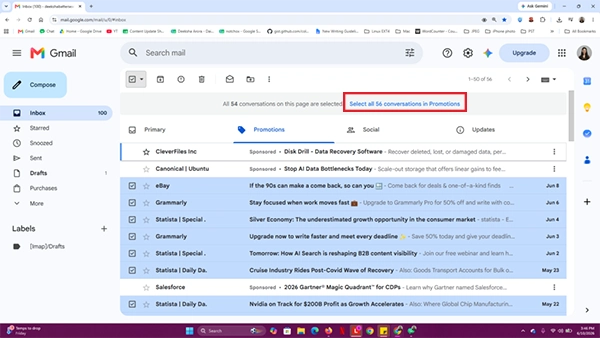
Step 3: Click on the blue text link that says “Select all conversations in Promotions” (or Social)
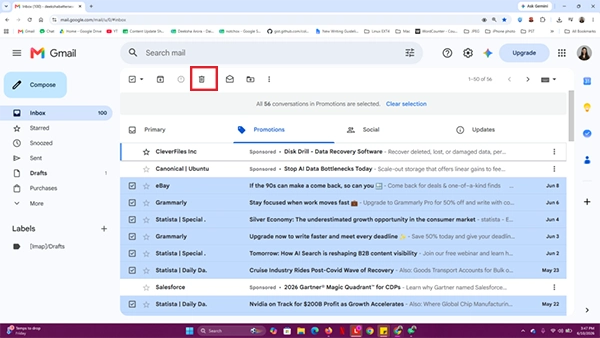
Step 4: Click the Trash icon (🗑) to wipe the entire tab in one go.
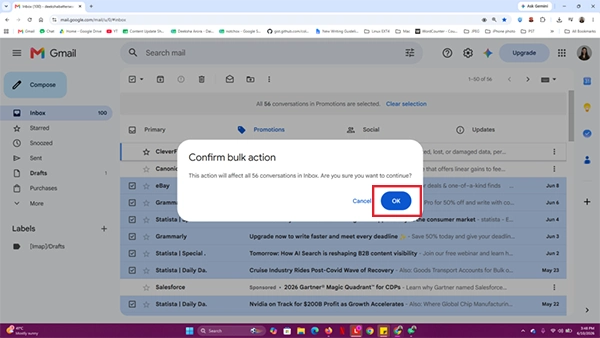
Step 5: Click OK to confirm bulk deletion.
Method 6: Delete Email with Large File to Save Space
Sometimes, deleting simple text emails won’t save space. The actual emails that need to be deleted are the ones with heavy files, PDFs, photos, etc. I used a simple size command to find these heavy emails. And honestly, deleting just ten of these heavy emails freed up more space than erasing hundreds of regular text emails combined.
Here is how to bulk delete emails in Gmail with large files.
Step 1: Click inside the search bar at the top of the Gmail screen.
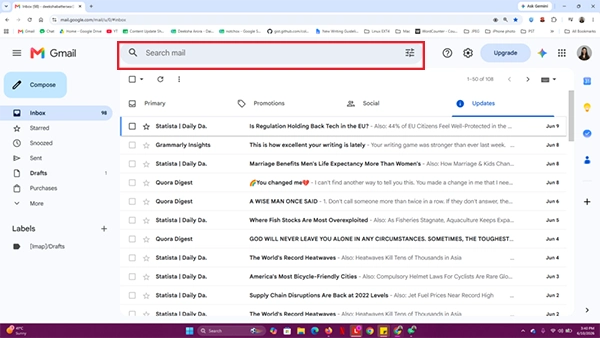
Step 2: Type the size command larger:10M to instantly list all emails bigger than 10 megabytes (you can change 10M to 5M or 20M depending on what you want to find).
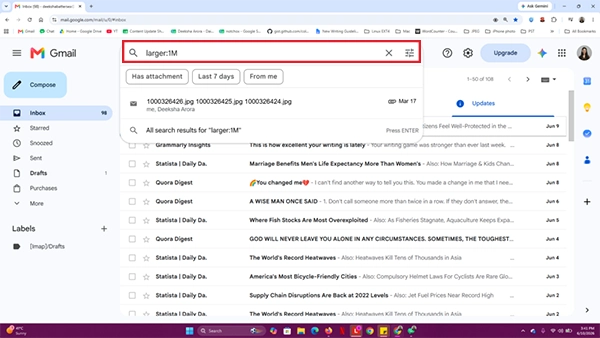
Step 3: Press Enter/Return to view your emails with heavy files.
Step 4: Click the master checkbox (☐) at the top left to select all the heavy files emails on that page.
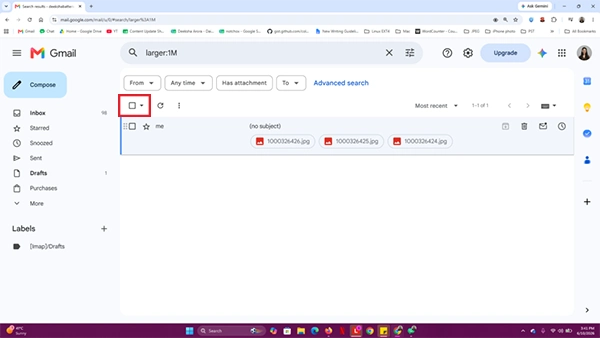
Step 5: Click the blue text link if you want to select every large email across all pages.
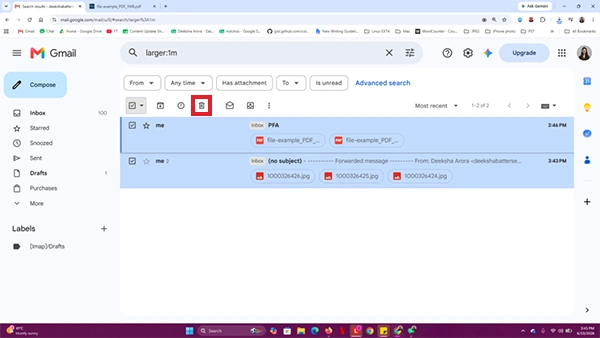
Step 6: Click the Trash icon (🗑) to delete all the selected emails and get back your Google storage space.
How to Permanently Delete Mass Gmail Emails?
So, when I moved all my junk emails to the trash, I noticed that the Google storage space did not change at all. This was because when I deleted the emails, Gmail moved the deleted emails to the Trash folder for 30 days. To actually get my storage back, I had to delete them from the Trash, too. Here is how I did it.
Method 1: Empty the Gmail Trash Bin
This is the final step. The trash bin holds every single email I selected from the earlier steps. Until you empty this bin, those emails still count against your 15 GB Google storage limit.
How to mass delete emails on Gmail permanently from the trash?
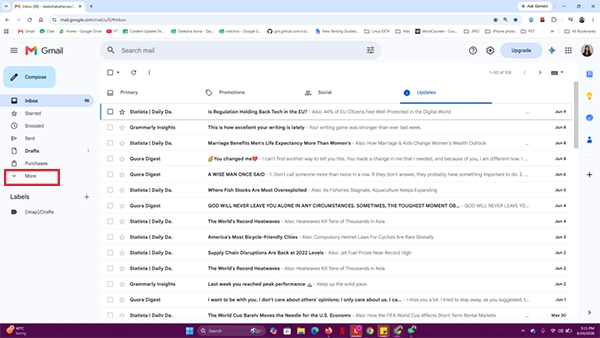
Step 1: Look at the left sidebar, click More.
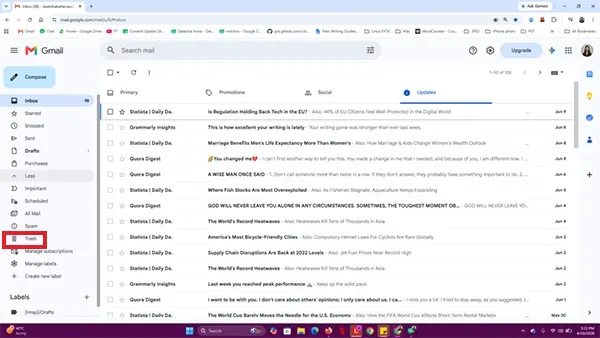
Step 2: Select the Trash (🗑) folder.
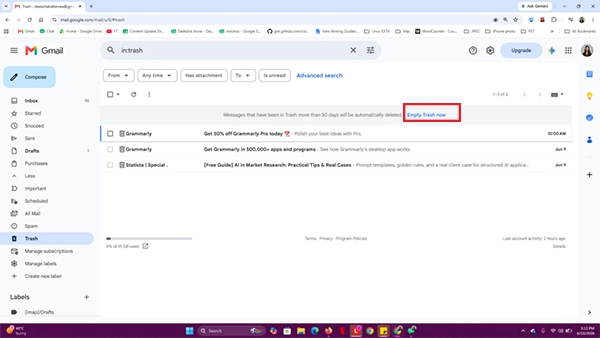
Step 3: At the very top of your email list, there will be a gray bar. Click the link that says “Empty Trash now.”
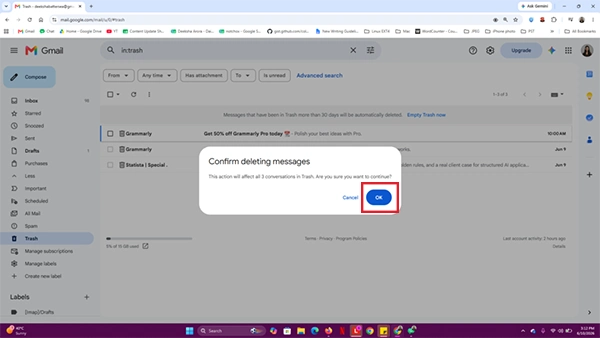
Step 4: Click OK when the warning box pops up to permanently erase those emails forever.
Remember: Messages that have been in Trash for more than 30 days will be automatically deleted.
Method 2: Clear the Gmail Spam Folder
It’s optional to clear the spam folder, which is a separate hidden folder that catches sketchy advertisements, phishing attempts, and such fraudulent emails, because Gmail clears it automatically after a month.
According to Kaspersky’s Securelist, 44.99% of all emails sent worldwide are spam, meaning nearly half of your incoming mail volume is junk. Keeping this folder empty is also a smart habit to prevent data loss from email hackers who try to trick you with fake messages.
If you wish to delete them yourself, here’s how to delete Gmail emails in bulk from the Spam folder:
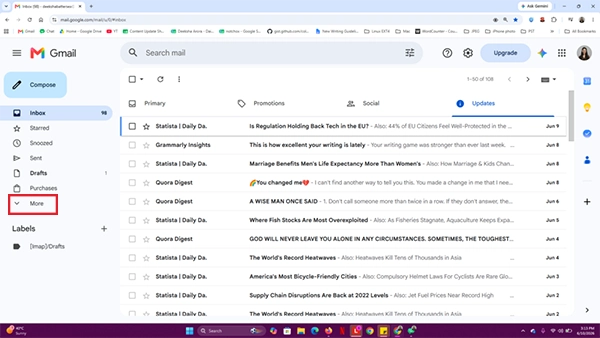
Step 1: On the left side bar, click More to open up the hidden folders.
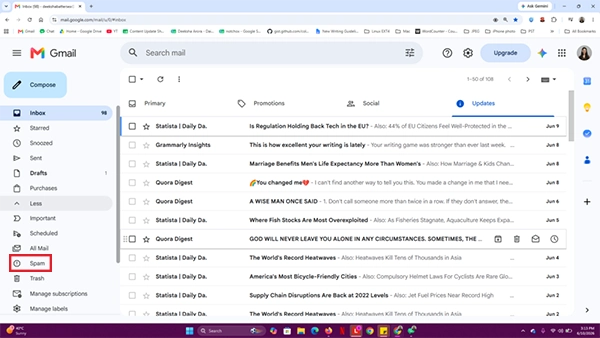
Step 2: Click on the Spam folder.
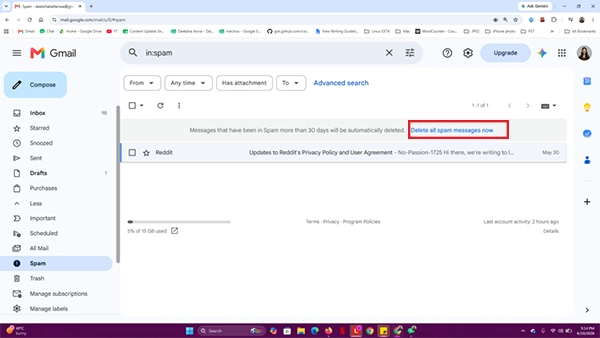
Step 3: Click the clear text link at the top that says “Delete all spam messages now.”
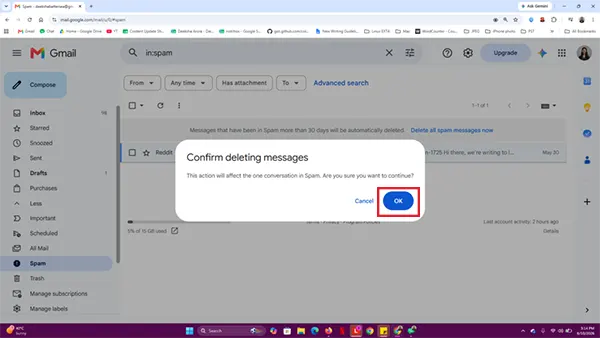
Step 4: Click OK to confirm and wipe the folder completely clean.
How to Delete Multiple Emails in Gmail on Phone?
I always prefer to use my laptop to handle heavy inbox cleaning because the screen is too small. The Gmail app does have a bulk selection tool that makes deleting emails so much faster. If you hold an email’s profile icon, a “Select All” option appears at the top. As you scroll down and more messages load, you can just tap it again to check the new ones too, and then delete all at once.
Pro-Tip: In the Gmail mobile app, settings, customize your swipe gestures to send any message straight to trash with one quick finger swipe.
To mass delete Gmail emails in mobile, you do not have to tap every single message one by one. By activating the selection menu, you can select entire batches of emails as you scroll through your app.
Step 1: Open the Gmail app on your Android phone.
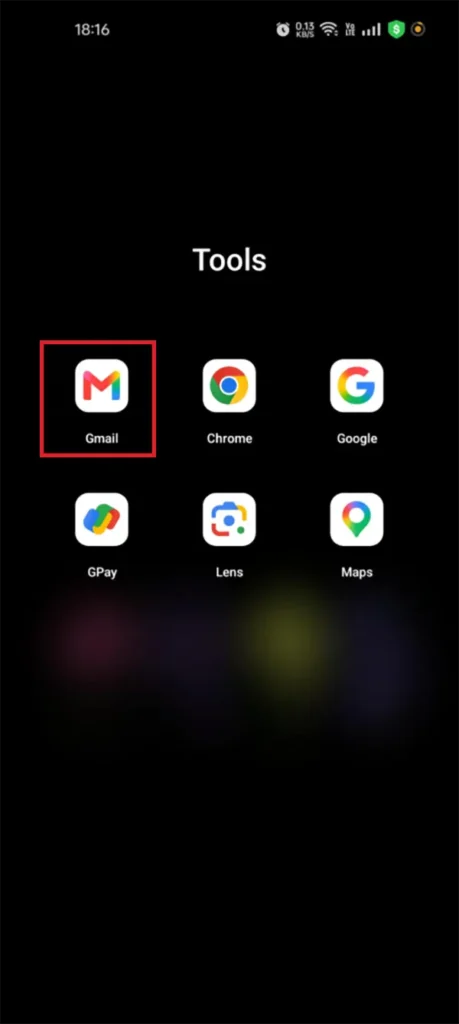
Step 2: Tap and hold the circular profile icon next to the first email you want to delete.
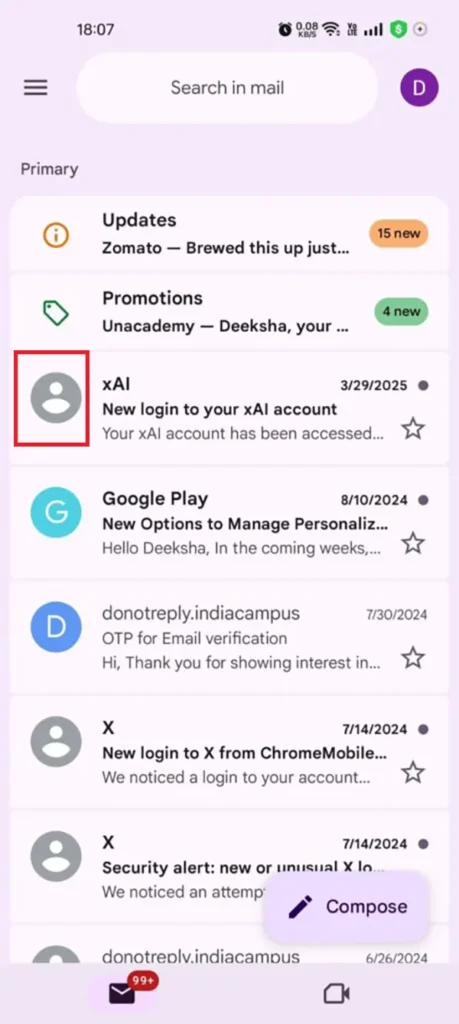
Step 3: Tap the “Select all” checkbox that appears at the top of your screen.
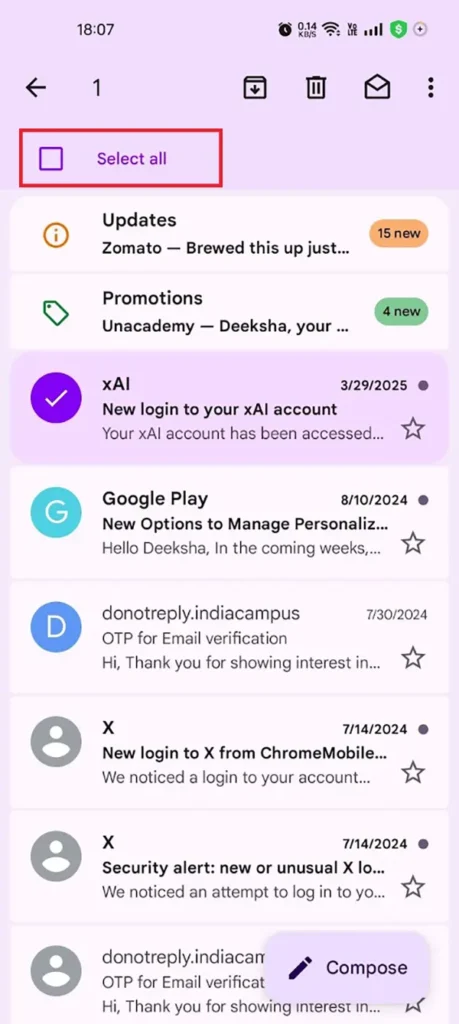
Step 4: Scroll down to the page to let more emails load onto your screen.
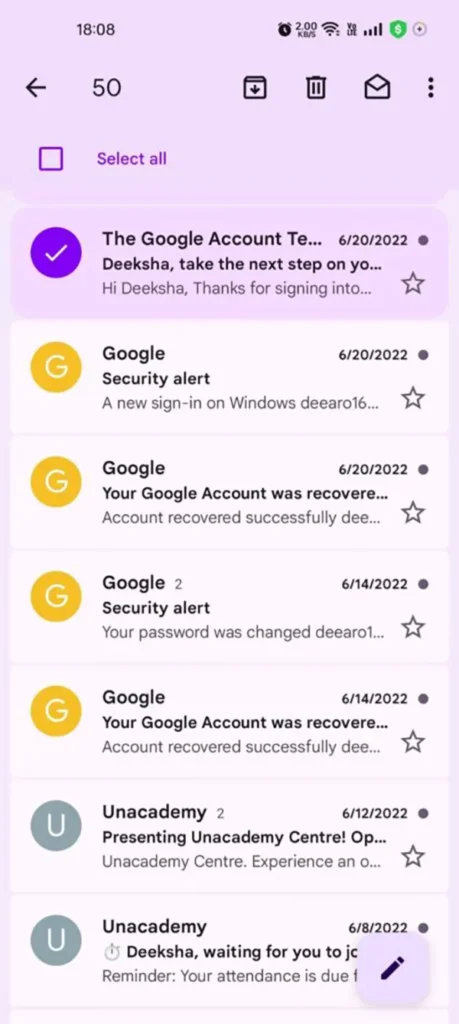
Step 5: Tap “Select all” again to check the newly loaded, unchecked emails.
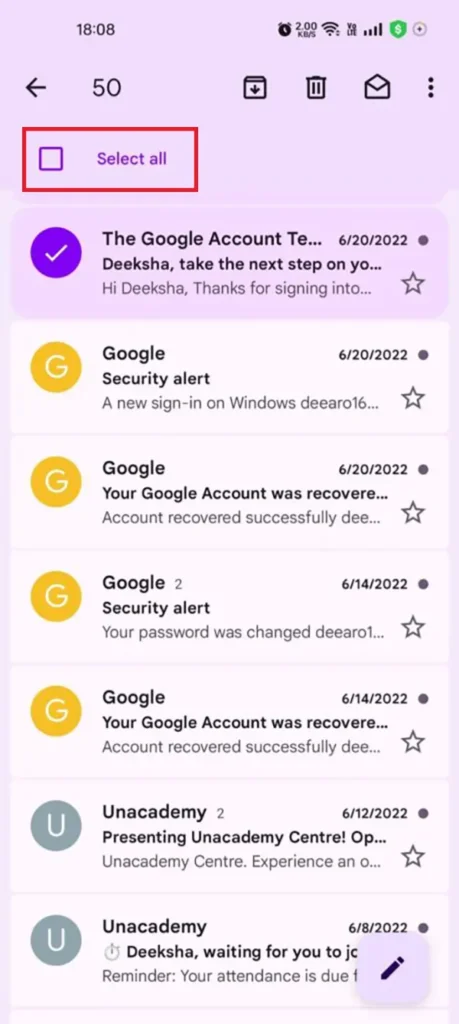
Step 6: Tap the Trash icon (🗑) at the top to delete them all.

Now It’s Your Turn
Now you know exactly how to mass delete emails on Gmail. The tools are already sitting right there in your Gmail account, and they take less than two minutes to use. Open your email tab, try out these steps, and yeah, you have successfully cleared your unwanted emails.
Frequently Asked Questions (FAQs)
Frequently Asked Questions
How to quickly delete emails in Gmail?
How to delete large amounts of emails in Gmail?
Ans. You can use search filters to group mass amounts of emails at once. Type a quick filter like is:read or older_than:1y into the search bar. Then, click the master checkbox (☐) and click “Select all conversations.” Click the Trash icon(🗑) to delete all the selected emails in Gmail.
How do I delete 50,000 emails at once?
Ans. Click the master checkbox (☐) to select the first 50 emails. Then click on the blue text link that says “Select all 50,000 conversations in Primary.” Click the Trash icon(🗑) to delete them all at once.
How long do old emails stay in Gmail?
Ans. Emails stay in your inbox forever unless you manually delete them. The emails in the Trash or Spam folder stay there for 30 days only.
Why is my Gmail storage still full after deleting emails?
Ans. Your storage stays full because deleted messages stay inside your Trash folder for 30 days. To clear your space right away, click on your Trash folder in the sidebar and select “Empty Trash now.”
How do I select all emails in Gmail to delete?
Ans. Click the master checkbox (☐) at the top-left of your computer screen to highlight the first 50 messages. Then, click the blue text link above your list that says “Select all conversations” to select all emails in Gmail to delete.
How to delete all unread emails at once?
Ans. To delete all unread emails at once:
- Type is: read into the top search bar and press Enter/Return.
- Click the master checkbox (☐) and click the link to select all matching conversations.
- Click the Trash icon (🗑) to delete all unread emails at once.
Related Posts
Search Console Forgets Everything After 16 Months: How to Back Up Your SEO Data
After completing the period of 16 months, all the data and access are deleted from Google Search Console’s database. After…

Why Digital Transformation Projects Stall: A Resourcing Playbook for Project Managers
Digital transformation projects are on the rise at this time. From government-backed initiatives to enterprise cloud adoption and AI integration.…
How Email Hosting Providers Store and Protect Business Data
Where does your business email go when you click the send button? The impression is that the email just goes…

Best CI/CD Platforms for Coding Agents and AI-Native Development
CI/CD has changed its job because coding agents now write a growing share of the changes that reach a repository.…

Mavlers Agency on Why Global Agencies Are Turning to Offshore SEO Teams
An offshore SEO team in India is becoming more and more an option for great profit for global agencies; it’s…

How to Change Signature in Outlook: A Complete Guide
How do you change signature in Outlook? It sounds simple until you realize that the steps vary across Windows, Mac,…

Best 7 AI Development Companies for Data AI Solutions for Your Project: Guide for…
Buying model work before the data work is the most expensive order to do it in. The pilot shows well,…

Top Software Development Companies Backed by GoodFirms Reviews
In September 2026, GoodFirms listed 853 software development companies in California. The group had a median hourly rate of $37,…

What Is a Blockchain Explorer? How to Track Crypto Transactions
A blockchain explorer is a searchable interface for viewing data recorded on a public blockchain. You can look up a…