


Ans. iMessage may be waiting for activation because your iPhone cannot complete phone number verification. Common causes include network problems, SMS restrictions, incorrect date or time zone settings, outdated iOS, or carrier verification delays.
iMessage Activation Error: Causes and How to Fix It
Seeing an iMessage activation error can be confusing, especially when your device keeps showing Waiting for Activation in iMessage without explaining why.
The problem can be caused by a network issue, incorrect date and time, SMS restrictions, carrier verification, or a SIM configuration issue. In this guide, I will explain the common causes of the error and walk you through the practical fixes to activate iMessage.
What Causes iMessage Activation Error?
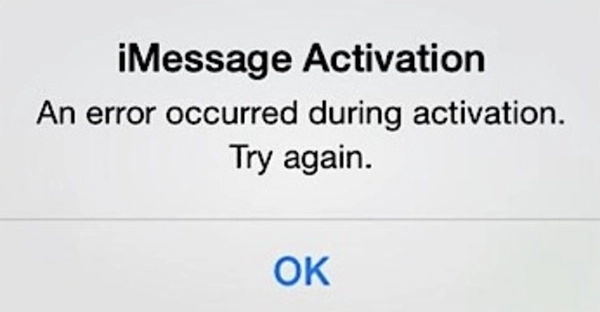
An “iMessage activation unsuccessful” error usually means your iPhone cannot complete the verification required to activate your phone number with Apple. You may see messages such as “Waiting for activation iMessage”, “iMessage waiting to activate”, or “An error occurred during activation”.
Common causes include:
- No Internet Connection: iMessage requires a working Wi-Fi or mobile data connection during activation.
- SMS Activation Problems: Your carrier must allow SMS because Apple uses SMS to activate your phone number. The activation SMS may incur a charge.
- Incorrect Date or Time Zone: Incorrect settings can interfere with activation.
- Outdated iOS: Apple recommends updating your iPhone before troubleshooting activation.
- Carrier Verification Delay: Phone number verification can take up to 24 hours.
- Apple Service Issues: A temporary Apple service outage can also cause the “iMessage activation failed” issue.
The error message alone may not tell you which problem, so check these requirements before repeatedly turning iMessage on and off.
How to Fix iMessage Activation Error?
Try these fixes (in order) to resolve the waiting activation on iMessage error. Once your phone number is activated, you can stop.
1. Check Your Internet and Cellular Connection
Make sure your iPhone has a reliable Wi-Fi or mobile data connection. Also check that your cellular service is working and that your SIM or eSIM can send and receive SMS messages.
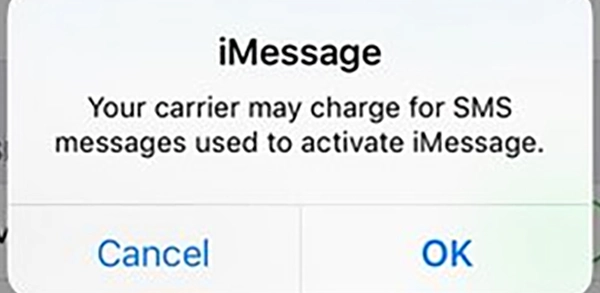
If your carrier warns that an SMS used to activate iMessage and FaceTime may incur a charge, just allow it.
2. Check the Date and Time
An incorrect time zone can interfere and trigger the iMessage waiting activation problem.
- Open Settings.
- Go to General > Date & Time.
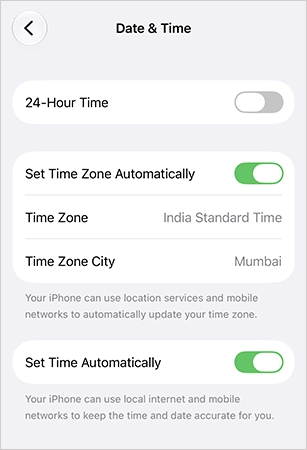
Now, just make sure the date, time, and time zone are correct for your location.
3. Update Your iPhone
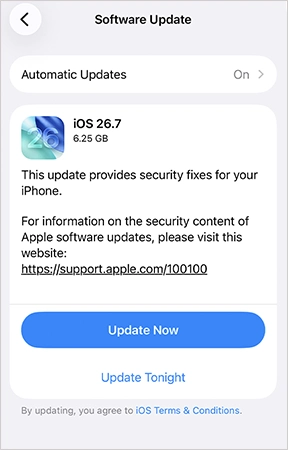
Apple recommends using the latest available version of iOS when troubleshooting waiting for activation for iMessage. Just go to Settings > General > Software Update. Install any available update, then try activating iMessage again.
4. Turn iMessage and FaceTime Off and Restart iPhone
Restarting the activation process can help if you are still waiting for iMessage activation.
- Open Settings > Apps > Messages.
- Turn off iMessage.
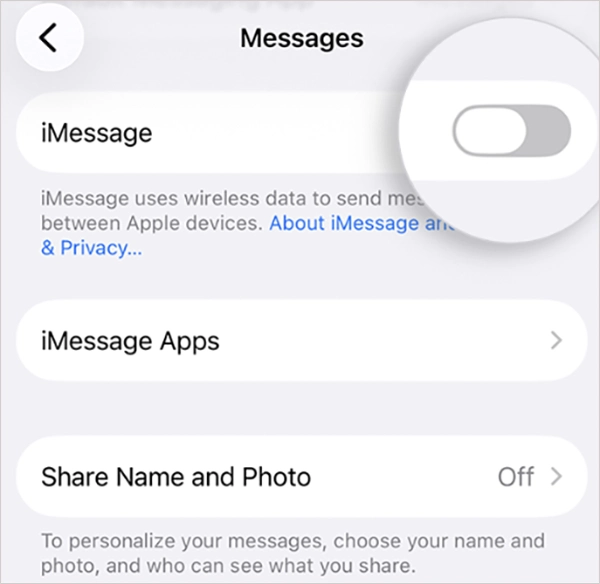
- Go back to Settings > Apps > FaceTime and turn off FaceTime.
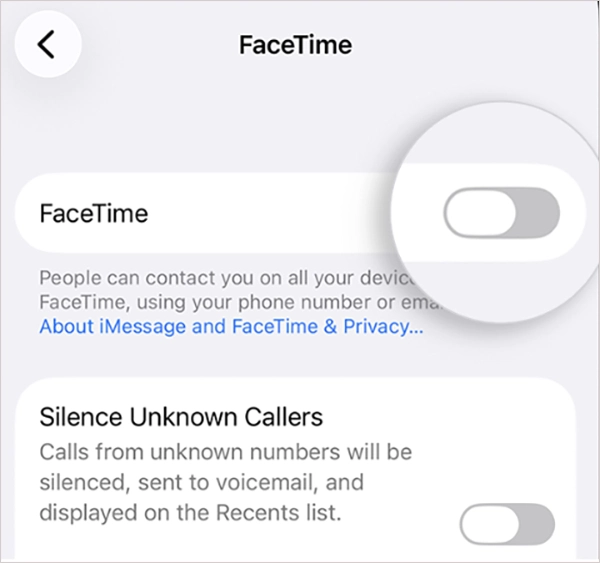
- Now, restart your iPhone.
- Turn iMessage and FaceTime back on.
If a spinning gear appears next to your phone number, let the iPhone continue verifying it. You don’t need to repeatedly turn iMessage off and on.
5. Check Your iMessage Send & Receive Settings
Once iMessage is enabled, check whether your phone number is selected in the settings.
- Open iPhone Settings.
- Go to Apps > Messages > Send & Receive.
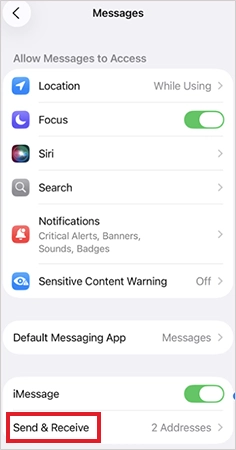
- Make sure your phone number appears and is selected.
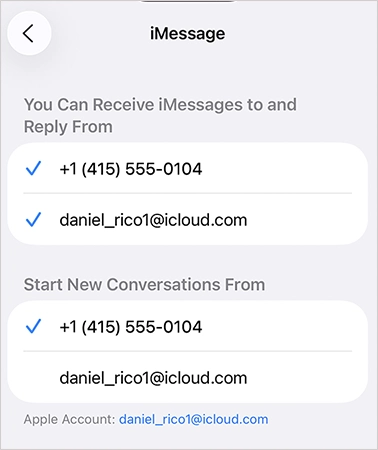
You can also select your Apple Account email address if you want to use iMessage with your email.
6. Check for a Duplicate or Inactive SIM
This is a special fix if the iMessage not working problem started after updating to iOS 26.
Apple says an inactive SIM with the same phone number as your active SIM can prevent iMessage from activating. You may also see the same number twice under Send & Receive, messages from your email address, or green SMS/RCS messages instead of iMessages.
Apple recommends updating to iOS 26.1 or later. You can also remove the inactive SIM:
- Go to Settings > Mobile Data.
- If two SIMs with the same number appear, identify the inactive one.
Remove the physical SIM or delete the inactive eSIM.
Now, you can go back to Send & Receive settings and tap your phone number to activate iMessage.
7. Check Apple’s System Status
If everything looks correct on your iPhone, check whether Apple is experiencing a service outage.
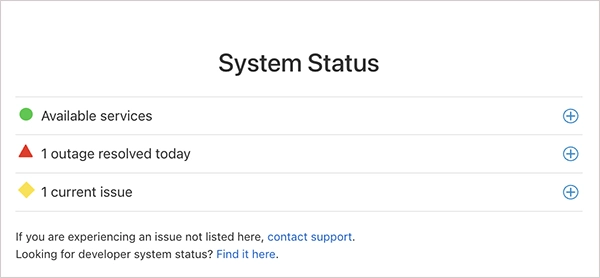
Apple’s System Status page shows the current availability of its services, including iMessage. If iMessage is experiencing an outage, you may need to wait until the service is restored.
8. Try Apple’s Online Activation
If your iPhone still won’t activate iMessage, Apple provides an online activation option.
- Go to Apple’s iMessage and FaceTime activation page.
- Select Get Started under Enable Apple Account, and sign in.
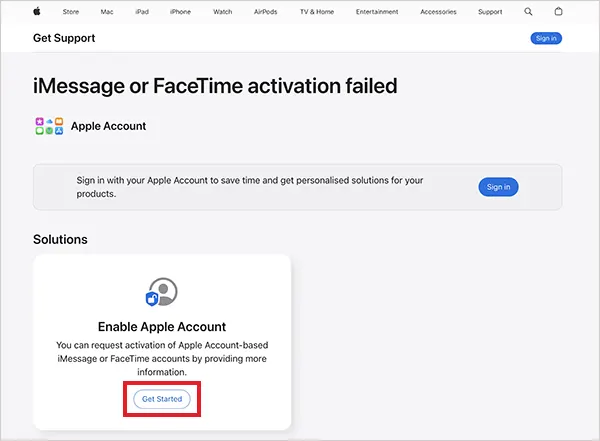
- Enter your phone number when prompted.
Apple will send an email if your account is ready to use with iMessage and FaceTime.
What to Do If iMessage Still Won’t Activate?
If iMessage still won’t activate after trying the basic fixes, the issue may involve carrier verification, your SIM, or your Apple Account. Here’s what you can try:
- Wait Up to 24 Hours: Apple says phone number verification can take up to 24 hours. If your number still has no check mark inside Send & Receive settings, contact your carrier and confirm that your line can send and receive international SMS messages.
- Use Your Email Address Temporarily: You can use iMessage with your Apple Account email while your phone number is verified.
- Contact Your Carrier or Apple: If activation still fails after 24 hours, contact your carrier, especially if SMS activation is not working. If your cellular service is fine, contact Apple Support for further help.
Final Thoughts
An iMessage activation error does not necessarily mean something is wrong with your iPhone. Activation depends on your internet connection, SMS service, Apple Account, and carrier verification.
Start with the basic checks, then restart iMessage and allow enough time for carrier verification. If your number remains unverified after 24 hours, contact your carrier or Apple Support instead of repeatedly resetting iMessage.
Frequently Asked Questions
Why is iMessage waiting for activation?
How do I fix waiting for activation in iMessage?
Ans. Check your internet and SMS service, verify your date and time zone, update iOS, then turn off iMessage and FaceTime, restart your iPhone, and turn them back on. If the issue continues, check your SIM configuration and allow up to 24 hours for verification.
How long does iMessage activation take?
Ans. Apple says carrier verification can take up to 24 hours. If your number still is not verified after 24 hours, contact your carrier and explain your issue.
How do I force iMessage to activate?
Ans. There is no separate force-activation option. You can restart the activation process by turning off iMessage and FaceTime, restarting your iPhone, and turning both services back on.
Can I use iMessage without activating my phone number?
Ans. Yes, you can use your Apple Account email address with iMessage instead of your phone number.
Related Posts
![How to Format a Disk Using CMD in Windows [CMD Format Disk Guide]](https://datarecovee.com/knowledge-base/wp-content/uploads/2026/10/cmd-format-disk-ftd-img.webp)
How to Format a Disk Using CMD in Windows [CMD Format Disk Guide]
Formatting a disk using Command Prompt is useful when you need more control than File Explorer provides. Windows includes both…