


Ans. Yes, you can format a drive using the format command for an existing volume, or DiskPart when you need more control.
How to Format a Disk Using CMD in Windows [CMD Format Disk Guide]
Formatting a disk using Command Prompt is useful when you need more control than File Explorer provides. Windows includes both the CMD format disk command and DiskPart, but they serve different purposes.
The format command works well when the volume already exists, while DiskPart can manage the disk, partitions, and volumes before formatting. Here, I will explain which disk format command to use, how the process works, and what to check before you erase anything.
Quick Answer: How to Format a Drive in CMD?
- To format an existing drive in CMD, open Command Prompt as administrator and run: format E: /fs:ntfs /q. Replace E: with the correct drive letter.
- For a complete disk reinitialization, use DiskPart to select the disk, run clean, create a new partition, and format it.
What to Know Before You Format a Disk via CMD?
CMD disk formatting removes the existing file-system structure and can make the data on the selected volume inaccessible. Before running any command to format disks:
- Back Up Important Files: Formatting can make existing data inaccessible.
- Identify the Correct Disk: Run list disk and compare the disk numbers and capacities carefully before using select disk.
- Use an Elevated Command Prompt: DiskPart command formatting and normal formatting operations require administrator privileges.
- Choose the Right File System: NTFS is commonly used for Windows-only storage, while exFAT is useful when you need broader compatibility.
- Understand the Clean Command: DiskPart’s clean command goes further by removing partitions or formatting the volume on the selected disk. “clean all” is much more intensive because it writes zeros to every sector.
Warning: Never run “clean” until you have confirmed that the selected disk is the one you intend to erase. DiskPart commands act on the object currently in focus, so selecting the wrong disk can result in data loss.
How to Format a Disk in CMD?
For a complete disk reinitialization, DiskPart allows you to identify the disk, remove its existing partition information, create a new partition, and format it. Microsoft recommends this general workflow for disk preparation.
Here’s how you should format using CMD:
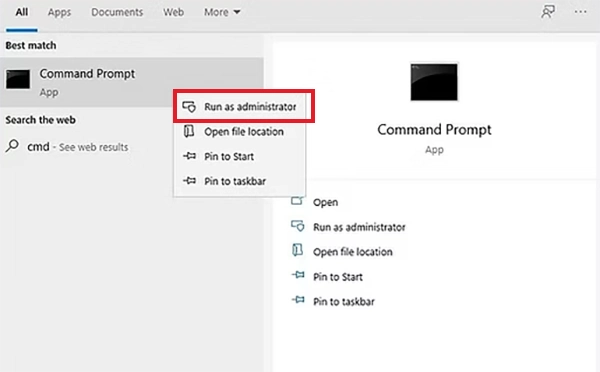
- Search for Command Prompt in Windows, right-click it, and select Run as administrator.
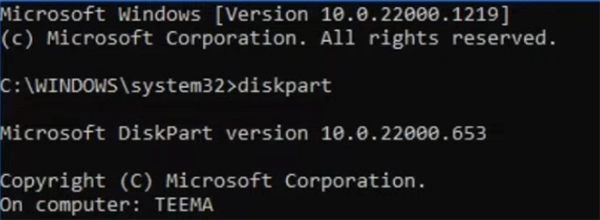
- Then type diskpart and press Enter.
- Run “list disk”.
Windows will display the connected disks and their sizes. Use the capacity to identify the disk you want to format through CMD.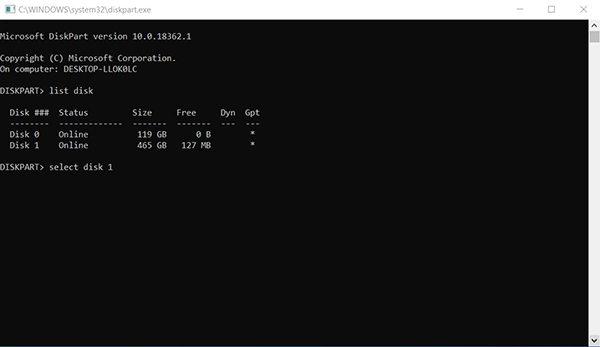
- Identify your disk and enter “select disk X”. Replace X with the correct disk number. For example: select disk 1.
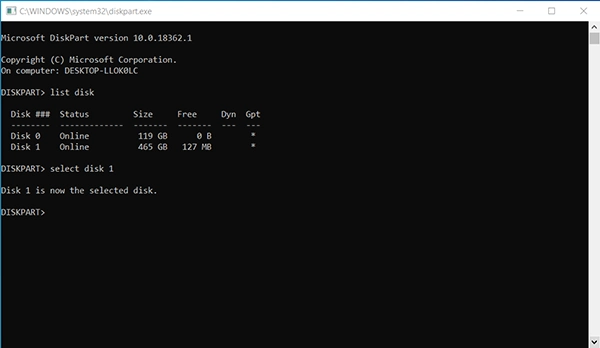
- Double-check the selected disk before continuing.
- If you want to reinitialize the entire selected disk, run “clean”.
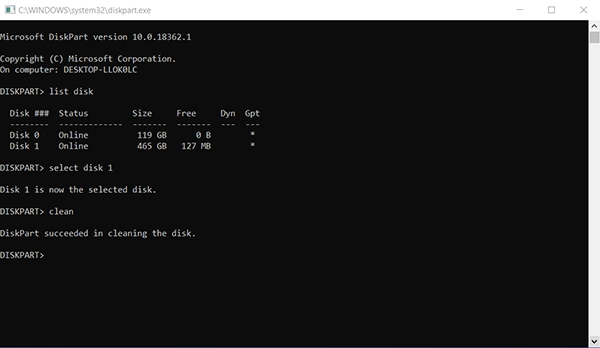
This removes the disk’s existing partition or volume formatting. It does not overwrite every sector.
- Next, run “create partition primary” to create a primary partition using the available space on the selected disk.
- For NTFS, use: “format fs=ntfs label=Backup quick”. This quick option performs a quick format rather than a full sector-by-sector scan for bad areas.
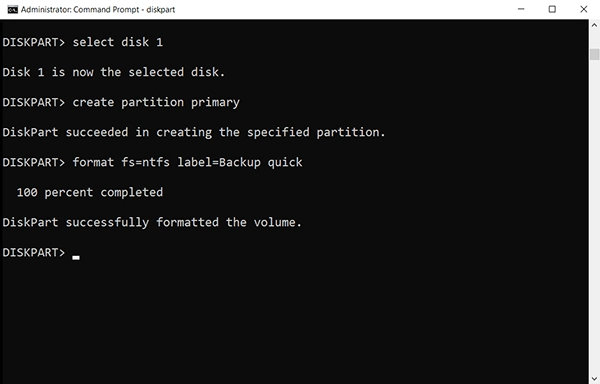
- Finally, type “assign” to assign a drive letter, and then “exit” to close DiskPart.
So, that’s how you format a drive with Command Prompt. However, you do not always need DiskPart. If the partition already exists and you only want to format that volume, you can use the standalone CMD format drive command.
format E: /fs:ntfs /q
Here, “E:” is the existing volume, “/fs:ntfs” selects NTFS, and “/q” performs a quick format.
The distinction is simple. Use Format when the volume already exists; use DiskPart when you need to manage the disk or its partitions before formatting.
How to Fix Common CMD Format Disk Errors?
Using Command Prompt for formatting can fail because of incorrect disk selection, insufficient permissions, a volume being in use, or a problem with the disk itself. Here’s what you can do to fix these common errors:
- Access is Denied: Make sure you opened Command Prompt as an administrator. Formatting a hard drive requires administrator privileges.
- The Volume is in Use: Close applications that may be using the drive and try again to format the hard drive using the command line. The Format command also supports “/X”, which forces the volume to dismount before formatting.
- Format Fails, or the Disk is Not Detected: Check whether Windows detects the disk in Disk Management. “List disk” command helps with this.
If the disk does not appear there either, the problem may be related to the cable, enclosure, controller, connection, or hardware rather than the formatting command.
Conclusion
CMD gives you more control over disk formatting than File Explorer. If you only need to format an existing volume, the Format command is usually enough. If you need to remove existing partition information and create a new partition, DiskPart provides the necessary tools.
Before running any destructive command, especially “clean”, verify the disk number and capacity carefully. A few seconds spent checking the target can prevent accidental data loss.
Frequently Asked Questions
Can I format a drive in Command Prompt?
What is the CMD format disk command in Windows?
Ans. For an existing volume, you can use “format E: /fs:ntfs /q”. For a complete disk setup, enter DiskPart and use commands such as “select disk”, “clean”, “create partition primary”, and “format”.
What is the difference between Format and DiskPart?
Ans. The format command erases an existing volume and allows you to specify options such as the file system and quick format. DiskPart is a broader disk-management utility that can select disks, remove partition information, create partitions, and format them.
Does formatting a drive permanently erase all data?
Ans. A quick format primarily creates a new file system structure, which can leave previous data recoverable with specialized tools. DiskPart’s clean all command is different because it writes zeros to every sector.
Can I format the C: drive from Command Prompt?
Ans. You generally cannot format the active Windows C: volume from the running installation because Windows is using it. To format or reinitialize the system drive, you typically need to boot into Windows Setup or another recovery environment.
Related Posts

iMessage Activation Error: Causes and How to Fix It
Seeing an iMessage activation error can be confusing, especially when your device keeps showing Waiting for Activation in iMessage without…