


MBR2GPT is a Microsoft tool that converts a Windows system disk from MBR to GPT without deleting its existing partitions and data.
How to Convert MBR to GPT Without Data Loss in Windows?
You don’t need to wipe your Windows drive just to change its partition style. Microsoft’s MBR2GPT Windows 10/11 tool can convert a supported system disk from MBR to GPT while keeping your existing partitions and data.
There is one important catch: the disk must meet specific requirements, and you will need to switch your firmware from Legacy BIOS to UEFI after the conversion. This guide explains when to execute MBR to GPT convert, and how to do it safely.
Quick Answer: How to Change from MBR to GPT?
- Check whether your Windows system disk uses MBR and your PC supports UEFI.
- Back up your important files before making changes.
- Open Command Prompt as administrator and run “mbr2gpt /validate /allowFullOS”.
- Then, run “mbr2gpt /convert /allowFullOS”.
- Restart your PC and switch the firmware from Legacy/CSM to UEFI. Use msinfo32 to confirm that BIOS Mode shows UEFI.
When Should You Convert MBR to GPT?
You should consider converting MBR to GPT in Windows 10/11 when your OS installation currently uses Legacy BIOS mode, but your computer supports UEFI.
GPT (GUID Partition Table) is designed for UEFI-based systems, so you will typically use the two together. Converting can also make sense if you are preparing an existing Windows installation for a setup that requires UEFI and GPT.
GPT also removes some of the limitations associated with MBR (Master Boot Record), including its traditional limit of four primary partitions and restrictions on large disks. However, there is no reason to convert a disk to GPT simply because it is newer. If your Windows system already uses GPT and UEFI, you can leave it as it is.
How to Check Whether Your Disk Uses MBR or GPT?
You can check your disk’s partition style without making any changes to it. Windows gives you two simple ways to do this.
Using Disk Management
- Press Windows + X and select Disk Management.
- Find the disk containing your Windows installation.
- Right-click the disk label on the left, such as Disk 0.
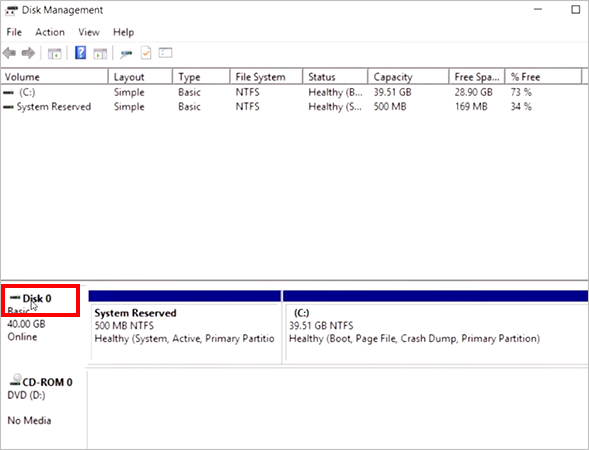
- Select Properties, open the Volumes tab, and check Partition style.
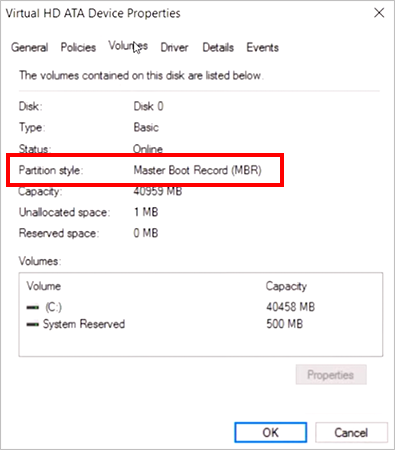
Windows will show either Master Boot Record (MBR) or GUID Partition Table (GPT).
You should also check your current BIOS version:
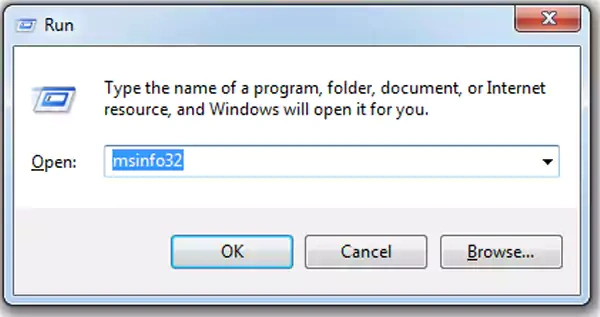
- Press Windows + R.
- Type msinfo32 and press Enter.
- In System Information, find BIOS Mode.
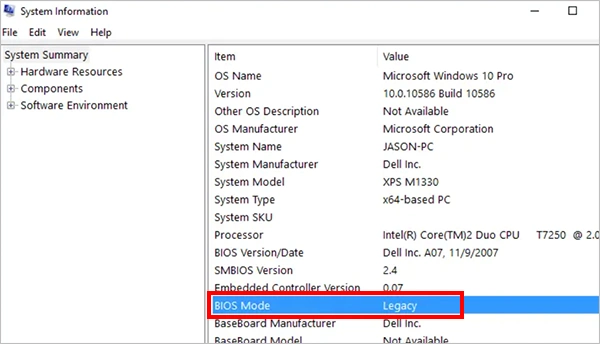
If it shows Legacy, your PC is using the older BIOS compatibility mode. If it shows UEFI, your firmware is already configured for UEFI.
Using DiskPart
You can also check the partition style using DiskPart commands from Command Prompt:
- Open Command Prompt as administrator.
- Run:
diskpart
list disk - Look at the GPT column.
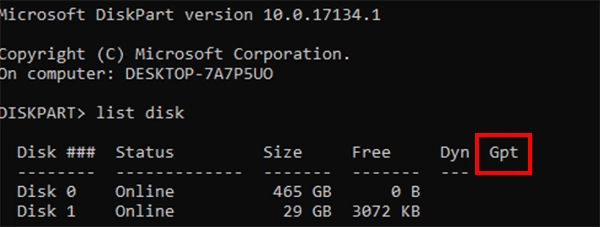
An asterisk (*) means the disk uses GPT. If the column is blank, the disk uses MBR.
Be careful when identifying the disk number. Disk 0, for example, is not always the disk you expect, especially if multiple drives are connected.
How to Convert MBR to GPT Without Losing Data?
For an existing Windows system disk, the MBR2GPT command is the appropriate way. It is designed to convert MBR to GPT cmd without deleting the existing partitions or their contents.
Even though MBR2GPT preserves data, it always backs up important files first. Power loss or hardware issues can still cause data loss. Here’s how to use MBR2GPT:
- Ensure the system disk meets these conditions:
- MBR disk with a maximum of 3 primary partitions
- Enough space for the EFI System Partition (ESP)
- Supported Windows version
- BitLocker suspended (if enabled)
If validation fails, do not proceed and try to fix the issue first.
- Next, open Command Prompt as an administrator.
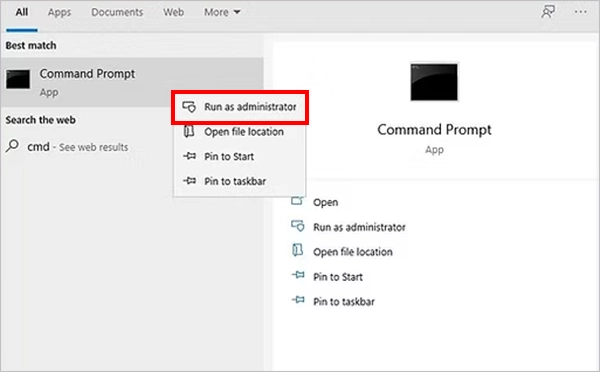
- Run: mbr2gpt /validate /allowFullOS

Or specify disk: mbr2gpt /validate /disk:0 /allowFullOS
Replace 0 with your disk number. This command validates the disk.
- Now, run:
mbr2gpt /convert /allowFullOS
Or
mbr2gpt /convert /disk:0 /allowFullOS
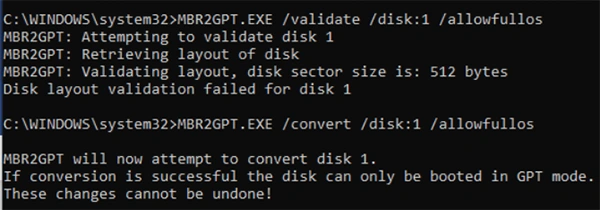
Wait for completion, and do not restart or shut down during the process.
- After conversion, you will need to restart and enter BIOS/firmware settings and switch to UEFI.
What to Do If the MBR2GPT Tool Fails?
If MBR2GPT fails validation, don’t immediately delete partitions or try random DiskPart commands. The failure usually means the disk layout does not meet one or more of the tool’s requirements.
Start by reading the error message returned by MBR2GPT. Then check the partition layout in Disk Management for issues such as:
- More than three primary partitions.
- Unsupported partition layout.
- Insufficient space for the required EFI System Partition.
- BitLocker protection that has not been suspended.
You can also use MBR2GPT’s log files for more detailed information. The tool supports the /logs option, which can help you investigate what went wrong.
If BitLocker is enabled, suspend protection before trying to change the disk from MBR to GPT again. Most importantly, do not repeatedly run the conversion command without understanding the failure.
If the partition layout needs to be changed, back up your important data first and make only the changes needed to address the repeated problem. If the disk can’t meet MBR2GPT’s requirements, stopping and using a different approach is safer than forcing the conversion.
Conclusion
Converting MBR to GPT does not have to mean wiping your Windows installation. For a supported Windows system disk, Microsoft’s MBR2GPT tool can make the conversion while preserving the existing partitions and their contents. Also, if validation fails, don’t force the conversion. Find the underlying disk-layout issue first and fix it before trying again.
Frequently Asked Questions
What is MBR2GPT?
How to change MBR to GPT?
For a supported Windows system disk, run mbr2gpt /validate /allowFullOS first. If validation succeeds, run mbr2gpt /convert /allowFullOS, then switch the firmware from Legacy BIOS to UEFI.
Can you convert a non-system disk from MBR to GPT?
MBR2GPT is designed for system disks. DiskPart can convert an empty disk to GPT, but its standard process requires deleting the existing partitions first.
What happens after converting MBR to GPT?
The disk uses GPT, and Windows is prepared to boot through UEFI. You must switch the firmware from BIOS to UEFI afterward.
How to switch from legacy BIOS to UEFI?
Restart your PC, open its firmware settings, and change the boot mode from Legacy or Legacy/CSM to UEFI. Then verify the change using msinfo32.
Related Posts

How to Fix DISM Error 87 in Windows?
DISM Error 87 usually appears when Windows cannot understand a DISM command or one of its parameters. You may see…

How to Restart Explorer.exe in Windows?
A frozen taskbar, missing desktop icons, or an unresponsive File Explorer can make Windows feel stuck even when your computer…
![How to Reopen Closed Tabs on Mac [Easy Ways to Restore Tabs]](https://datarecovee.com/knowledge-base/wp-content/uploads/2026/10/how-to-reopen-closed-tabs-ftd-img.webp)
How to Reopen Closed Tabs on Mac [Easy Ways to Restore Tabs]
Accidentally closing the wrong tab can be super annoying, especially when you were in the middle of something important. You…

What Is a .BAT file and How Do You Create One?
You may have seen a file ending in .bat and wondered why opening it brings up a Command Prompt window…

How to Disable Microsoft Edge in Windows? 4 Quick Methods
Microsoft Edge can feel difficult to “turn off” because several Windows and Edge settings control when it starts and what…

How to Open EXE Files on Mac: 5 Ways to Run Windows Apps
If you have downloaded a Windows .exe file on your Mac, double-clicking it won’t make it run. macOS does not…

How to Sign Out of iMessage on Mac?
Your Mac can quietly become another place where your private conversations appear. That’s convenient until you are using a shared…

What is Windows Fast Startup and How Does It Work?
Fast Startup can make your PC boot noticeably faster after a shutdown. Instead of completely rebuilding the Windows kernel state…

How to Unzip Files on Mac: 3 Easy Ways to Extract ZIP Files
A ZIP file has a funny way of making a simple task feel more complicated than it is. On a…